

A rebuilt Business Portal
A distributor sells Genus through resellers, a reseller sells to care organisations, and every Genus in use needs a subscription. Keeping track of who has which subscriptions, and which care organisation a Genus belongs to, is daily work for an account manager.
In June 2024 a rebuilt Business Portal went live, organised around exactly that chain. Each account sees its own part of it, and a subscription stays with the customer it belongs to. In July the subscription statuses were reworked, with new actions to release, pause and deactivate a subscription.
What’s new
- One structure. Distributor, reseller, customer and community, each with its own subscriptions and team members.
- Team members with the roles Admin and View only, and for resellers Deployer App only.
- Subscriptions are created per customer and agreement, many at once, and can be marked as demo subscriptions. New codes can be e-mailed to the reseller automatically.
- Five statuses (July): Unused, In use (grace period), In use, Paused and Expired, with the actions Release, Pause, Resume, Deactivate and Reactivate.
- A configuration per community: the Wi-Fi network, settings and starting photos that new Genus devices receive when they are set up with the Deployer app.
How the Business Portal is organised
Section titled “How the Business Portal is organised”| Level | What it holds | Blocks on its page |
|---|---|---|
| Distributor | Its resellers | Subscriptions, Team members, Agreements |
| Reseller | Its customers | Subscriptions, Team members, Agreements |
| Customer | Its communities | Subscriptions, Team members |
| Community | One care organisation in the Community Portal | Subscriptions, Configuration |
When you sign in, the portal opens at your own level. Noor Hendriks, account manager at Example Distribution, starts on her distributor’s page and can open every reseller, customer and community below it. An account at Example Reseller sees only that reseller’s customers, and an account at a customer only its own communities. Every list can be searched.
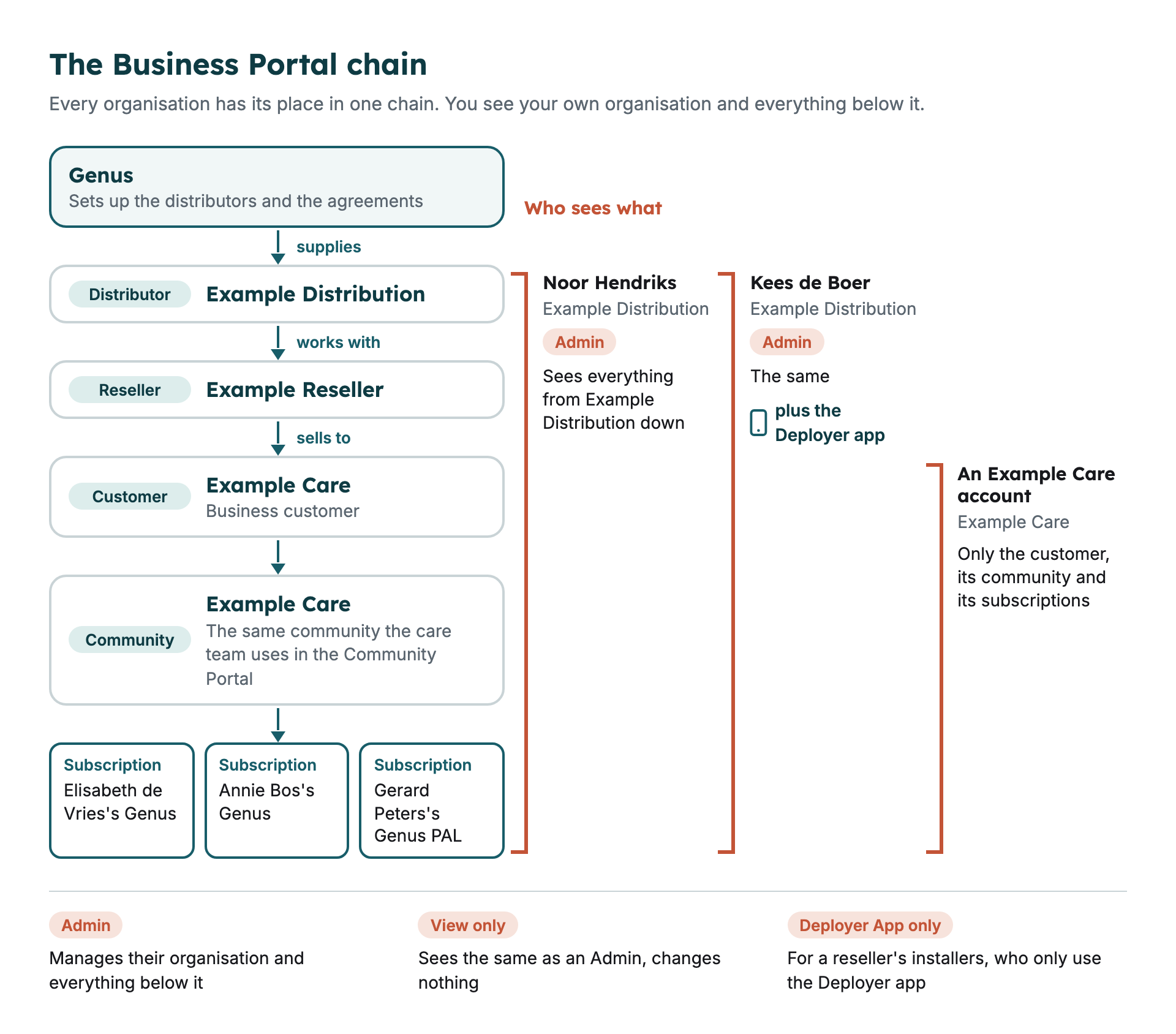
Who adds what:
- Genus adds distributors and agreements.
- A distributor’s Admins add resellers.
- Admins of a distributor or reseller add customers and communities. Add community also creates the care organisation in the Community Portal, with its name, its address and its first admin user.
An agreement is made between Genus and a reseller. Distributors and resellers find it under Agreements, with its start and end date, the monthly fee, the grace period in days, the included features and hardware and the warranty terms.
Team members
Section titled “Team members”Every level has Team members. An Admin adds a colleague with Add team member and chooses a role under Select a role:
| Role | For whom |
|---|---|
| Admin | Colleagues who manage this level and everything below it |
| View only | Colleagues who need to see the information but not change it |
| Deployer App only (resellers) | Installers who set up Genus devices with the Deployer app |
Subscriptions
Section titled “Subscriptions”Creating subscriptions
Section titled “Creating subscriptions”Admins of a distributor or reseller click New subscription. In Add subscription they fill in Choose a customer, Choose an agreement, Amount and Subscription type, and switch on Demo subscription if needed. The portal then creates the subscriptions, up to 500 at a time, each with its own licence code.
Connecting subscriptions to a community
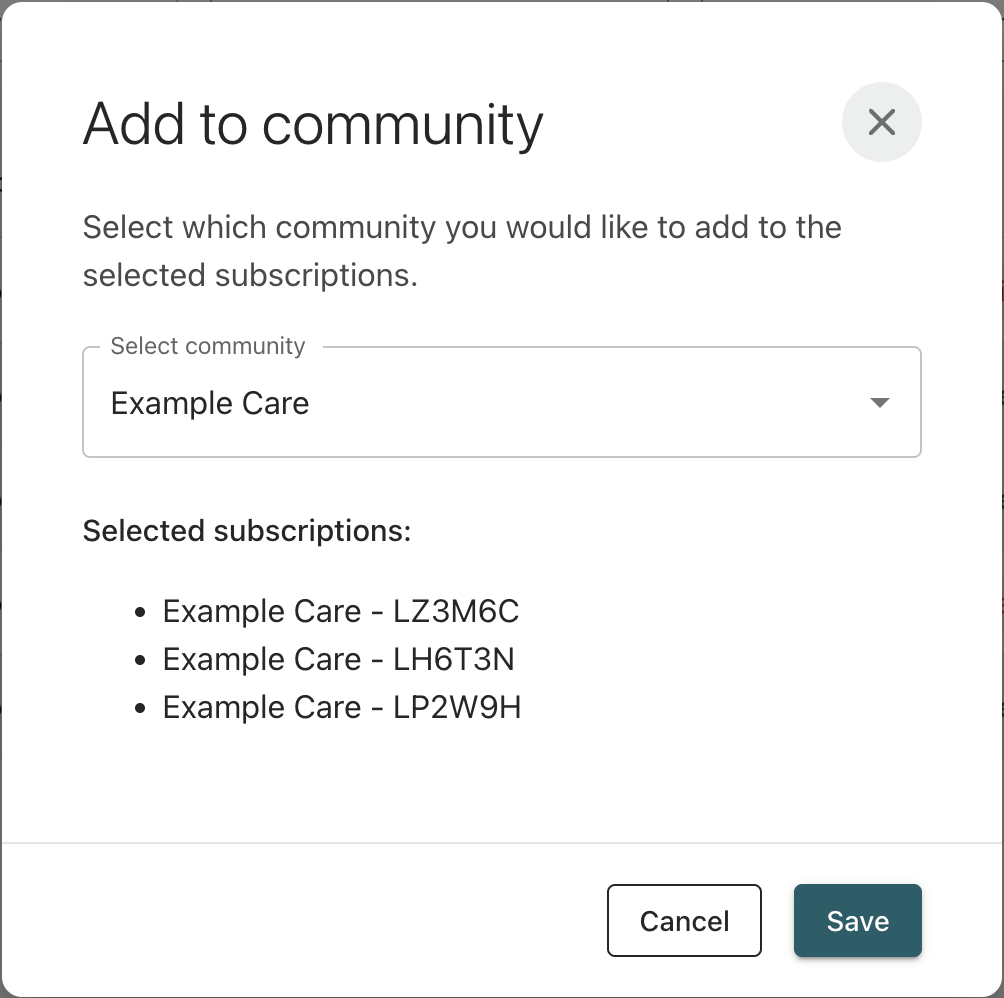
Section titled “Connecting subscriptions to a community”Open the customer and then Subscriptions. Tick the subscriptions, click Connect to community and choose the community under Select community. A Genus that already uses one of these subscriptions is added to that care organisation in the Community Portal straight away. A Genus that activates one later is added when it does.
The subscription page
Section titled “The subscription page”The list of subscriptions shows each one’s licence code, Support code, activation date, reseller, customer, community and status. The support code is the code the Genus shows as its Service code under MENU → Settings → Subscription, the code support asks for.
Each subscription also has its own page with all its details. Recently seen tells you whether its Genus has checked its licence recently.
Statuses and actions (July)
Section titled “Statuses and actions (July)”Since July 2024 every subscription has one of five statuses:
| Status | Meaning |
|---|---|
| Unused | No Genus uses the subscription. |
| In use (grace period) | A Genus uses it, and it is still within the grace period of its agreement, counted from the day a Genus first activated it. |
| In use | A Genus uses it and the grace period is over. |
| Paused | Someone paused it; see below. |
| Expired | It was deactivated, or its end date has passed. |
Changes that depend on a date show by the next day. Filter by status above the list shows, for example, only the paused subscriptions.
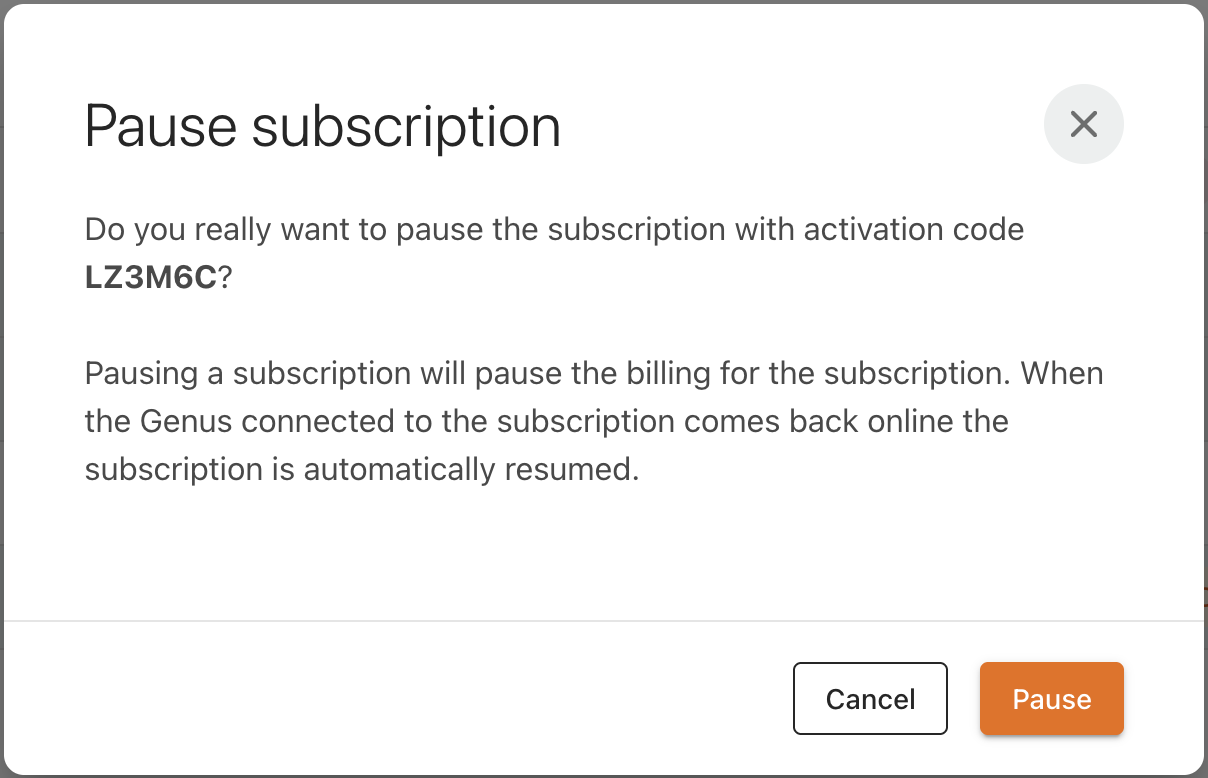
The actions are in the menu of each row and on the subscription page. Each one asks for confirmation and shows the licence code in bold.
| Action | Offered when | What it does |
|---|---|---|
| Release | A Genus uses the subscription | Unlinks the Genus, so the subscription can be used on another Genus. It becomes Unused. |
| Pause | Unused or in use | Pauses the subscription; see below. |
| Resume | Paused | Ends the pause. |
| Deactivate | Not expired | Expires the subscription. It can no longer be used on a Genus. |
| Reactivate | Expired | Makes the subscription usable again: Unused, or In use if a Genus is still linked. |
Release, Pause and Resume are for Admins of a distributor, reseller or customer. Deactivate and Reactivate are for distributors.
What the client notices after Deactivate
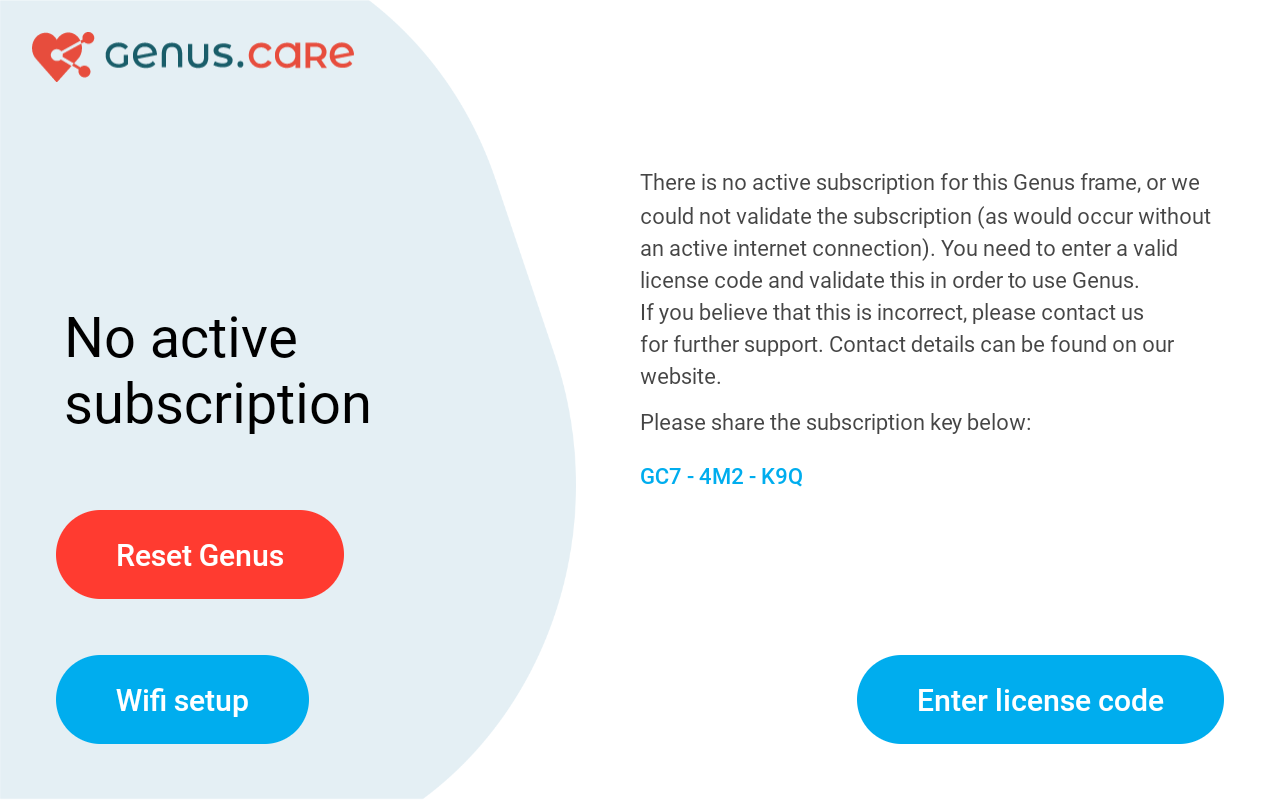
Section titled “What the client notices after Deactivate”By the next day after a deactivation, the Genus shows No active subscription and asks for a new licence code with Enter license code. Until a valid code is entered, pressing the contact button only shows Cannot send assist request, the subscription is not active.
Pausing a subscription
Section titled “Pausing a subscription”A care organisation may keep spare Genus devices in stock, switched off. Pause is meant for their subscriptions. The confirmation says what it does: Pausing a subscription will pause the billing for the subscription. When the Genus connected to the subscription comes back online the subscription is automatically resumed.
Resume does the same by hand: Resuming a subscription will resume the billing for the subscription.
A configuration for setting up Genus devices
Section titled “A configuration for setting up Genus devices”Setting up a Genus by hand means choosing the language, the Wi-Fi network and the settings on every device. A community’s Configuration holds these once, for every Genus that is set up for that care organisation with the Deployer app:
- Setup your Wi-Fi network: Wi-Fi network SSID (name) and Wi-Fi network password;
- Genus device settings: the clock (No clock, Small clock or Big clock), the slideshow interval (Off, 5 minutes, 30 minutes, 1 hour or 1 day), the language (Nederlands, English, Français, Deutsch or Dansk), and the Notification volume and Call volume from 10 to 100%;
- Choose standard slideshow photos: up to ten starting photos for the slideshow.
Click Save configuration. Admins of the distributor, reseller or customer can change the configuration.
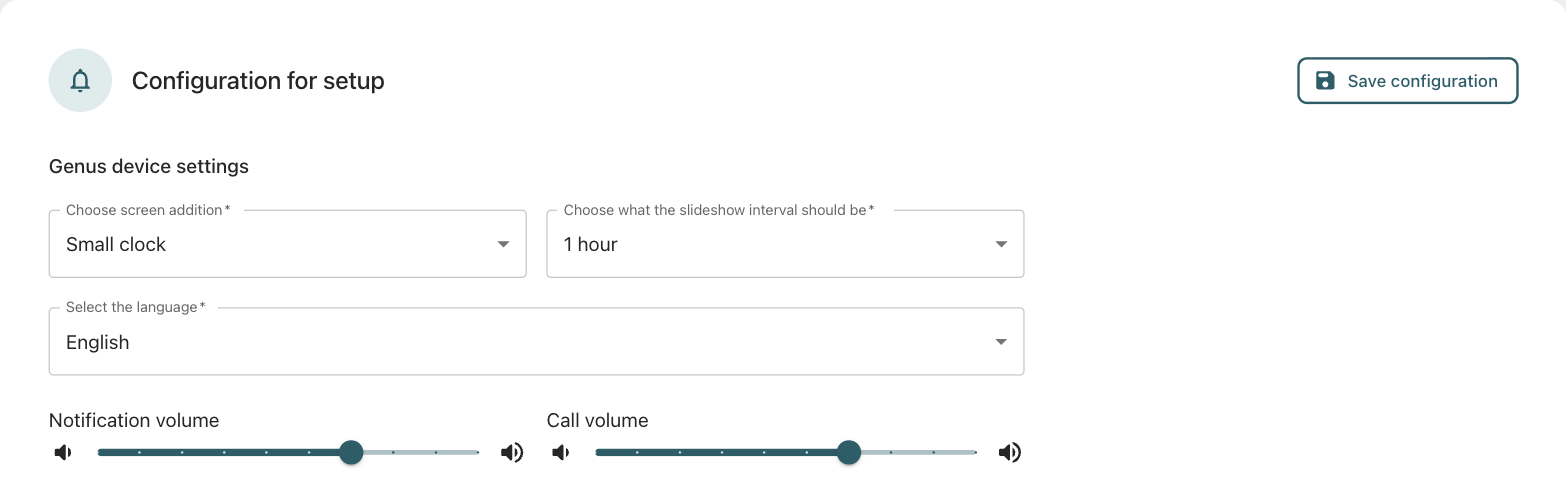
The installer sees this configuration in the Deployer app before scanning the new devices. How the Genus devices then set themselves up is described in the GC320 release.
Fixes and improvements
Section titled “Fixes and improvements”- Smaller fixes. Spaces copied along with a search term no longer prevent a match.
Availability
Section titled “Availability”The rebuilt Business Portal replaced the previous one for everyone in June 2024; the statuses and actions followed in July. Nothing has to be installed. The Deployer app, which uses the community configuration, is described in the GC320 release.
Since then
Section titled “Since then”- Simpler statuses (July 2026). A subscription is now Active, Paused or Terminated, with a separate Assignment column. Deactivate is called Terminate, and Pause is offered only for monthly subscriptions. See summer 2026 and subscriptions and licences.
- The configuration is now called Configuration for setup. It holds hidden and enterprise Wi-Fi networks (managing Genus devices remotely) and more clock options. See setup configuration per community.
- Device information on the subscription page arrived in January 2025 (managing Genus devices remotely).
- How the levels and roles work today is on how the Business Portal is organised.