

A night screen that turns itself on
A Genus usually stands in the living room or the bedroom. At night a bright screen full of photos lights up the room and can keep the client awake.
Since Genus 3.2.0 the Genus switches its night screen on by itself: at a set time, or as soon as the room is dark. The night screen now shows a dim clock, so a client who wakes up can see the time. In October care organisations got the settings in the Community Portal, to choose the times for all their clients or for one client.
What’s new
- Clients get a dark screen with a clock at night, without having to remember SCREEN OFF.
- Clients are greeted in the morning at a time that suits them, because the day start time can now be set.
- Health administrators choose the night screen times for every Genus of their organisation.
- Care professionals can ask for different times for one client, for example a client who is up at six.
On the Genus: a dark screen with a clock
Section titled “On the Genus: a dark screen with a clock”The night screen is black, with a large digital clock in the middle. The clock shows the day and the part of the day, the time and the date, for example Thursday night, 02:14 and 1 October. The screen brightness drops to its lowest level.
Since Genus 3.4.5 in November the clock is dark grey, so it gives off even less light (autumn 2024).
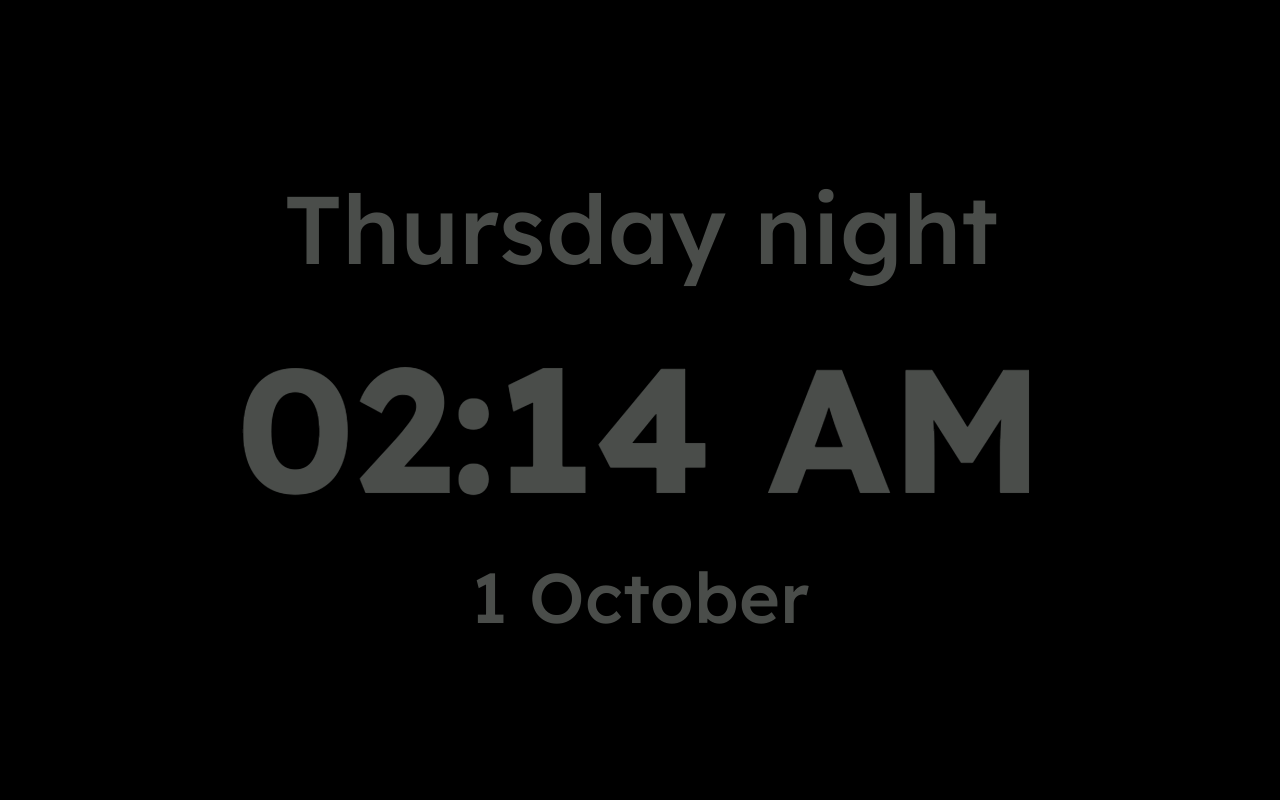
The Genus keeps working behind the night screen. Requests for help, calls and messages come in as usual, and the contact button works as always.
When the night screen comes on
Section titled “When the night screen comes on”| How | When | Built-in setting |
|---|---|---|
| On a schedule | At the schedule start time. It stays dark until the day start time. | From 22:30 until 07:30 |
| When the room is dark | When the room goes dark | On |
| With SCREEN OFF | When someone taps SCREEN OFF on the home screen | Always available |
Waking the screen and the morning
Section titled “Waking the screen and the morning”A tap on the night screen brings back the photos. During the scheduled night, or while the room is still dark, the night screen returns shortly after the last touch. A night screen switched on with SCREEN OFF stays until someone taps it.
From the day start time, the night screen ends in one of three ways:
- The client comes near the Genus. The Genus then shows the day start screen with Good morning and the button View photo.
- The room is light again, when the light sensor is in use.
- Someone taps the screen.
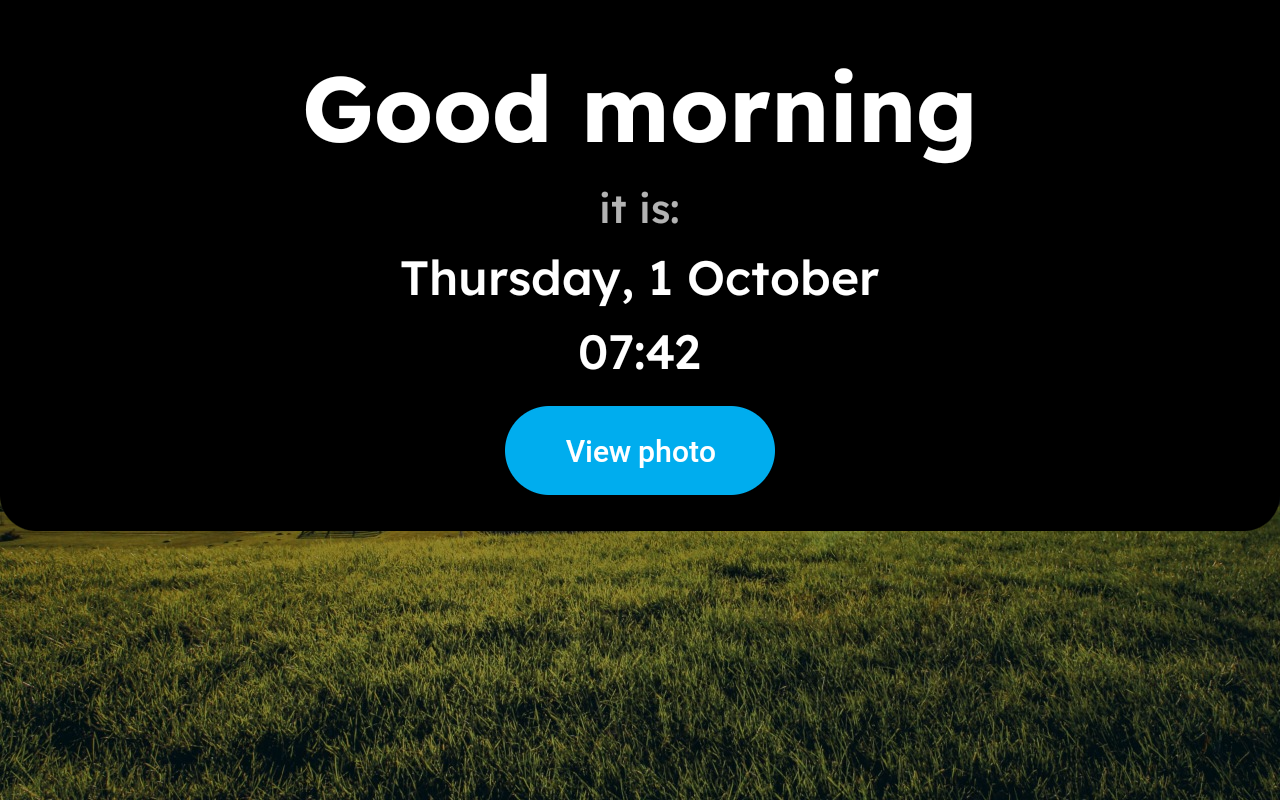
Since this release the day start screen follows the day start time of the night screen settings. It appears at most once a day.
How the night screen and the day start work today is on night screen and day start.
In the Community Portal: choosing the times
Section titled “In the Community Portal: choosing the times”From September every Genus with Genus 3.2.0 used the built-in times in the table above. Since the Community Portal update of October, a care organisation can change them. There are four settings:
- Day start time: when the scheduled night ends, and the earliest moment for the day start screen.
- Use the light sensor: whether a dark room switches the night screen on.
- Use schedule: whether the night screen comes on at a set time.
- Schedule start time: the time the scheduled night begins.
For every Genus of your organisation
Section titled “For every Genus of your organisation”In October 2024 these settings had their own page, Community settings → Night screen. Switch on Override default settings, fill in the four settings and click Save settings. Only an Admin of the care organisation can save them.
For one client
Section titled “For one client”On the client page, the section Night screen settings shows whether the client has a Custom night screen and, if so, its times. The pen opens the dialog Change nightscreen settings with the same switch, Override default settings, and the same four settings.
When you switch it on, the dialog starts from the times that client’s Genus uses at that moment. An Admin saves the change with Save changes.
Availability
Section titled “Availability”- The Genus updates itself. Genus 3.2.0 (September) brought the new night screen with the built-in times. Genus 3.4.0 (October) picks up a change to the organisation’s settings straight away.
- The Community Portal received the night screen settings automatically in October.
- Family members do not need to update the Genus app.