

A new look for the Genus app on iPhone
The Genus app on iPhone has been redesigned. Version 2.6.0 looks and feels like the iPhone’s own apps: on iOS 26 the bars, panels and buttons are made of Apple’s new translucent glass, and the app has a dark mode that follows your iPhone’s own setting. The icons, forms and dialogs have been brought in line with the Android app, and a few things work better along the way.
Nothing changes in how you use the app. There is no new login and no extra step: the new design arrives as a normal App Store update.
What’s new
- A glass design on iOS 26. The top bar, the floating tab bar, the pull-up panels and the main buttons use Apple’s Liquid Glass, so the app feels at home on a current iPhone.
- Dark mode. The app follows the Light or Dark setting of your iPhone, including the automatic schedule.
- New icons. The same rounded icons as the Android app, and the notifications on Home show the icon that fits the alert: a bed, a door, smoke, a fall, a temperature and more.
- Familiar iPhone forms. Sending a message, adding an appointment and changing the settings of a Genus now use the standard iPhone layout.
- A rebuilt video call screen, with the controls in a floating bar.
- Calls for help. Tapping the notification opens the call for help, and Resolve request asks you to confirm first.
A design that feels like the iPhone
Section titled “A design that feels like the iPhone”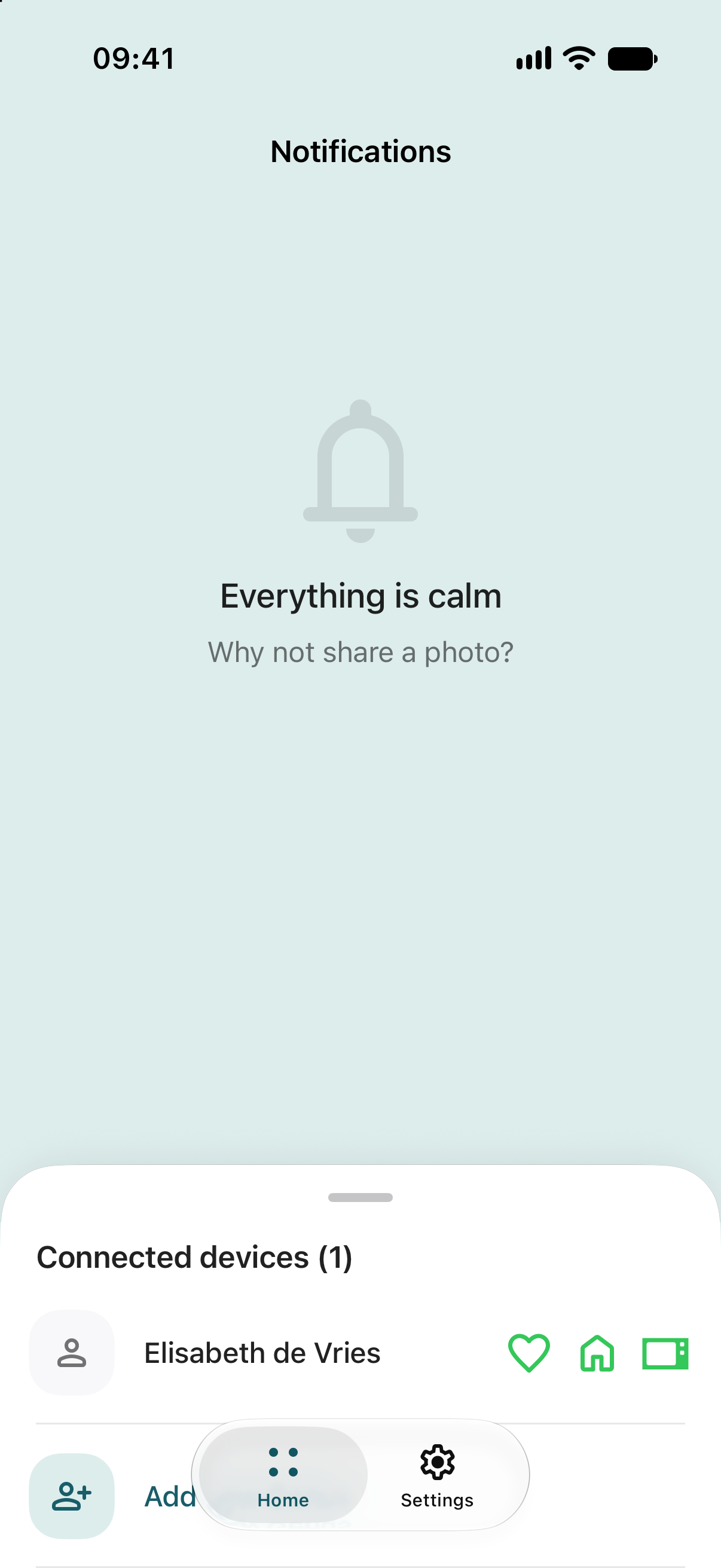
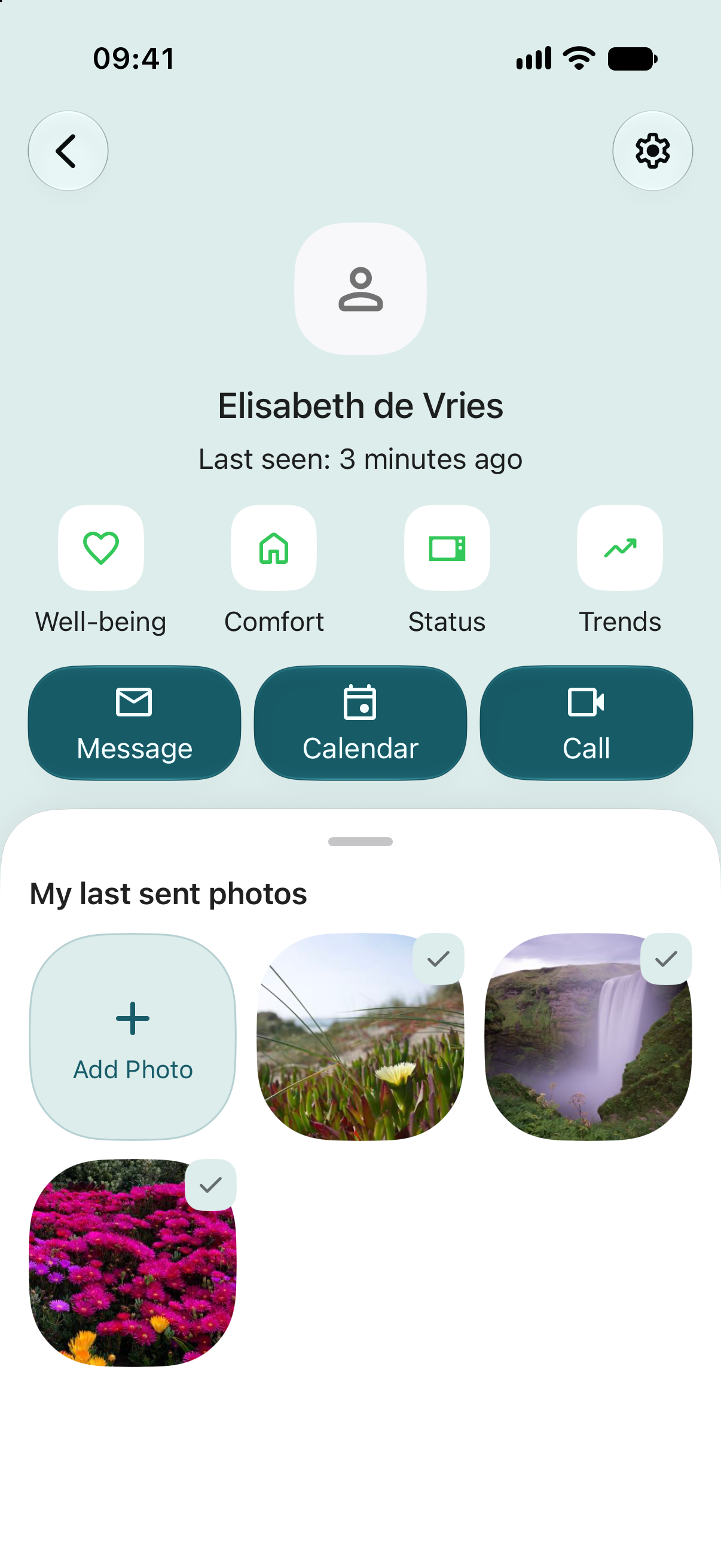
On iOS 26 and later, the Genus app uses Apple’s new design language, Liquid Glass:
- The top bar and the tab bar (Home and Settings) are glass. The tab bar floats above the content, as in Apple’s own apps, and lists scroll softly underneath the top bar.
- The pull-up panels are glass sheets with a grabber: the list of your Genus devices on Home, and the photos on a client’s screen. Pulled up, the devices panel now grows to show all your devices.
- The main buttons, such as Message, Calendar, Call, Send and Save, are glass buttons in the Genus teal.
- Pop-ups such as confirmations and error messages use the standard iPhone dialog.
Cards and tiles have rounder corners throughout, and on more screens the text grows and shrinks with the text size you chose on your iPhone.
Dark mode
Section titled “Dark mode”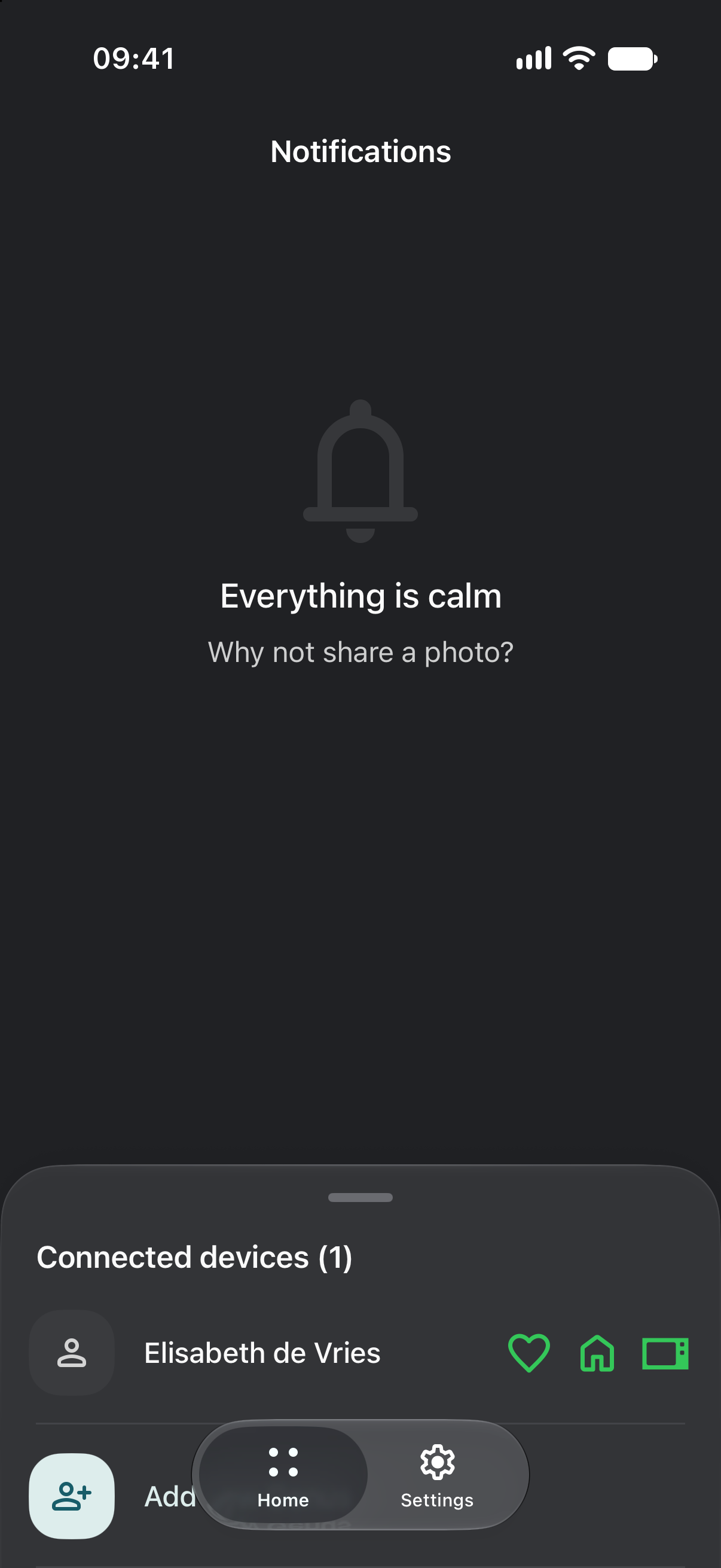
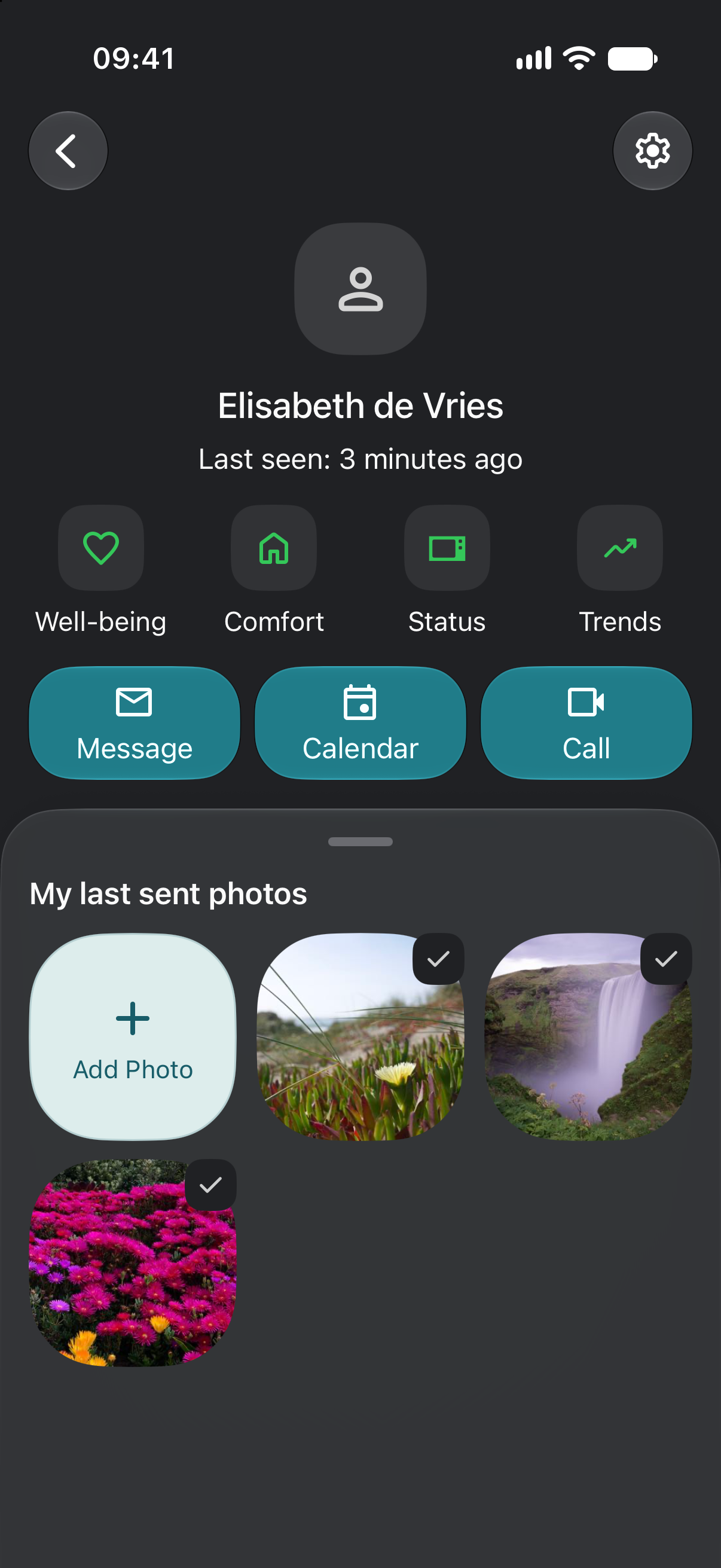
The app now has a dark mode. It follows the Light or Dark setting of your iPhone, so when you switch your iPhone to dark, or when it switches automatically in the evening, the Genus app switches with it. There is no separate setting in the app.
Dark mode covers every screen, from setting up a new Genus to the calendar and the settings. Calls for help on Home stay red in both modes, so they stand out, and video calls always use a dark screen.
New icons, and notifications you can read at a glance
Section titled “New icons, and notifications you can read at a glance”The app has a new set of rounded icons, the same set as the Android app and the Professional App. The notifications on Home now show the icon that belongs to the alert: for example a bed, a door, smoke, a fall, a high or low temperature, a low battery, humidity, air quality, a medicine reminder or a device that has gone offline.
A client’s screen
Section titled “A client’s screen”When you open the screen of a Genus, the header is more compact, which leaves more room for photos.
- Message, Calendar and Call are glass buttons.
- Add Photo is now the first tile of the photo grid, as in the Android app, instead of a small + button.
- The photo panel rests just below the buttons. Pull it up to see all photos you sent.
Sending a message
Section titled “Sending a message”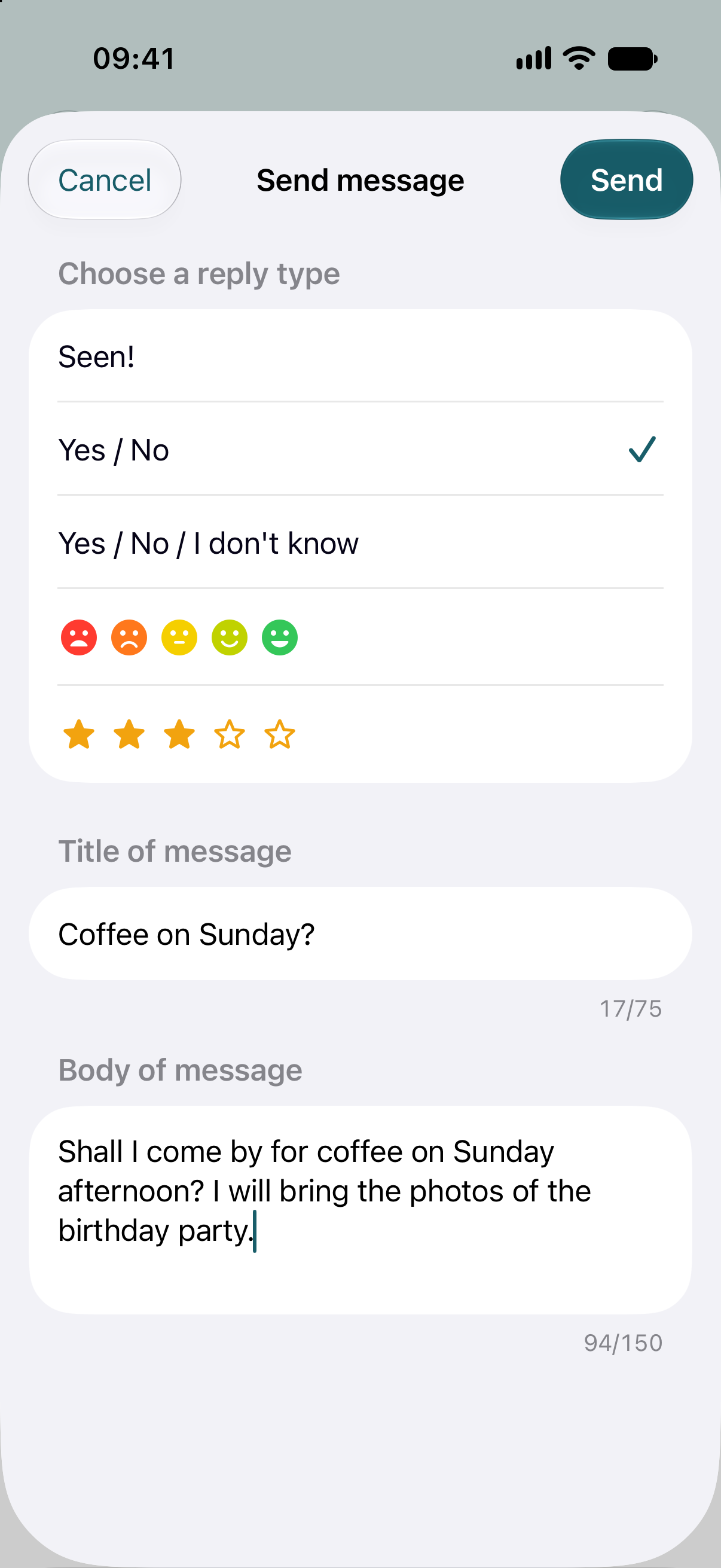
Message now opens the sheet Send message over the client’s screen. Choose how the client can reply (Seen!, Yes / No, Yes / No / I don’t know, a mood or a star rating), and type a title and a message. A counter shows how many characters you have used: up to 75 for the title and 150 for the message. Cancel is at the top left and Send at the top right. Once you have chosen or typed something, the sheet can’t be swiped away by accident.
If the message can’t be sent, the app tells you Failed to send message. More about messages and photos: photos, messages and video calls.
Calendar
Section titled “Calendar”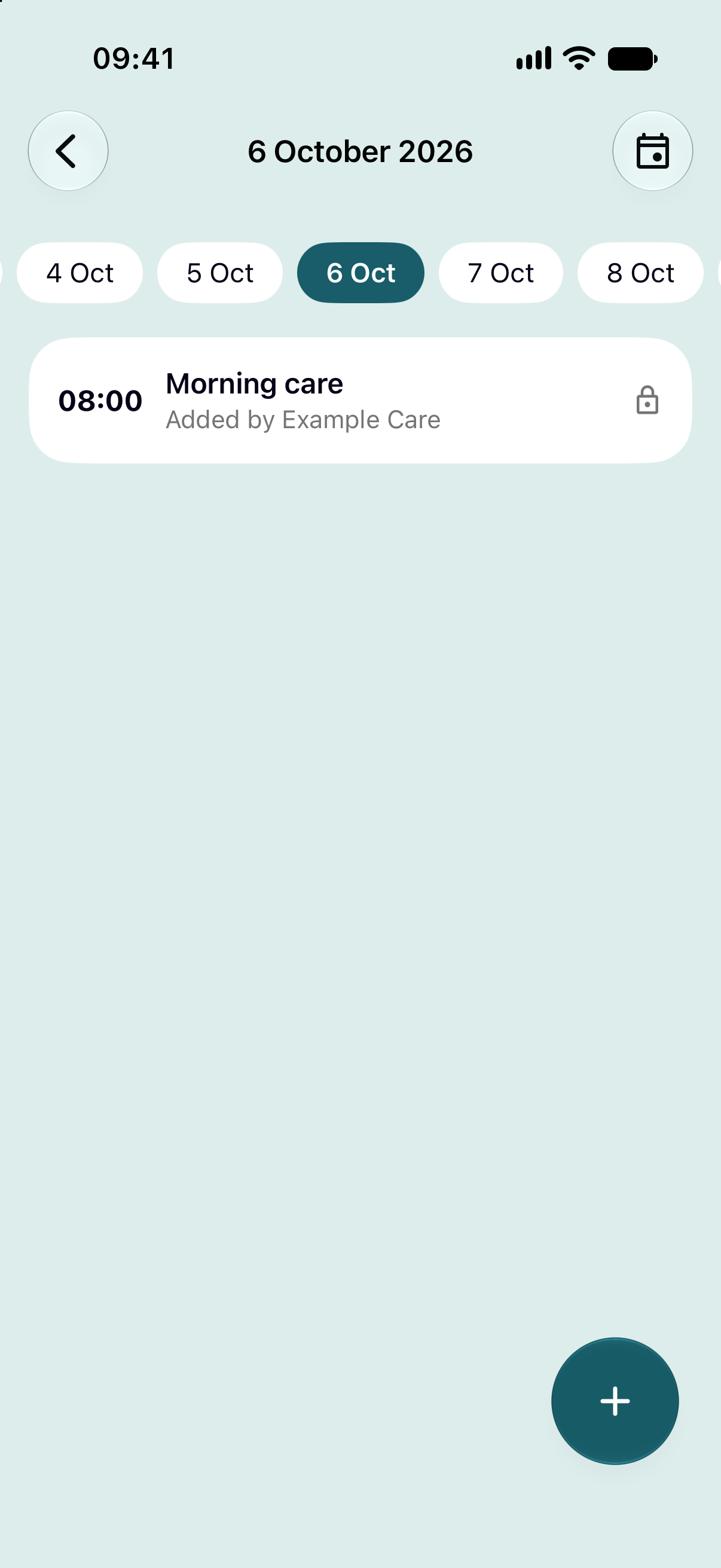
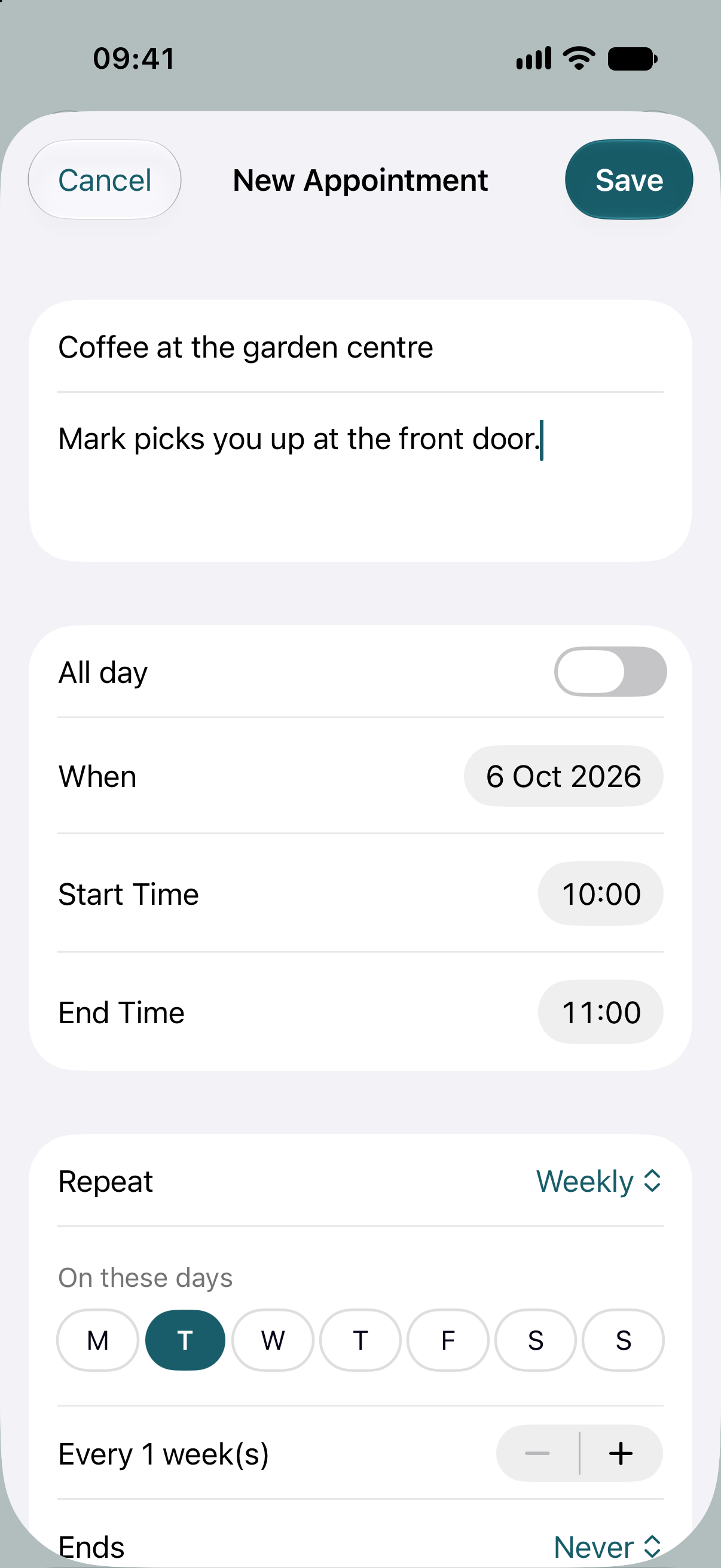
The day agenda keeps its familiar layout, with a glass + button to add an appointment. New Appointment and Edit Appointment are now a standard iPhone form: a title and description, an All day switch, the date and times, how the appointment repeats, on which days, and when the repetition ends. Delete is a red button at the bottom of Edit Appointment. The calendar itself is explained in the calendar in the Genus app.
Settings
Section titled “Settings”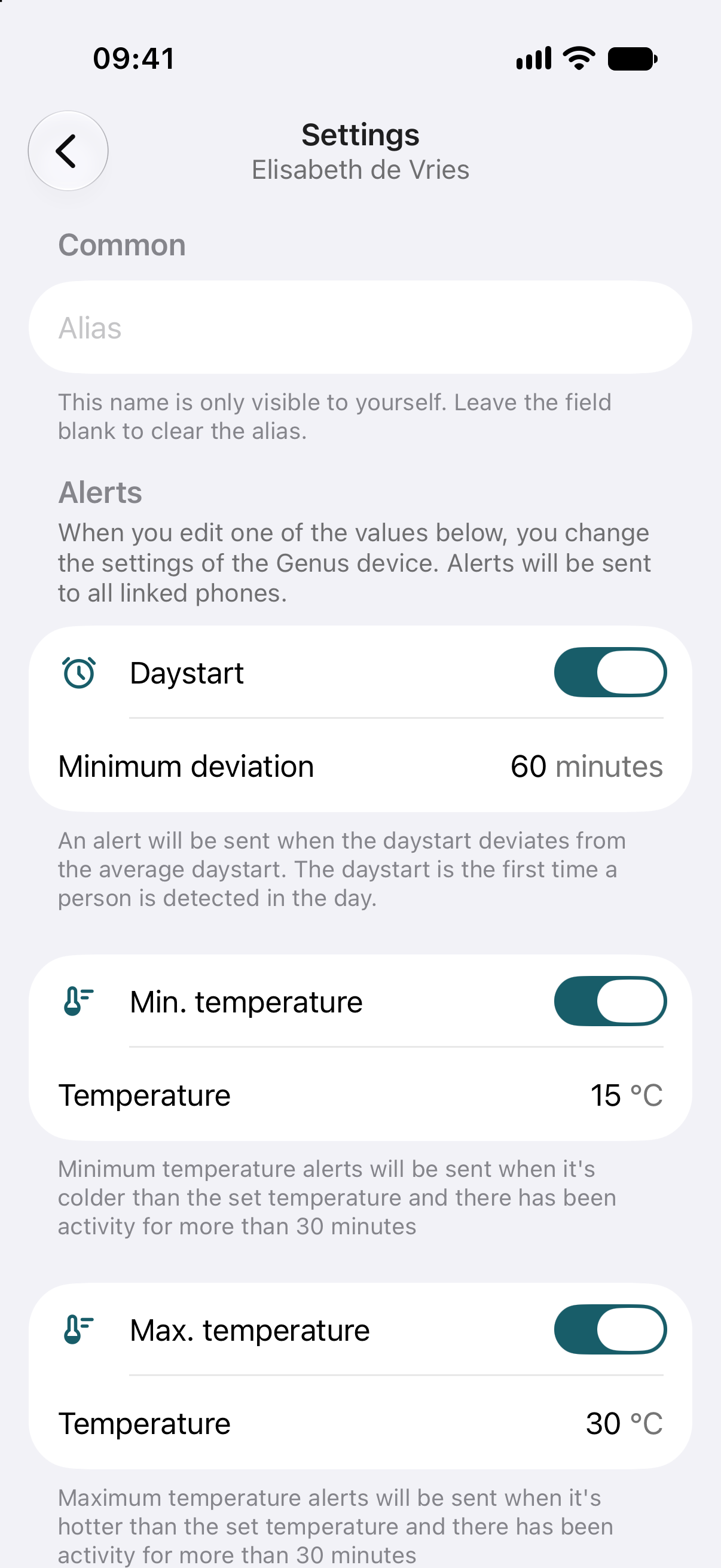
- The settings of a Genus are a standard grouped list: the alias, which only you can see, the alerts with their values, and the support information. A value that isn’t allowed shows its message right under the field, and Save appears once your changes are valid. The same version adds the alert for air quality; see air quality in the home.
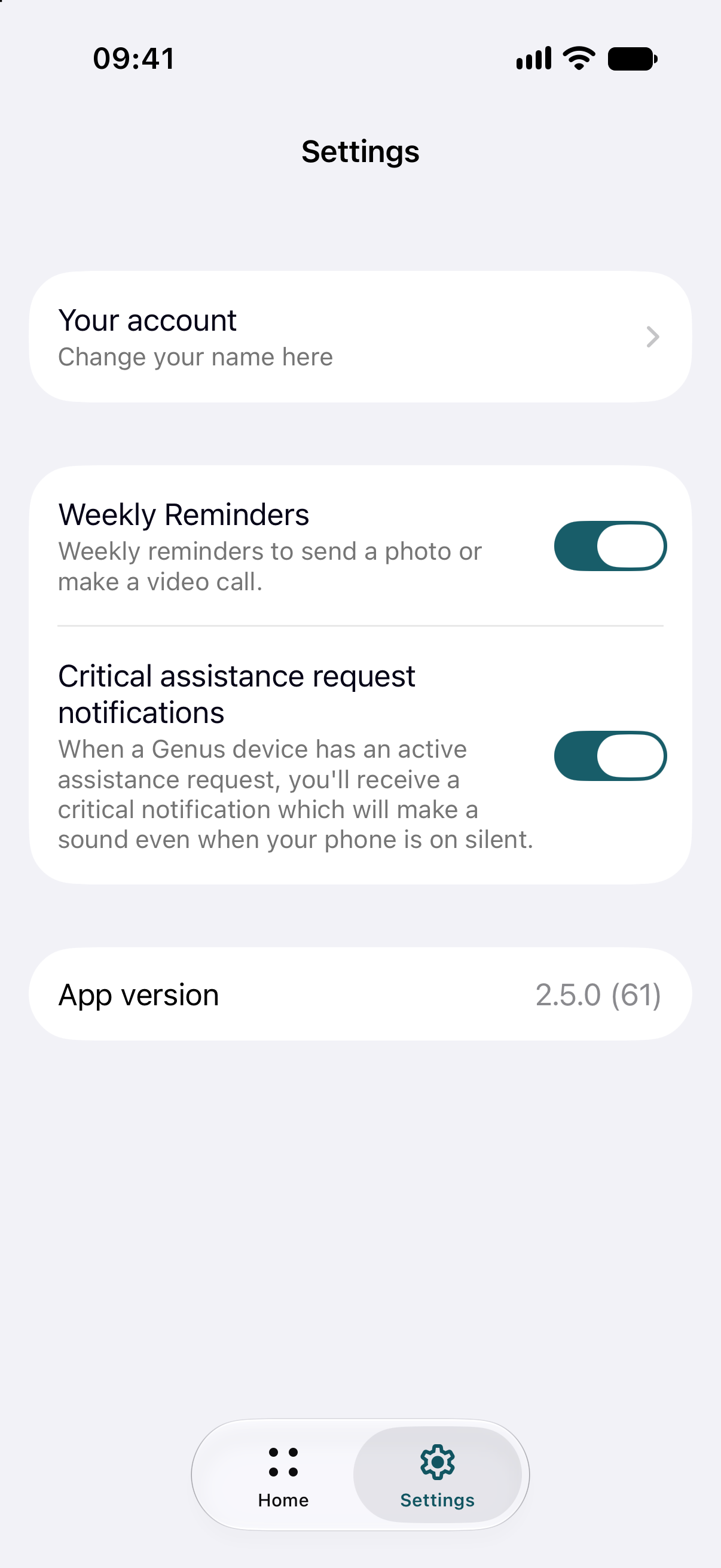
- The Settings tab lists Your account, the switches for Weekly Reminders and Critical assistance request notifications, and the App version.
Responding to a call for help
Section titled “Responding to a call for help”Tapping the notification of a call for help opens it on the Emergency notification screen. While the app is open, a new call for help also appears as a banner at the top of the screen.
The response options are clear, rounded buttons, and your iPhone gives a short vibration when your response has been sent. Because resolving a request ends it for everyone who received it, Resolve request now asks you to confirm first: The request will be resolved for everyone who received it. More in calls for help and Call Me.
Video calls
Section titled “Video calls”The video call screen has been rebuilt. The video fills the screen, your own camera appears as a small picture that is mirrored like the iPhone camera, and the controls (switch camera, camera, microphone and end call) are in a floating bar.
Setting up a Genus
Section titled “Setting up a Genus”The setup screens have large titles, rounded fields and glass buttons. The 6-character linking code from the Genus is shown in large, evenly spaced characters, as in the Android app. The steps are in getting started with the Genus app.
- Home stays up to date. When you return to the app, Home is refreshed straight away. Pulling down Home reloads it too.
- Last seen is left out until a Genus has detected someone, and VoiceOver reads Message, Calendar and Call in the language of the app.
Version 2.6.0 brings more changes on both Android and iPhone, such as withdrawing a link request that is still waiting for approval. They are in the autumn 2026 round-up.
Availability
Section titled “Availability”The new design is part of the Genus app 2.6.0 for iPhone, released in the App Store in November 2026. Update the app from the App Store to get it. It works on iPhones with iOS 17.6 or later; the glass design needs iOS 26 or later.
The Genus app for Android keeps its own design. Its version 2.6.0 has the same new icons; its other changes are in the autumn 2026 round-up.