

Transferring and replacing a Genus with the Deployer app
Since June 2024 installers set up new Genus devices with the Deployer app: scan the QR code on the back, choose the care organisation, and the Genus sets itself up (the GC320). Two everyday jobs still took work by hand.
A Genus that came back from one client had to be reset and set up again before it could go to the next. And when a Genus broke, the new one started empty: the family had to link their phones again and their photos were gone.
In September and October 2024 the Deployer app got a new design and two new tasks. Transfer Genus prepares a returned Genus for a new client in one go. Replace Genus puts a new Genus in place of a broken one and brings the family’s phones and photos along.
What’s new
- Installers transfer a returned Genus to a new client, at the same or another customer, without setting it up by hand.
- Installers replace a broken Genus; the new one takes over the subscription, the linked phones and the photos.
- Installers hear, see and feel at once whether a scanned code is a valid serial number.
- Installers can scan the GC200 as well as the GC300 and GC320.
- Distributors can no longer start a deployment into a community without a configuration for setup.
A new design (Deployer app 1.1.0, September)
Section titled “A new design (Deployer app 1.1.0, September)”After signing in, the home screen offers four tiles: Deploy Genus, Replace Genus, Transfer Genus and Logout. Replacing became available in version 1.2.0, in October.
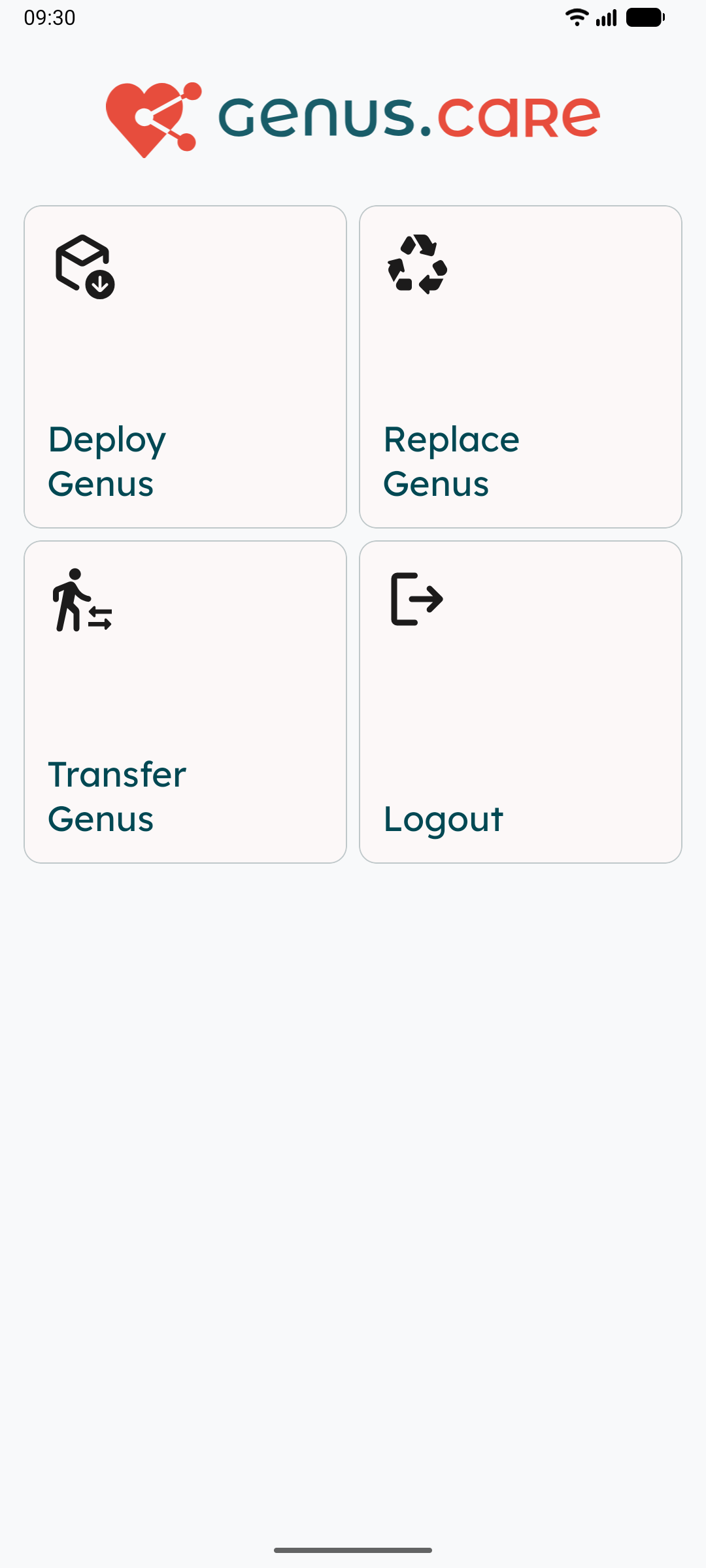
Logout signs you out, so the next person who uses the phone signs in with their own account.
Scanning that tells you at once
Section titled “Scanning that tells you at once”Every task starts by scanning the QR codes on the back of the Genus devices.
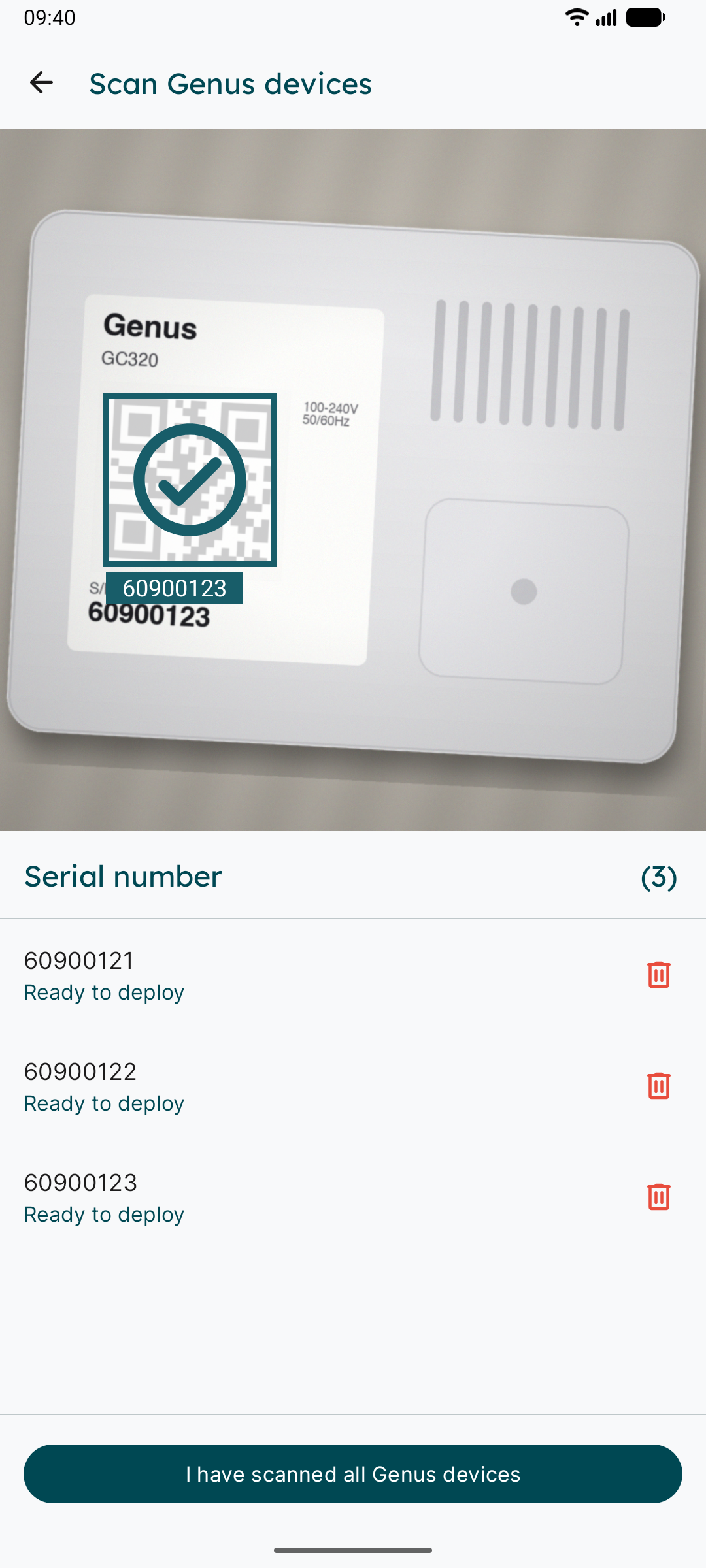
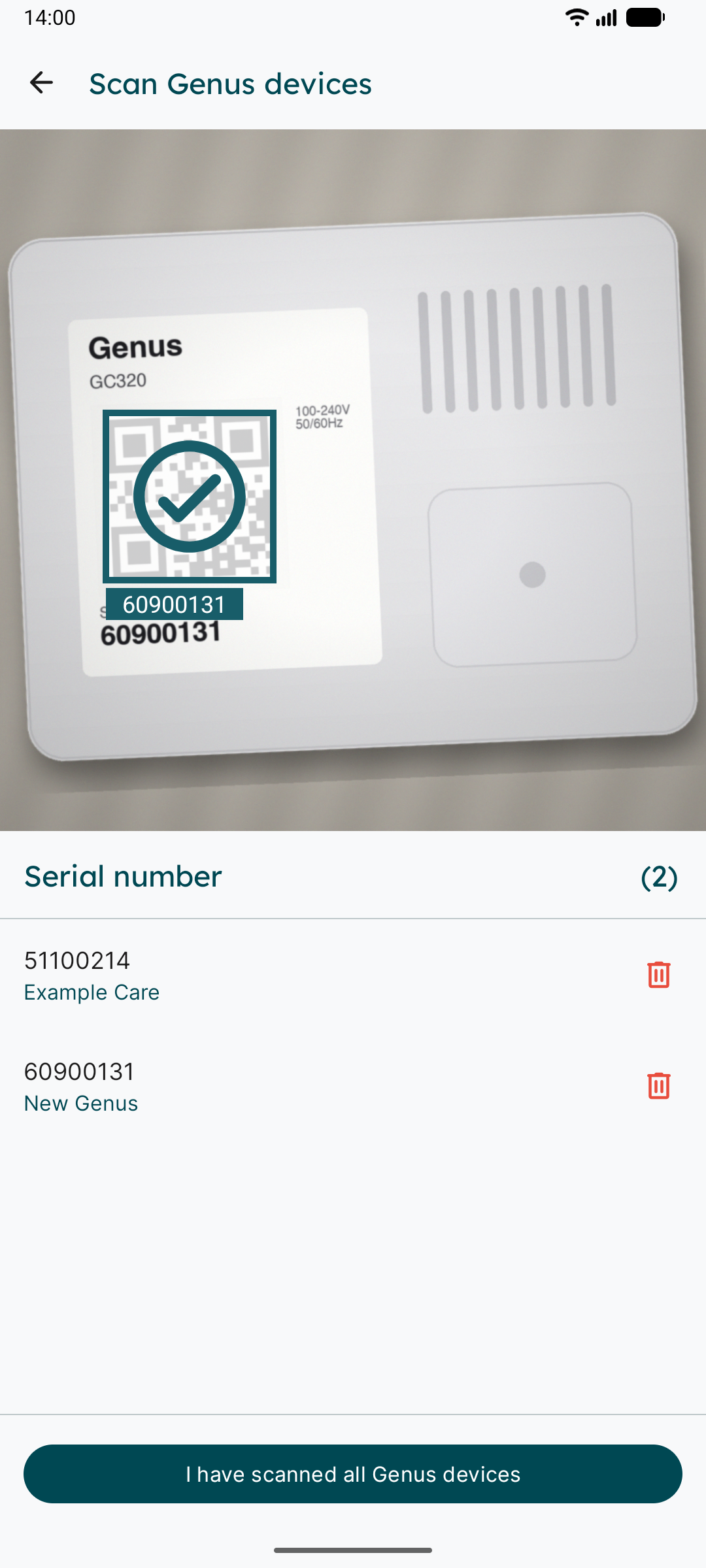
- A valid serial number is outlined in green with a tick. The phone beeps and, on Android 11 or later, gives a short vibration. You do not have to watch the screen while you hold the phone against a Genus at an awkward angle.
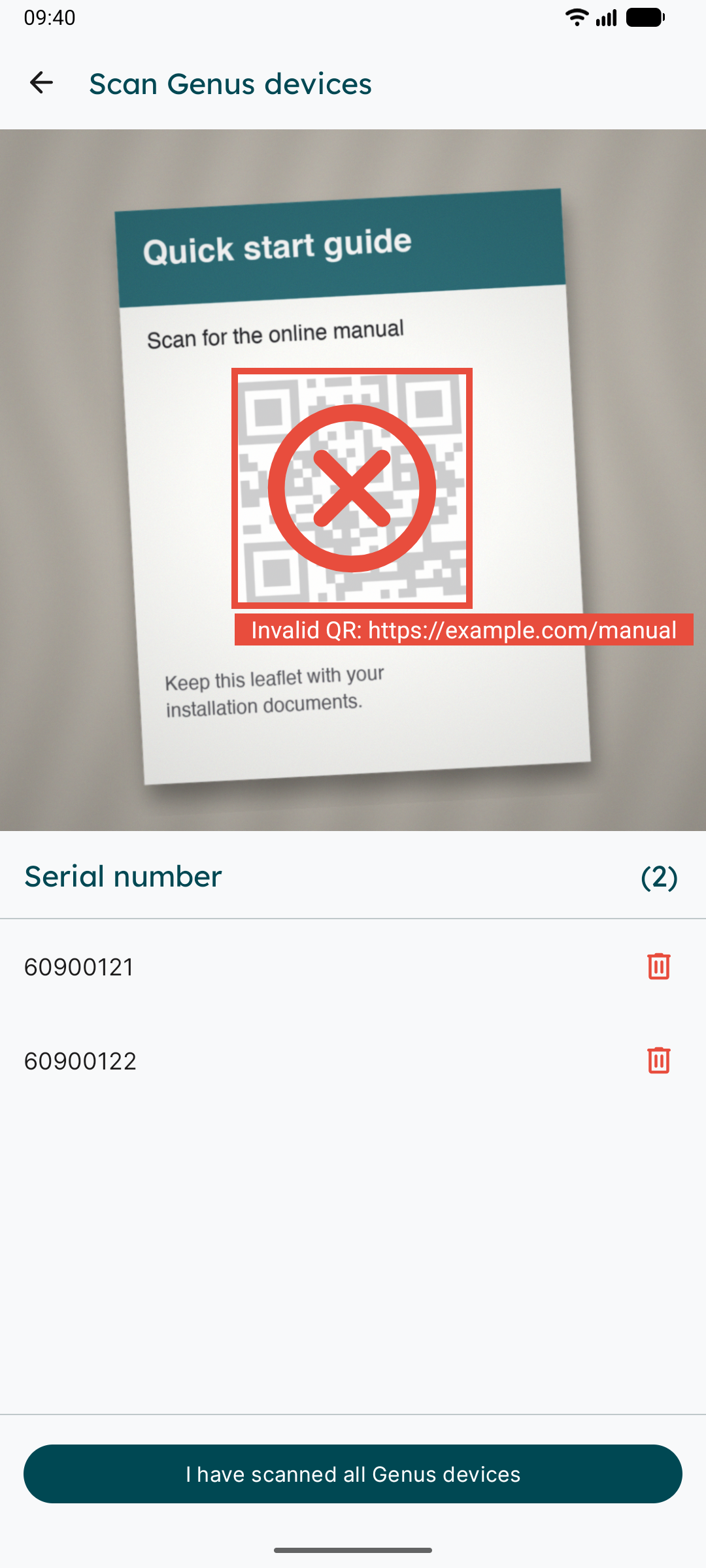
- Any other code is outlined in red with a cross, and the app plays an error sound.
- A counter above the list shows how many devices you have scanned (since version 1.2.0).
The GC200
Section titled “The GC200”The app recognises the serial numbers of the GC200, next to those of the GC300 and GC320. The GC200 learned to set itself up automatically in the same month; see summer 2024.
Transferring a returned Genus
Section titled “Transferring a returned Genus”When a client no longer needs their Genus, it often goes to another client, of the same care organisation or another customer. Transfer Genus resets it to factory settings and sets it up for the new community, with the same subscription.
- Switch on the Genus devices and connect them to the Genus Setup Wi-Fi network.
- Tap Transfer Genus and then Start transfer.
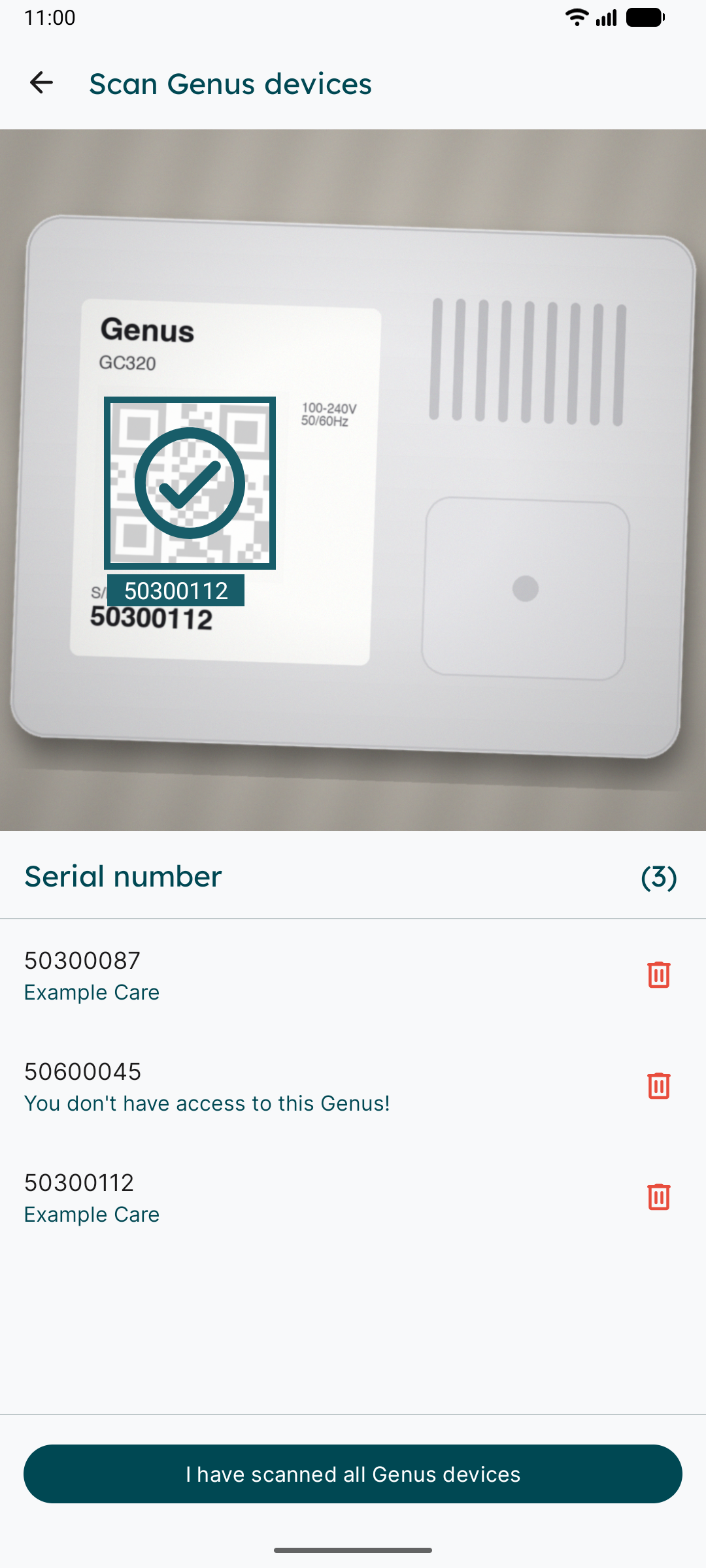
- Scan the QR code of each Genus. Each serial number gets a note: normally the community or customer it belongs to now.
- Tap I have scanned all Genus devices, then choose the new customer under Select a customer and the new community under Select a community.
- Under Review transfer, check the configuration and the devices, and tap Finish transfer. The app shows Transfer successfully initiated!
Each Genus resets itself as soon as it receives the transfer. Its photos, linked phones, care organisations, settings and Wi-Fi networks are removed. It then sets itself up for the new community with its own licence code, as a new Genus does with a deployment.
The full steps, as they work today, are on the Deployer app.
Replacing a broken Genus (Deployer app 1.2.0, October)
Section titled “Replacing a broken Genus (Deployer app 1.2.0, October)”Replace Genus carries the licence, the family’s linked phones and their photos over to the new device.
- Switch on the new Genus and connect it to the Genus Setup Wi-Fi network.
- Tap Replace Genus and then Start replace.
- Scan the QR codes of both devices. The broken Genus shows its community; the new one shows New Genus.
- Review replacement shows the customer and community of the broken Genus and the community’s configuration. Tap Finish replacement. The app shows Replace successfully initiated!
The new Genus then sets itself up with the licence code of the broken one. It joins the same care organisation and receives the community’s Wi-Fi network, settings and starting photos.
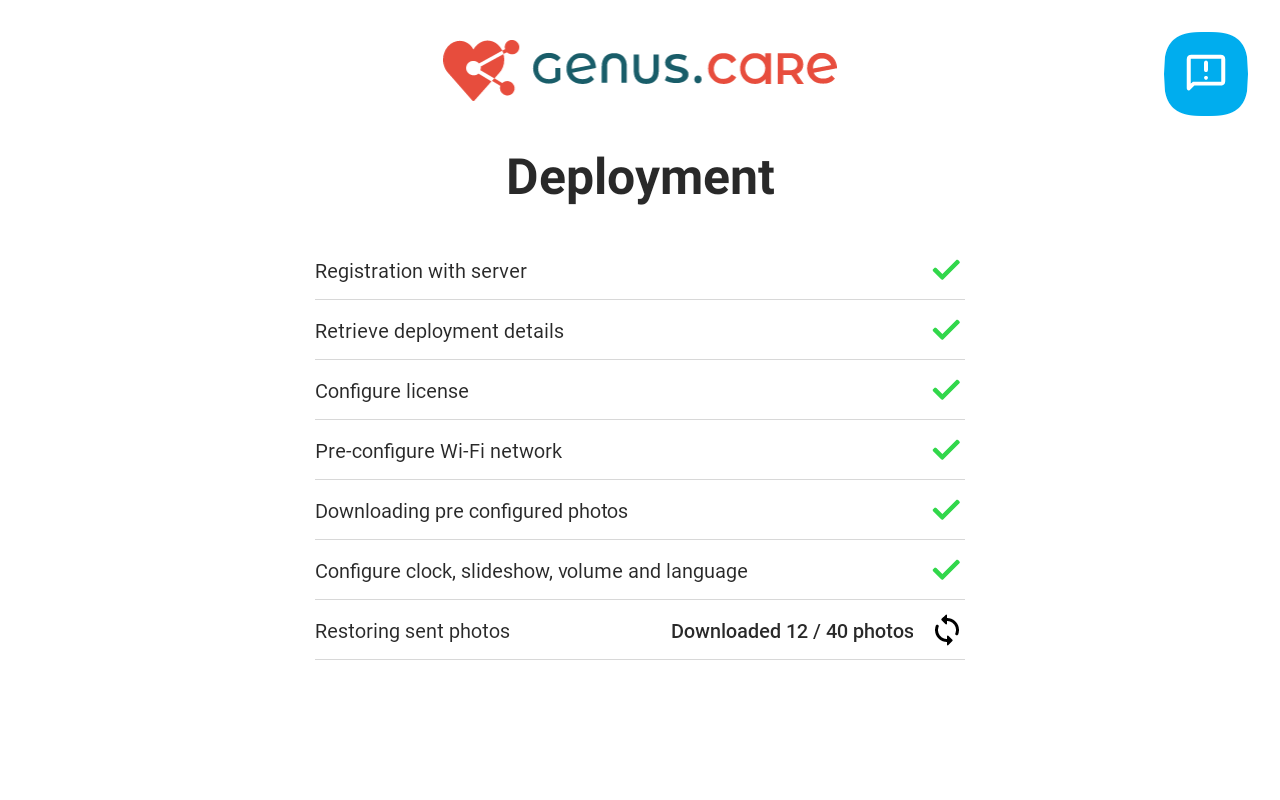
The family members’ phones are linked to it straight away. It also downloads the photos they had sent, apart from those the client had deleted. The Genus shows this as the extra step Restoring sent photos, with a counter such as Downloaded 12 / 40 photos.
See replacing a broken Genus and setting up automatically.
Fixes and improvements
Section titled “Fixes and improvements”- No deployment without a configuration. Since October the platform refuses a deployment or transfer into a community without a configuration for setup. The Deployer app keeps I have reviewed the configuration and Finish transfer disabled when the community has no configuration. See setup configuration per community.
- Readable configuration. The configuration review shows plain values, such as Small clock and 70%, instead of internal codes (version 1.2.0).
Availability
Section titled “Availability”- The Deployer app for Android: version 1.1.0 (September) brought the new design, scanning feedback, GC200 serial numbers and Transfer Genus; version 1.2.0 (October) brought Replace Genus, the scan counter and the readable configuration.
- The Genus updates itself. A transfer needs Genus 3.3.0 or later on the returned Genus (September); the restored photos need Genus 3.4.2 or later on the new Genus (October). A new Genus updates itself before it sets itself up.
- The Business Portal and the platform were updated automatically.