

Nedap ONS on the Genus
Many care organisations in the Netherlands plan their care in Nedap ONS: appointments in the ONS agenda, care visits in ONS planning. The client looks at the Genus to see what the day brings. Until this release the two were separate, so My Day on the Genus did not show what the care team had planned in ONS.
From April 2025 the client’s ONS agenda appears in My Day. In July the planned care visits from ONS followed. Since September a care professional links a Genus to the right ONS client by searching for the name in the Community Portal.
What’s new
- Clients see the appointments from their ONS agenda in My Day on the Genus, with a reminder ten minutes before each one.
- Clients also see their planned care visits from ONS planning, each named after the type of care.
- Clients only see what they take part in: appointments and visits that ONS records without the client present stay off the Genus.
- Care professionals link a Genus to an ONS client by searching for the client’s name, instead of typing an ONS identifier.
On the Genus: ONS appointments in My Day
Section titled “On the Genus: ONS appointments in My Day”Once a Genus is linked to an ONS client, the client’s ONS appointments for today appear in My Day, among the other appointments of the day. Each one shows its time, its title and, if there is one, the description from ONS. Tapping it opens the details. Ten minutes before an appointment the Genus shows a reminder.
The client does not need to do anything. Appointments are planned and changed in ONS, as before; the Genus follows. How My Day works is described in My Day and appointments.
ONS planning: planned care visits
Section titled “ONS planning: planned care visits”Since July 2025 the client’s planned visits from ONS planning appear in My Day as well. A planned visit can consist of several planned activities. Each activity appears as its own appointment, named after the type of care planned in ONS.
Planned visits have no description on the Genus. As with the agenda, visits that ONS plans without the client present are left out.
Planning needs a recent version of the connection between ONS and Genus. Organisations with an older connection keep seeing their ONS agenda.
For care professionals: linking a client by searching
Section titled “For care professionals: linking a client by searching”Since September you search for the client by name:
- Open the client and go to Contact information.
- Under Integrations, click Connect next to Nedap Ons Client.
- Type part of the client’s name in Search in Nedap Ons.
- Click Connect next to the right client. Each result shows the ONS client number above the name.
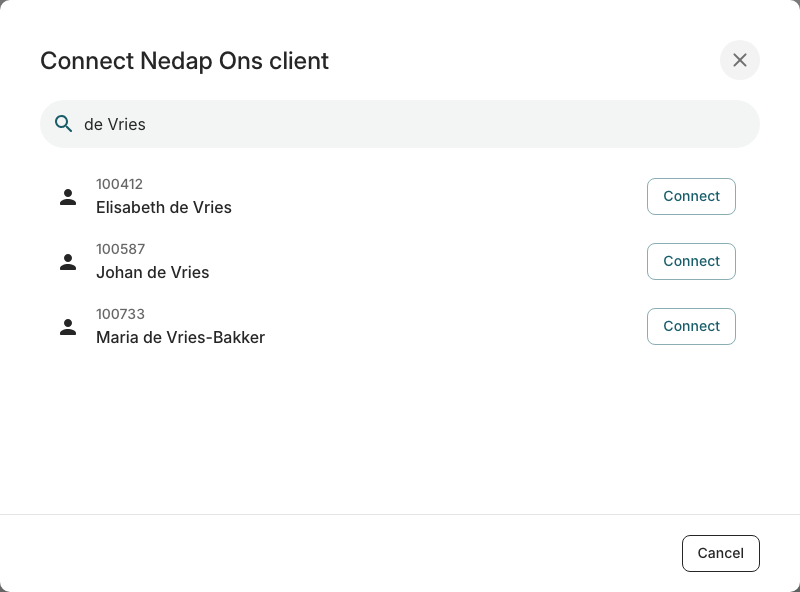
The contact information then shows the linked client with the ONS client number, so everyone can see which ONS record the Genus follows. Edit links another client, and Disconnect removes the link.
Availability
Section titled “Availability”The Genus, the Community Portal and the platform were updated automatically; no app update was needed. Genus sets up the connection with ONS for each care organisation. How the connection works today, step by step, is on the Nedap ONS page.
Since then the connection has grown. ONS appointments also appear in the client calendar in the Community Portal and in the Genus app (one calendar for the client, the family and the care team). In 2026 it added names, room numbers and care home rooms (Nedap ONS, reworked).