

Guided tours in the Community Portal
Not every care professional works in the Community Portal every day. Some open it to send a client a message, to set up a routine after a sensor is installed, or to link a new client to Nedap ONS. Each time they have to find the right page and button again, and a manual in another window does not show where to click.
From February 2026 the portal explains itself where the work happens. A Help button at the top of every page offers step-by-step tours. Each tour highlights one button or field at a time and says what to do next. Three of the four tours are interactive: you carry out the real task while the tour guides you.
What’s new
- Care professionals open the Help button at the top right of the portal and choose what they need help with.
- Care professionals follow a tour on the real screens: the portal dims everything except the part the tour is talking about.
- Care professionals finish a task while learning it. When the interactive tour for sending a message ends, the message has been sent.
For care professionals: the Help button
Section titled “For care professionals: the Help button”The Help button sits in the top menu, next to your name. It is there on every page, for everyone who uses the portal. Since April 2026 it is called Help Centre.

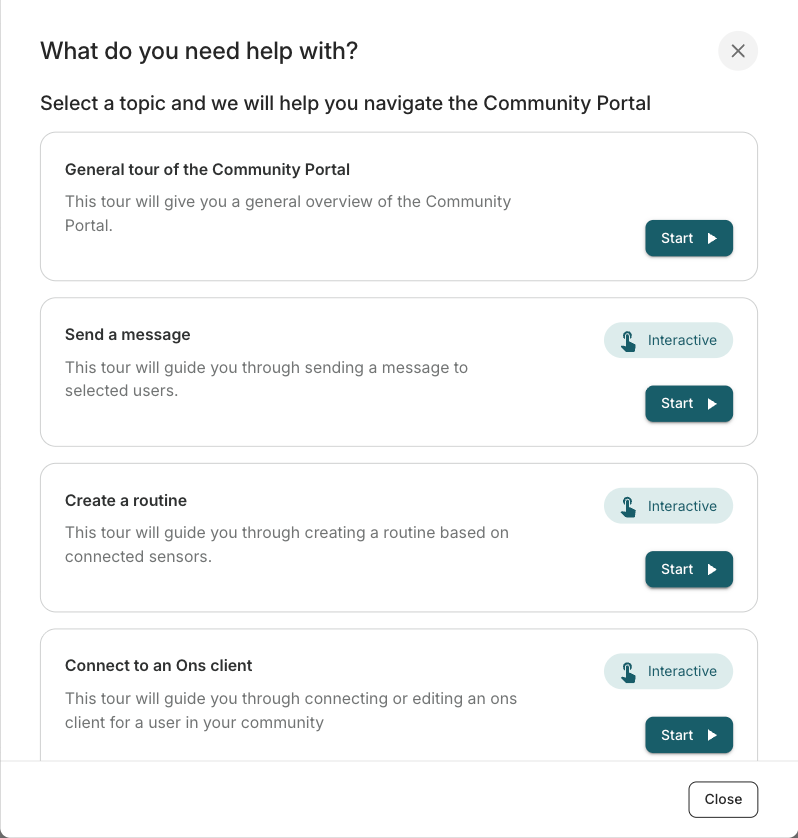
Clicking it opens What do you need help with?. Each tour has its own card with a short description and a Start button. Interactive tours carry the label Interactive.
Following a tour
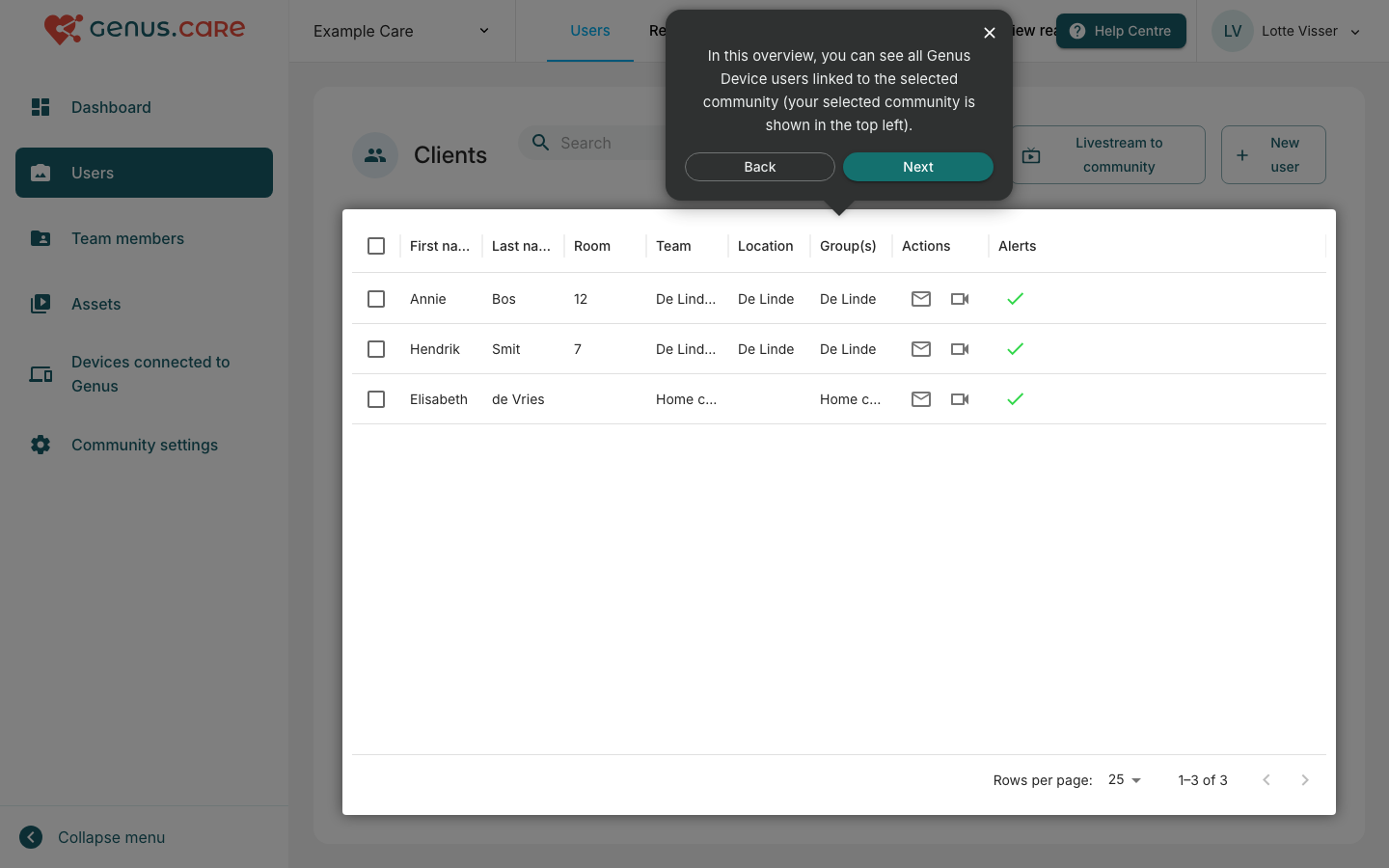
Section titled “Following a tour”When you click Start, the portal opens the page where the tour begins. A tour step appears next to the highlighted part of the screen, with Back and Next. On the last step Next becomes Finish. The cross in the corner of a step ends the tour at any moment.
In an interactive tour, some steps wait for you. They move on only once you have done what the step asks, such as ticking a client or opening a menu. Optional parts, such as adding a photo, have a Skip button.
The tours
Section titled “The tours”When the tours were first tried out, in December 2025, the portal offered four tours.
General tour of the Community Portal
Section titled “General tour of the Community Portal”A guided look around, without changing anything. The tour starts on the Users page and points out:
- the client list, with the Alerts column for active alerts and the Actions column for sending a message or starting a video call;
- the buttons Send message, Livestream to community and New user;
- the pages for repeating messages, scheduled messages and reactions to your messages.
It then opens the Dashboard, Team members and Community settings in turn, each with a short explanation. Skip jumps past a page. A care professional who may not see the team members gets the tour without that page.
Send a message (interactive)
Section titled “Send a message (interactive)”This tour walks through sending a message to one or more clients, from start to finish:
- Tick the clients in the list and click Send message.
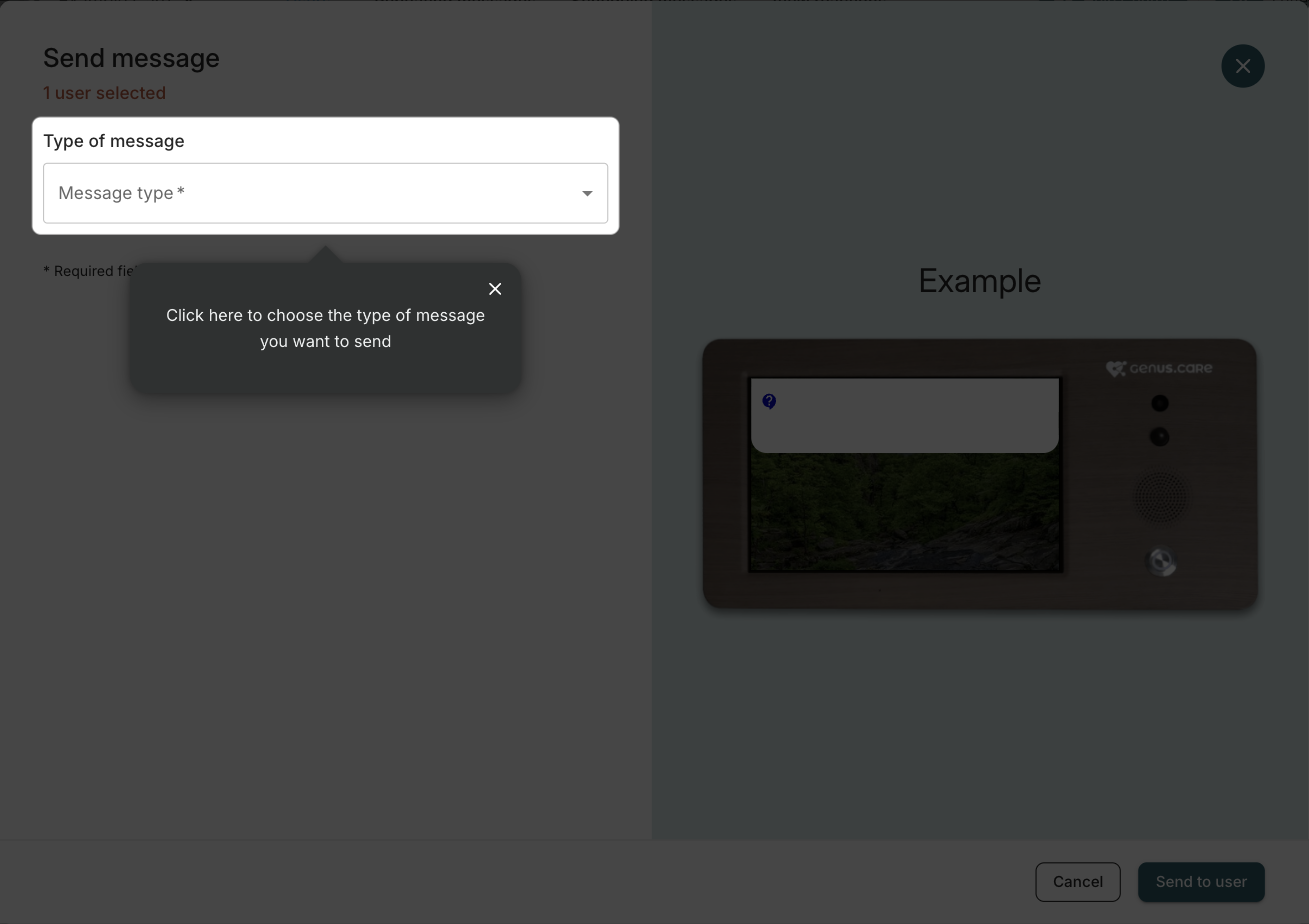
- Choose the type of message. For a question, choose the type of reply you want. For a message with a photo, upload the photo and edit it, or skip this part.
- Write the message and choose whether the Genus reads it out loud.
- Set the alarm options.
- If you like, schedule the message for a date and time, or let it repeat on chosen days, at a set time, between a start and an end date.
- Send the message.
How messages work is described on messages.
Create a routine (interactive)
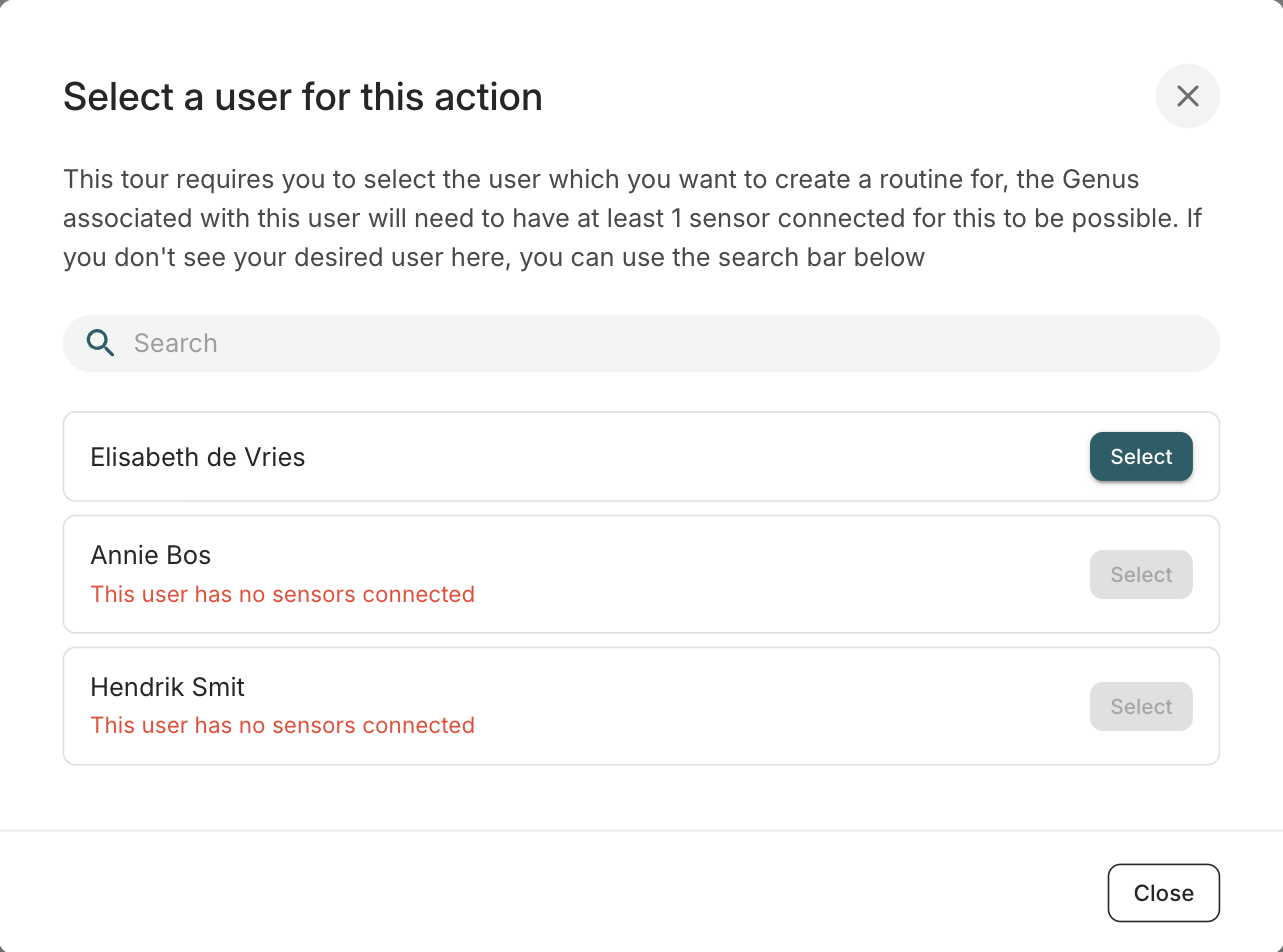
Section titled “Create a routine (interactive)”A routine needs sensors, so the tour starts by asking which client the routine is for. Clients whose Genus has no suitable sensor are marked This user has no sensors connected and can’t be chosen.
The tour then opens the client’s page and guides you through Add under Genus Routines. You choose a routine, choose the device and the sensor, set the times and save. The routine is then saved for the client. More about routines is on routines.
Connect to an Ons client (interactive)
Section titled “Connect to an Ons client (interactive)”This tour only appears when your organisation’s connection with Nedap ONS is switched on. After you choose a client, it opens the client’s page and points to Connect for the ONS client. You search for the client in ONS, pick the right one and click Connect. The last step shows where to Edit or Disconnect the link later. Linking by search is described in Nedap ONS on the Genus.
Since then
Section titled “Since then”The four tours are still the ones on offer. They have been refined in 2026:
- January 2026. Many step texts were rewritten to explain more. The Send a message tour also covers choosing a video for a video message.
- February 2026. The Send a message tour includes how long the message stays on the Genus. The routine tour is shorter, because a suitable sensor is now chosen for you.
- April 2026. The Help button was renamed Help Centre.
The current tours are described on help and guided tours.
Availability
Section titled “Availability”The guided tours are part of the Community Portal. They were tried out in one care organisation from December 2025 and reached every care organisation automatically in February 2026. No app update was needed.