

Video on the Genus
Some things are easier to show than to explain. A physiotherapist can describe an exercise in a message, but a client who sees it done in a short video knows straight away what to do.
With this release the Genus plays video. Each care organisation gets its own video library in the Community Portal. Care professionals send a video to a client as a message, and the client watches it on the Genus, at a volume that is set separately from calls and the ringtone. A new setting also lets any message clear itself from the Genus after a set time.
What’s new
- Health administrators upload videos to the care organisation’s library on the new Assets page.
- Care professionals send a video from the library to a client with the new message type Video.
- Clients watch the video full screen on the Genus, now or a little later, and can watch it again.
- Everyone gets a separate media volume for videos, set on the Genus or in the Community Portal.
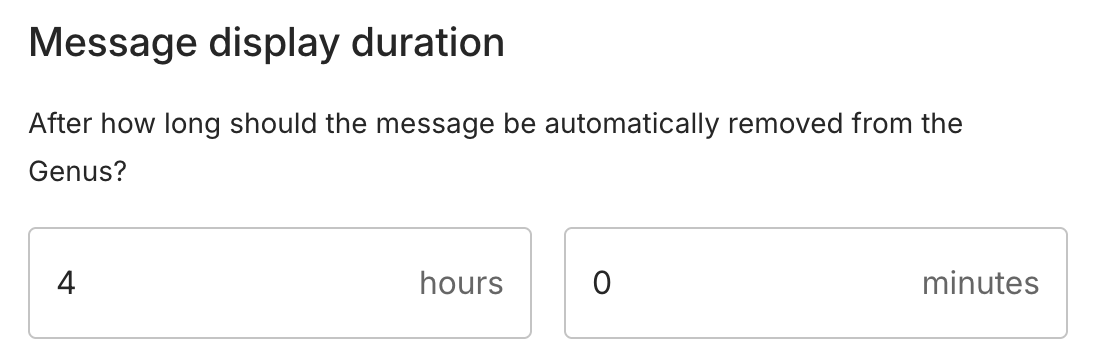
- Care professionals choose how long a message stays on the Genus, so a morning reminder is gone by the afternoon.
For health administrators: the video library
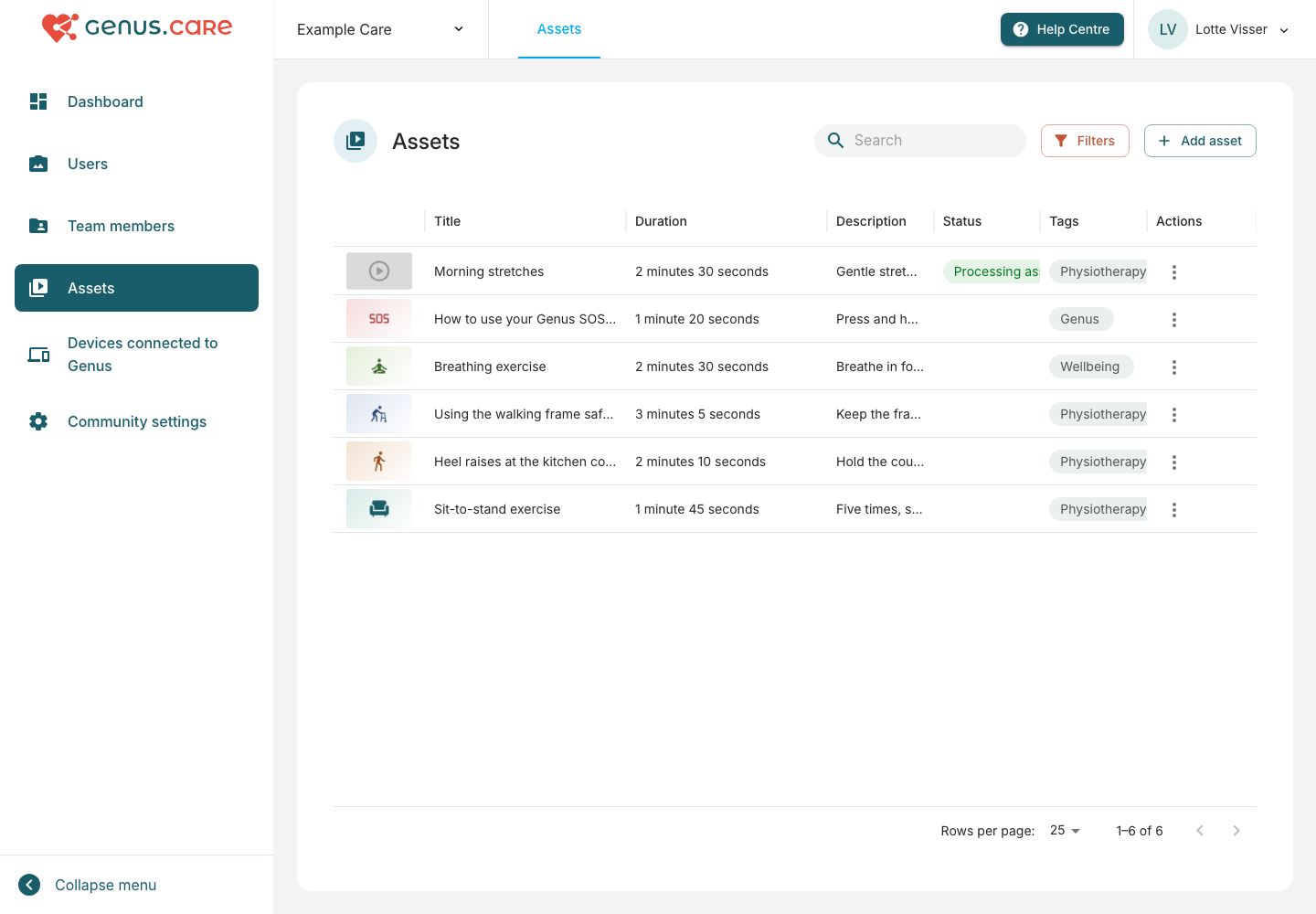
Section titled “For health administrators: the video library”The library is the Assets page in the side menu of the Community Portal. It holds the videos of your care organisation, newest first. Every care professional in your organisation can see it and pick videos from it.
Adding a video
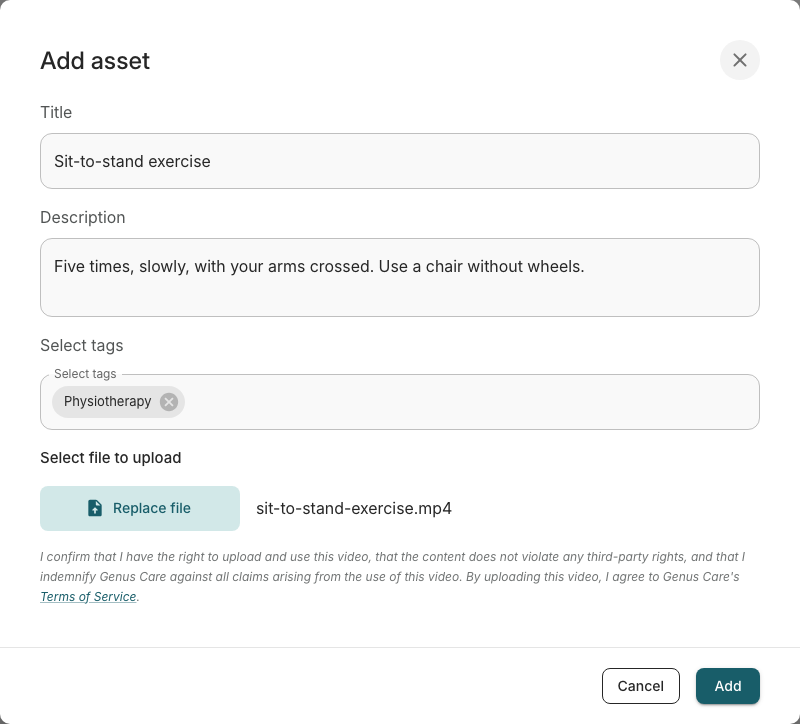
Section titled “Adding a video”- Click Add asset.
- Choose the file with Choose file, or drag it onto the dialog. The title is filled in from the file name, and you can change it.
- Add a description if you like, and tags under Select tags. Type a new tag to create it.
- Click Add. The button shows Uploading… with a progress bar while the file is sent.
- When you see Added asset successfully, click Finish.
After the upload, Genus prepares the video for the Genus in the background. The Status column shows Waiting to be processed and then Processing asset. When the status disappears, the video is ready to send. The page updates itself, so you do not need to refresh it.
Finding and managing videos
Section titled “Finding and managing videos”Search on title or description, or use Filters to show the videos with certain tags. Click a video to open its details, where you can watch it and change its title, description and tags.
To remove a video from the library, open the menu on its row and choose Archive. An archived video no longer appears in the library or in the picker. Clients who already received it can still watch it.
The asset library page in the wiki has the full steps.
For care professionals: sending a video to a client
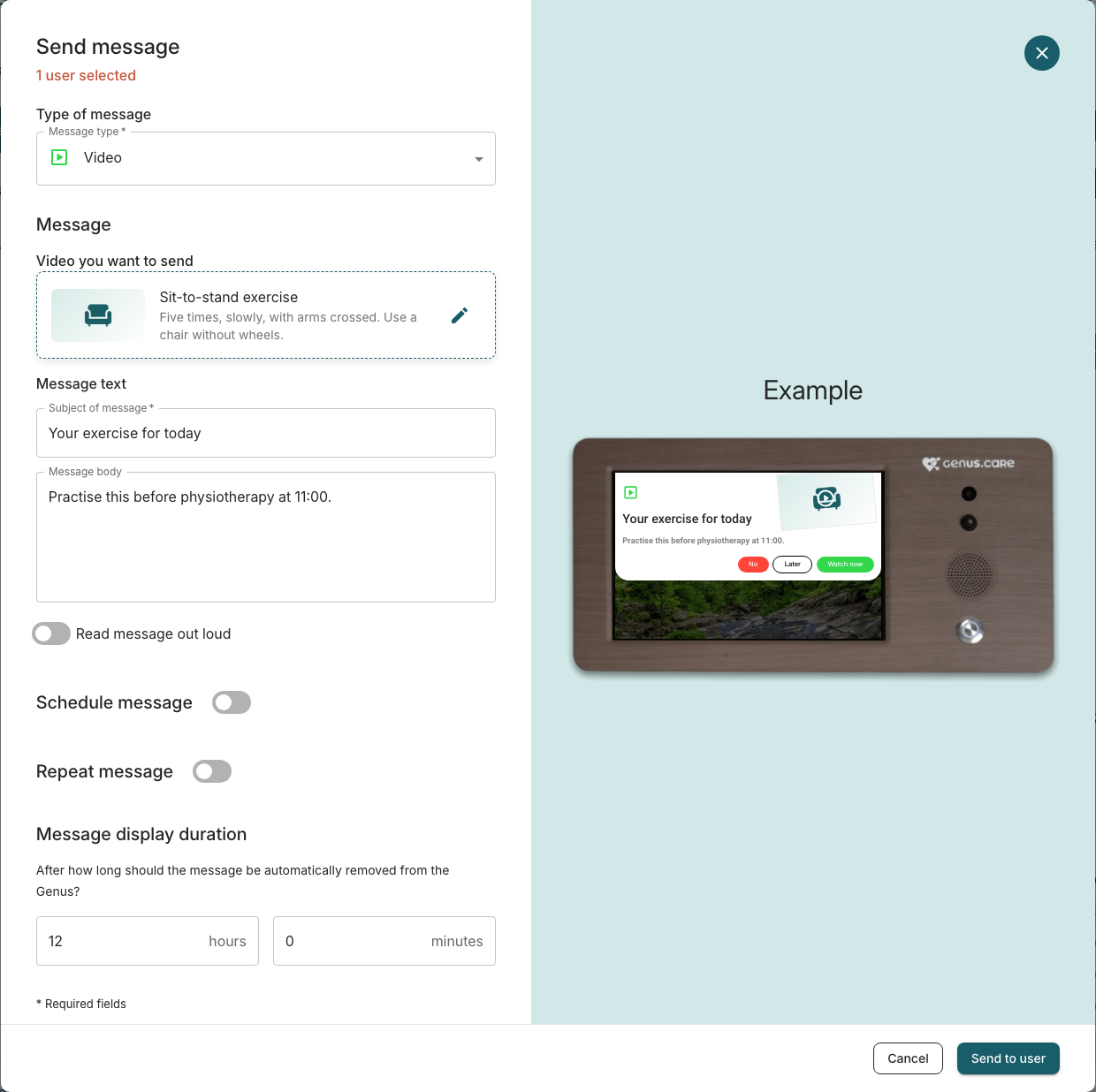
Section titled “For care professionals: sending a video to a client”Sara Jansen wants Elisabeth de Vries to practise a physiotherapy exercise before Thursday’s session. She opens Elisabeth in the Community Portal and clicks Send message.
- Under Message type, choose Video.
- Click Select an asset and pick the video. Videos that are still being processed are greyed out.
- Fill in the Subject of message and, if you like, the Message body.
- Set the Message display duration (see below) and click Send to user.
The Example preview on the right shows the message as it will look on the Genus, with the video’s preview image and the buttons No, Later and Watch now.
The messages page in the wiki has the full steps for sending, scheduling and repeating messages.
On the Genus: watching the video
Section titled “On the Genus: watching the video”The message appears on the Genus like any other message, with the video’s preview image and a play button.
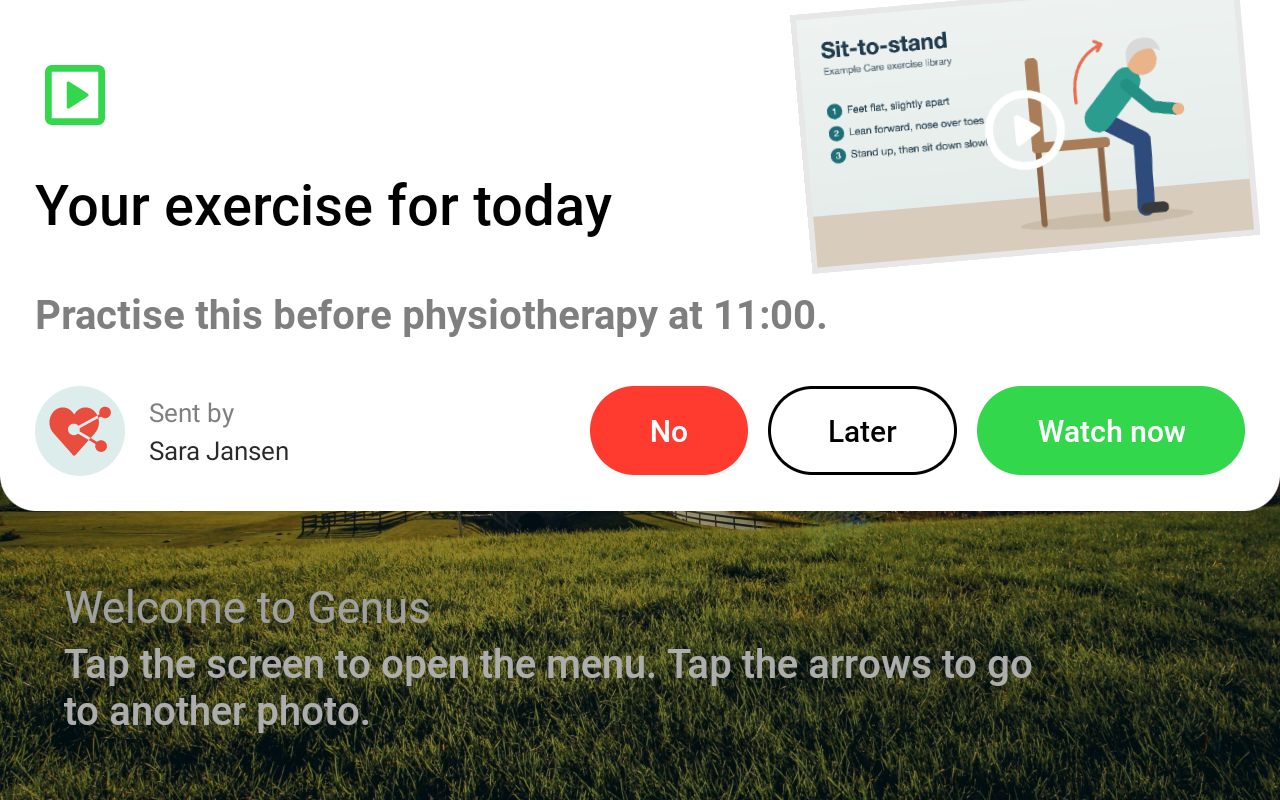
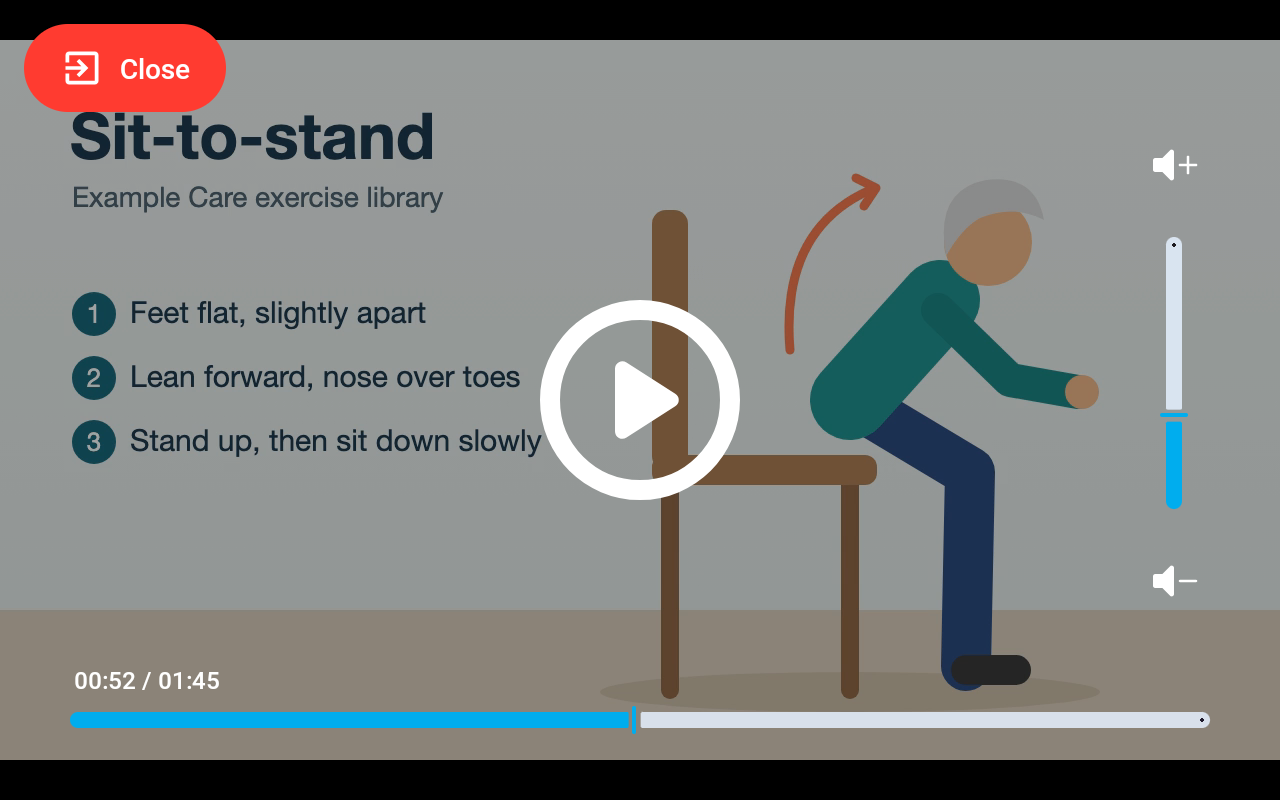
- Watch now, or the play button on the image, starts the video full screen.
- Later closes the message, and it comes back after 10 minutes.
- No closes the message without playing the video.
Tap the screen while the video plays to show the controls: pause and play, a bar to move through the video, the time, the volume and a button to close the video. They hide again after a few seconds. When the video ends, the controls stay on screen, so the client can watch it again or close it.
Messages, reminders and videos explains how messages work on the Genus.
A separate volume for videos
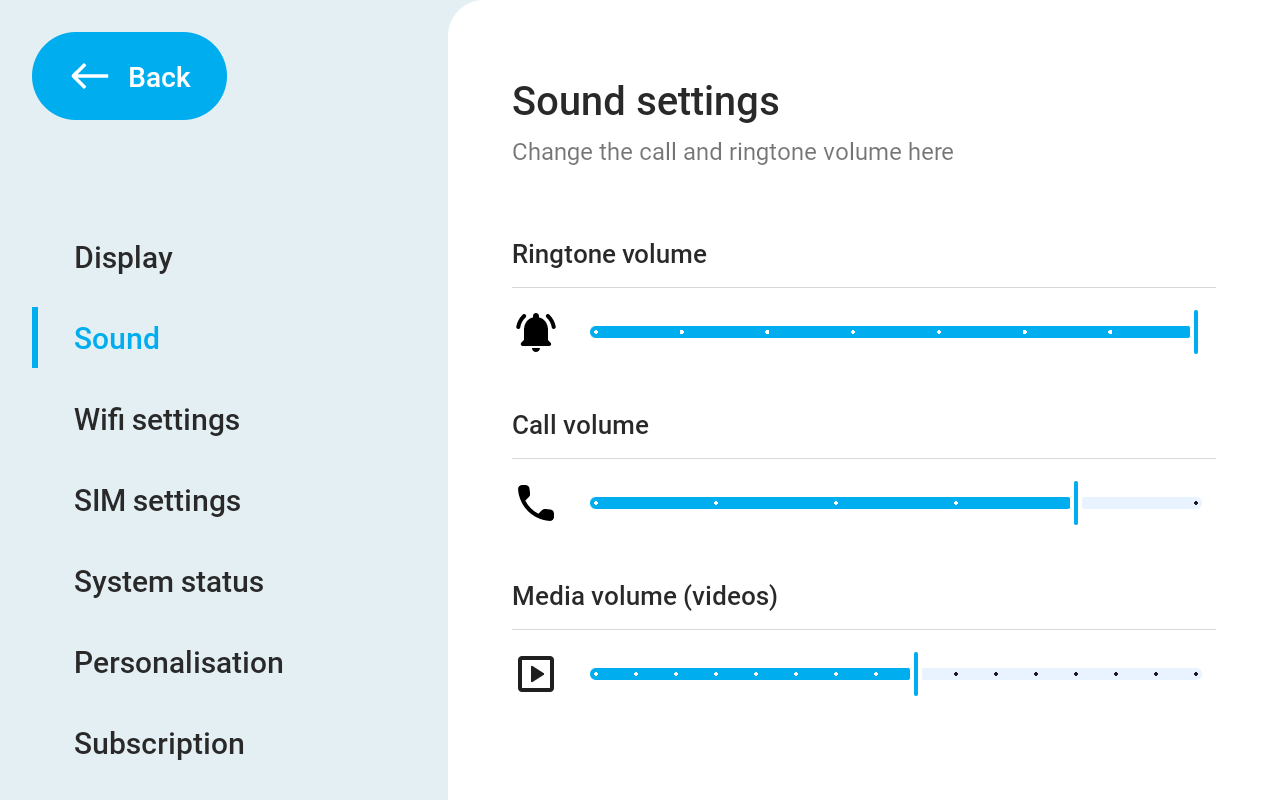
Section titled “A separate volume for videos”Videos have their own volume, the media volume, apart from the call volume and the ringtone volume. A video can be turned up or down without changing how loud calls and the ringtone are.
- On the Genus, go to Settings → Sound and use the slider Media volume (videos). While a video plays, the volume slider in the player and the volume buttons of the Genus change the media volume.
- The volume buttons change the call volume during a call and the ringtone volume the rest of the time. The bar that appears now says which volume you are changing: Media volume, Call volume or Ringtone volume.
- In the Community Portal, edit the client’s Genus settings and use Media volume under Volume settings. Health administrators can change it, which helps clients who cannot easily do it themselves.
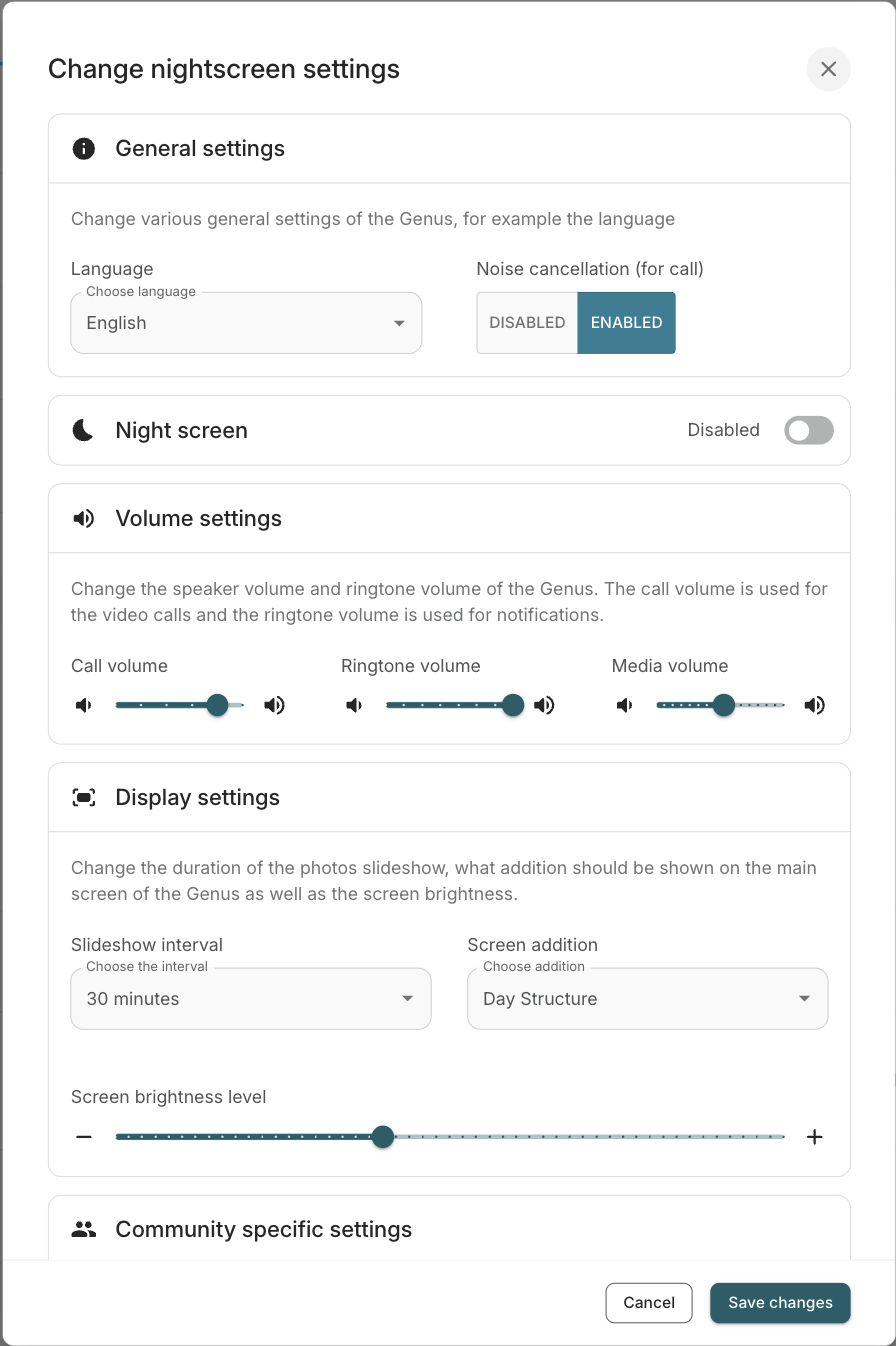
Configuring a Genus from the portal describes every Genus setting in the Community Portal.
Messages that clear themselves
Section titled “Messages that clear themselves”A reminder to take medicine at nine is no longer useful at three in the afternoon. Every message now has a Message display duration: the time after which it disappears from the Genus by itself if the client has not answered it.
Availability
Section titled “Availability”The Community Portal and the Genus receive the update automatically. Video and the media volume are not part of Genus PAL, which has no screen.
- Genus 4.5.0 (December 2025) plays video messages and has the media volume.
- Genus 4.5.1 (January 2026) adds the message display duration, the volume slider in the video player and the volume bar that names the volume being changed.
- The Assets page and the message type Video were first available to a small group of care organisations in December 2025, and to all care organisations from January 2026.