

New sign-in pages and emails, in your own language
Every care professional, health administrator and distributor starts their day on the same page: signing in with their Genus account. It is also the first thing a new colleague sees, through the email that activates their account. Those pages and emails should be clear, in the reader’s own language, and look like Genus.
This release gives the sign-in pages and the account emails a new design in the Genus style, with plain texts and five languages. Whoever creates an account now chooses the language of its emails.
What’s new
- Everyone who signs in gets new sign-in pages in the Genus design, in Dutch, English, Spanish, Portuguese or French. They open in the language of the portal you came from.
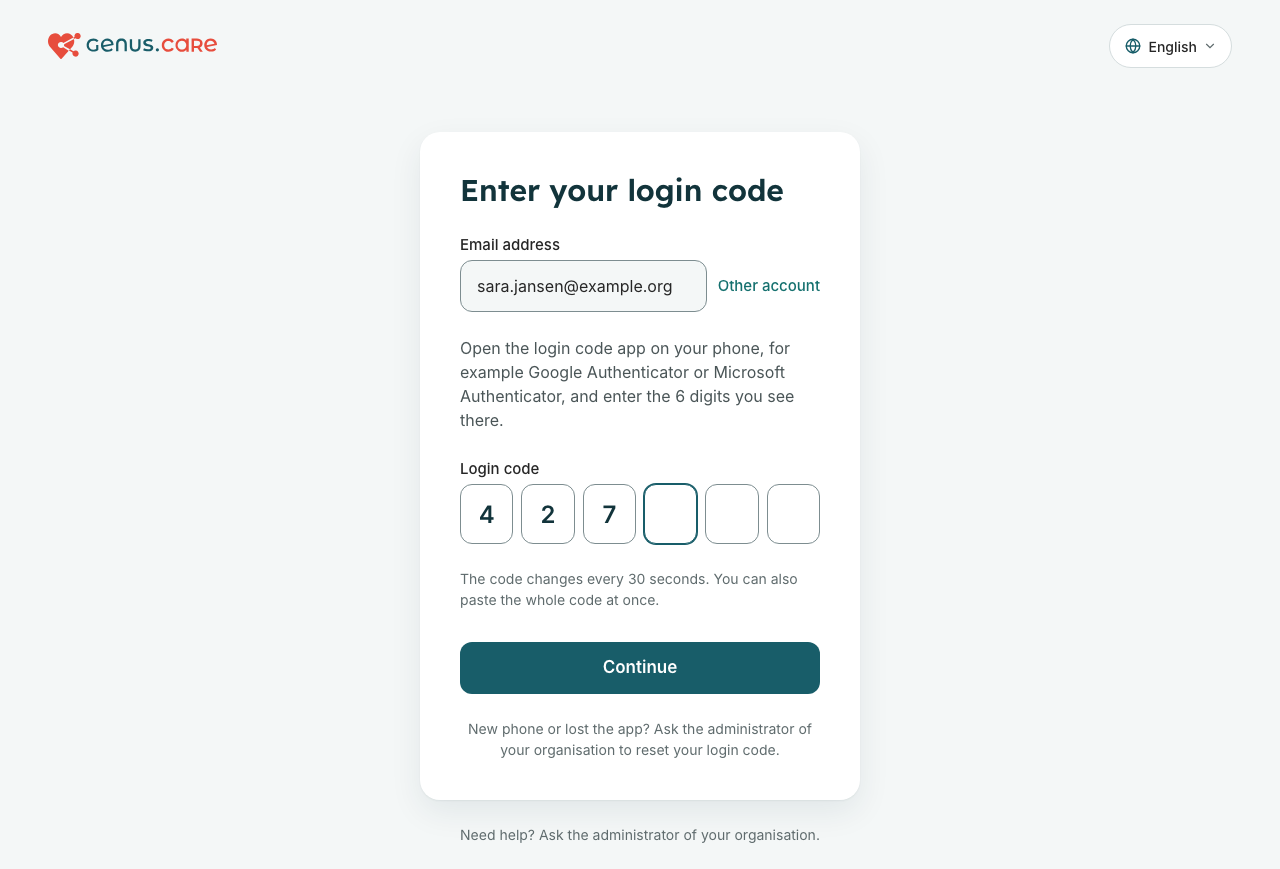
- The login code goes into six boxes, and you can paste the whole code at once.
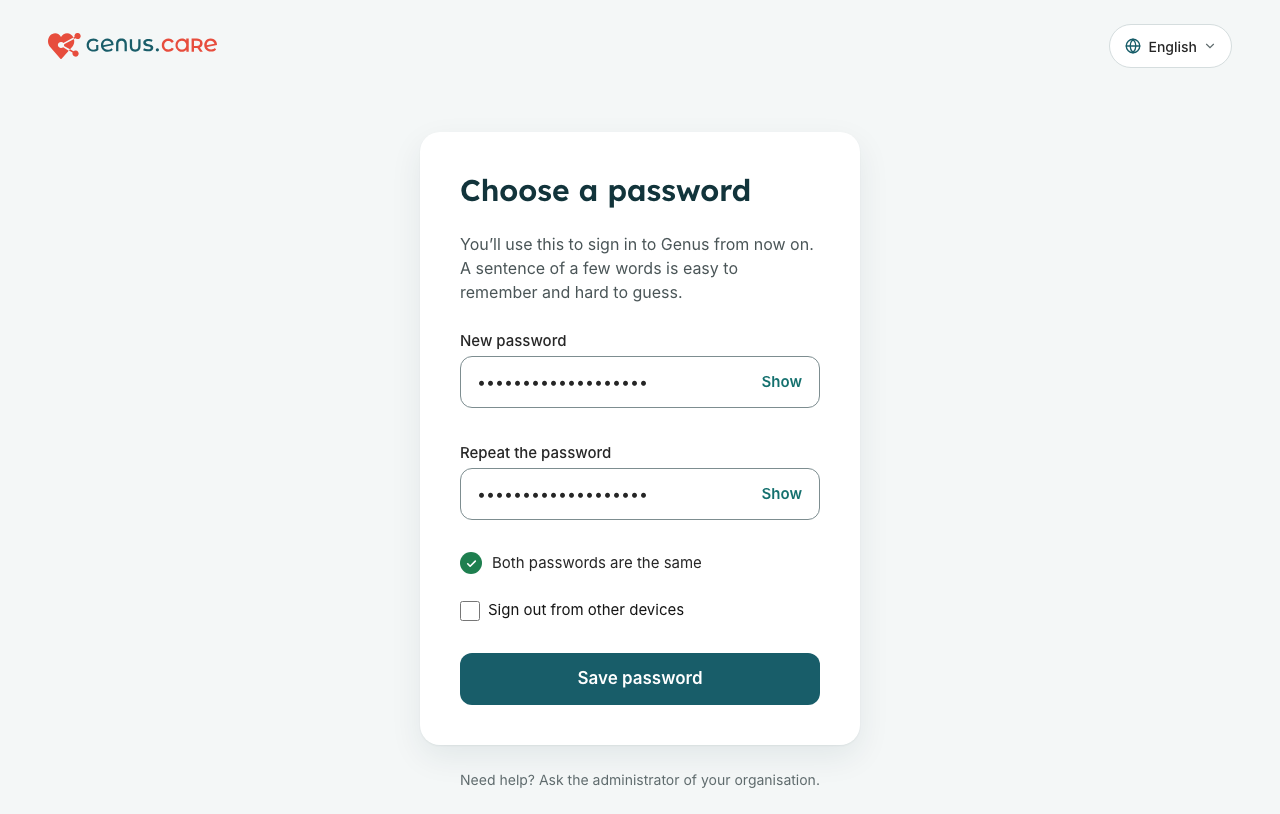
- Choosing a password shows a checklist that ticks off as you type.
- Emails about your account have a new layout and say how long their button works.
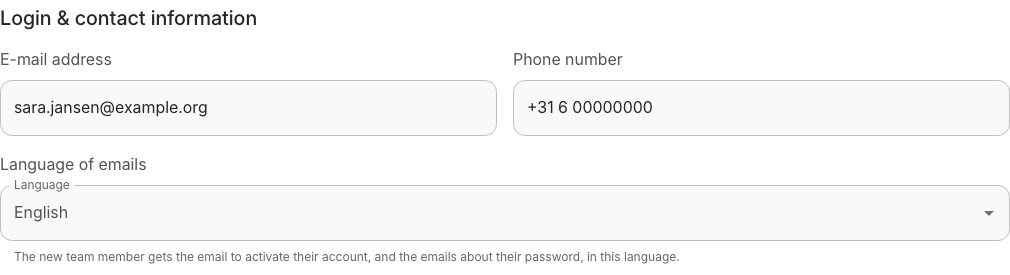
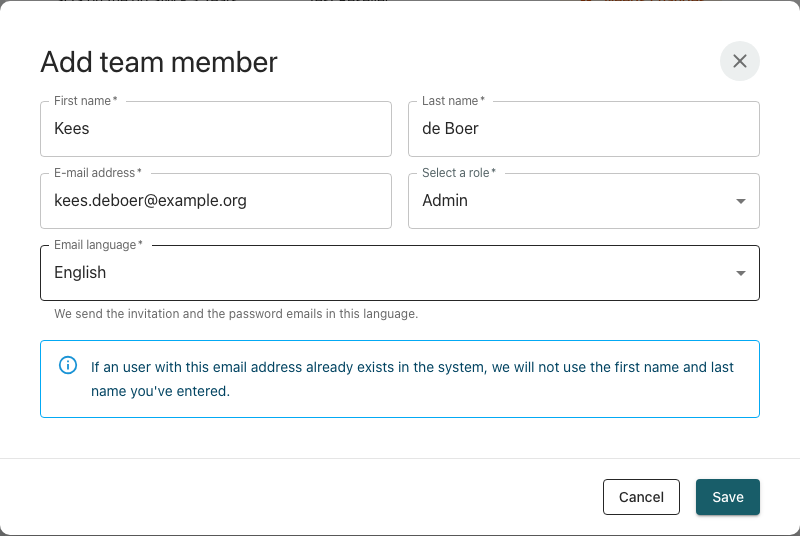
- Health administrators and distributors choose the language of the emails when they add a colleague.
- When a link has expired, the page explains why and what to do next.
Signing in
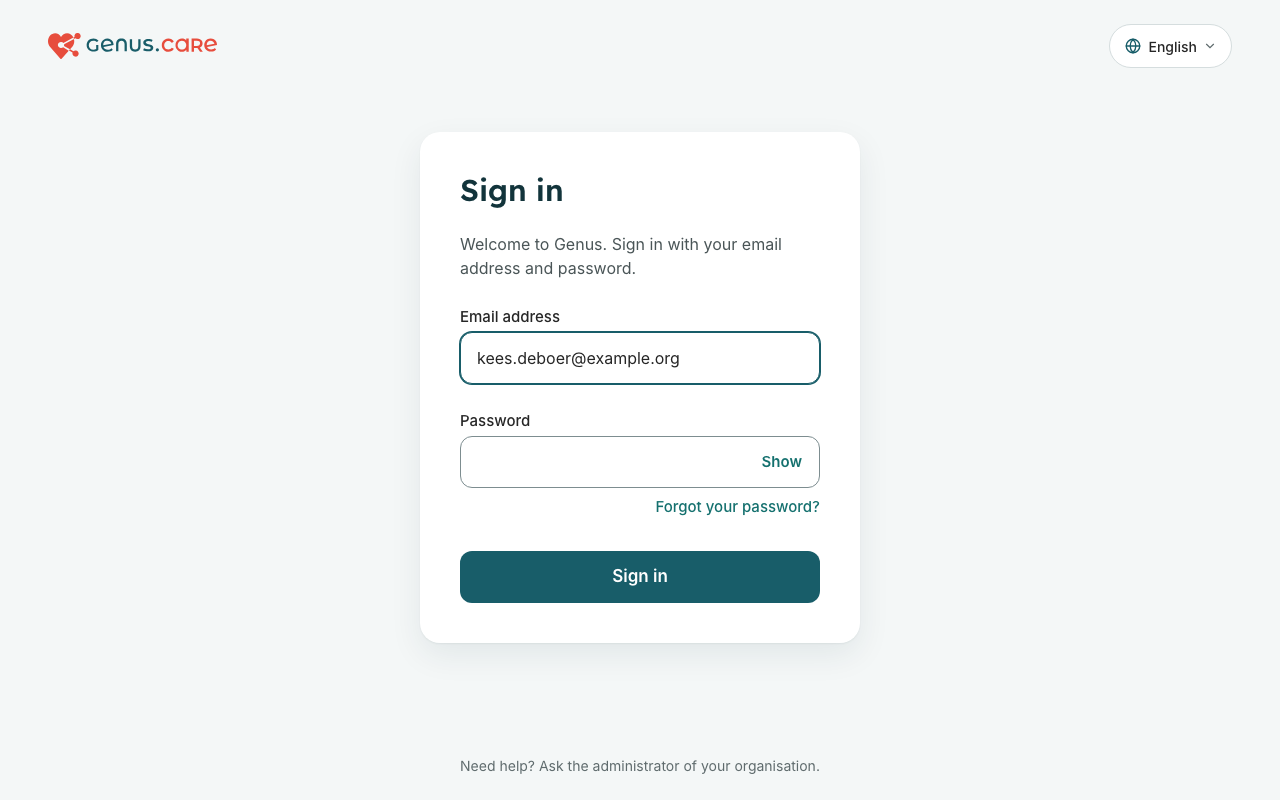
Section titled “Signing in”The sign-in page shows the Genus logo, a short welcome and two fields: Email address and Password. Show in the password field lets you check what you typed. Forgot your password? sits right below it.
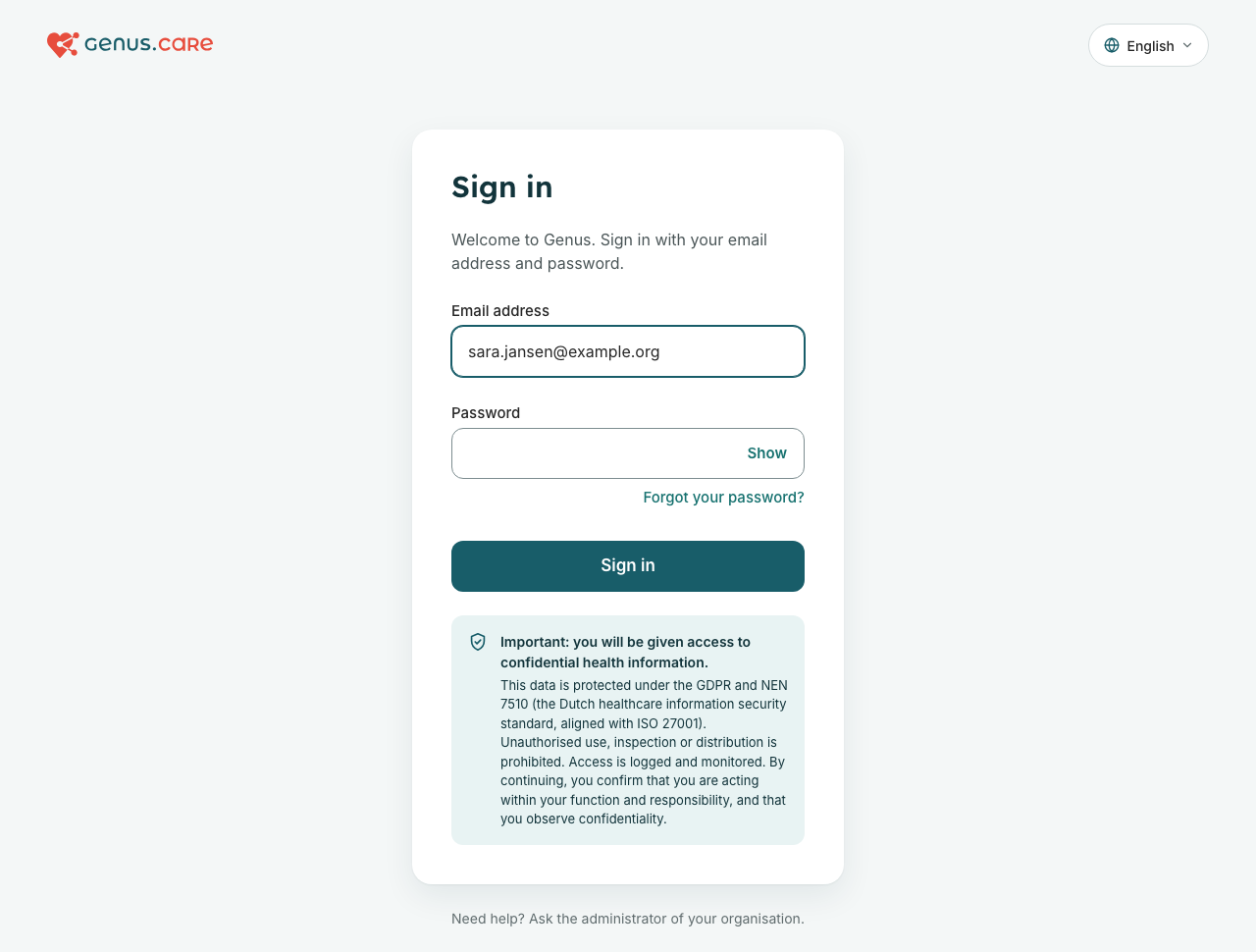
The Community Portal keeps its notice below the form: Important: you will be given access to confidential health information. It reminds you that access is logged and that you work within your function and responsibility. The Business Portal and the Professional App show the same page without this notice.
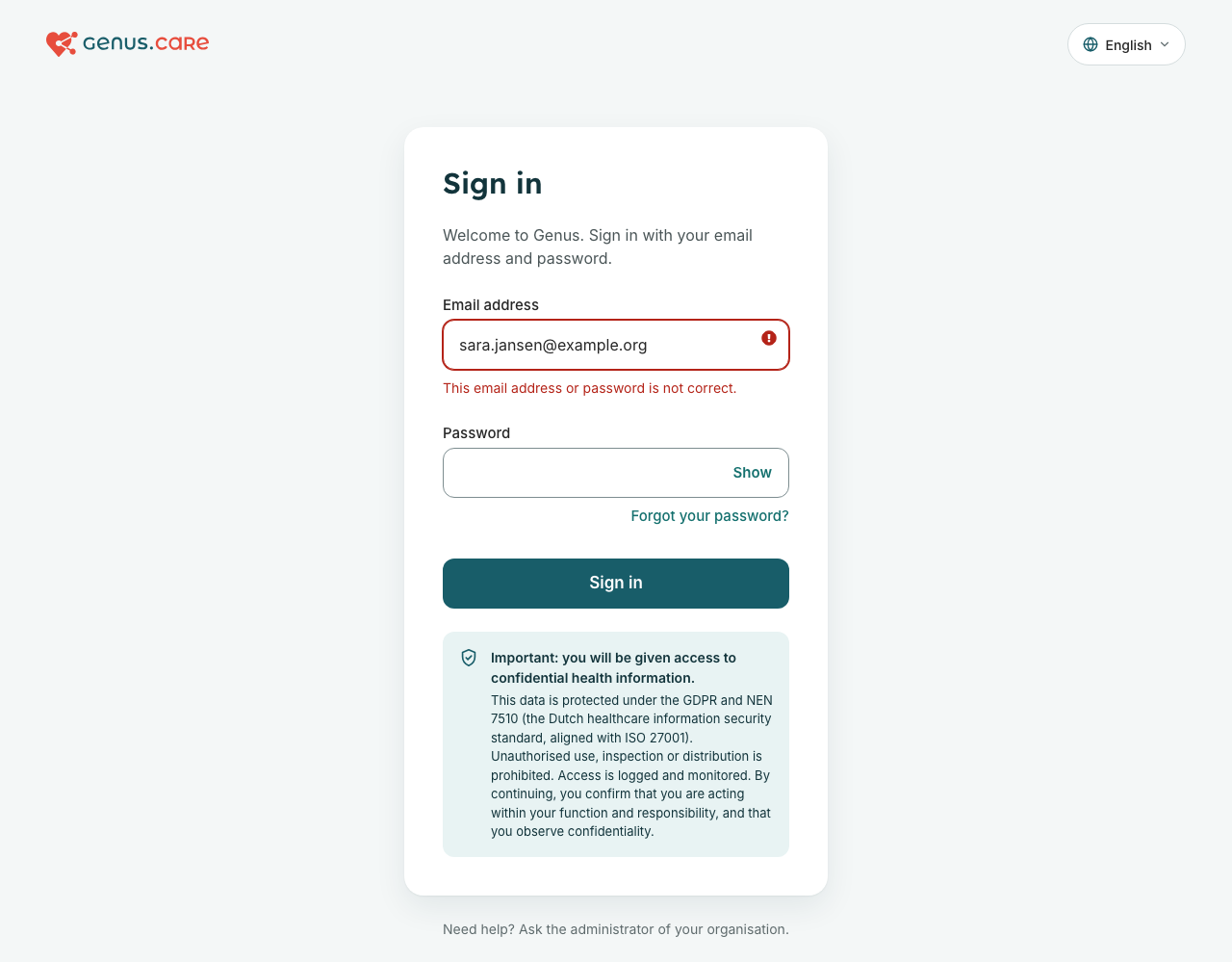
When the email address or the password is not correct, the page says so in one sentence: This email address or password is not correct.
The Professional App uses the same pages when you sign in from the app. The full steps are on signing in and your account.
Five languages
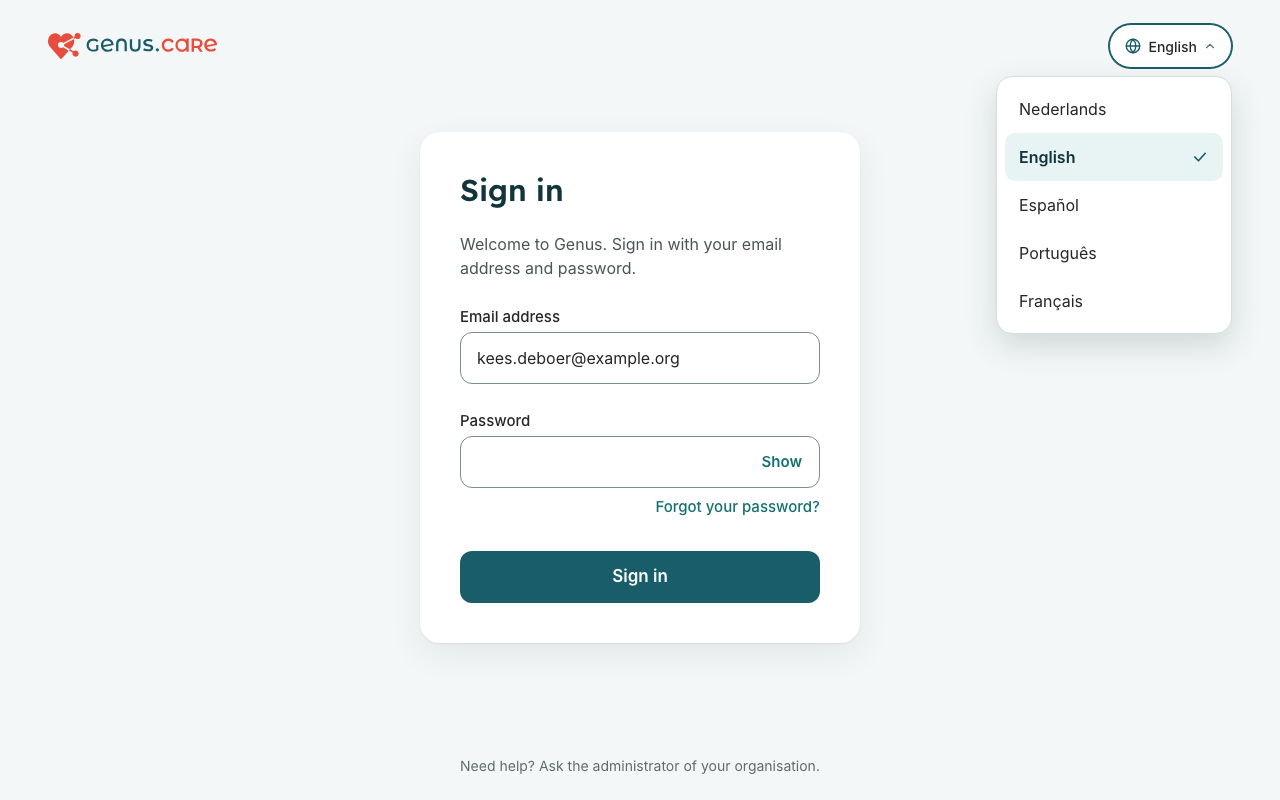
Section titled “Five languages”The language menu at the top right of every page offers Nederlands, English, Español, Português and Français, each in its own name. Portuguese and French are new.
The Community Portal and the Business Portal open the sign-in page in the language you use the portal in. In the Professional App, the pages follow the language of your phone. You can switch at any moment with the menu.
The login code
Section titled “The login code”Signing in to the portals and the Professional App takes a second step: after your password, you enter a login code from an authenticator app on your phone, such as Google Authenticator or Microsoft Authenticator.
- Six boxes. The page shows one box per digit. Typing moves to the next box, and pasting the whole code fills them all.
- Clear help. The page says the code changes every 30 seconds. If you have a new phone or lost the app, it tells you to ask the administrator of your organisation to reset your login code.
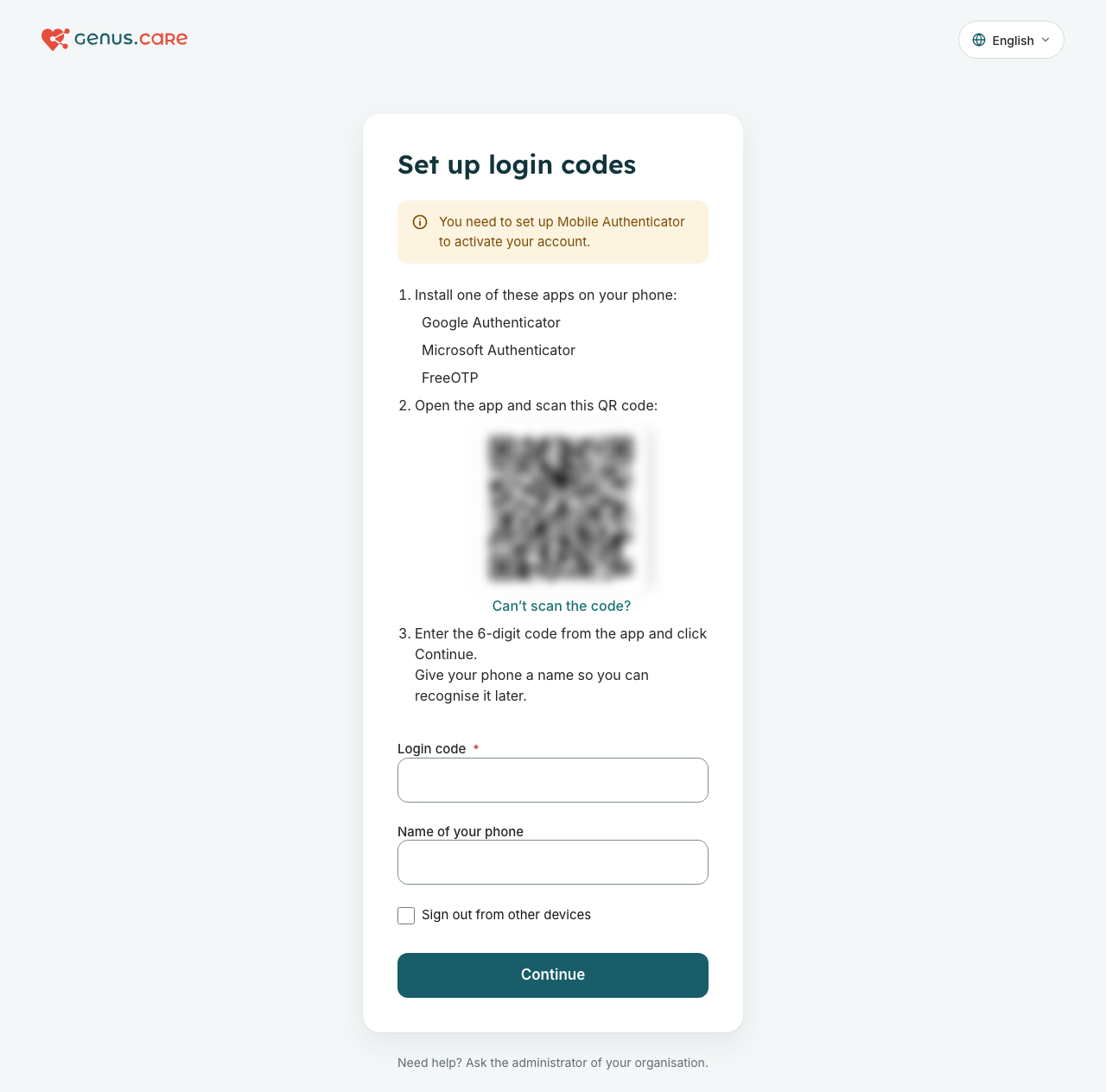
- Setting it up. At your first sign-in, Set up login codes shows the apps you can use and a QR code to scan. You then enter the first code and give your phone a name.
An Admin in a care organisation resets a colleague’s login code under Team members; see team members and teams.
Choosing and resetting your password
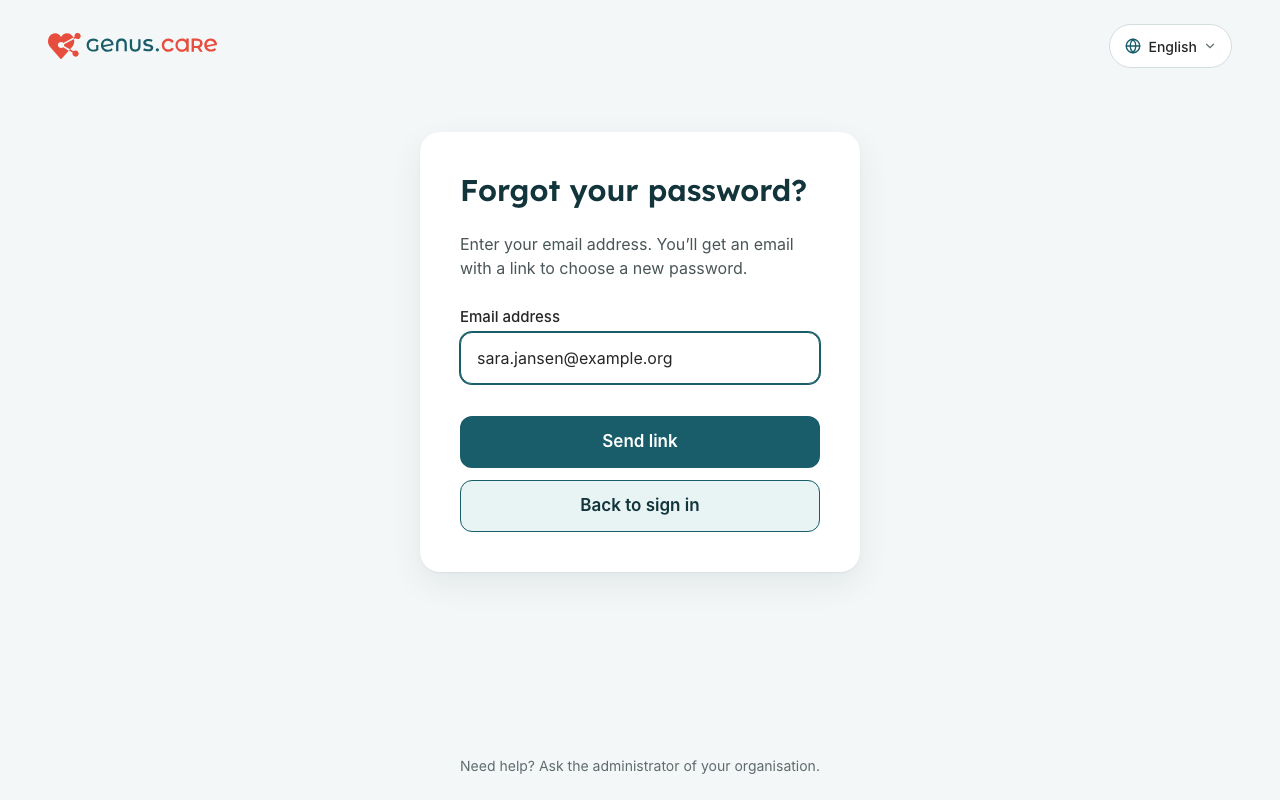
Section titled “Choosing and resetting your password”Forgot your password? asks for your email address and sends a link with Send link. The sign-in page then confirms that the email is on its way.
The page Choose a password is the same for a new account and for a forgotten password. You type the password twice, and a checklist below the fields ticks off each requirement as you type, such as Both passwords are the same. Save password stores it.
The emails about your account
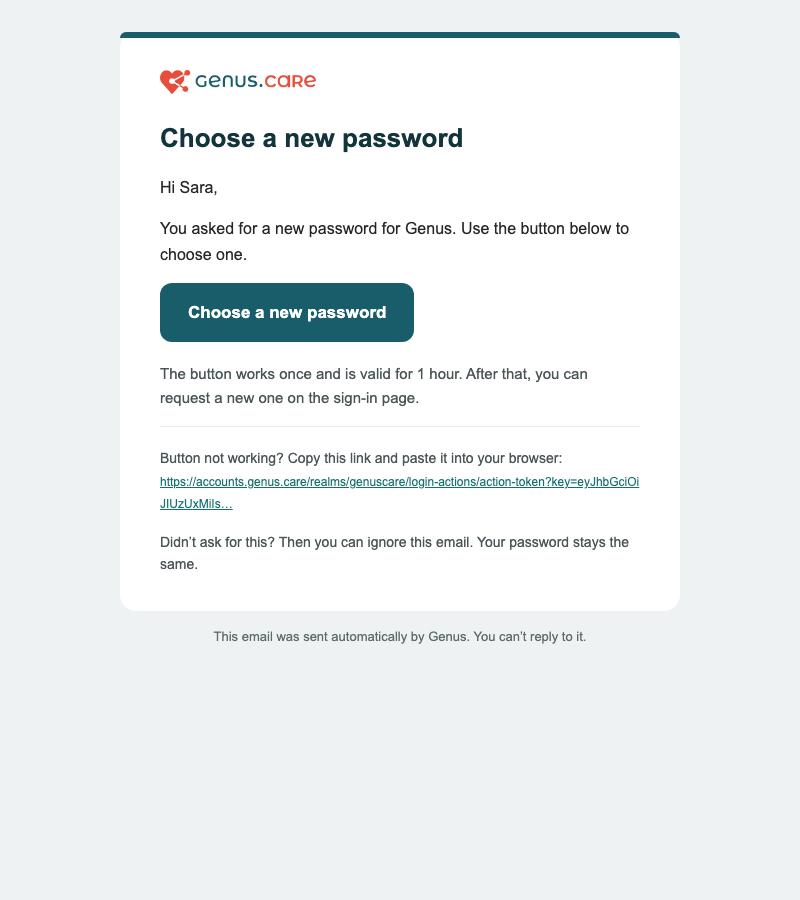
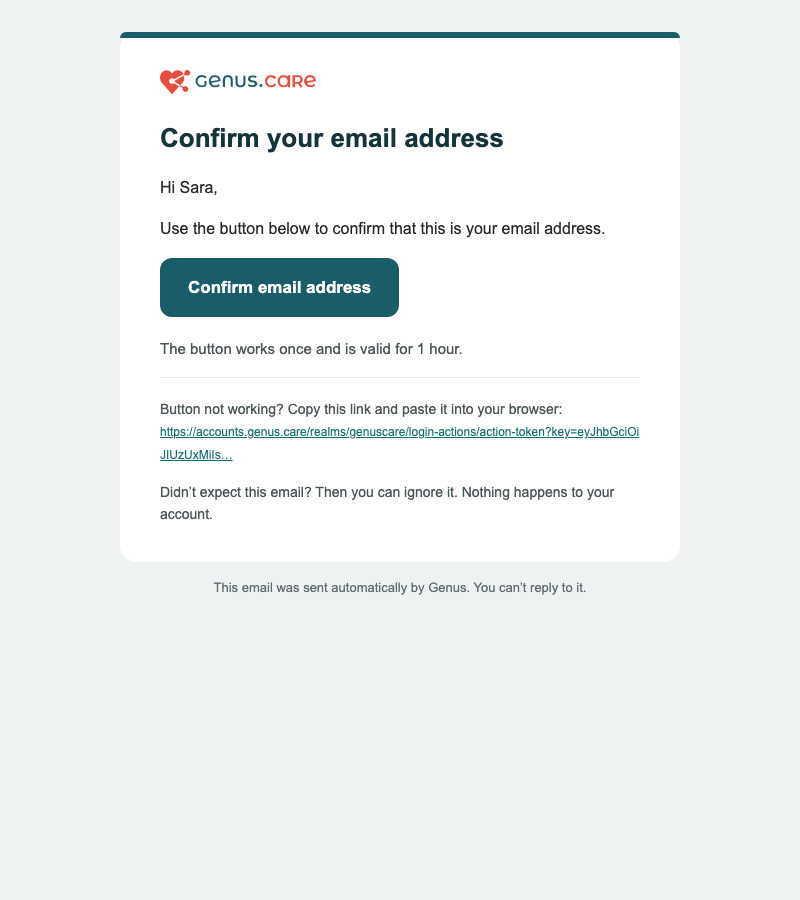
Section titled “The emails about your account”The three emails Genus sends about an account have a new, simple layout: the Genus logo, a greeting with your first name, one clear button and how long the button works.
| Subject | Button | Valid for | |
|---|---|---|---|
| A new account | Welcome to Genus: activate your account | Activate account | 12 days |
| A forgotten password | Choose a new password for Genus | Choose a new password | 1 hour |
| Confirming your email address | Confirm your email address for Genus | Confirm email address | 1 hour |
Every email also has the link as text, for when the button does not work, and says what to do if you did not expect it.
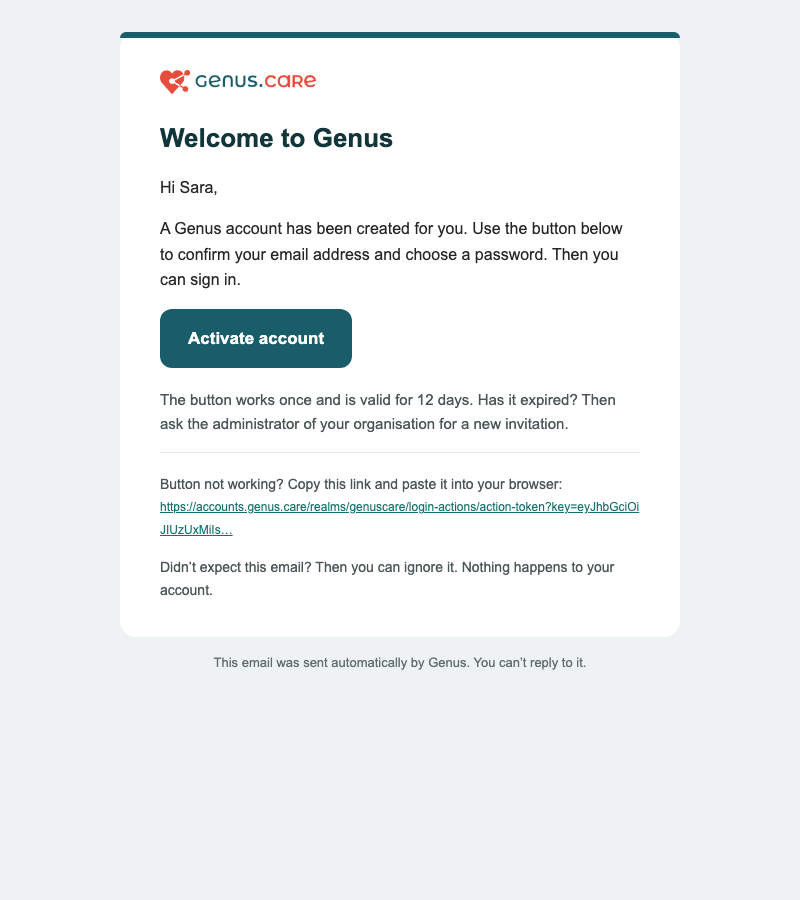
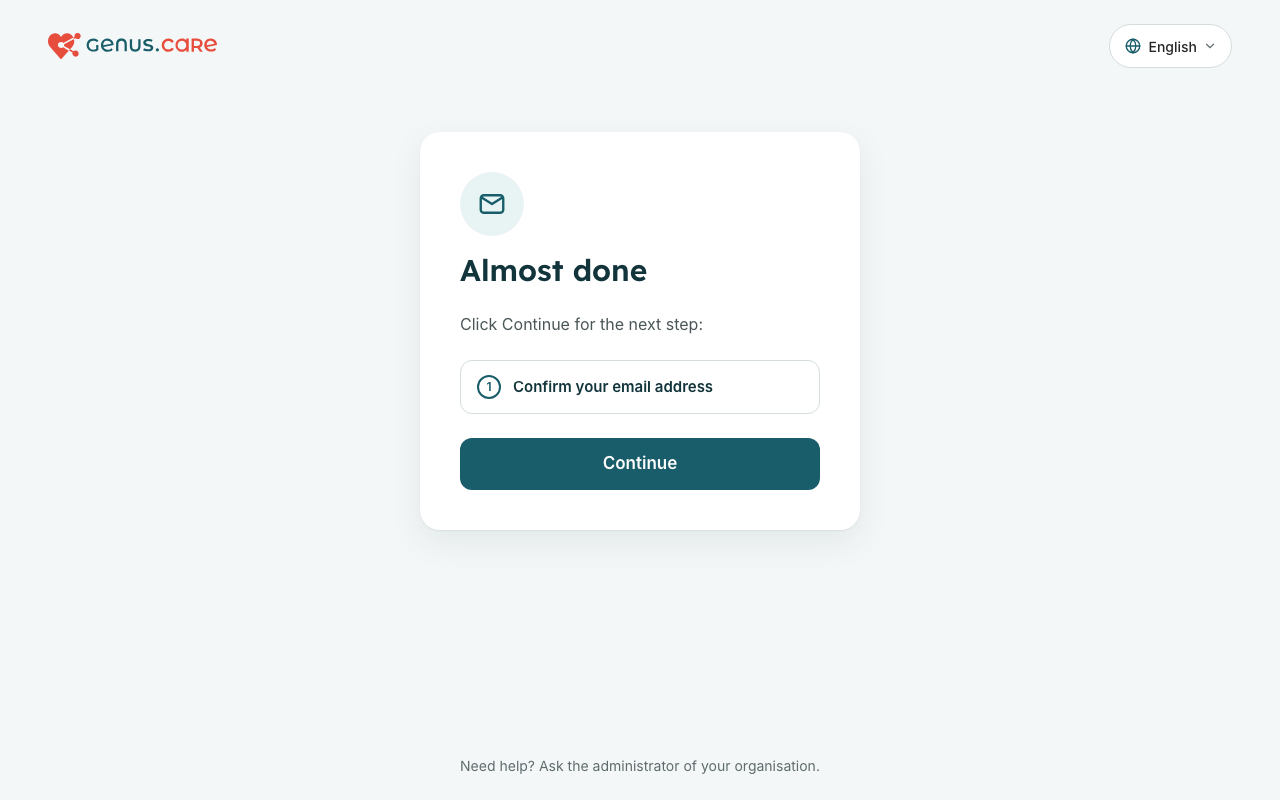
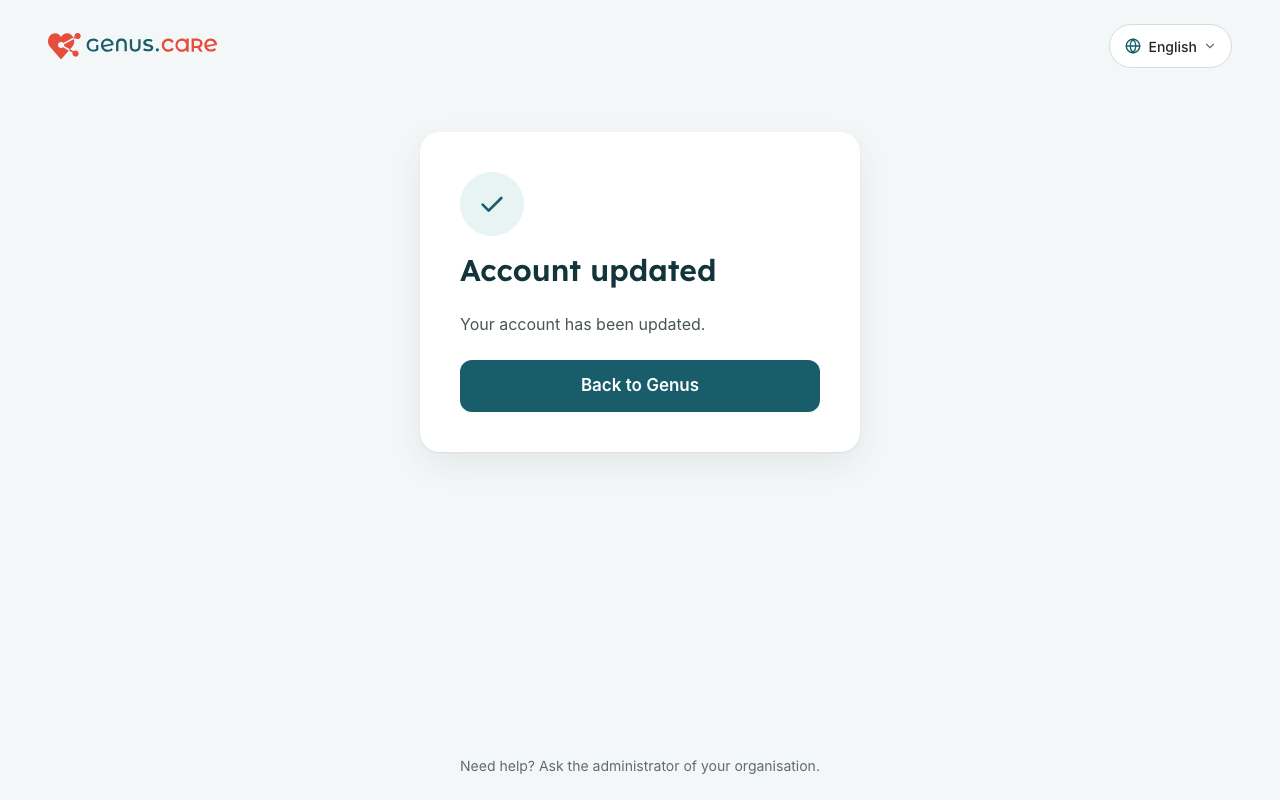
The activation button leads to a page called Almost done, which lists the next step, and then to Choose a password. After that, the new colleague signs in and sets up the login code.
When something has expired
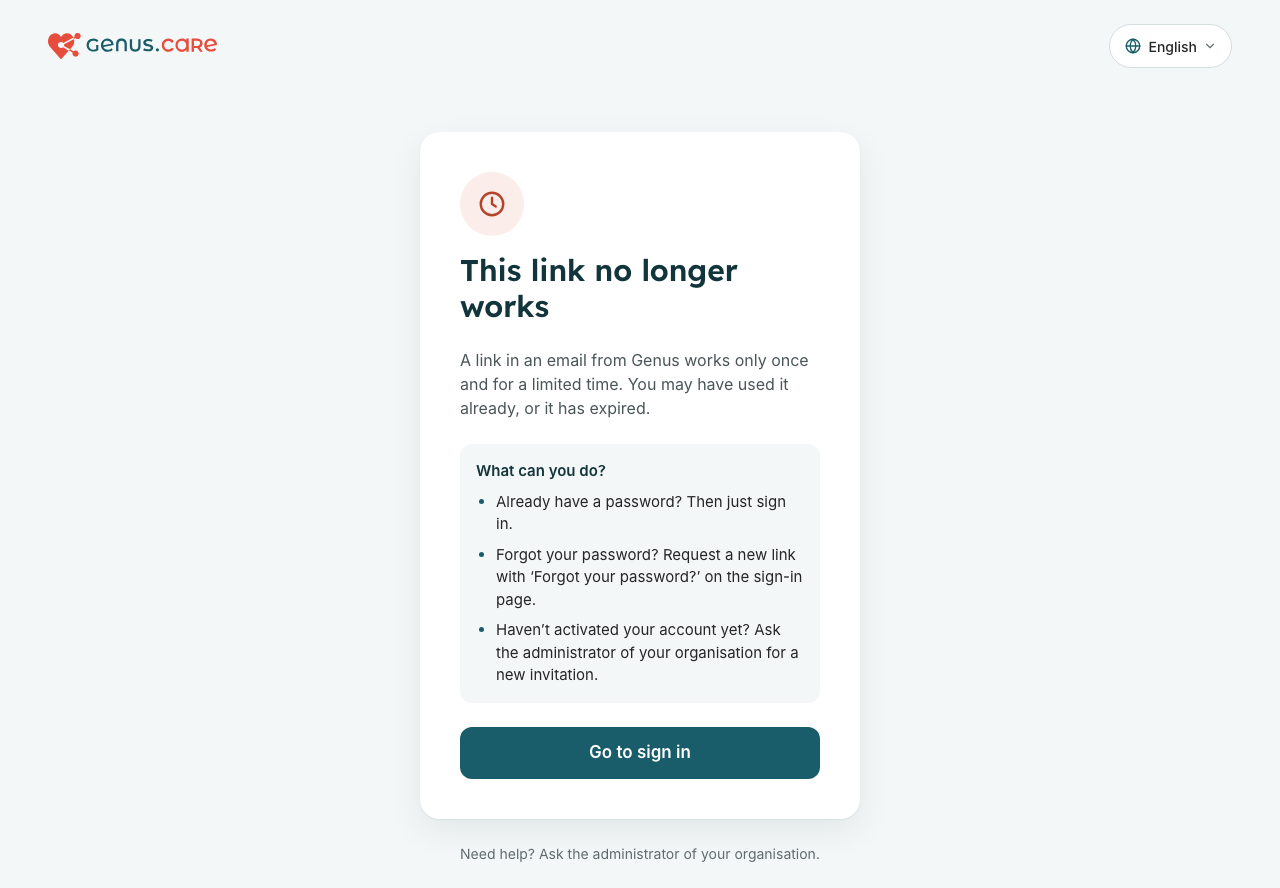
Section titled “When something has expired”- A link from an email. A link works once and for a limited time. A used or expired link opens This link no longer works, with what you can do: sign in, request a new link, or ask for a new invitation.
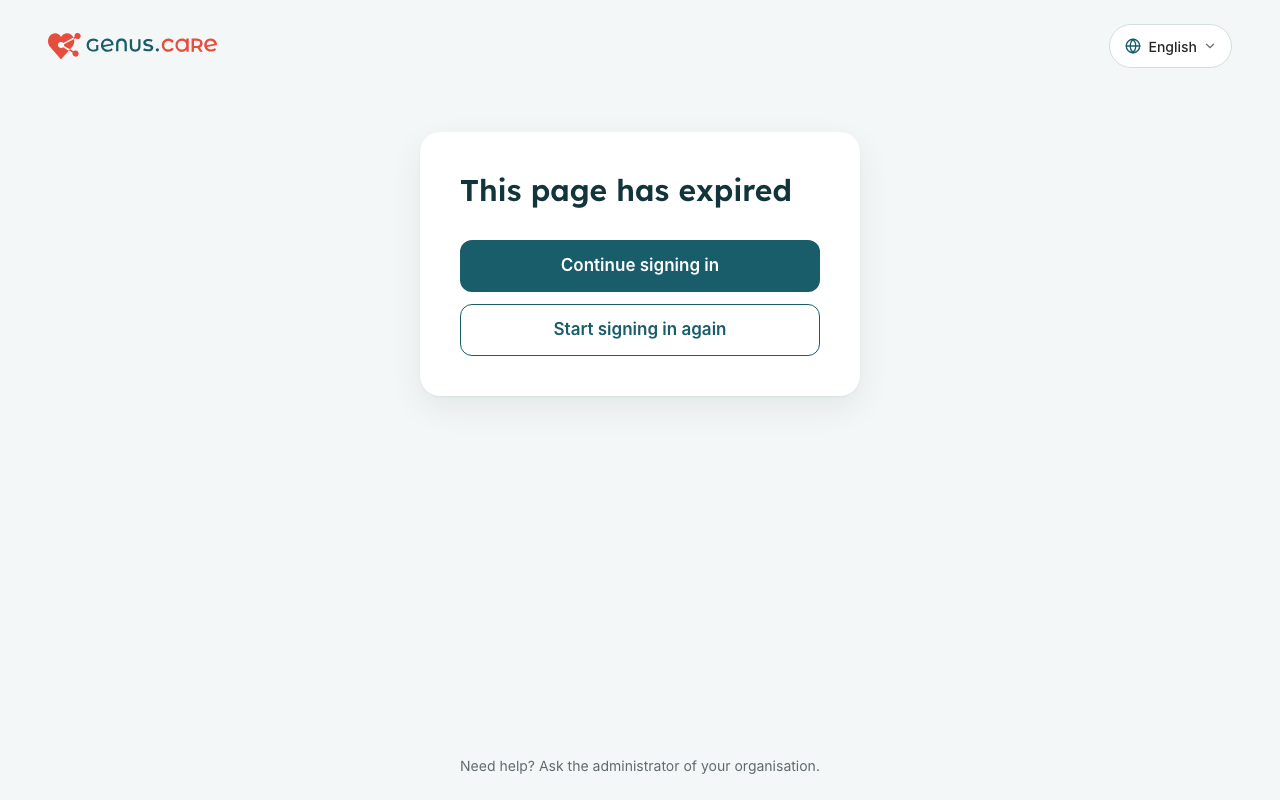
- A sign-in page left open too long, or reached with the browser’s Back button, opens This page has expired, with Continue signing in and Start signing in again.
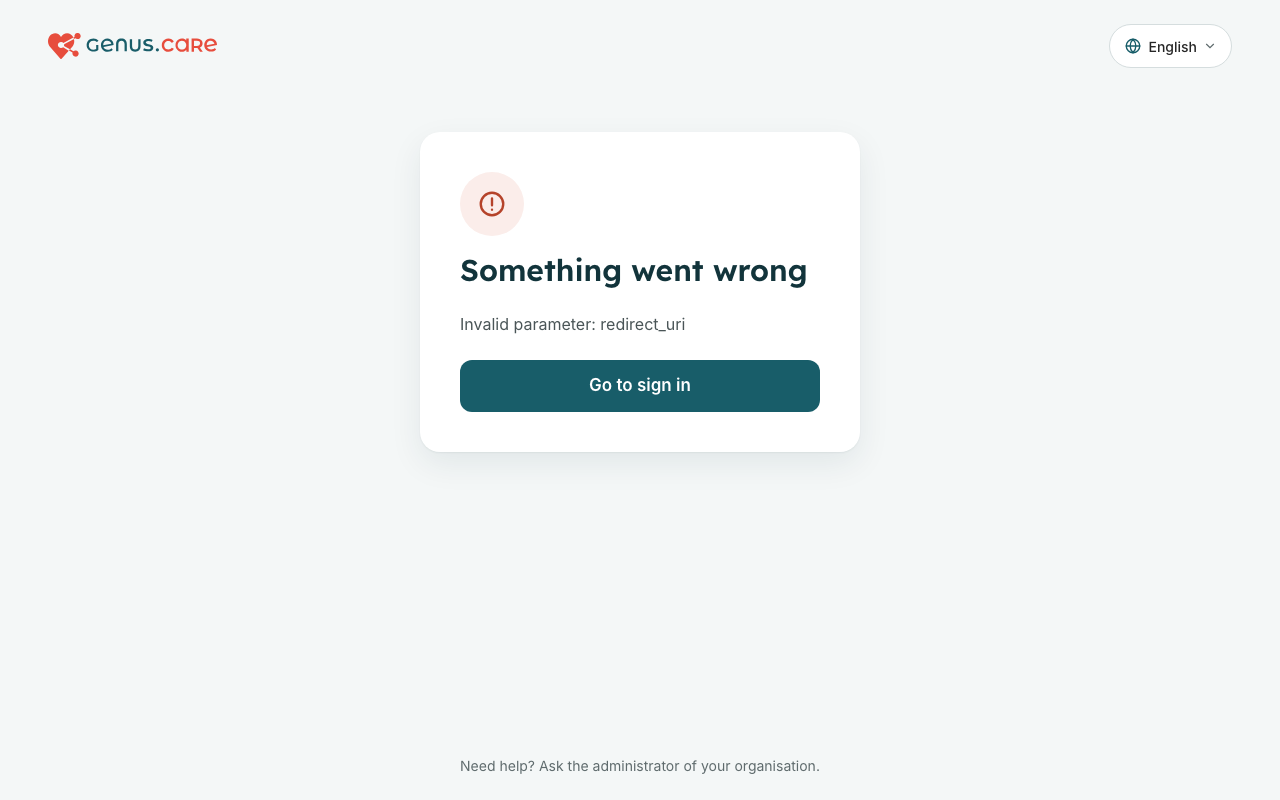
- Other problems show Something went wrong with a short explanation and a button back to the sign-in page.
For health administrators and distributors: the language of a new account
Section titled “For health administrators and distributors: the language of a new account”When you add someone who has no Genus account yet, you now choose the language of the emails they get: the activation email and the emails about their password. The choice starts at the language you use the portal in.
- Community Portal. In New team member, under Login & contact information, choose Language of emails.
- Business Portal. In Add team member, and for the admin user in Add community, choose Email language.
The steps are on team members and teams and on the Business Portal structure.
Availability
Section titled “Availability”The new sign-in pages and emails are part of the Genus servers and apply to the Community Portal, the Business Portal and the Professional App at once. No app update is needed. The language choice for new accounts is in the Community Portal and the Business Portal released in November 2026.