

The dashboard: what needs a response, most urgent first
When a client presses the alarm button, the care team needs to see it, know how urgent it is and act. Until November 2025 the Community Portal opened on the client list. An open alarm, alert or Call Me request showed as a badge next to the client’s name, and clients with an alarm jumped to the top of the list. To respond, a care professional opened the client page first.
This release gives the portal a new starting point: the dashboard. It lists every open alarm, alert and Call Me request in one live list, with the most urgent at the top. Each row carries the action it needs, so replying, calling, solving and cancelling happen without leaving the page. The client list becomes a place to find and manage clients.
What’s new
- Care professionals start on a dashboard that shows everything that needs a response, sorted by urgency and kept up to date without reloading.
- Care professionals reply to an alarm, call the client, solve an alert or answer a Call Me request from the list itself.
- Care professionals can cancel an alarm from the portal for the first time.
- Care professionals can switch on a notification sound, and have it repeat every 30 seconds while an urgent alarm is waiting.
- The client list is sorted by last name, stays in that order, and finds a client by the serial number of their Genus.
- A reference code for support: if something goes wrong in the portal, a page gives a code to pass on to support.
For care professionals: the dashboard
Section titled “For care professionals: the dashboard”From late November 2025 the portal opens on the dashboard. You also reach it with Dashboard at the top of the side menu, and from December with the Genus logo above it. The page is called Genus Dashboard.
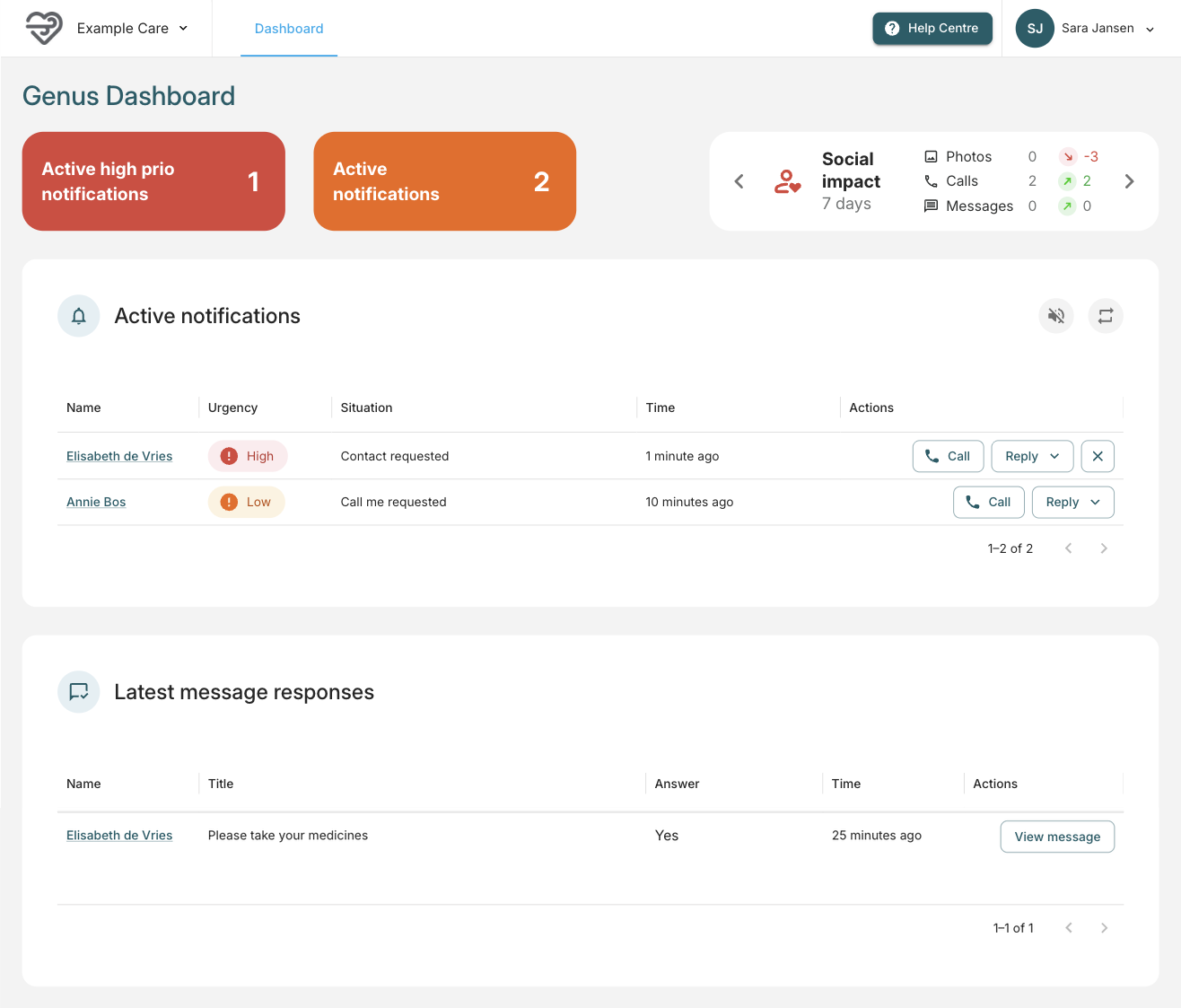
From top to bottom, the dashboard shows:
- Active high prio notifications and Active notifications: two counters. Click either one to open the full list over the page, and close it again with the cross.
- Social impact and Care impact: what happened in your organisation over the last 7 days. Use the arrows to
switch between the two.
- Social impact counts the photos, calls and messages family members sent to your clients’ Genus.
- Care impact counts the alarms that reached your organisation, the alerts, and the calls to your clients’ Genus that did not come from family members.
- Each number shows the difference with the 7 days before: green when it moved the right way, such as more contact from family or fewer alarms, and red when it moved the other way.
- Active notifications: the list you work from, described below.
- Latest message responses: your clients’ answers to messages from the last 7 days, newest first. View message opens the message with its answer.
One list, most urgent first
Section titled “One list, most urgent first”The list has the columns Name, Urgency, Situation, Time and Actions, ten notifications per page. Click a name to open the client page. Within the same urgency, the newest notification comes first.
| Notification | Urgency |
|---|---|
| Alarm: the client asked for help with the Genus or an alarm button | High until someone replies that they are coming. The urgency then drops, so the alarms nobody is handling yet stay at the top. |
| Alert: the system noticed something that may be wrong | The urgency of the alert itself, High, Medium or Low. |
| Call Me request: the client asked to be called back | Always Low. |
The Situation column says what happened, such as Contact requested, Call me requested, Day start deviation detected or Medicine reminder responded with: No. Below an alarm it shows the most important reply so far, for example Sara Jansen: On my way (10:02). If the alarm was passed on to an external alarm platform, it reads, for example, Escalated to UMO, or Escalation to UMO failed. The Time column shows how long ago each notification came in.
Acting from the list
Section titled “Acting from the list”Each type of notification has its own buttons in the Actions column.
| Notification | Actions |
|---|---|
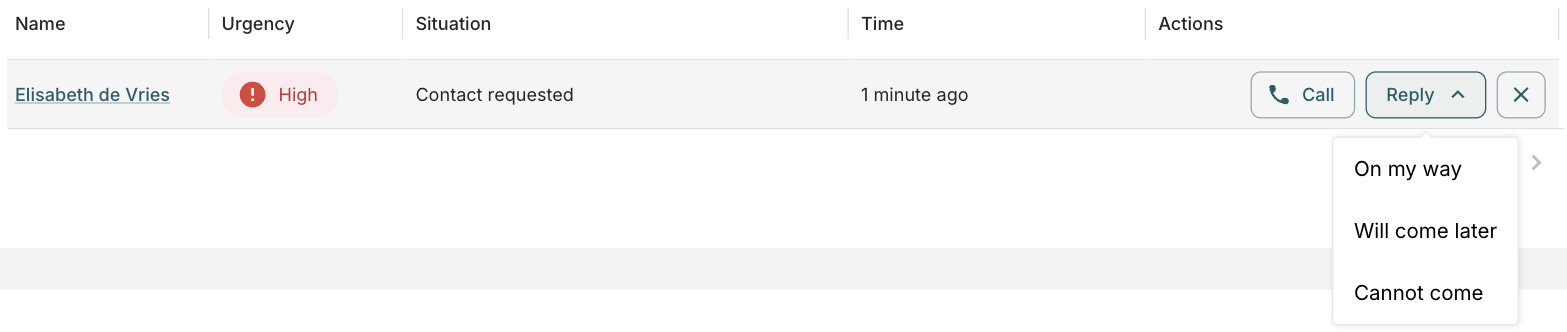
| Alarm | Call, Reply (On my way, Will come later, Cannot come) and a cross to cancel the alarm |
| Alert | Solve |
| Call Me request | Call, Reply (Start (video) call, Will call later, Cannot call) |
Replying to an alarm
Section titled “Replying to an alarm”Click Reply and choose your answer. It works like a reply from the client page: your answer appears in the Situation column and sets the urgency. On my way and Will come later also show on the client’s Genus.
Calling the client during an alarm
Section titled “Calling the client during an alarm”Click Call on the alarm. The call opens in a new window, and the Genus answers it by itself with the client’s camera off. You can talk to the client straight away.
Cancelling an alarm
Section titled “Cancelling an alarm”When the situation has been dealt with:
- Click the cross at the end of the alarm’s row.
- The dialog Cancel alarm asks Are you sure you want to cancel this alarm? Click Cancel alarm.
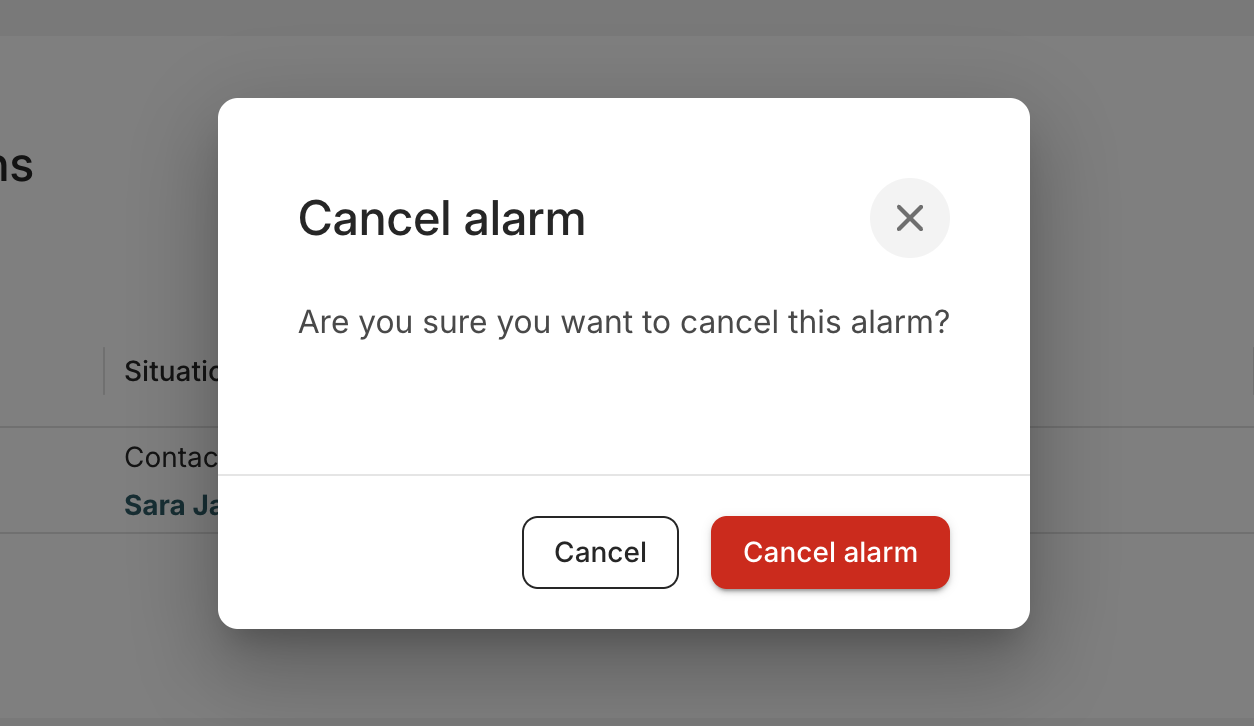
The alarm then closes everywhere. The alarm screen on the Genus closes, family members see in the Genus app that it is over, and it leaves the dashboard of every colleague.
Answering a Call Me request
Section titled “Answering a Call Me request”From late November, Call Me requests are part of the list too. Click Call to open the video call dialog, or click Reply and choose Start (video) call, Will call later or Cannot call.

A call from the portal closes the request. After Will call later or Cannot call the request stays in the list, and the Situation column shows Someone answered with the reply and its time.
Hearing new notifications
Section titled “Hearing new notifications”A dashboard on a second screen only helps if someone notices it. The portal can now play a sound.
- On the dashboard, click the speaker icon at the top right of Active notifications. A sound now plays with every pop-up for a new alarm, alert or Call Me request, on any page of the portal.
- To keep being reminded, also click the repeat icon next to it. The sound then plays every 30 seconds while the list holds an alarm with High urgency, and the bell icon in front of Active notifications shakes.
- Click once anywhere on the page. Browsers only play sound after you have used the page. Until then the portal shows We cannot play any notification sounds until you interact with this page (e.g. by clicking somewhere).

How the pop-ups and the sound work today is described on the dashboard.
The client list: for finding and managing clients
Section titled “The client list: for finding and managing clients”With the dashboard keeping watch, the client list no longer has to.
- Sorted by last name. The list now keeps a fixed order, by last name. Click First name or Last name to sort by that column instead.
- Search by serial number. Search also finds a client by the serial number of their Genus, which the client page shows as Serial number. That helps when an installer or a support call gives you a number instead of a name.
- The Alerts column stays. An open alarm, alert or Call Me request still shows as a badge next to the client’s name.
At the time the page was called Users. Since January 2026 it is called Clients and also shows each client’s room and team (see finding a client).
A reference code for support
Section titled “A reference code for support”If something goes wrong in the portal itself, the portal shows the page Portal crashed with a reference code.
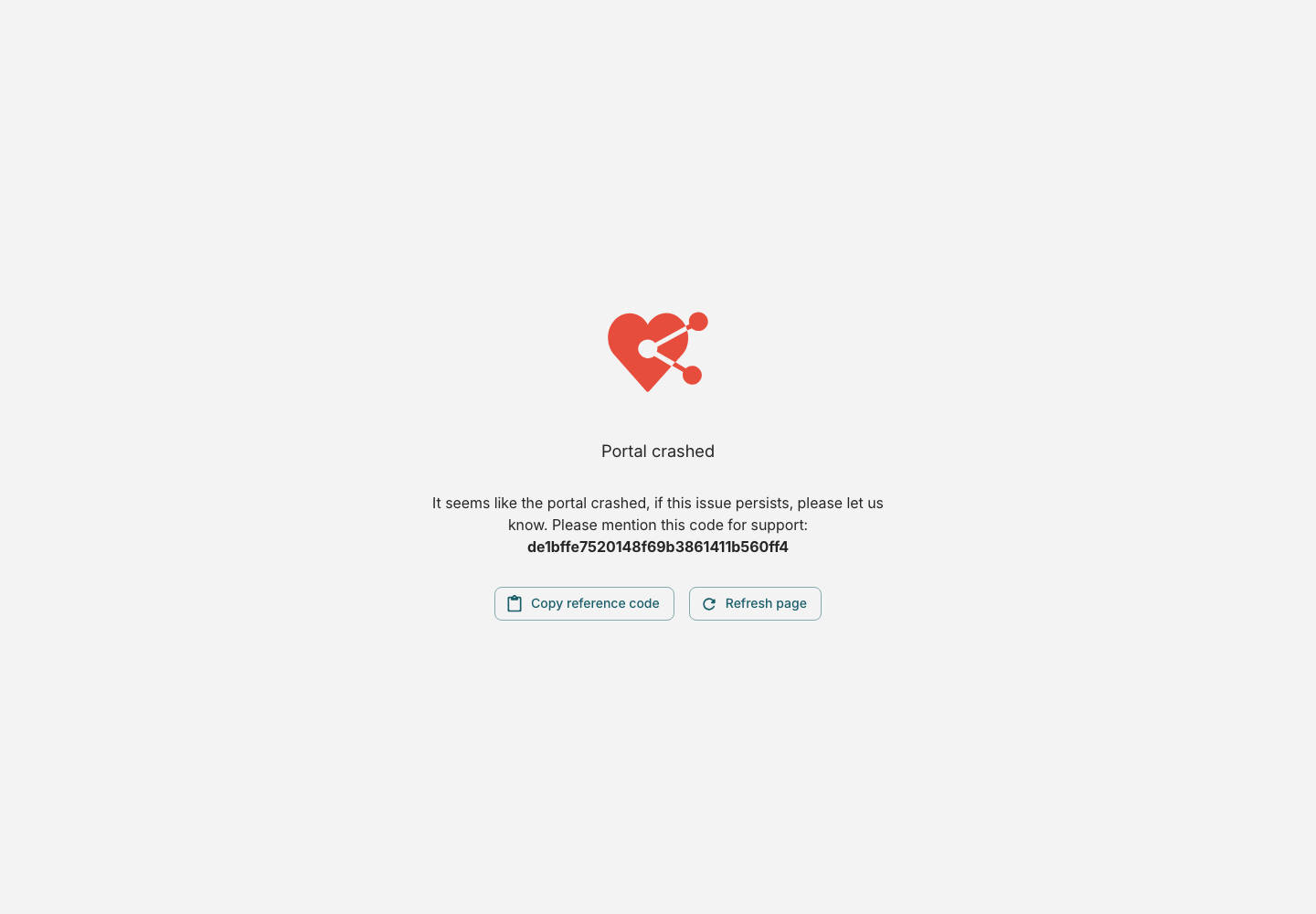
- Copy reference code copies the code, and so does clicking the code itself. Paste it into your message to support: with it, Genus can find the error report straight away.
- Refresh page reloads the portal.
Fixes and improvements
Section titled “Fixes and improvements”- Latest message responses show the client’s name as your organisation entered it, instead of the name of the Genus.
Availability
Section titled “Availability”The dashboard and everything on this page came to the Community Portal automatically between November and early December 2025. No app update was needed.
From December 2025 care professionals could also receive and answer alarms and Call Me requests on their phones with the Professional App (see the Professional App release). How the dashboard works today is on the dashboard page.