

The GC320: mobile internet, ethernet and a serial number
A Genus can only pass on a call for help when it is online. Not every client has reliable Wi-Fi, and an installer who sets up a Genus in a new home often does not know the network. Support, for its part, needs to know exactly which device it is dealing with.
The GC320 addresses both. It goes online over Wi-Fi, an ethernet cable or mobile internet, and its software knows the device’s serial number. Before a GC320 reaches the client, it can update itself and test its own hardware. Since June it can also set itself up for a care organisation with the new Deployer app.
What’s new
- Mobile internet. The GC320 has a built-in eSIM and a tray for a SIM card, chosen under MENU → Settings → SIM settings.
- Ethernet. A network cable works as soon as it is plugged in.
- A serial number in the software. The Genus shows its serial number, and Genus recognises the device by it.
- Updates and a system test before setup. On the Genus Setup network a new GC320 updates itself and offers a test of its buttons, speaker, camera, sensors and connections.
- Automatic setup with the Deployer app (June). An installer scans the QR codes of new devices, and each one then sets itself up for the care organisation.
For installers: mobile internet and ethernet
Section titled “For installers: mobile internet and ethernet”The GC320 connects in three ways: Wi-Fi as before, an ethernet cable or mobile internet. A cable needs no settings: the Genus uses it as soon as it is plugged in.
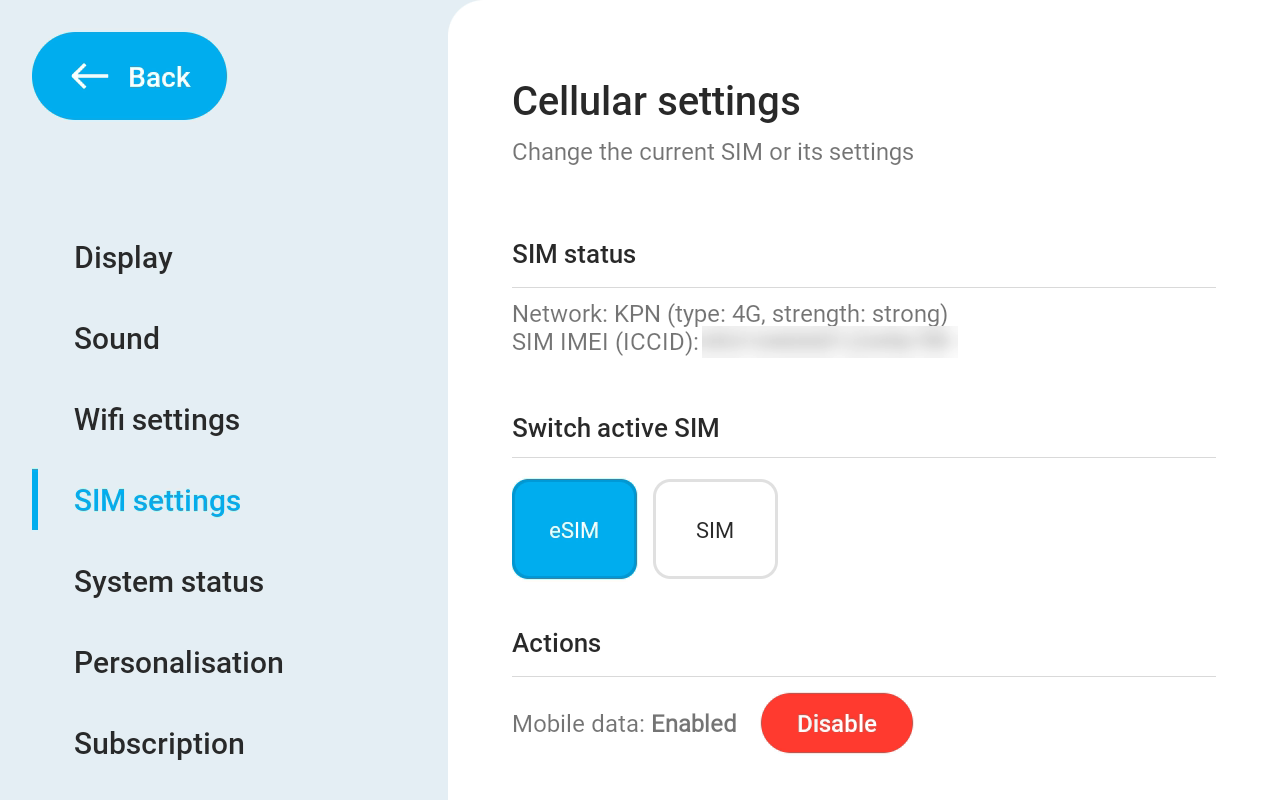
For mobile internet, open MENU → Settings → SIM settings:
- SIM status shows the mobile network, its type (2G to 5G), its strength and the identification number of the SIM.
- Switch active SIM chooses between the built-in eSIM and a SIM card in the tray.
- Actions switches mobile data on or off with Enable 4G and Disable 4G.
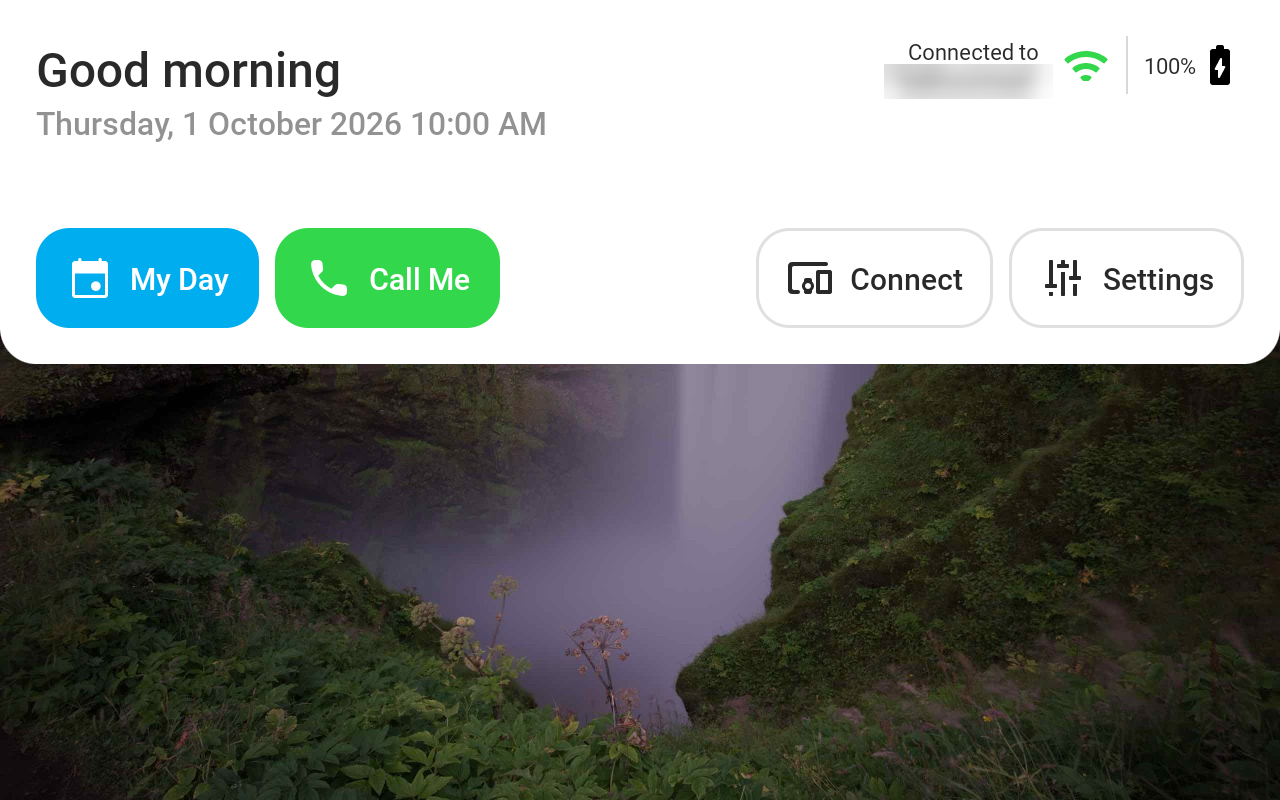
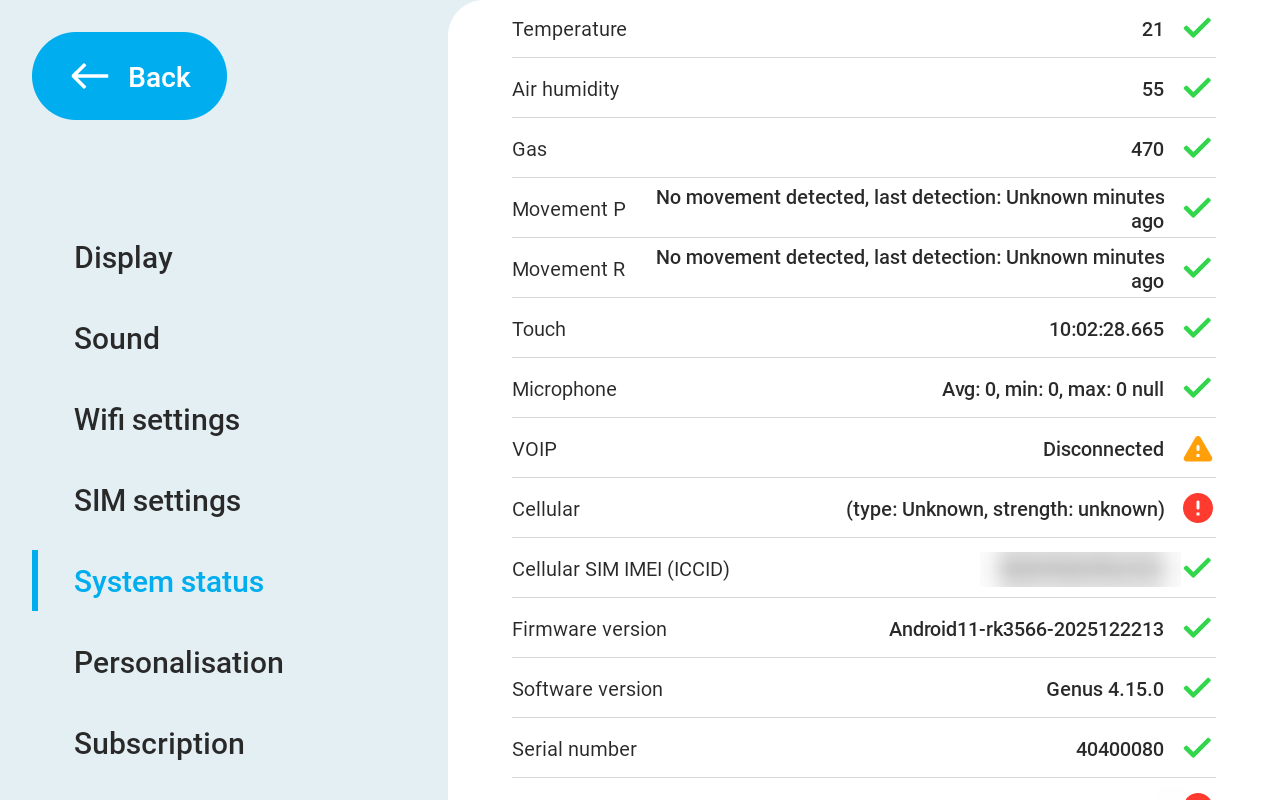
The menu shows how the Genus is connected. After Connected to it names the Wi-Fi network, the mobile network or the ethernet cable. A separate icon with up to three bars shows the strength of the mobile signal. Under MENU → Settings → System status the rows Cellular and Cellular SIM IMEI (ICCID) were added, and Internet connection now also reads Connected on mobile internet or a cable.
The serial number
Section titled “The serial number”Every GC320 has a serial number that its software can read. You find it in two places:
- under MENU → Settings → System status → Serial number;
- in the QR code on the back of the Genus, which the Deployer app scans.
Since Genus 3.0.4 (June) Genus knows the serial number of each GC320, also after the Genus is reset. Support can therefore tell which device is in the client’s home. A Genus that sets itself up with the Deployer app is named after its serial number.
Before setup: updates and the system test
Section titled “Before setup: updates and the system test”Distributors prepare new devices on the Wi-Fi network Genus Setup. Ask Genus support for the details of this network.
A new GC320 that is switched on within reach of Genus Setup opens Automatic Setup:
- It checks for updates of its software and installs them. If a check fails, Retry tries again.
- It then checks whether a deployment is waiting for it (see the next section).
- Continue opens the system test.
The system test
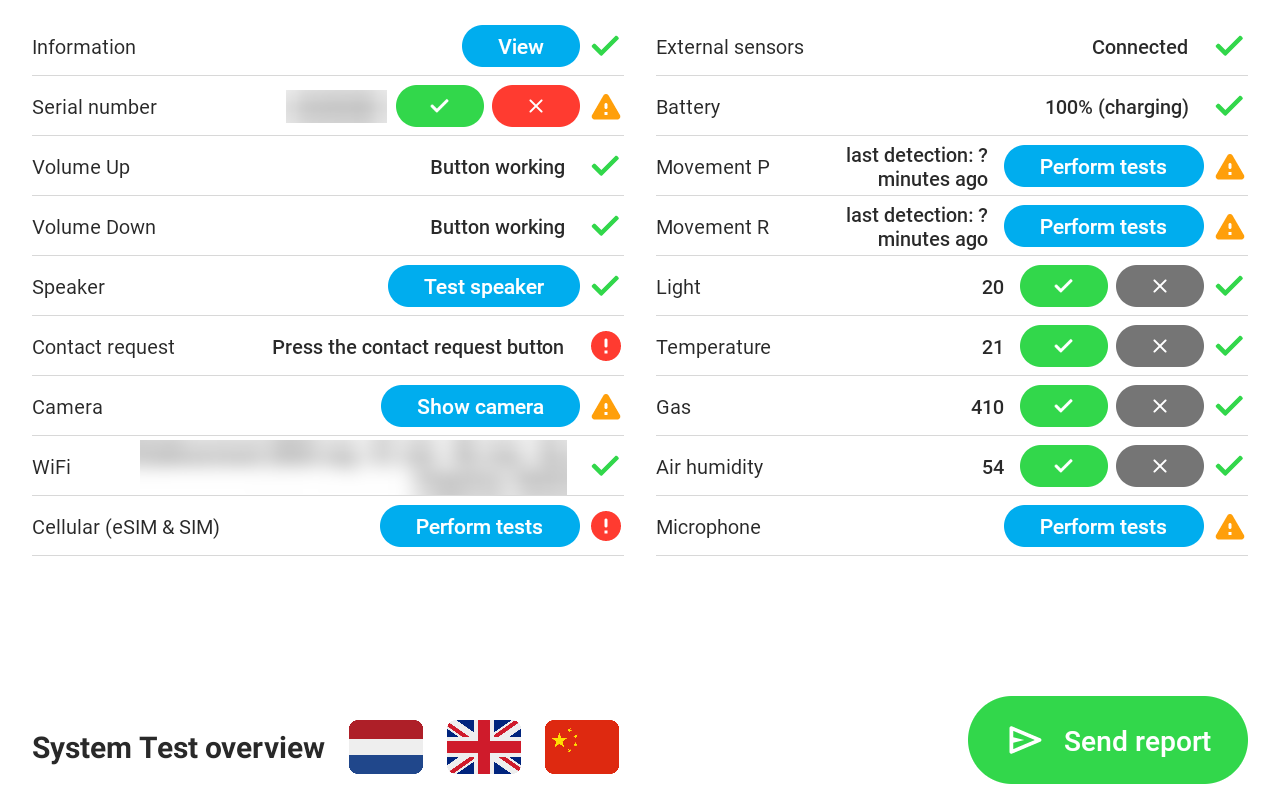
Section titled “The system test”The System Test overview checks the hardware in two columns, so a device can be tested on the bench before it is set up:
- the software and firmware versions and the serial number;
- Volume Up, Volume Down and Contact request: press each button;
- Speaker: tap Test speaker, listen to the ringtone and tap Is working or Not working;
- Camera: tap Show camera and confirm in the same way;
- Cellular connectivity: Check working 4G checks that Genus can be reached over the mobile network;
- the battery, the built-in sensors for movement, light, temperature, gas, humidity and sound, the Wi-Fi network with its signal values, and the mobile network.
When you close the test, the Genus sends a report of the results to Genus, together with its serial number. The test history of each device is kept, whoever ran the test.
Automatic setup with the Deployer app (June)
Section titled “Automatic setup with the Deployer app (June)”Setting up many devices by hand takes time: language, Wi-Fi, licence code and settings, one Genus after the other. Since June 2024 an installer can prepare them in one go with the Deployer app for Android, a first version marked beta. The settings come from the care organisation’s configuration in the Business Portal; see the rebuilt Business Portal.
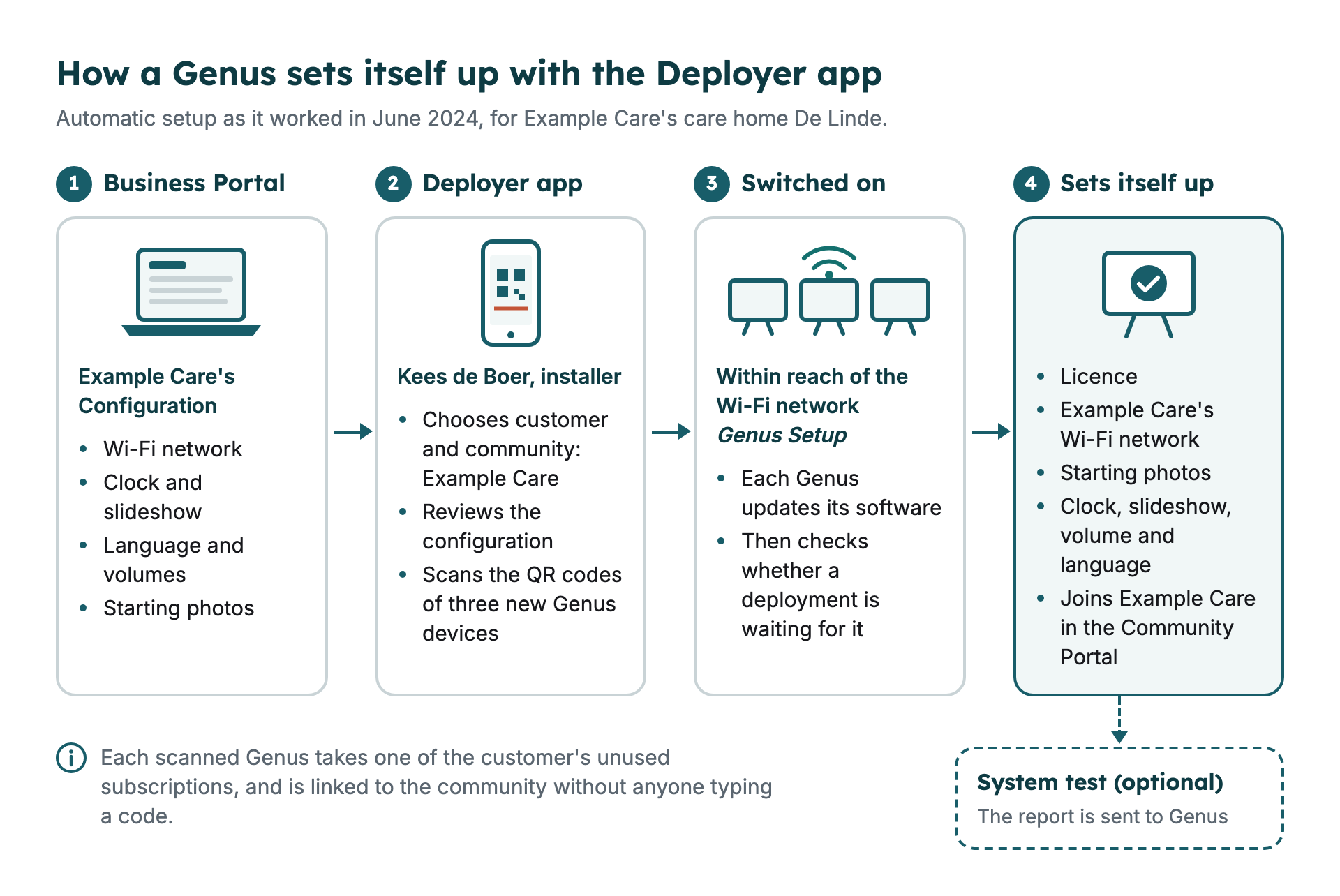
In the Deployer app:
- Sign in with your Business Portal account and tap Deploy Genus.
- Choose the customer and then the community: the care organisation the devices are for.
- Review the configuration of that community and tap I have reviewed the configuration. If something is wrong, an Admin changes it in the Business Portal first.
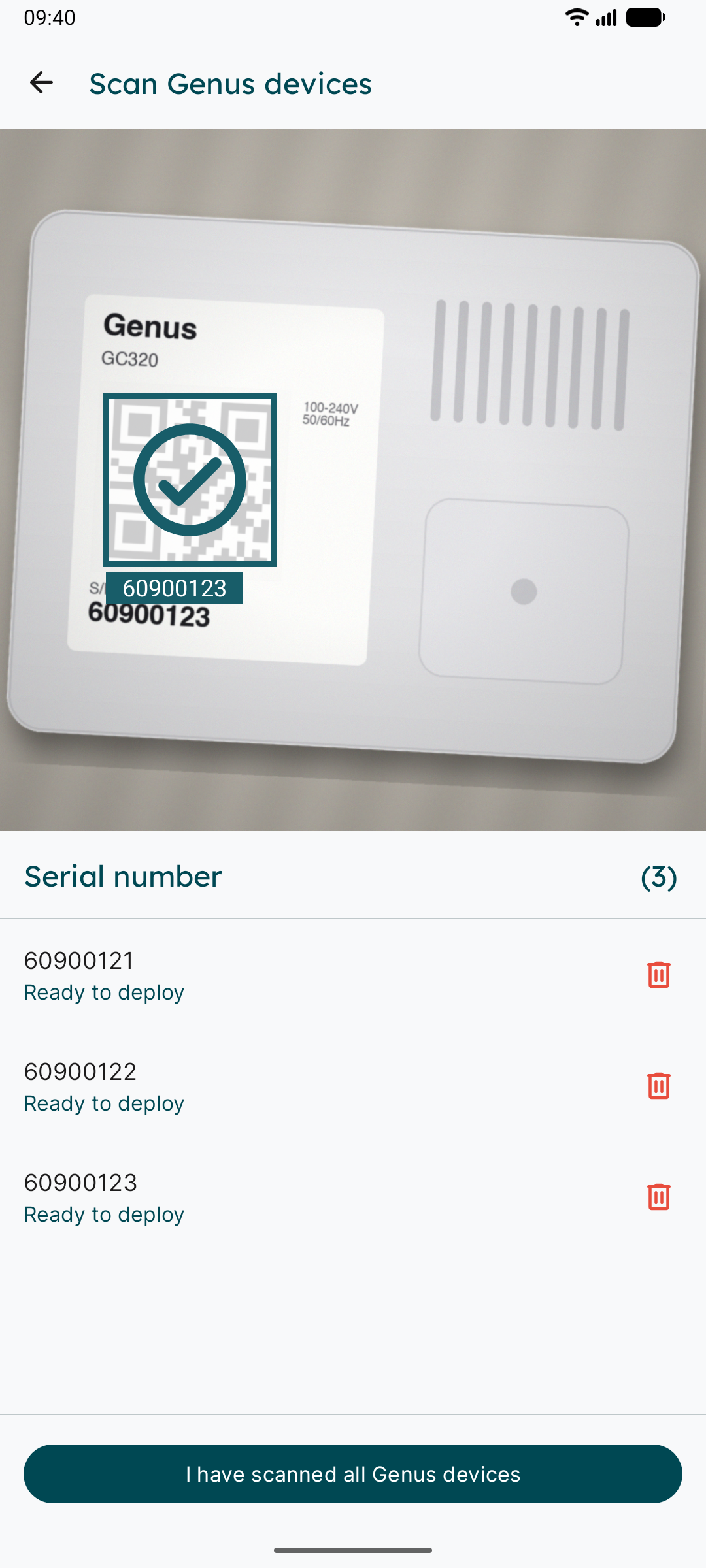
- Scan the QR code on the back of each Genus. Every serial number you scan is added to the list. Tap I have scanned all Genus devices.
- Check the customer, community, configuration and serial numbers once more and tap Finish deployment.
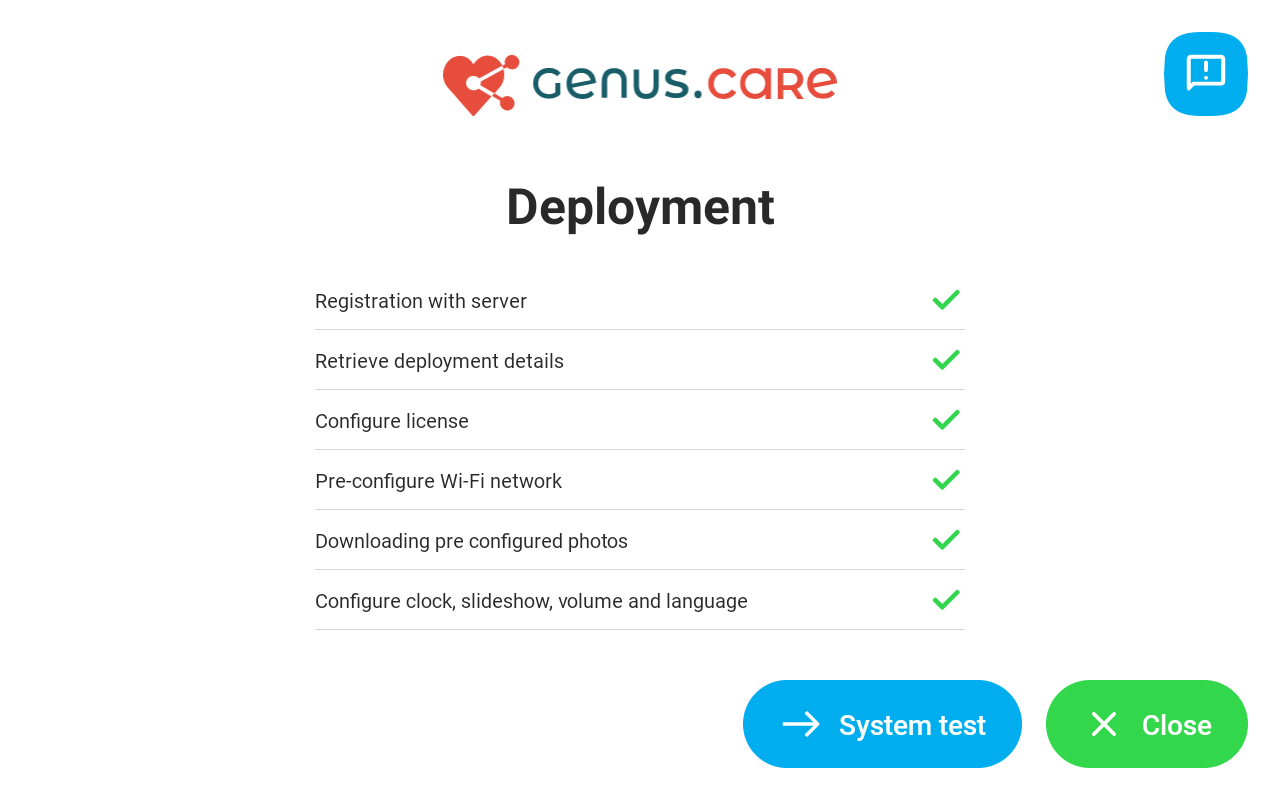
Then switch the devices on within reach of the Genus Setup network. Each Genus updates itself, finds its deployment and opens Deployment. There it works through Registration with server, Retrieve deployment details, Configure license, the care organisation’s Wi-Fi network, Downloading pre configured photos and Configure clock, slideshow, volume and language. When every step is ticked, tap Continue, or System test to test the device first.
Fixes and improvements
Section titled “Fixes and improvements”- Firmware updates on the GC320. When a firmware update has been prepared, MENU → Settings → System status shows Install firmware update. Tapping it restarts the Genus to install the update.
Availability
Section titled “Availability”The functions on this page need a GC320. The Genus updates itself, so nothing has to be installed by hand.
- Genus 3.0.0 (April 2024): mobile internet, ethernet, the serial number on System status and the updates on the Genus Setup network.
- Genus 3.0.2 (April 2024): the system test.
- Genus 3.0.4 (June 2024): the serial number known to Genus.
- Genus 3.0.5 (June 2024): automatic setup, with Deployer app 1.0.1 for Android.
Since then
Section titled “Since then”- SIM settings now has Enable and Disable with a Mobile data line (May 2025). The eSIM can only be chosen when the subscription includes the eSIM data bundle. See the Genus device.
- The system test is under MENU → Settings → System status → Perform system test since Genus 3.5.0 (November 2024) and now ends with Send report. See setting up a Genus.
- The Deployer app was redesigned in autumn 2024 (the Deployer app release). Hidden and enterprise Wi-Fi networks followed in 2025.