

Managing Genus devices remotely
Most Genus devices stand in homes and care homes that an installer rarely visits again. Until now, simple questions needed a visit or a phone call: which version is it on, when was it last online, who is linked to it? And a care home with a hidden or company Wi-Fi network could be hard to set up at all.
Between January and March 2025 a series of updates made much of this possible from a distance. The Business Portal now shows what is true about each Genus. Care organisations’ Wi-Fi networks, hidden and enterprise ones included, are set up once in the Business Portal. And updates keep going when the network is busy or when the Genus only has mobile data.
What’s new
- In the Business Portal each subscription shows the Genus’s serial number, its app versions, when it was last seen, its data use per month and everything linked to it, with a button to unlink each link.
- Hidden Wi-Fi networks (January) and enterprise Wi-Fi networks (March) can be set in a community’s setup configuration, so every Genus set up for that care organisation joins them.
- On the Genus itself an enterprise network can be configured too.
- Updates retry by themselves, show their progress and speed, and also arrive over the eSIM.
- Recovery: a Genus switches its Wi-Fi back on when it starts, and Genus support can request its state and log file remotely.
In the Business Portal: everything about a Genus on its subscription
Section titled “In the Business Portal: everything about a Genus on its subscription”Open Subscriptions and choose a subscription. Its details now include the Serial number of the Genus. Once a Genus uses the subscription, these blocks appear below the details:
| Block | What it shows |
|---|---|
| Device information | The Genus App version, the Updater App version and when the Genus was Last seen |
| Network usage | Per month: Download (MB), Upload (MB) and Total (MB) |
| Linked communities | The care organisations the Genus is linked to |
| Linked Phones | The phones of family members, with their access |
| Linked SOS Buttons | The Genus 4G GPS Buttons and Watches linked to the Genus, with their phone number |
| Linked apps | Connected apps from other suppliers |
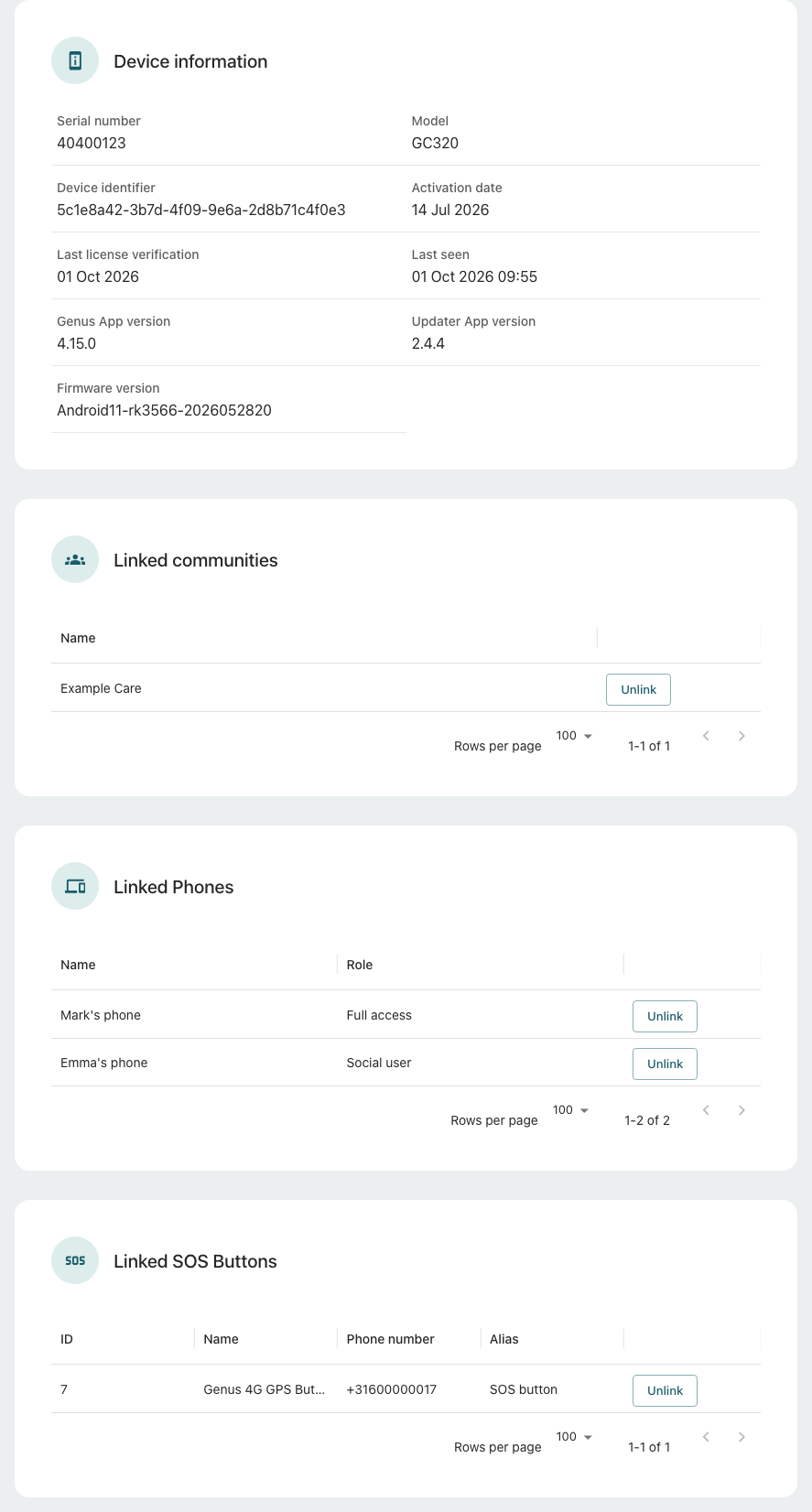
For a Genus with a built-in eSIM, the switch Allow eSIM use decides whether the Genus may use that eSIM.
Unlinking
Section titled “Unlinking”Each linked community, phone, button and app has an Unlink button. Confirm in the dialog that follows, for example Are you sure you want to unlink this phone from the subscription? This clears old links when a Genus moves to a new client, without anyone having to go to the device.
Wi-Fi networks in the setup configuration
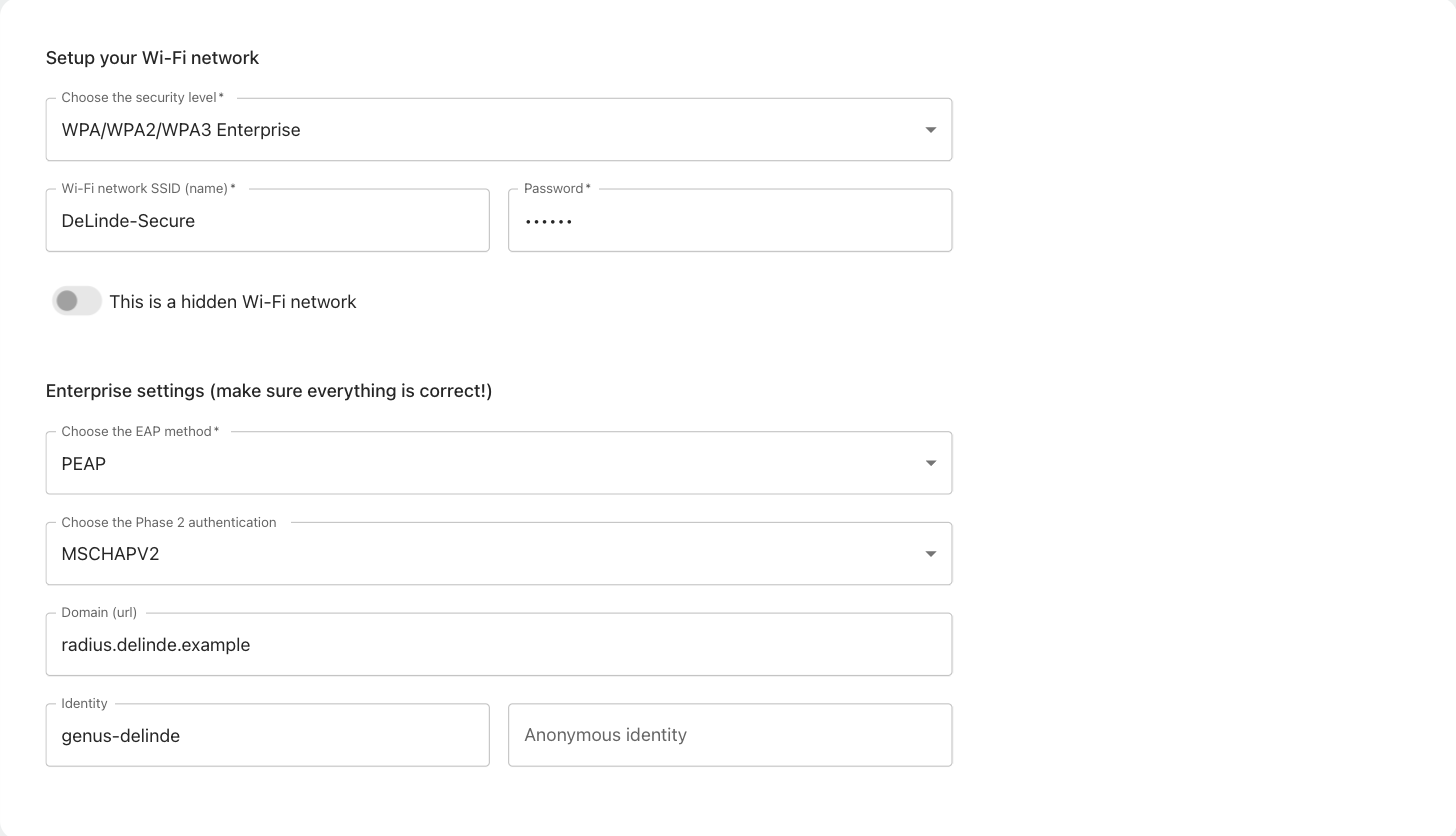
Section titled “Wi-Fi networks in the setup configuration”The setup configuration of a community holds the settings a Genus receives when it is set up for that care organisation with the Deployer app, including the Wi-Fi network. You find it under Communities, then the community, then Configuration for setup. The Wi-Fi network has its own block there, Setup your Wi-Fi network.
Hidden networks (January)
Section titled “Hidden networks (January)”Many care organisations run networks that do not broadcast their name. Switch on This is a hidden Wi-Fi network next to the network name and password, and click Save configuration. A Genus set up for this community then joins the network even though it never appears in a list.
Enterprise networks (March)
Section titled “Enterprise networks (March)”Larger organisations often use enterprise Wi-Fi, where devices sign in with an identity and a password rather than one shared network password. Under Choose the security level, choose WPA/WPA2/WPA3 Enterprise. The block Enterprise settings (make sure everything is correct!) then asks for:
- Choose the EAP method and Choose the Phase 2 authentication,
- Domain (url), Identity and Anonymous identity,
- the Password of the identity.
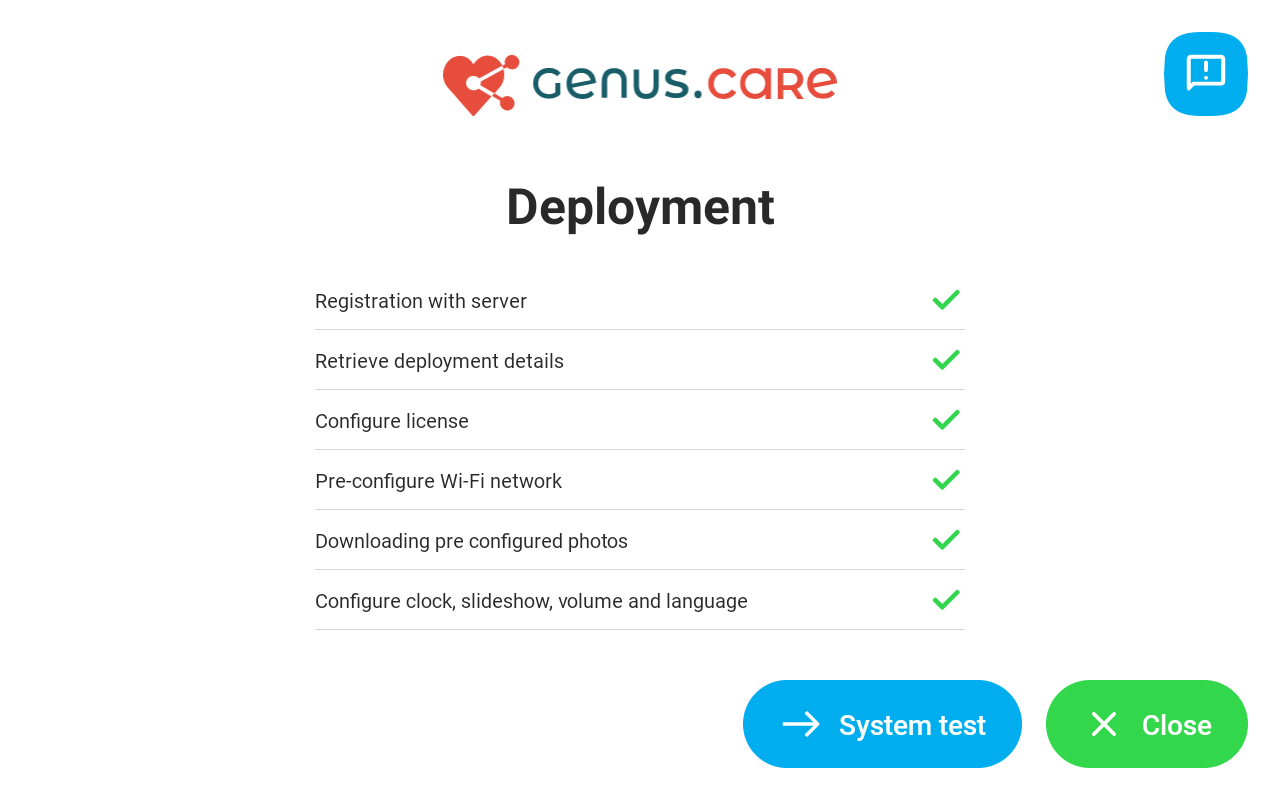
During the automatic setup the Genus stores the network in the step Pre-configure Wi-Fi network. When you deploy, replace or transfer a Genus, the Deployer app shows the community’s network settings, including whether the network is hidden and the enterprise settings.
On the Genus itself
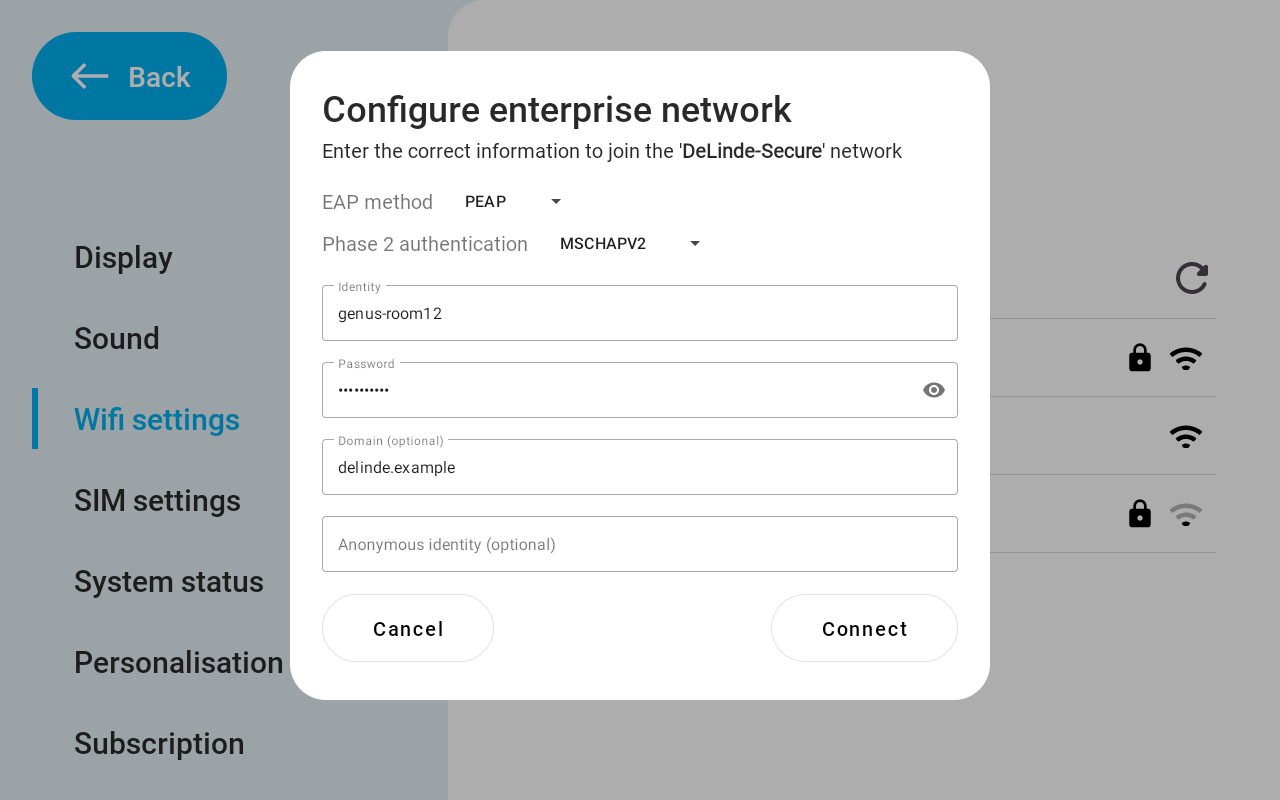
Section titled “On the Genus itself”An enterprise network can also be set up on the Genus. Open Settings → Wifi settings and tap the network. The dialog Configure enterprise network asks for the EAP method, the Phase 2 authentication, the domain, the identity and the password. A hidden network cannot be added on the Genus; use the setup configuration for that.
Updates that survive a busy network
Section titled “Updates that survive a busy network”When many Genus devices are set up together, they share one connection. Since March 2025 the Genus handles a busy network itself:
- Automatic retries. A failed download of a new Genus version is retried automatically. The screen says Download version … failed, will automatically retry in a few seconds.
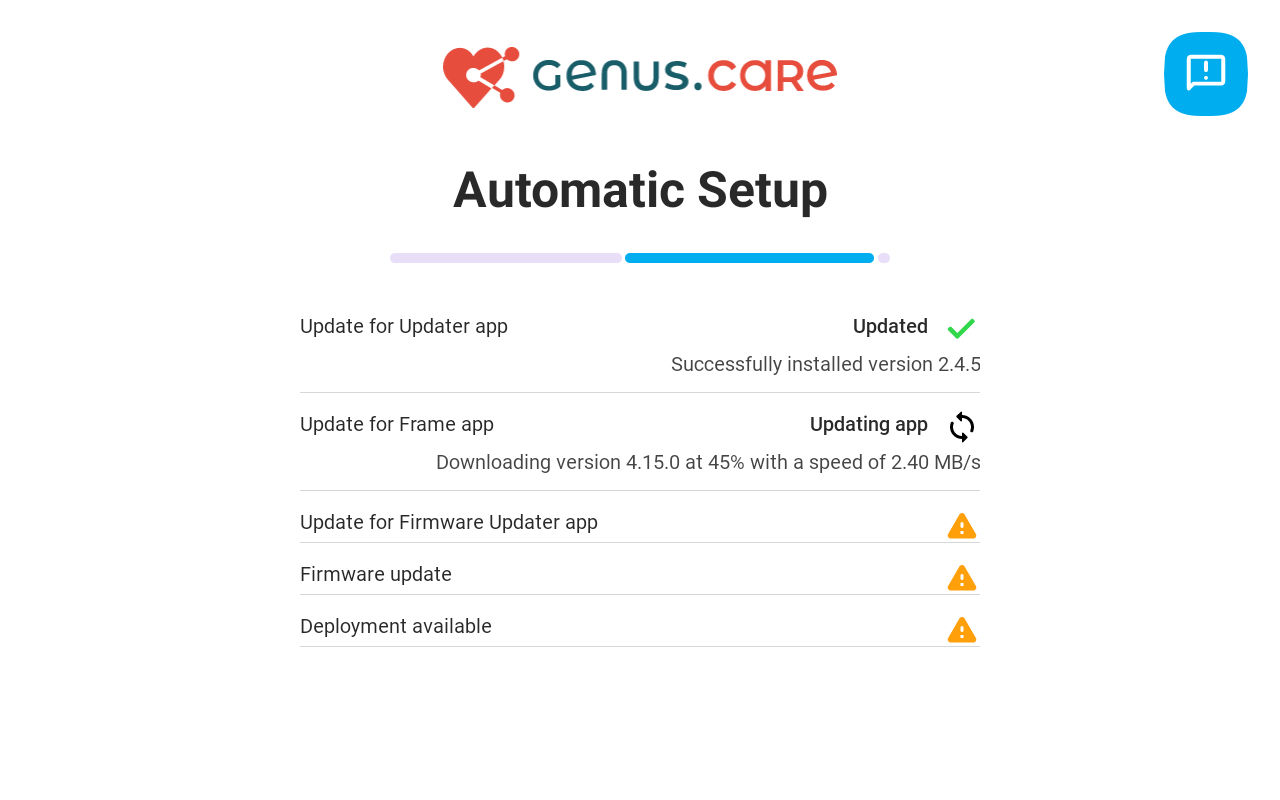
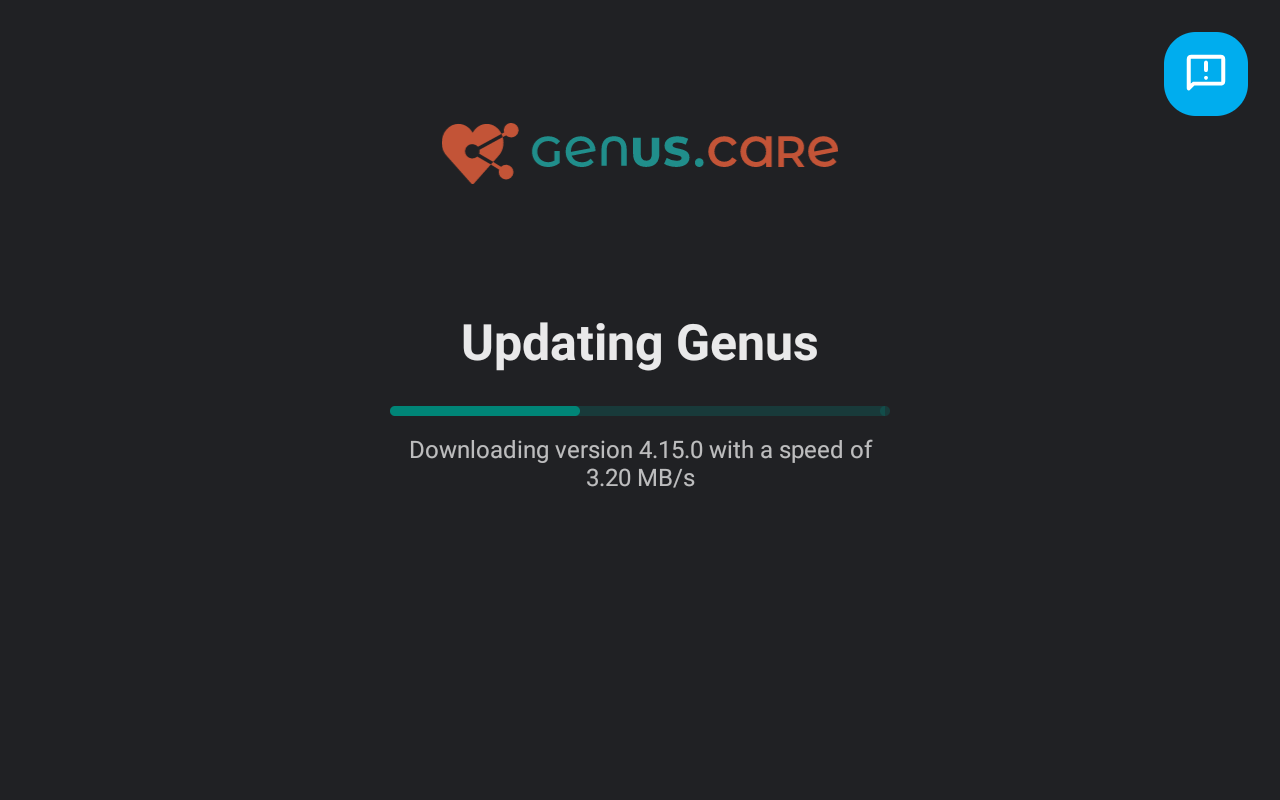
- Progress and speed. The dark Updating Genus screen shows a progress bar and the download speed in MB/s. The Automatic Setup screen shows the percentage and the speed.
- Starting photos retry too. The care organisation’s starting photos are downloaded with progress, and retried automatically after a failure: Retrying in … seconds.
- Sending logs. A button on the Automatic Setup and Deployment screens sends the Genus’s logs to Genus support, with Sent logging! as confirmation. A problem during a setup can be reported straight away.
Updates over the eSIM (February)
Section titled “Updates over the eSIM (February)”Since February 2025 a Genus connected through its eSIM also downloads updates over the eSIM, instead of waiting for Wi-Fi, so a Genus without Wi-Fi stays up to date. A Genus that has not been set up yet does not update over its eSIM.
Wi-Fi back on at start-up (January)
Section titled “Wi-Fi back on at start-up (January)”A Genus with Wi-Fi switched off cannot be reached, updated or helped remotely. Since January 2025 the Genus switches Wi-Fi back on whenever it starts, so a restart is enough to bring it back.
Remote support
Section titled “Remote support”Since January 2025 Genus support can ask a Genus for its state without anyone going to it. The state includes its settings, its network connection and its firmware. Support can also have the Genus send its log file. Questions that used to depend on someone reading settings aloud over the phone can now be answered from a distance.
The time zone of the Genus
Section titled “The time zone of the Genus”Since Genus 3.9.0 (February 2025) the Genus sets its time zone by itself when it starts, and the Genus platform knows the time zone of every device.
Since then
Section titled “Since then”- Business Portal. Since March 2026 a Support page finds a Genus by its licence code, serial number or device identifier and shows its current network and recent calls (winter 2026). Allow eSIM use is now called eSIM data bundle. See device information and support tools.
- Security levels. Since April 2025 the choices are None, WPA/WPA2/WPA3 Personal and WPA/WPA2/WPA3 Enterprise; the separate WPA3 Personal option was merged. See setup configuration per community.
- How a Genus updates today is on updates and firmware; setting up, networks included, is on setting up a Genus.
Availability
Section titled “Availability”- The Business Portal was updated automatically: device information and hidden networks in January 2025, enterprise networks in March 2025.
- The Genus updates itself. Hidden networks and the remote state arrived with Genus 3.6.1 (January), the automatic time zone with Genus 3.9.0 (February), and enterprise networks, setup progress and the log button with Genus 3.10.0 (March).
- The updater on the Genus, shown in the Business Portal as Updater App version, brought Wi-Fi at start-up in 2.2.6 (January), updates over the eSIM in 2.2.7 (February) and the retries, progress and enterprise support in 2.3.0 (March).
- The Deployer app shows hidden and enterprise network settings from version 1.3.0 (March 2025).