

Zone detection
Some residents tend to wander, especially in the evening or at night. Care teams want to know when such a resident heads for the front door or the garden door, without locking doors or following them around.
With zone detection, the resident’s own Genus Assist wrist button is enough. A Gateway Pro placed at the door notices when the button comes close, and the care team gets an alert straight away: Elisabeth de Vries is near Main entrance.
What’s new
- Care professionals get a zone detection alert in the Community Portal and the Professional App for Android when a resident comes near a door chosen for them.
- Health administrators name the organisation’s gateways after their door in a new Gateways overview, and set how close a resident must come before an alert is sent.
- Residents need no extra hardware. Zone detection uses the Genus Assist wrist button they already wear, and the button’s alarm function works as before.
- Family members receive the same alert in the Genus app.
How zone detection works
Section titled “How zone detection works”- A gateway at the door. A small gateway, the Gateway Pro (GC-GW400), is plugged in near the door and connected to the internet. It listens to the Genus Assist buttons around it. These are the same gateways that make it possible to raise an alarm anywhere in the building.
- The resident’s wrist button. The resident wears their Genus Assist wrist button (GC-BW100) as usual, with zone detection switched on for it.
- An alert. When the button comes within the trigger distance of a door chosen for the resident, Genus sends a zone detection alert to the care team, usually within seconds.
For health administrators: setting up zone detection
Section titled “For health administrators: setting up zone detection”Setting up zone detection takes three steps. The gateways themselves are installed and registered by Genus or the installation partner. The steps in the Community Portal need a health administrator; the middle step is done on the resident’s Genus itself. Gateways and zone detection has the full steps.
1. Name the gateways after their door
Section titled “1. Name the gateways after their door”Open Devices connected to Genus in the Community Portal and choose the new Gateways tab. It lists every gateway of the organisation with its name, model, serial number and trigger distance.
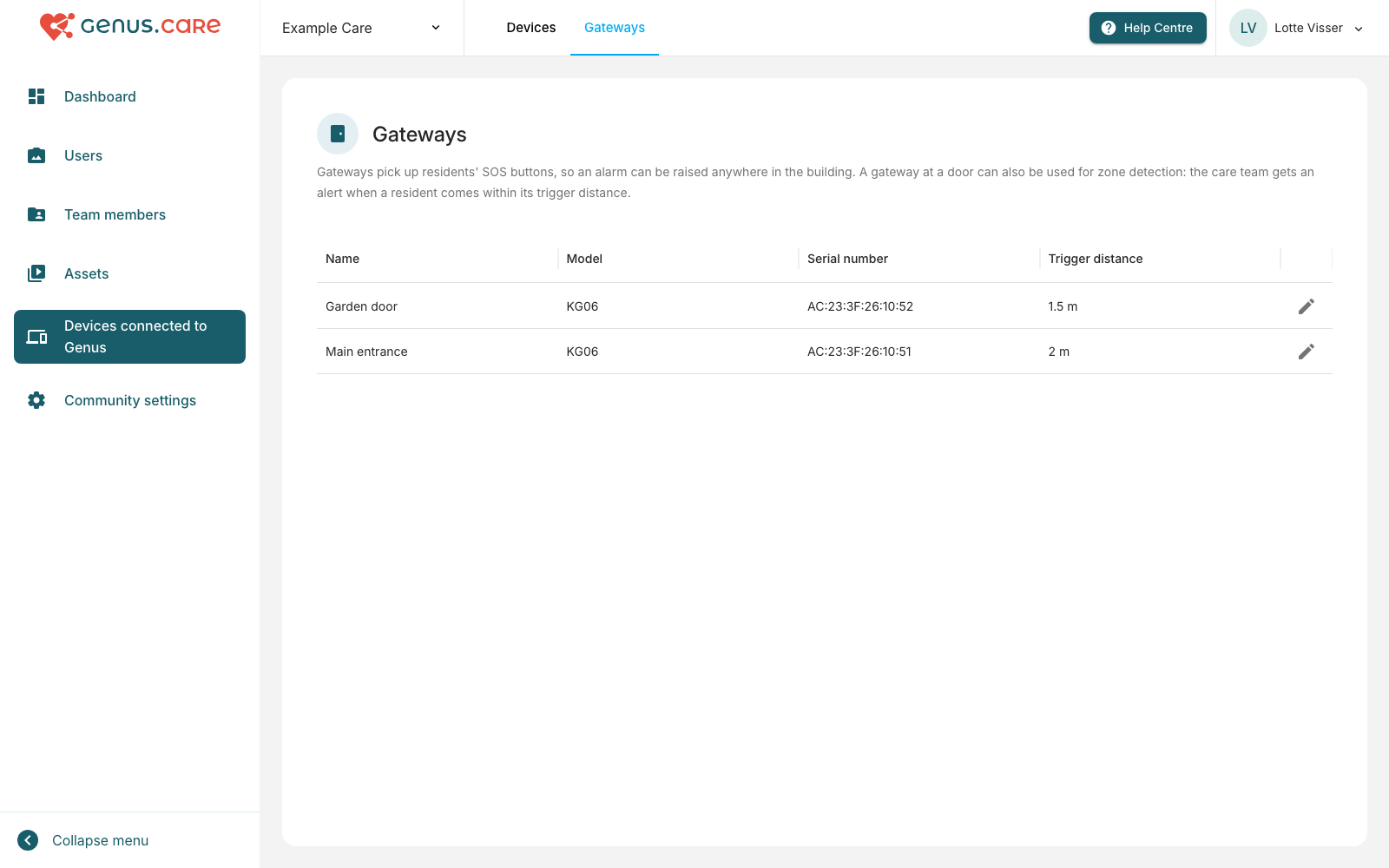
Click the pencil next to a gateway to edit it.
- Name. Give each gateway the name of its door, for example Main entrance or Garden door. The name appears in every zone detection alert, so the care team knows straight away where to go. A new gateway is named after its model, so rename it before you use it in a routine.
- Trigger distance. How close the resident must come to the gateway before an alert is sent, between 0.5 and 10 metres in steps of half a metre. Leave it empty to use the default of 2 metres. Only health administrators can change the trigger distance.
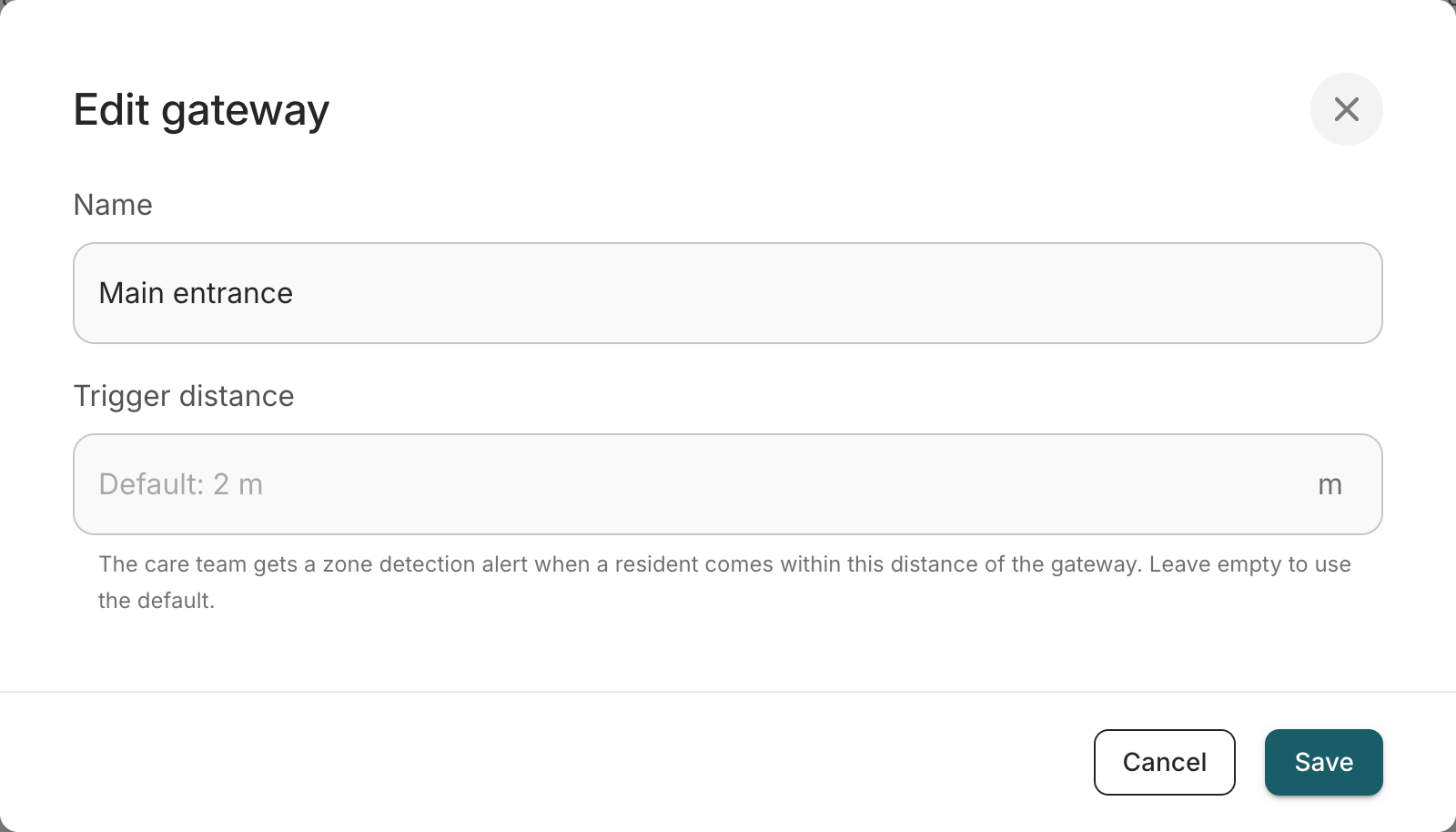
2. Switch on zone detection for the resident’s button
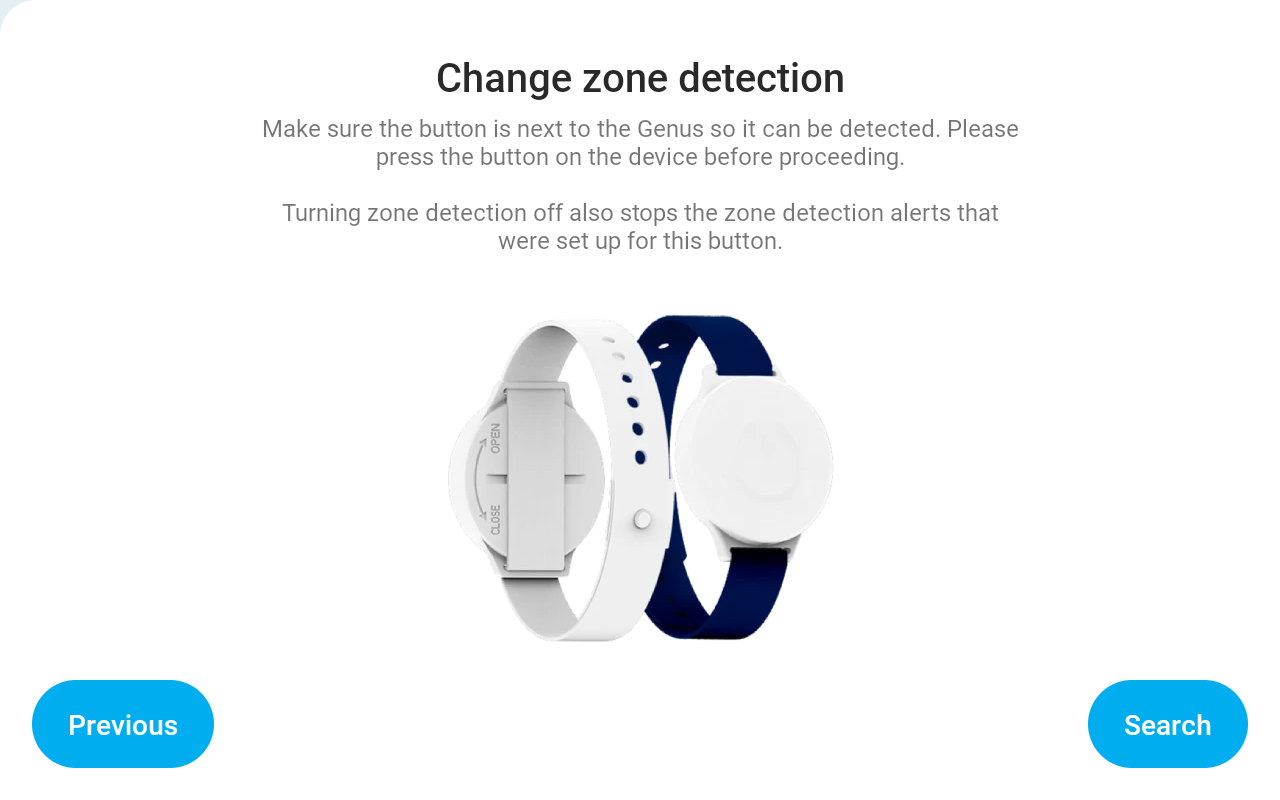
Section titled “2. Switch on zone detection for the resident’s button”Zone detection is switched on per wrist button, on the resident’s Genus. When a new wrist button is added and the resident’s care organisation has at least one gateway, the Genus asks Use this button for zone detection?
- Yes, use zone detection: The button sends a signal more often, so it is noticed near a door. Its battery runs out sooner.
- No, only for alarms: The button is only used to call for help.
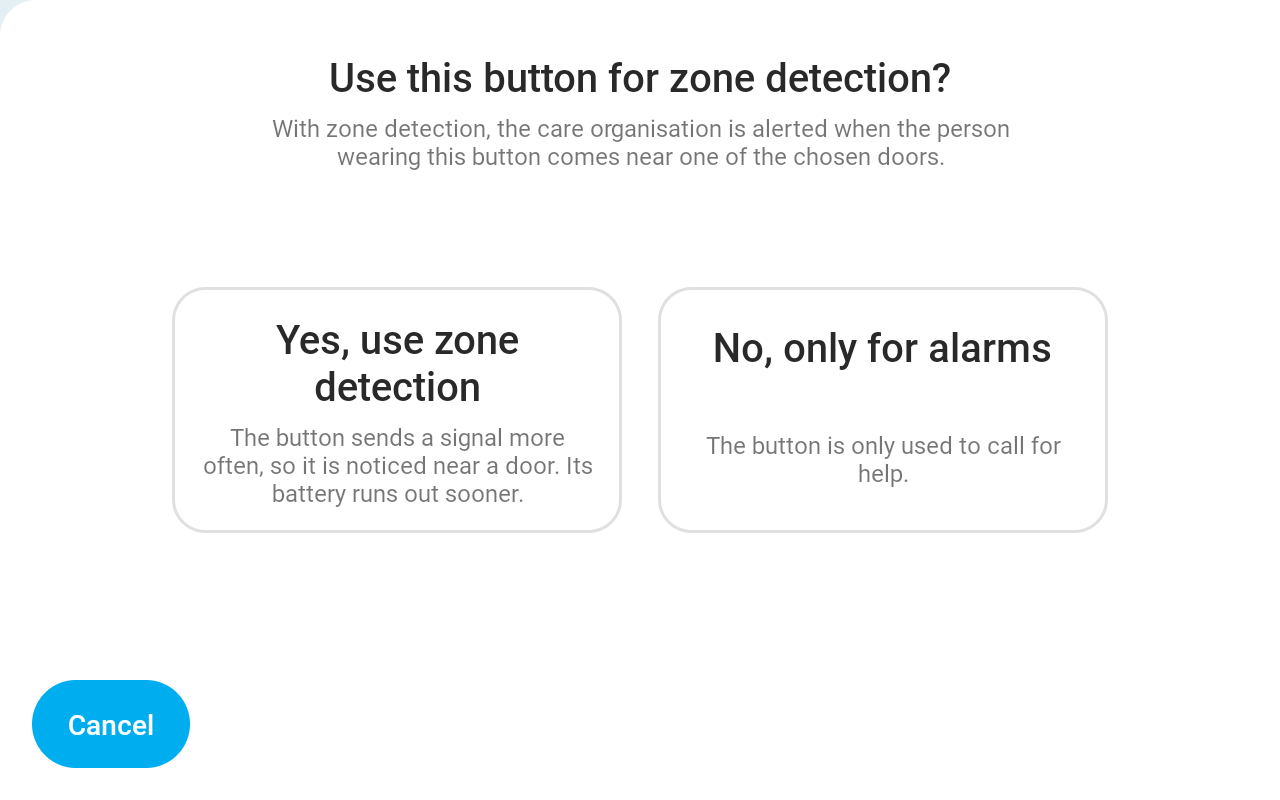
For a button that is already in use, open it on the Genus and choose Turn on next to Zone detection. The Genus asks you to hold the button next to it and press it. Pressing the button to connect it does not raise an alarm.
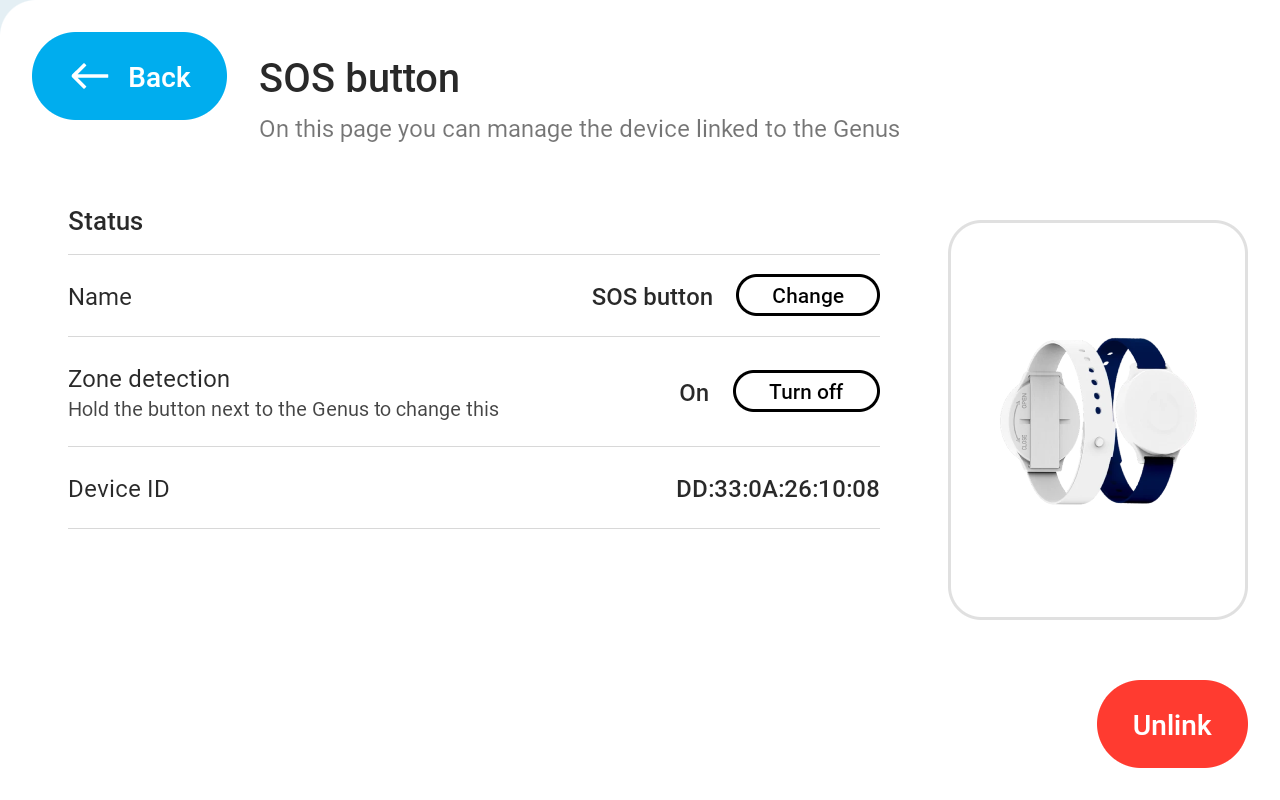
Turning zone detection off also removes the button’s Zone detection routines in the Community Portal. The Genus warns you about this.
3. Add the Zone detection routine
Section titled “3. Add the Zone detection routine”Open the resident in the Community Portal, go to Routines and choose Add Genus Routine. Choose Zone detection, then:
- Button: the resident’s wrist button. Only buttons with zone detection switched on are listed.
- Doors: one or more of your organisation’s gateways, named after their door.
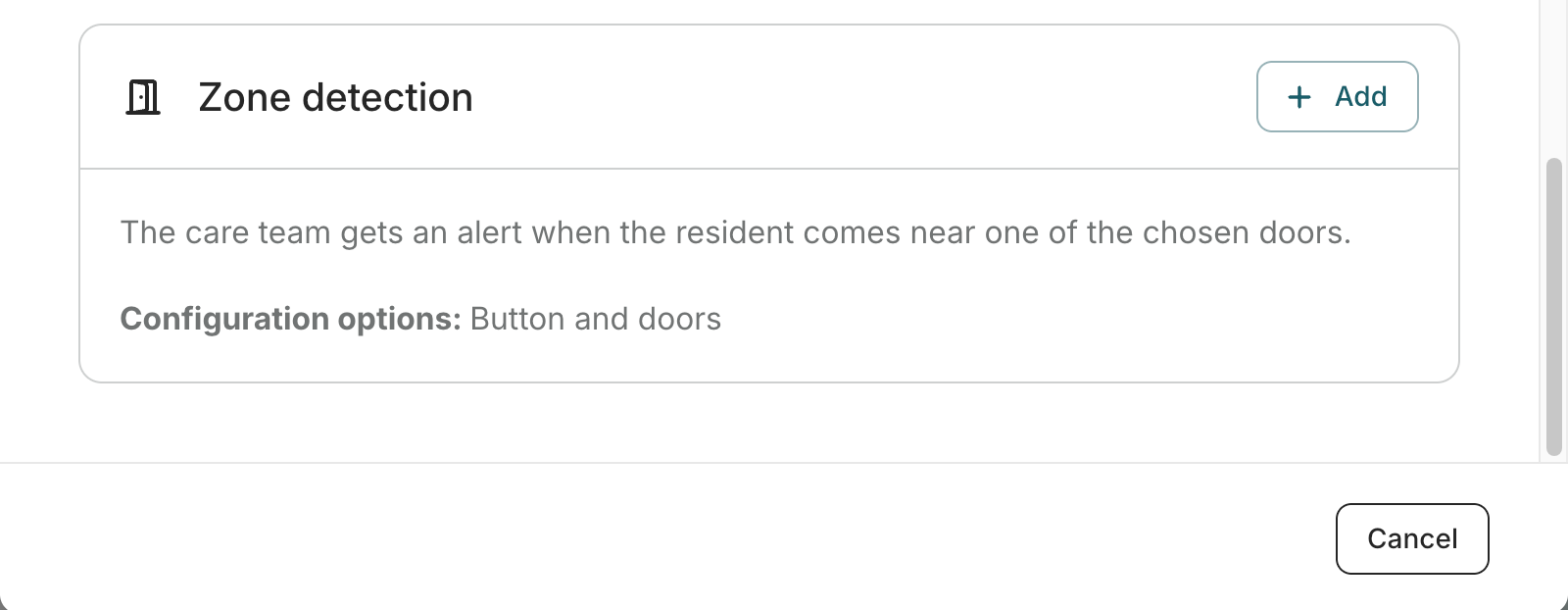
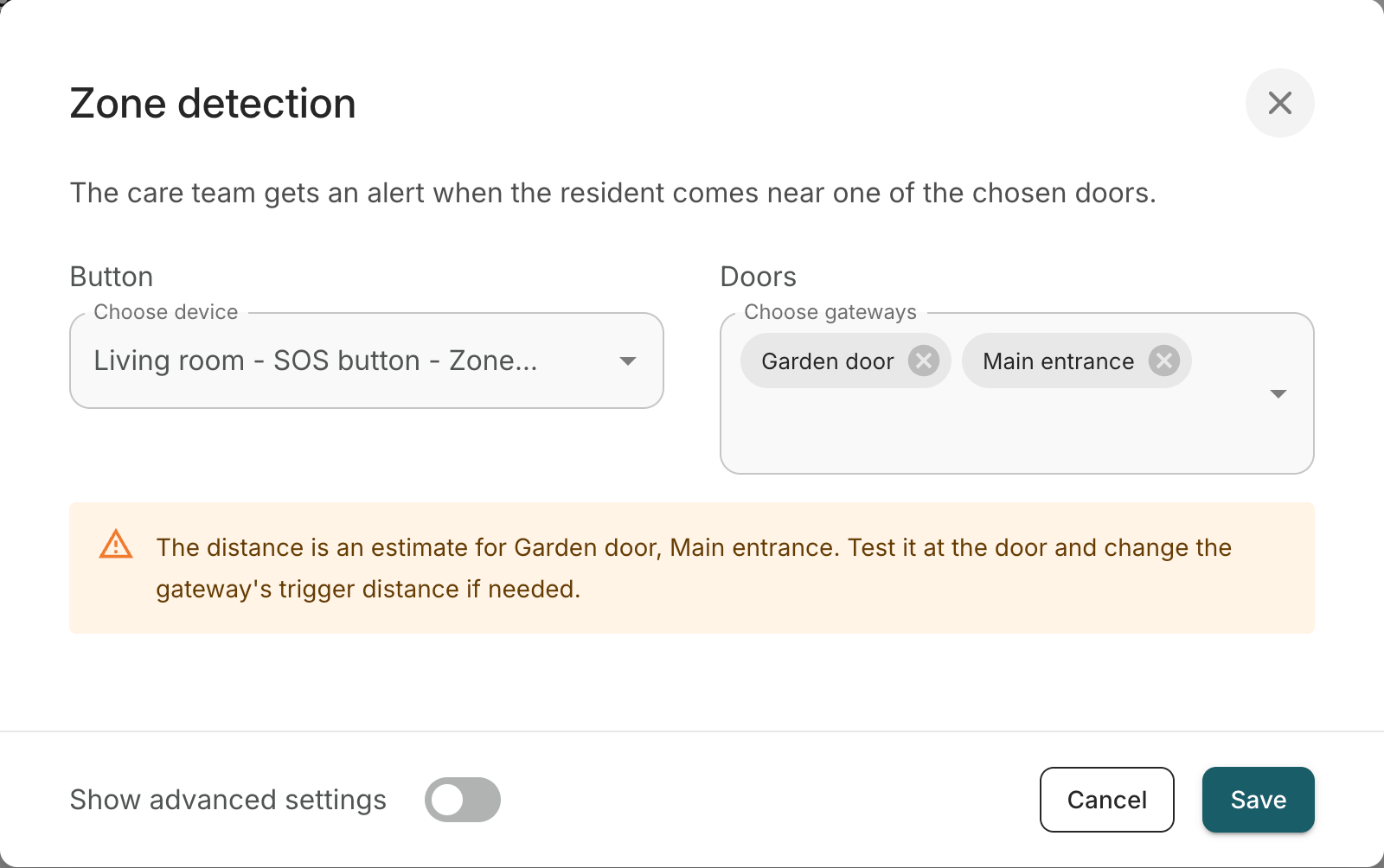
Save the routine. Zone detection is now active, day and night. Like other routines, you can limit it to certain days in the advanced settings.
If the Zone detection routine is greyed out, either none of the resident’s buttons has zone detection switched on yet, or the organisation has no gateways. When no button is set up yet, the routine says so: On the resident’s Genus, open the button and turn on Zone detection.
For care professionals: receiving a zone detection alert
Section titled “For care professionals: receiving a zone detection alert”
Zone detection sends an alert, not an alarm: nobody is called, and nothing appears on the resident’s own Genus, so the resident is not disturbed. Alerts and alarms explains the difference.
- In the Community Portal, the care team sees a live Alert banner. The alert is shown at the top of the resident’s page, with the resident’s other alerts. Close marks the alert as handled.
- In the Professional App for Android, users of the organisation get a notification for the new alert.
- Only the organisation that owns the gateways receives the alert. Other organisations linked to the resident don’t.
Handle the alert as usual, and close it once it has been handled. The next time the resident comes near the door, a new alert is sent.
For family members
Section titled “For family members”Family members who use the Genus app receive the alert as a notification that names the door, with a text such as Mum is near Main entrance. The app uses the name you gave the Genus. The alert is also listed on Home, and tapping it shows the full text.
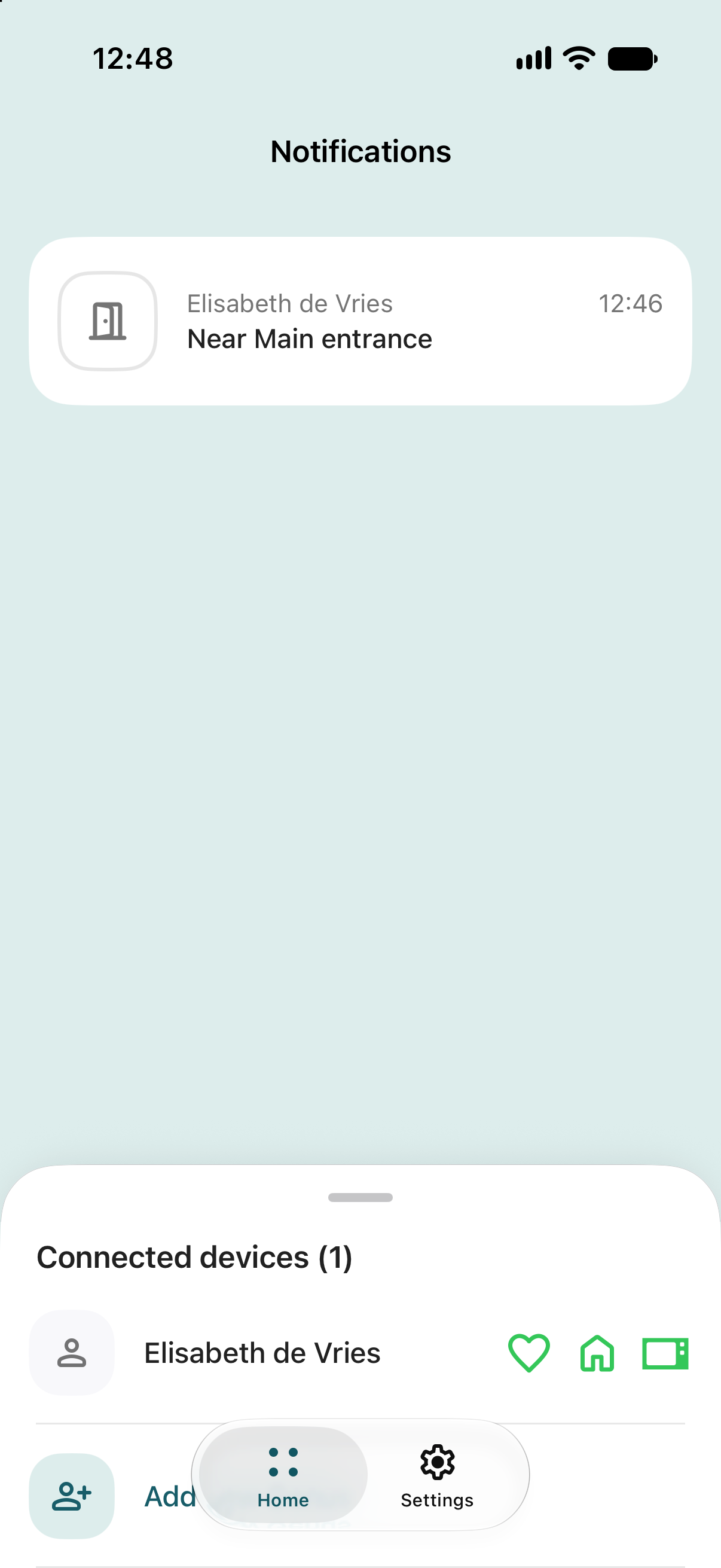
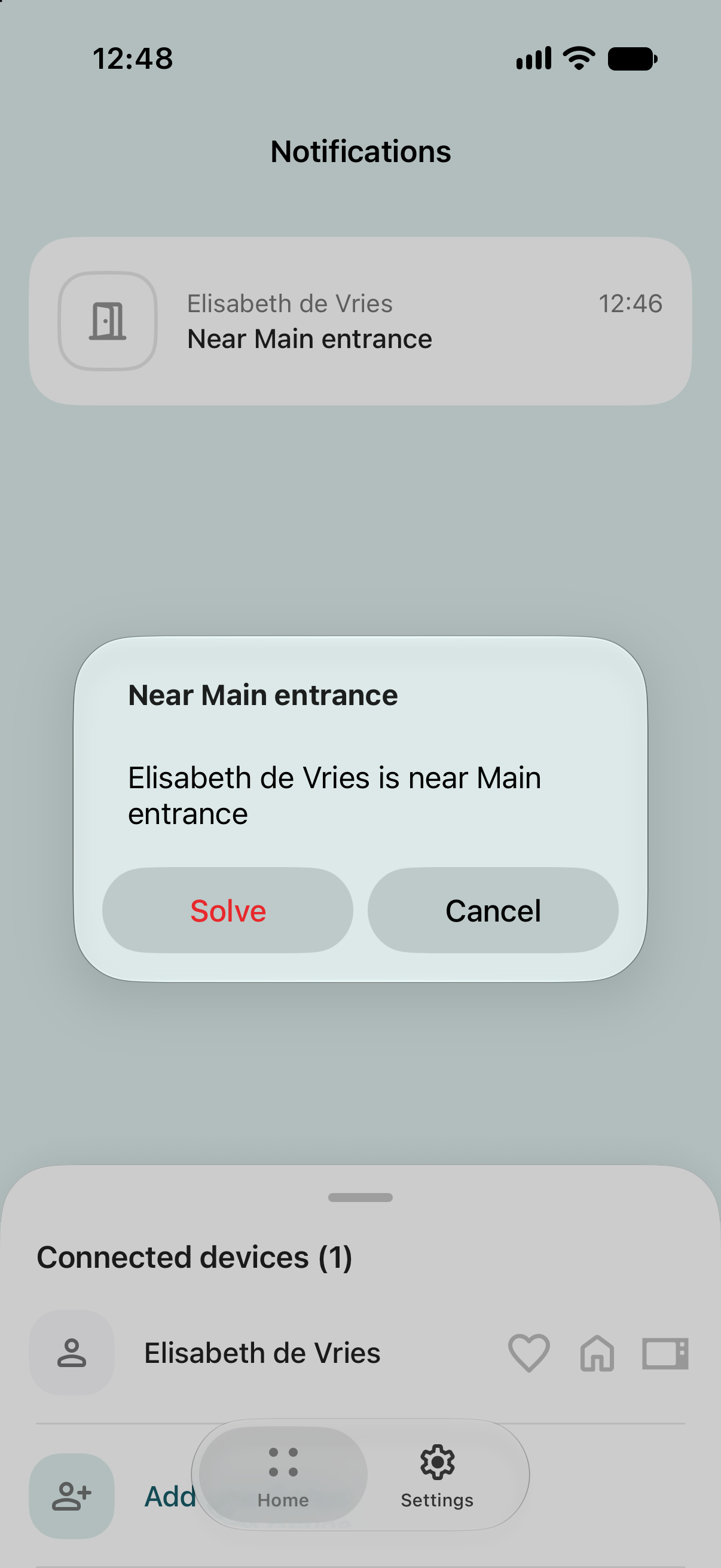
Family members with full access can mark the alert as handled with Solve. That closes it for the care team as well.
What zone detection does and doesn’t do
Section titled “What zone detection does and doesn’t do”Availability
Section titled “Availability”Zone detection is part of the October update of the Community Portal and of Genus 4.15.0. Both reach care organisations automatically. Family members don’t need to update the Genus app. Zone detection works with Genus Assist buttons paired with a Genus, so it is not part of Genus PAL.
To start with zone detection, an organisation needs one or more gateways installed at the doors. Contact Genus or your distributor to plan the installation.