

The Professional App: requests on your phone, with teams and escalation
Care professionals are rarely at a desk when a client needs them. They are on a round, in a corridor or with another client. Until now, alarms and Call Me requests reached the care team through the Community Portal, on a computer.
The Professional App puts those requests on the care professional’s phone: on Android from December 2025, with a first update in January 2026. Care organisations also got teams: each client belongs to a team, and care professionals choose the teams they cover. An alarm nobody answers moves on to a fallback team and then to the whole organisation.
What’s new
- Care professionals receive assistance requests on an Android phone. They answer that they are on their way, coming later or unable to come, or call the client’s Genus straight from the request.
- Care professionals choose the teams they cover in the app. Their phone notifies them about those teams’ assistance requests.
- Health administrators create teams in the Community Portal, give each team a fallback team and a time limit, and put each client in a team.
- Alarms nobody answers move from the client’s team to the fallback team and then to everyone in the organisation, until someone is on the way.
- Room numbers appear next to the client’s name in the app, so it is clear where to go.
- Professional App 1.1.0 lets care professionals answer Call Me requests and adds history for each client and for the organisation. Assistance requests now come first, with a counter, and dark mode is corrected.
For care professionals: getting started
Section titled “For care professionals: getting started”The Professional App runs on phones with Android 12 or later. On the phone it is called Genus Pro.
You sign in with your Genus account, the same one you use for the Community Portal. Your account needs the role Team Member, Team Lead or Admin in your care organisation.
The first time you open the app, it lists the permissions it needs: notifications, the camera and microphone for calls and, on Android 14 and later, full-screen alerts. Tap Accept permissions and allow each one.
The app offers Log in only when all of them are allowed. If you have declined one for good, the app says so, and Open settings takes you to the app’s settings on your phone.
Choosing your community and teams
Section titled “Choosing your community and teams”After signing in, choose your care organisation under Select community. Tick the teams you cover under Select teams and tap Continue.
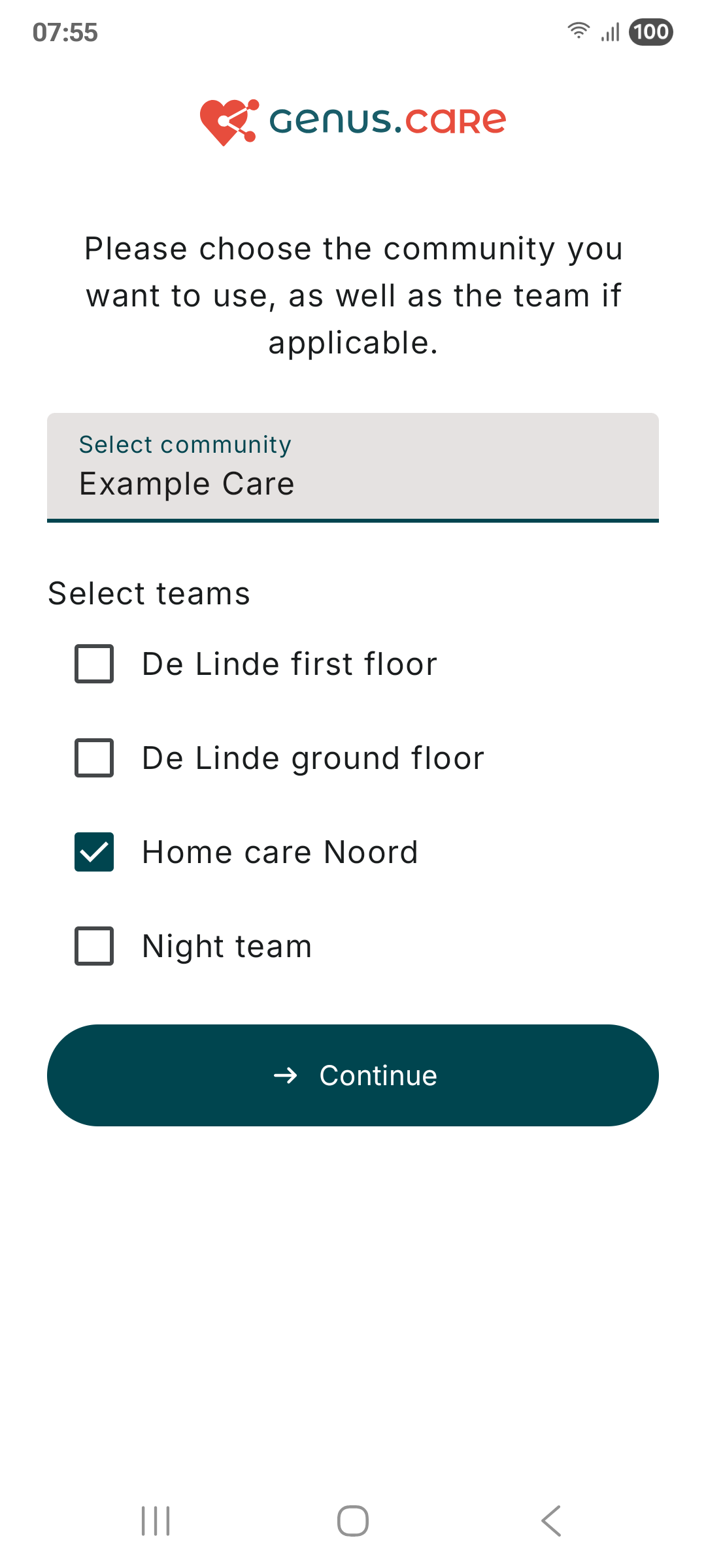
Your teams decide which assistance requests your phone notifies you about. To change them at the start of a shift, tap the account icon at the top right and choose Change community or teams in Settings. Log out is in the same dialog.
The full steps are in getting started with the Professional App.
Notifications
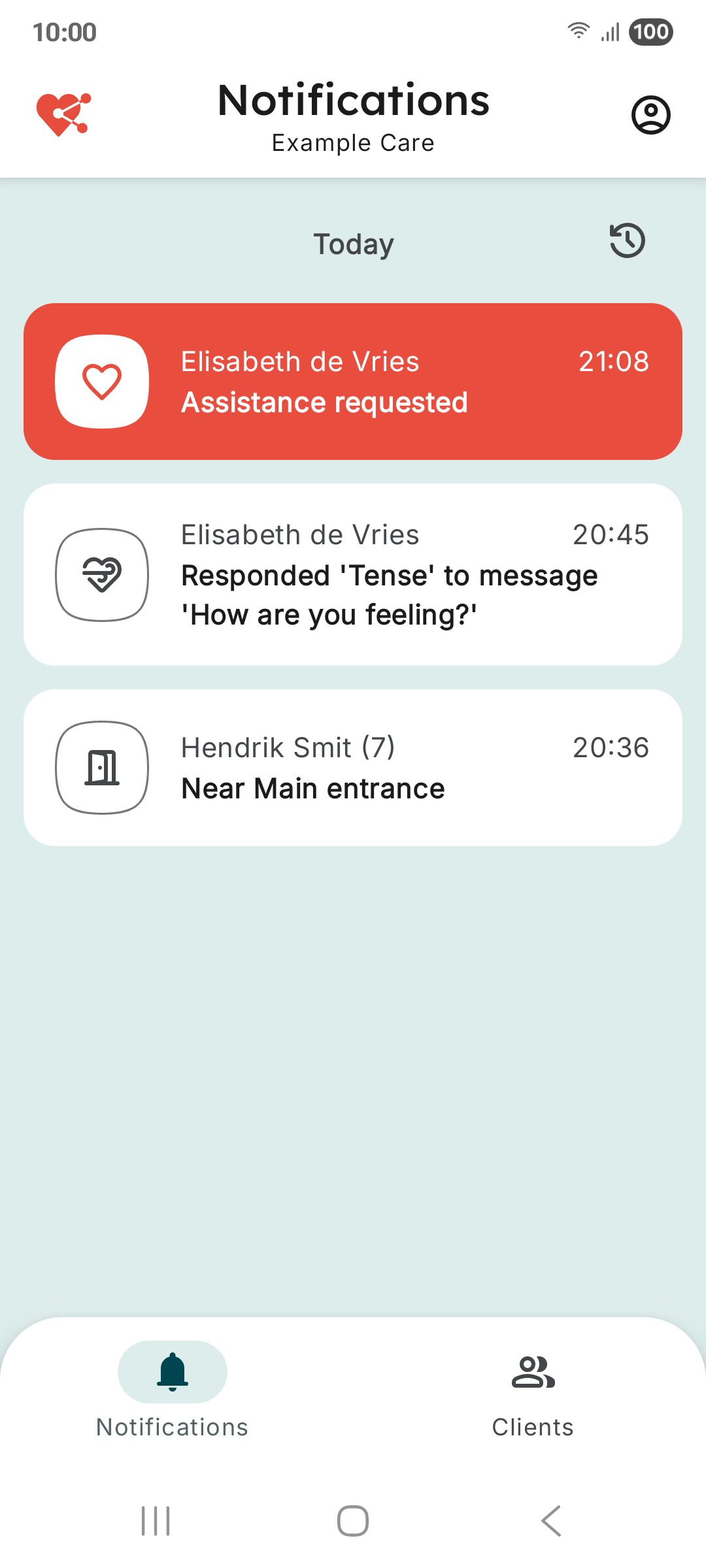
Section titled “Notifications”The app has two tabs at the bottom: Notifications and Clients. The top bar shows the name of the tab and, below it, the name of your care organisation.
The Notifications tab lists everything that still needs attention: assistance requests, alerts and Call Me requests. The list is grouped by day: Today, Yesterday and then the date. Since version 1.1.0, assistance requests come first on each day, newest at the top, followed by the alerts and Call Me requests.
An assistance request stays red until someone answers I am on my way or I am coming later. It then turns white and shows who is on it, for example Attended by Sara Jansen. Each row shows the client’s name with the room number in brackets, such as Annie Bos (12), followed by the alarm button that raised the request.
Responding to an assistance request
Section titled “Responding to an assistance request”Tap an assistance request to open it. It shows the client, how long ago help was requested and, for an alarm button, Raised by button ’…’ with the button’s name. Under Respond you choose:
- I am on my way
- I am coming later
- I can’t come right now
- Call resident, which starts a video call to the client’s Genus. For a mobile alarm button with its own phone number, such as the Genus 4G GPS Button, it opens your phone’s dialler with that number instead.
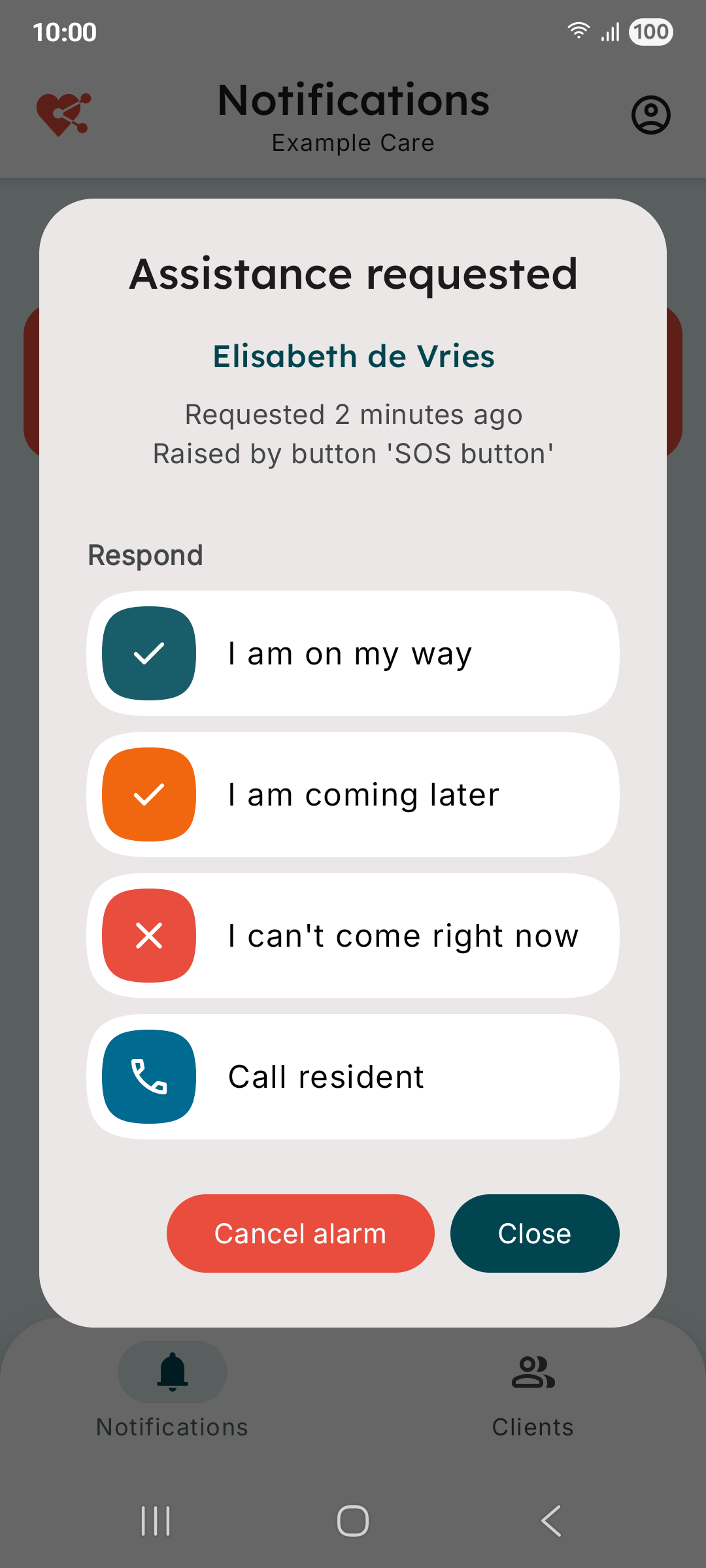
Your colleagues’ answers appear under Reactions, each with the name and how long ago. To change your own answer, tap it or tap Respond. Cancel alarm ends the request for everyone: your colleagues, the family in the Genus app and the client’s Genus.
Call Me requests
Section titled “Call Me requests”A client can ask from the Genus to be called. Since version 1.1.0 you can open such a Call Me request in the app and see how long ago the client asked. Under Respond you choose I am coming later or I can’t come right now, or Call resident to call the client’s Genus straight away, by voice.
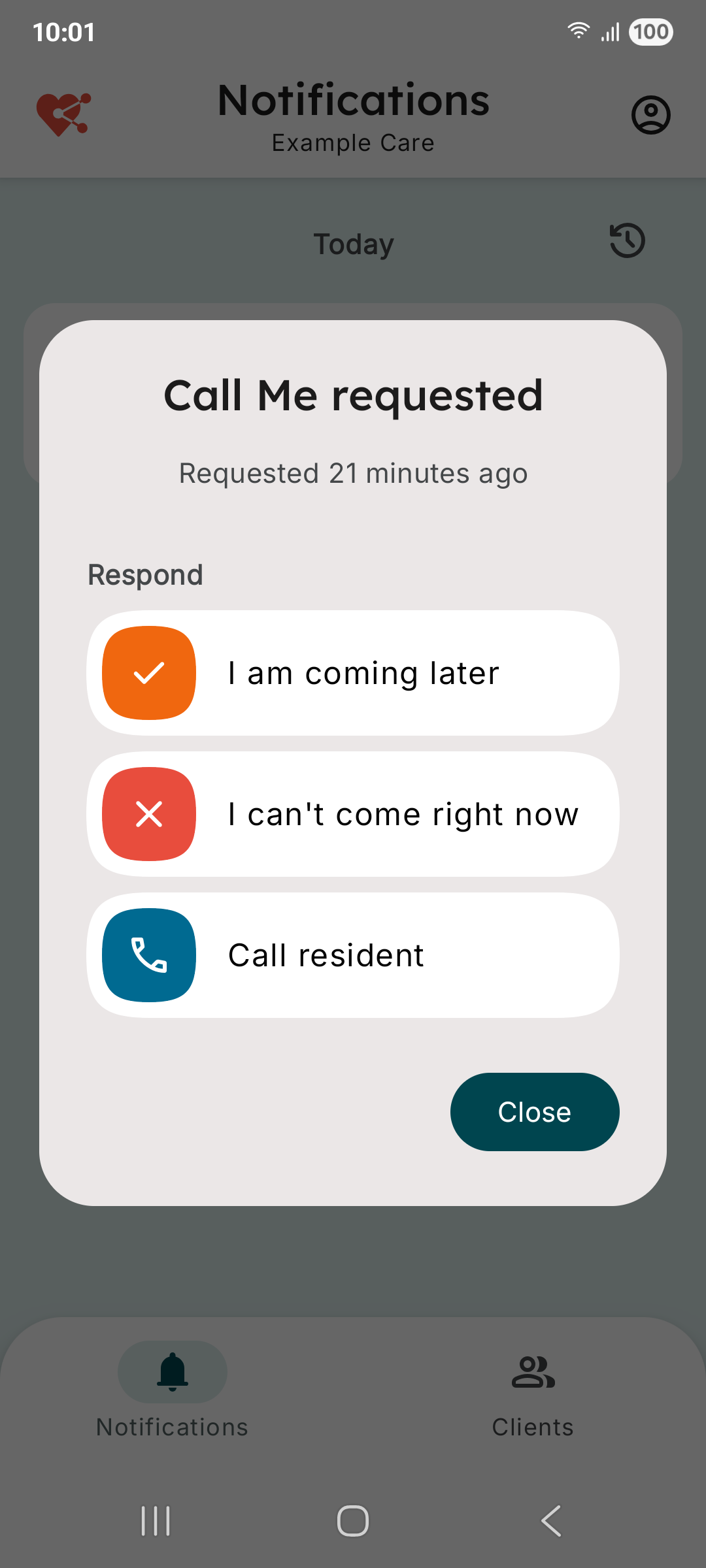
Once someone has answered, the request shows Someone answered: Will call later or Someone answered: Cannot call, and the list shows the answer instead of Awaiting response.
Alerts
Section titled “Alerts”Alerts raised by the system, such as a routine that noticed something unusual, open in the same way. Solve closes the alert. Call resident calls the client’s Genus by voice.
On your phone
Section titled “On your phone”When a new assistance request reaches one of your teams, your phone shows a notification. Its title is Assistance requested, with a line such as Elisabeth de Vries has pressed the assist button. It also appears in full on the lock screen, and tapping it opens the app.
- Assistance requests only. Alerts and Call Me requests appear in the Notifications list, without a notification on your phone.
- Your phone’s settings apply. The notification uses the phone’s notification sound and vibration, so the phone’s sound and Do Not Disturb settings apply to it. In the phone’s settings for the app, it is listed as Assistance requested.
- A counter on the tab. Since 1.1.0, a red counter on the Notifications tab shows how many assistance requests have reached you since you last opened the tab.
Responding to notifications describes every request and response.
Clients and calls
Section titled “Clients and calls”The Clients tab lists your organisation’s clients, sorted by last name. Each row shows the room number, such as Room 12, and a status chip:
| Chip | Meaning |
|---|---|
| Green, with a time | Movement was detected a short while ago; the time says how long ago |
| Orange, with a time | No movement for some time, or the Genus is offline; the time says since when |
| Blue, In call | The Genus is in a call |
Search with Search by name or room… at the top. Since 1.1.0 the list refreshes by itself while it is open.
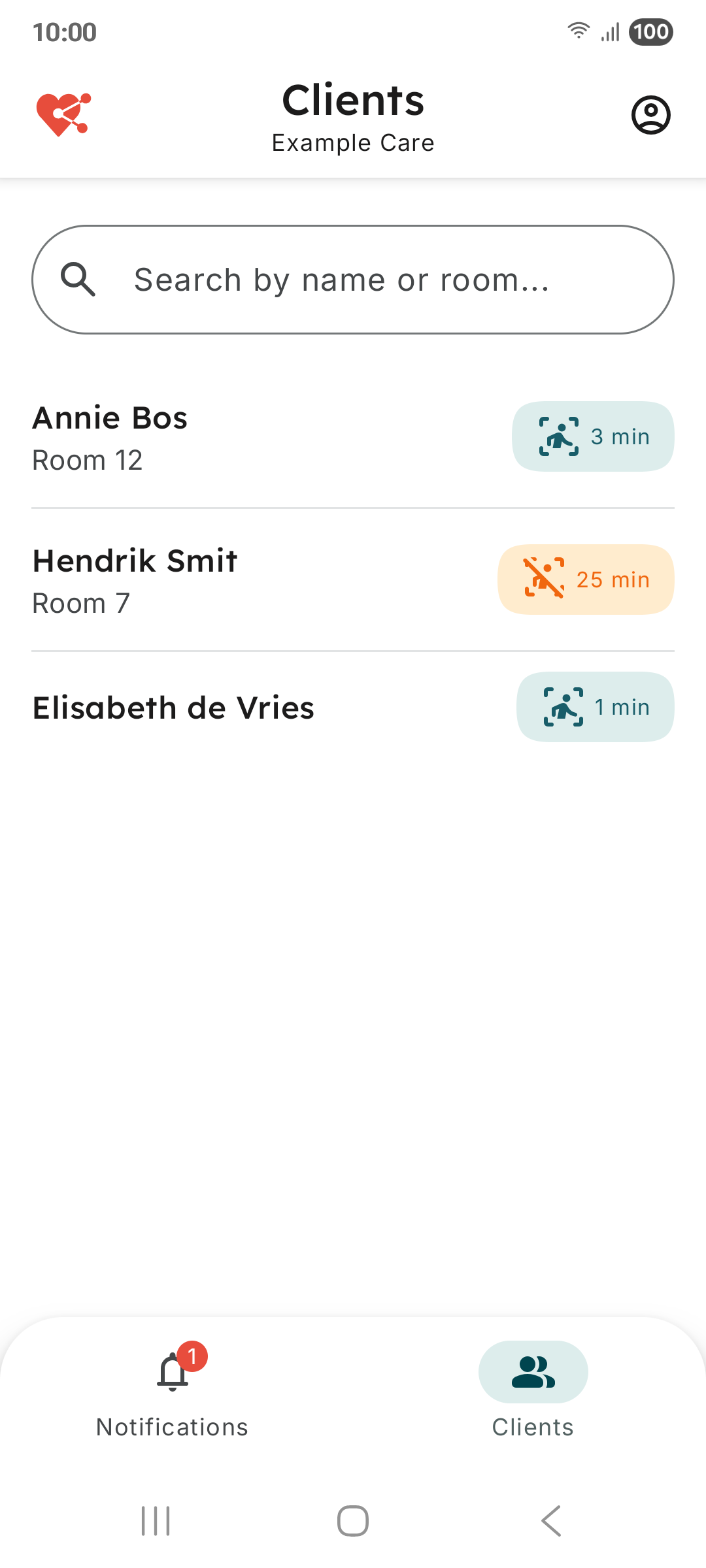
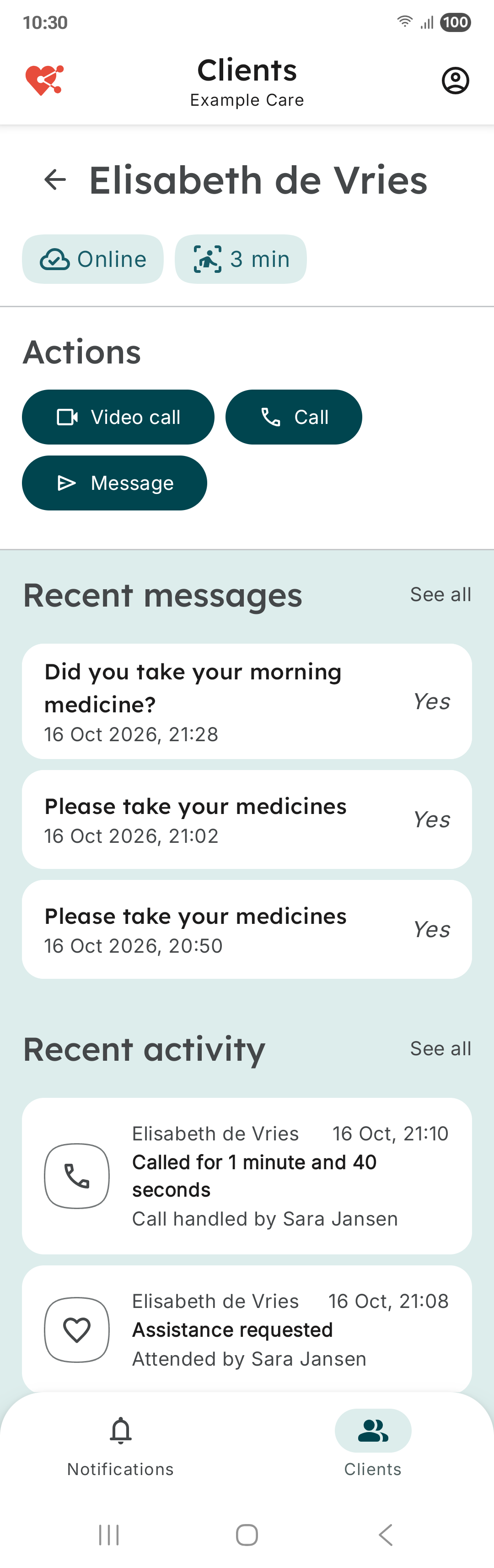
Tap a client to open their page. It shows Online or Offline, the movement chip and, during a call, In call. An open assistance request appears at the top, with the same responses as in the request itself.
Under Actions you find:
- Video call and Call call the client’s Genus, where the client answers. If the Genus is offline, not available or already in another call, the app says so.
- Message sends a message to the Genus. You choose how the client can reply: Seen!, Yes / No, Yes / No / I don’t know, a mood or a number of stars.
History for each client and for the organisation
Section titled “History for each client and for the organisation”Version 1.1.0 adds history, so you can see what happened before your shift started.
- Recent messages on a client’s page shows the last three messages sent to the client, with the replies. See all opens up to 20.
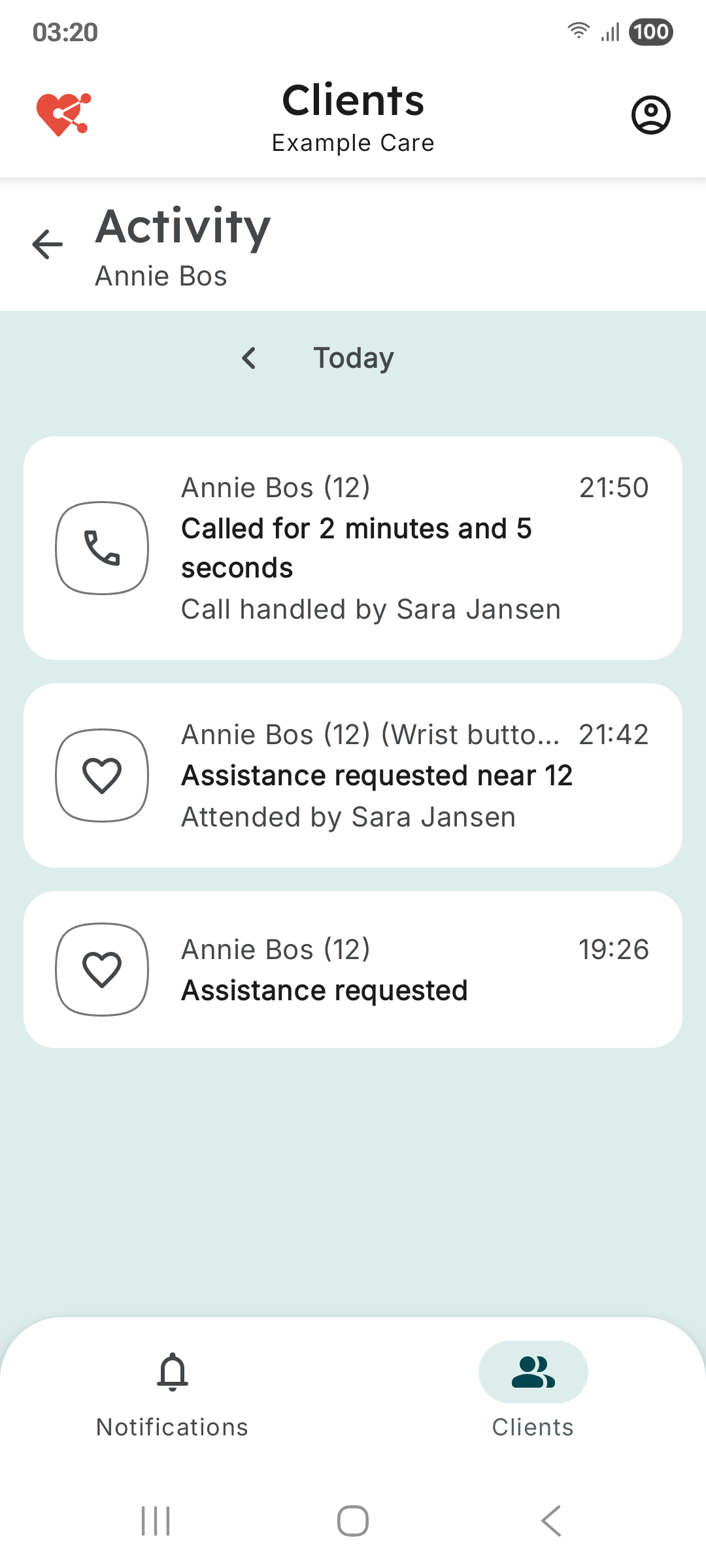
- Recent activity shows the three latest events of the last two days: assistance requests, alerts, Call Me requests and calls. See all opens Activity, where the arrows move from day to day. A call shows how long it lasted and who made it, for example Called for 2 minutes and 5 seconds and Call handled by Sara Jansen.
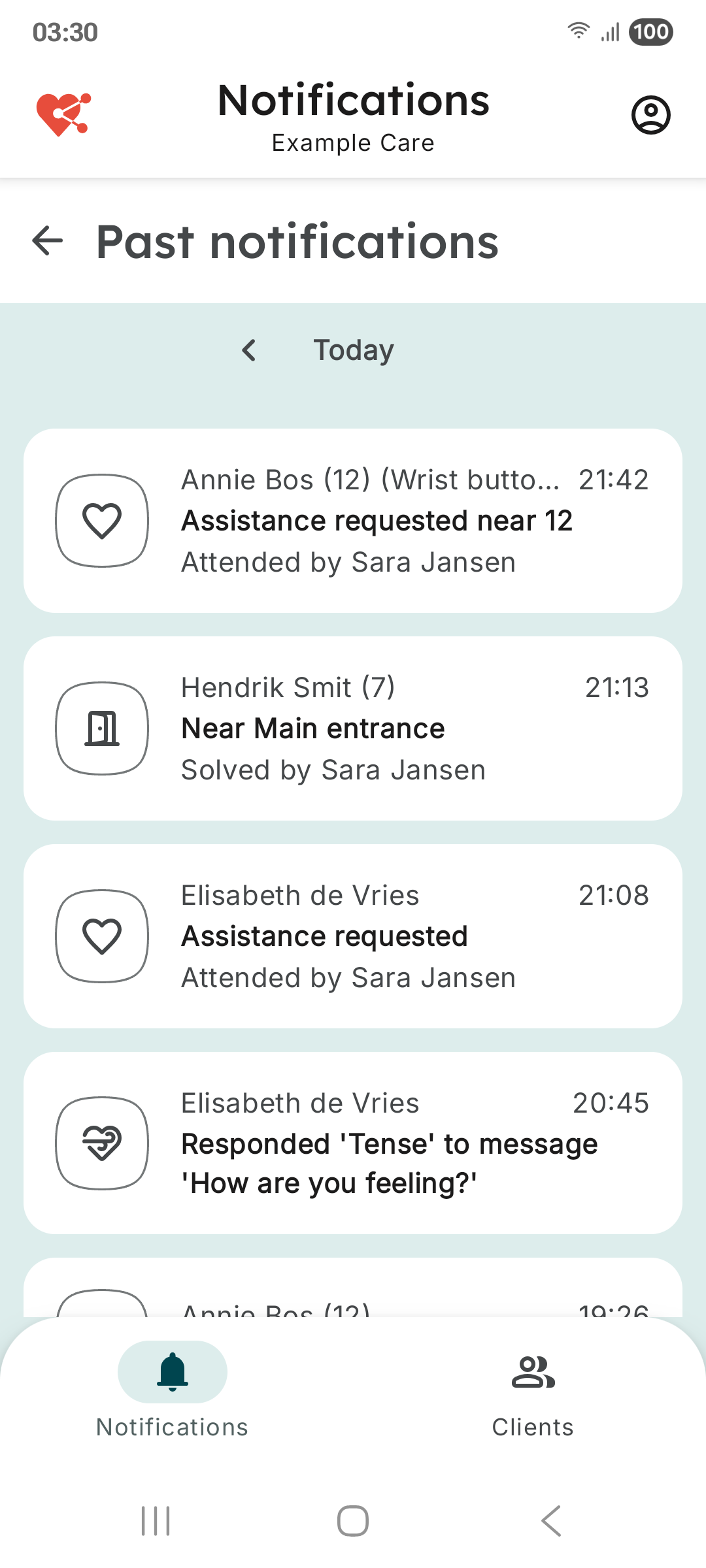
- Past notifications is behind the clock icon at the top right of the Notifications tab. It lists one day of assistance requests, alerts and Call Me requests for your whole organisation. The arrows go back a day at a time, and tapping an item shows who responded.
More about the client list and the client’s page is in clients in the Professional App.
Dark mode for night shifts
Section titled “Dark mode for night shifts”When the phone is set to dark mode, the Professional App follows, with the right colours since version 1.1.0. Ruben, who works nights at De Linde, uses the app in dark mode.
For health administrators: teams and escalation
Section titled “For health administrators: teams and escalation”A team is a group of care professionals who look after the same clients, such as a home care district or one floor of a care home. Teams decide who is notified first when a client raises an alarm.
Creating teams
Section titled “Creating teams”Health administrators with the role Admin set up teams in the Community Portal, under Team members → Teams.
- Click Create team.
- Fill in the Name.
- Choose a Fallback team: the team that takes over when nobody in this team responds in time. This is optional.
- Fill in Escalate after (minutes): how long this team has before the alarm moves on.
- Click Create.
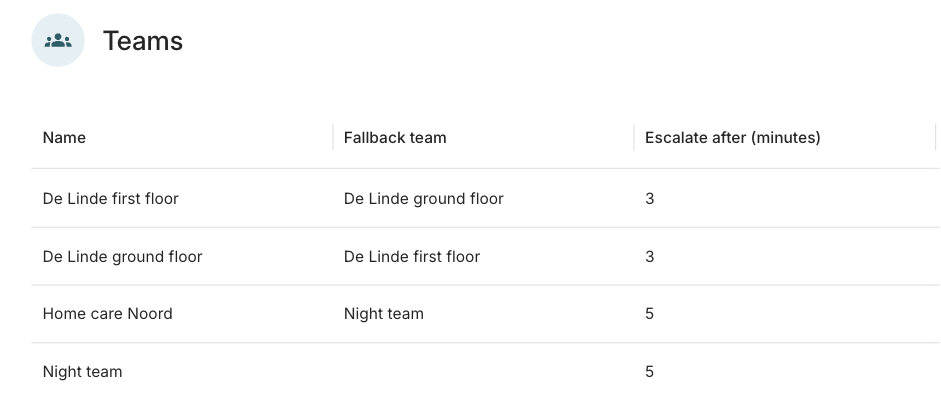
Team names must be unique, and a team cannot be its own fallback team. Edit and Delete are in the menu at the end of each row. Deleting a team removes it from its clients, from the care professionals who chose it and from the teams that used it as fallback team.
Putting a client in a team
Section titled “Putting a client in a team”Open the client in the Community Portal and click Edit in the Alarm settings block. Choose the team under Team to escalate to and save. A client belongs to one team, which the block then shows under Team.
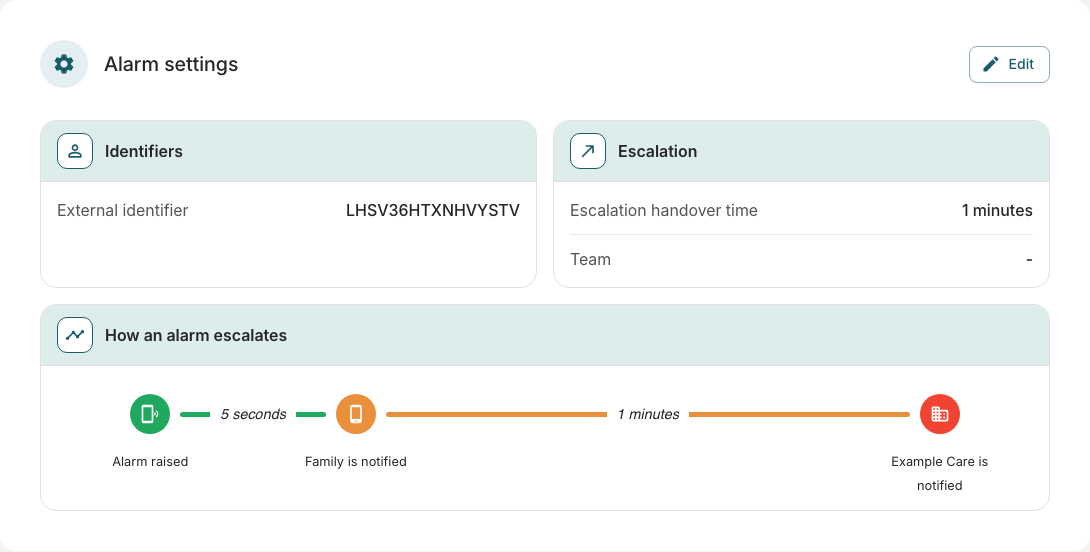
The full steps are in team members and teams.
How an alarm moves on
Section titled “How an alarm moves on”When a client raises an alarm, it goes through these steps:
- The family first. Family members with full access in the Genus app are alerted straight away. After the client’s escalation handover time, the alarm goes to the care organisation. If no family member’s phone is connected, it goes on at once.
- The client’s team. Care professionals who chose the client’s team get a notification in the Professional App.
- The fallback team. If nobody is on the way when the team’s Escalate after (minutes) has passed, the fallback team is notified as well.
- The whole organisation. When the fallback team’s own Escalate after (minutes) has passed, everyone in the organisation who uses the Professional App gets the request.
- An alarm receiving centre, if your organisation has one connected, after the integration escalation time.
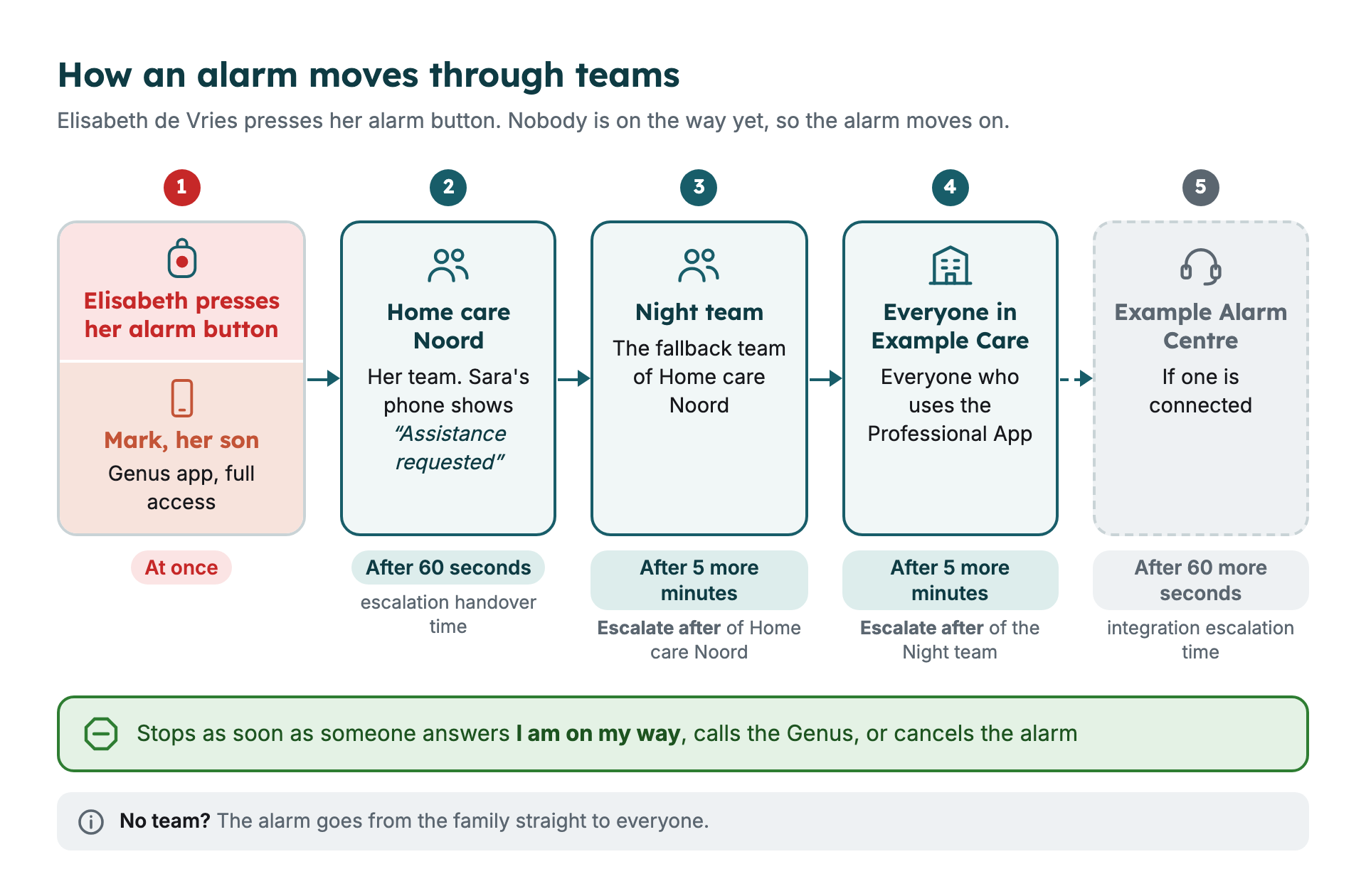
Escalation and teams explains the whole chain.
Room numbers
Section titled “Room numbers”In a care home, a name alone does not tell you where to go. Clients now have an optional Room number in their contact information in the Community Portal, which a Team Lead or Admin fills in.
The Professional App shows the room number in the client list, on the client’s page and next to the name in requests, such as Annie Bos (12). Since January the client list in the Community Portal also has a Room column.
Fixes and improvements
Section titled “Fixes and improvements”- Faster loading. The Notifications tab and the dashboard in the Community Portal load faster, especially in organisations with many clients.
- Smaller fixes. Coming back from a client’s page no longer opens the keyboard.
Availability
Section titled “Availability”- Professional App 1.0.3 for Android was the first version, in December 2025. Professional App 1.1.0 for Android followed in January 2026. Install or update the app on a phone with Android 12 or later.
- The app is in English and Dutch, and follows the language of the phone.
- Teams, escalation and room numbers came to the Community Portal automatically from November 2025.
- The iPhone version came later: see the Professional App on iPhone.