

Livestreams and messages from the family
Some things are meant for many clients at once: chair exercises before lunch, a talk from the physiotherapist, an announcement for everyone in the care home. Until now the care team could only call one Genus at a time. Family members, in turn, could call or send a photo, but had no quick way to ask a simple question.
This release adds both. From the Community Portal an Admin can now livestream to every client of the organisation, or to the clients they choose. Family members can send a message from the Genus app, and the client answers with one tap on the Genus.
What’s new
- Health administrators can start a livestream from the Community Portal with their camera, their voice and, if they like, their screen.
- Clients are invited on the Genus and choose whether to watch. Nobody in the livestream can see or hear them.
- Family members can send a message from the Genus app on Android and iPhone, with buttons for the answer.
- Family members get a notification when the client answers, and see the answer in the app.
For care organisations: livestreaming from the Community Portal
Section titled “For care organisations: livestreaming from the Community Portal”A livestream goes one way: from you to many Genus devices at once. It suits a group activity, a presentation or an announcement. For a conversation with one client, a video call remains the right tool.
- Open Users in the side menu.
- To reach only some clients, tick them in the list. To reach every client, tick nobody.
- Click Livestream to community, or Livestream to selected clients when you have ticked clients.
- Read the dialog. With clients ticked it shows how many you selected.
- Click Start livestream.
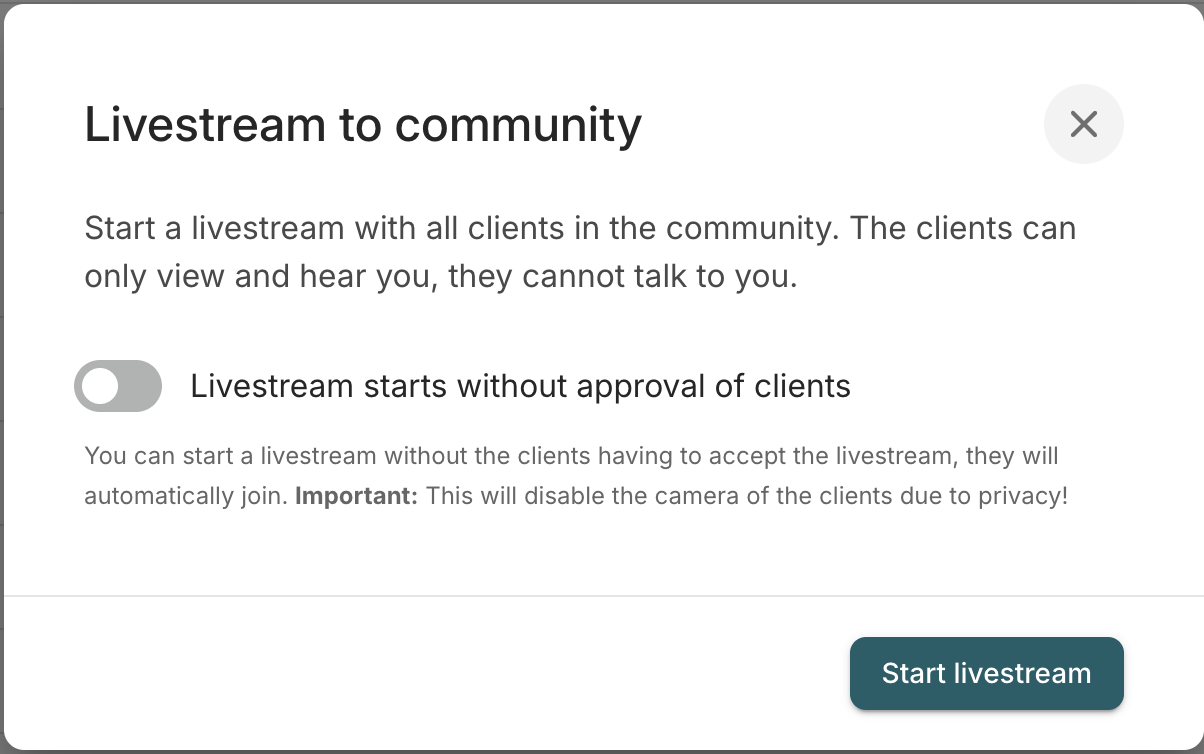
The livestream opens in a new browser tab. Allow your browser to use your camera and microphone. As soon as you have joined, every chosen Genus receives the invitation.
Showing your screen
Section titled “Showing your screen”In the livestream tab you can share your screen, for example to show an exercise video, a set of slides or photos from last week’s outing. While you share, the Genus shows your screen instead of your camera. Screen sharing is offered in livestreams only, not in video calls.
On the Genus: watching a livestream
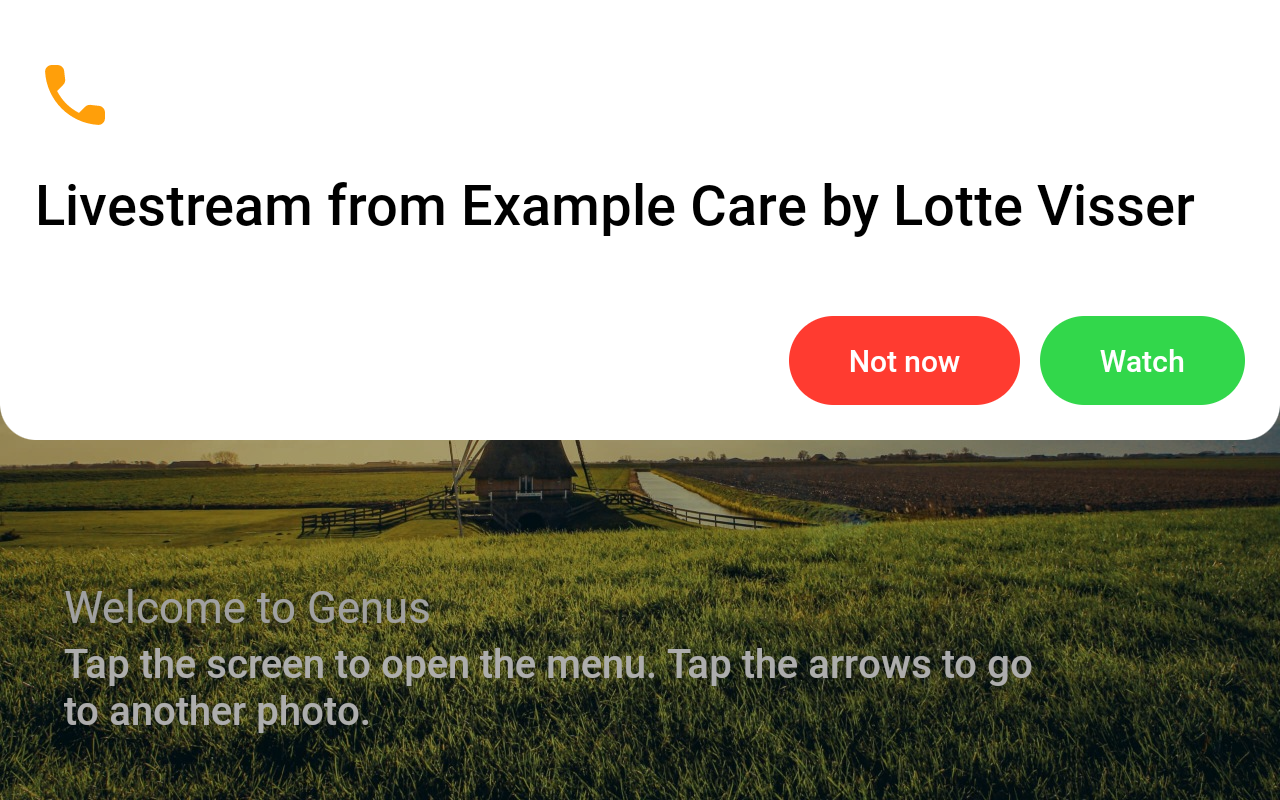
Section titled “On the Genus: watching a livestream”The client sees an invitation such as Livestream from Example Care by Lotte Visser, with the buttons Not now and Watch. The invitation stays on screen for several minutes and disappears when the livestream ends.
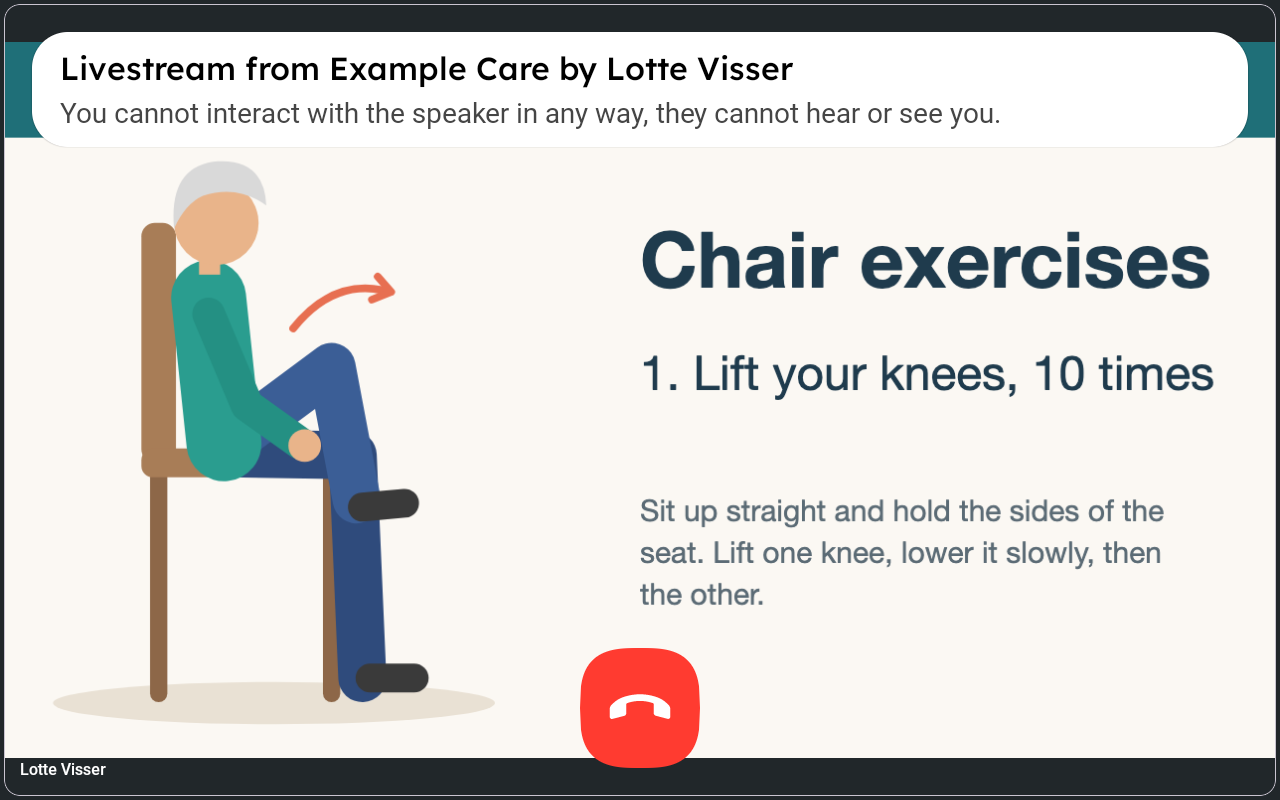
During the livestream a banner at the top repeats who is presenting. Below it the client reads You cannot interact with the speaker in any way, they cannot hear or see you. After a short while the banner shrinks to its title; tapping it shows the explanation again. The red button leaves the livestream.
For family members: sending a message from the Genus app
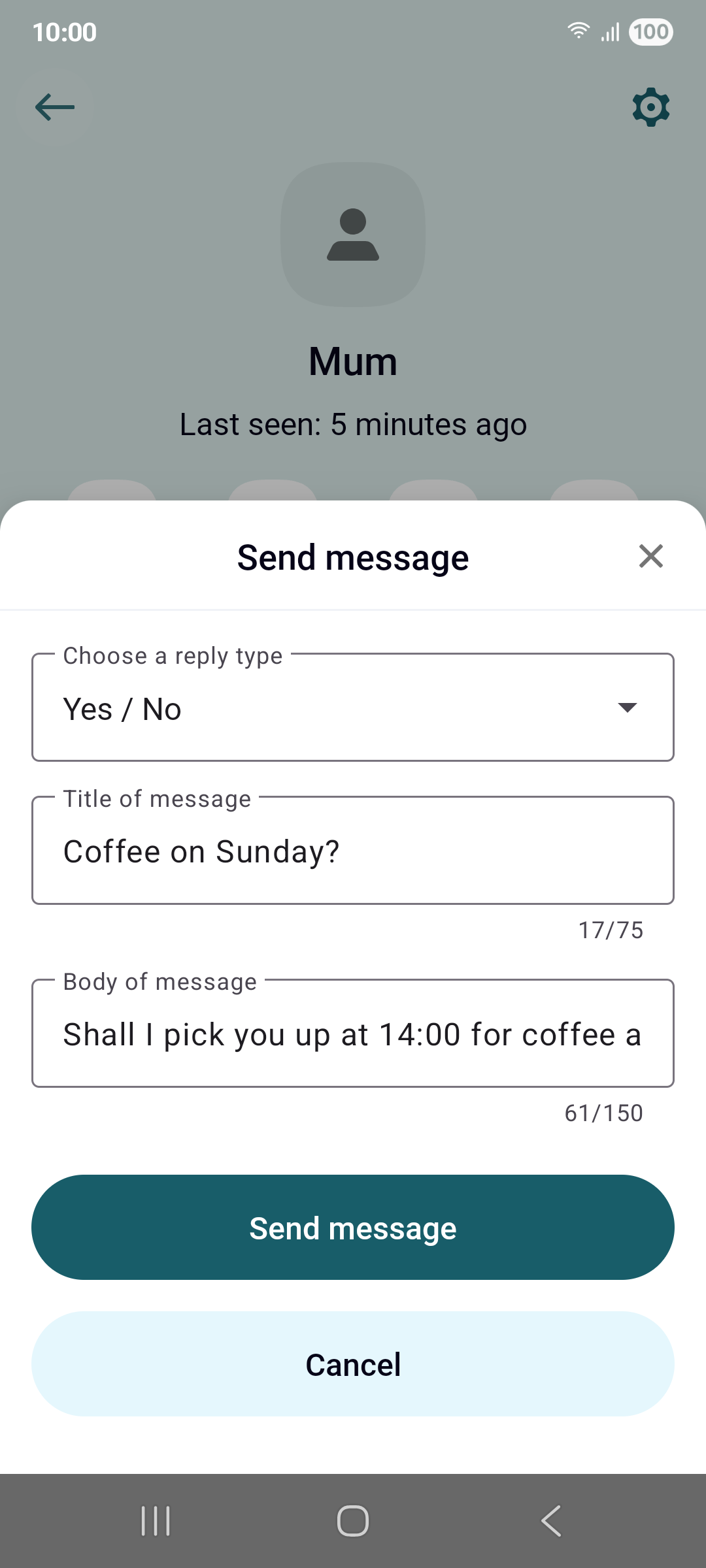
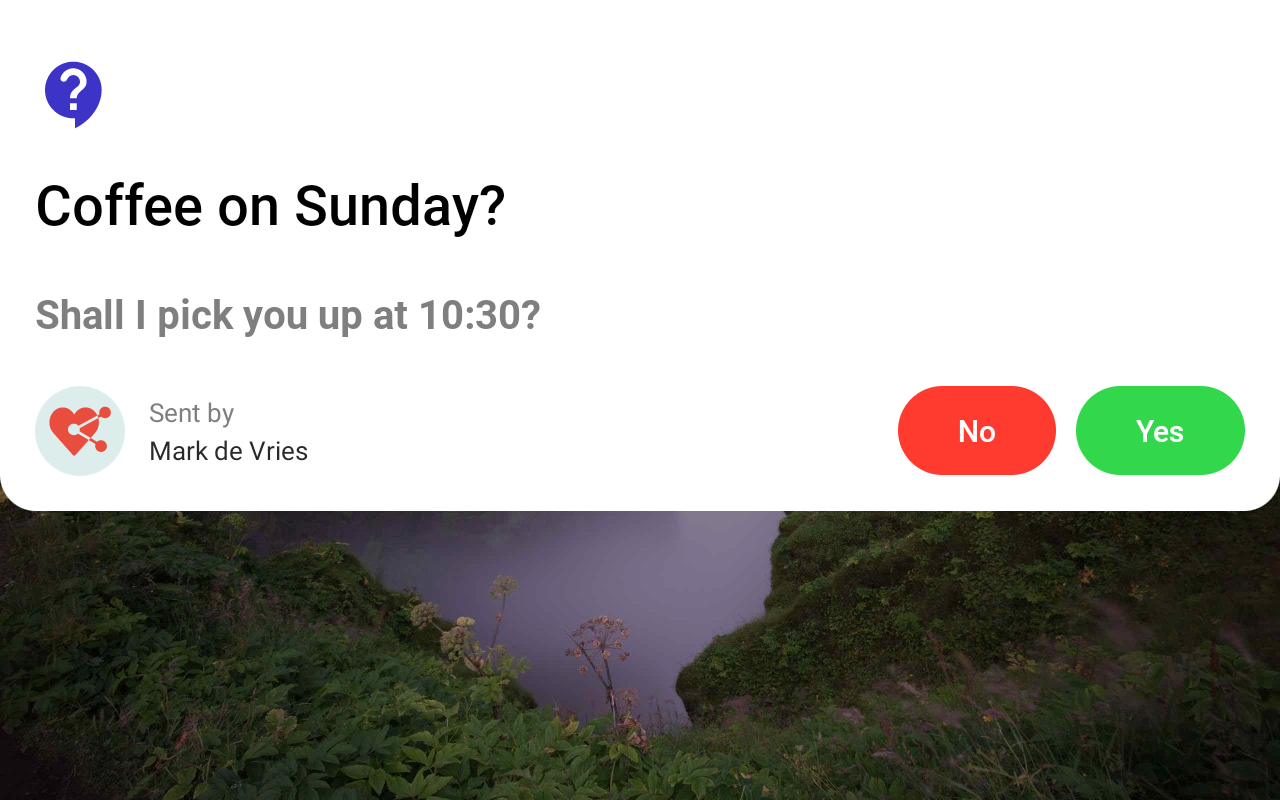
Section titled “For family members: sending a message from the Genus app”A message appears on the Genus with buttons for the answer. It suits a short question, such as Coffee on Sunday?, or a greeting that needs no more than Seen!
- Open the Genus in the app and tap Send message, next to Video call.
- Under Choose a reply type, choose how the client can answer: Seen!, Yes / No, Yes / No / I don’t know, five faces or one to five stars.
- Enter a Title of message and the Body of message.
- Tap Send message. On iPhone the app confirms Message sent.
On the Genus the message opens as a pop-up with your name and the answer buttons.
Seeing the answer
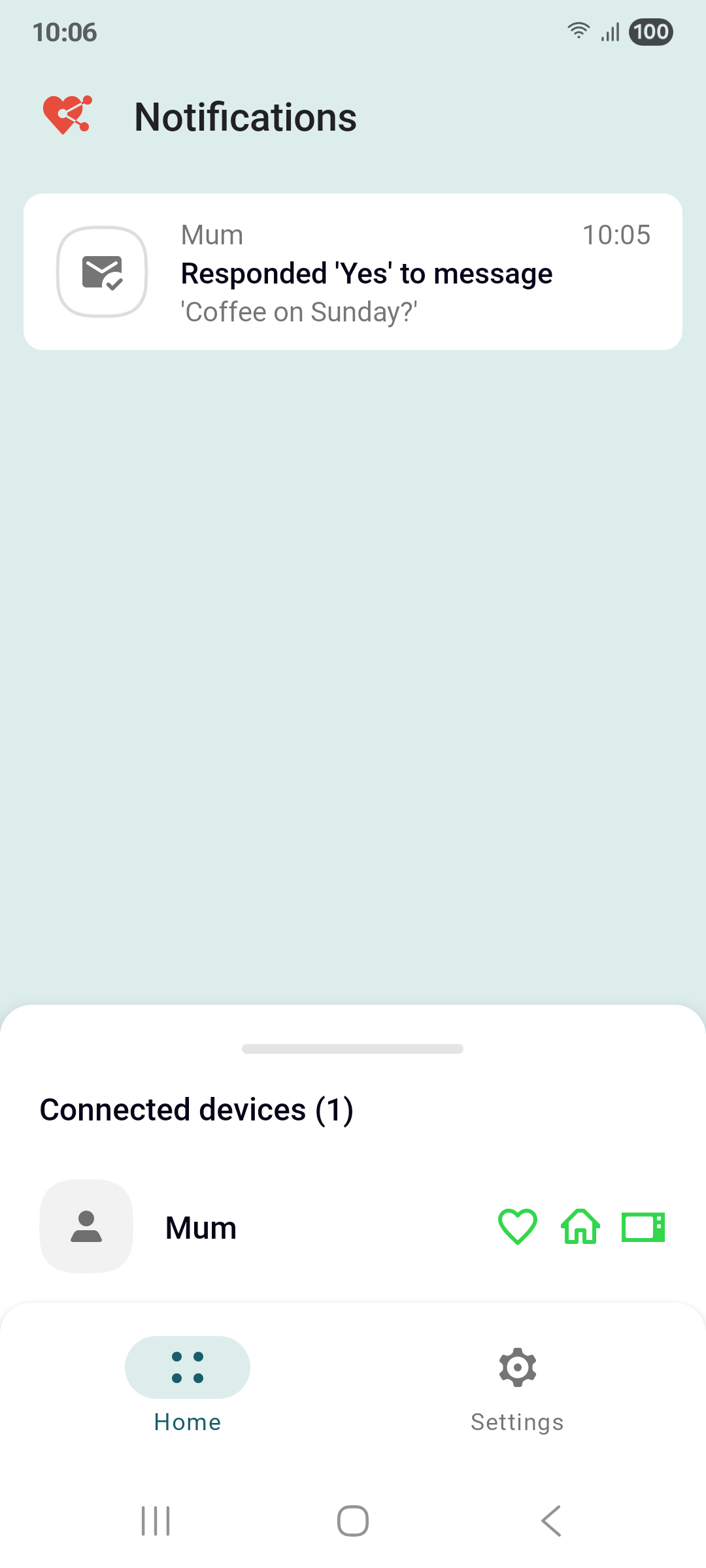
Section titled “Seeing the answer”When the client taps an answer, you get the notification Mum responded to message with the title of your message, using the name you gave the Genus. Home in the app then shows the answer, for example Responded ‘Yes’ to message with the title. An answer with a face shows that face, and stars show the score out of five.
Fixes and improvements
Section titled “Fixes and improvements”- Genus app for iPhone The colours of the app were brought closer to those of the Android app. In version 2.2.1, the Send message button follows the language of the app.
Since then
Section titled “Since then”Livestreams still work as described here; the Community Portal got its current design in July 2025 (the redesigned Community Portal). The steps today are on video calls and livestreams. In the Genus app the button is now called Message and sits beside Calendar and Call; see photos, messages and video calls.
Availability
Section titled “Availability”- The Community Portal was updated automatically in February 2025. The Genus updates itself; livestreams need Genus 3.8.0 (February 2025) or later.
- Family members send messages after updating to Genus app 2.3.0 for Android or Genus app 2.2.0 for iPhone (March 2025), from Google Play or the App Store.