

Sensors in the home and Genus Routines
A care team can’t be in a client’s home all day, yet small signs say a lot: the front door opening in the middle of the night, a room that keeps getting colder, a fall. The Genus already noticed movement and temperature in the room where it stands. The rest of the home stayed out of sight.
With this release the Genus pairs sensors that notice such signs. In the Community Portal, care professionals then choose per client what should happen when a sensor notices something. That choice is a Genus Routine: it watches the sensor and raises an alarm or sends an alert.
What’s new
- Installers pair a Zigbee gateway and sensors with the Genus, and give each sensor its room.
- Care professionals add routines for a client in the Community Portal. They start from ready-made templates that match the client’s sensors, and set the sensor, values such as a temperature or a time window, a cooldown and the days.
- Care teams receive routine alarms and alerts with the routine’s own title and text, so they see straight away what happened.
- Family members can receive routine alerts in the Genus app.
- Care professionals can follow the readings of every sensor in a graph, and download a report of the rooms the client was in and the routines that went off.
The sensors
Section titled “The sensors”The sensors connect wirelessly to a Zigbee gateway in the client’s home, which uses the home’s Wi-Fi. These kinds of sensor work with the Genus:
- Movement sensors notice someone walking past.
- Presence sensors notice that someone is in the room, also when they sit still. Some also measure the light.
- A presence sensor that also detects falls.
- Door sensors notice a door opening and closing.
- Temperature and humidity sensors.
Movement and presence sensors also keep track of which room the client is in, and for how long.
For installers: pairing sensors with the Genus
Section titled “For installers: pairing sensors with the Genus”On the Genus, open Connect → Devices (sensors), choose Add a new device and then Genus Sensor. The first time, the gateway is set up before any sensor.
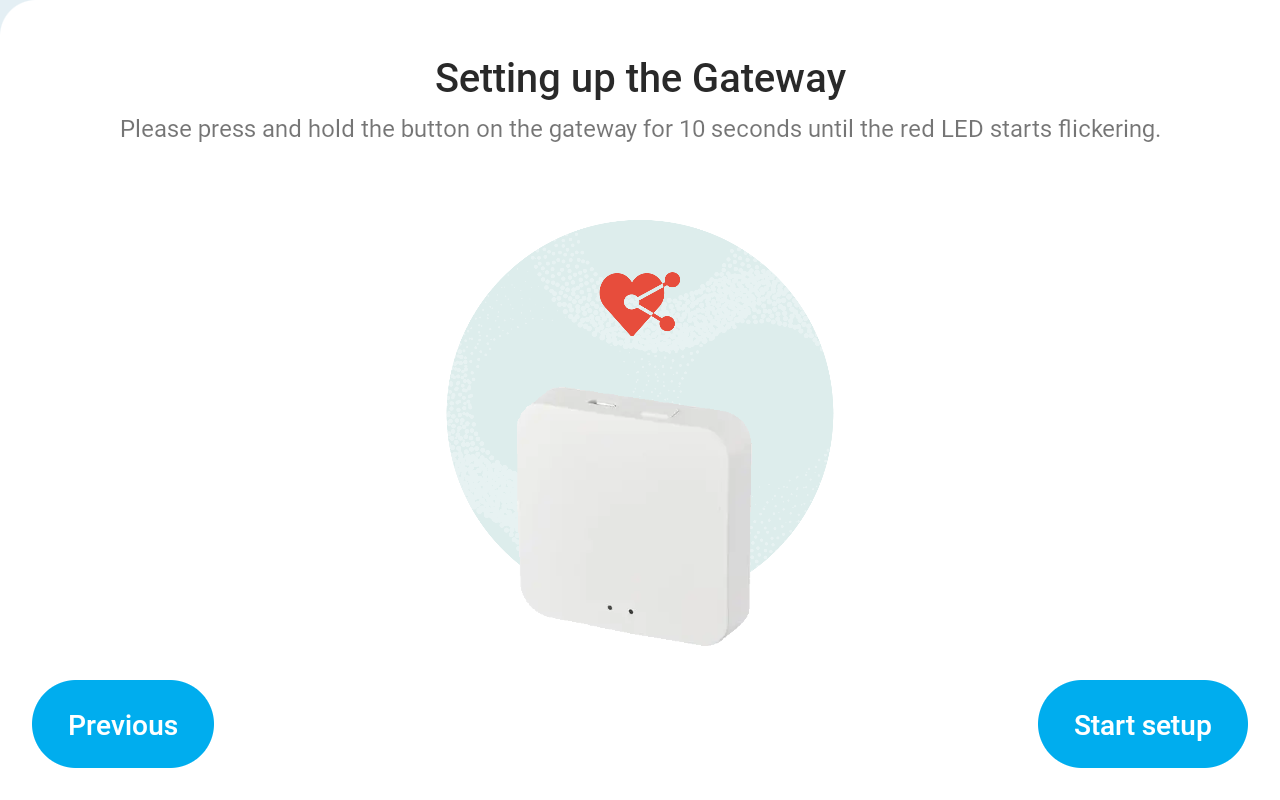
Setting up the gateway
Section titled “Setting up the gateway”- The first time a Genus pairs sensors, it shows First time device connect. Choose Prepare. The Genus restarts its app and continues with the setup.
- Plug in the gateway. Press and hold its button for 10 seconds, until the red light starts flickering.
- Choose Start setup.
- Choose the Wi-Fi network the gateway should use. If the Genus has saved the password of that network, it fills it in; otherwise, type it.
- When Gateway connected appears, choose Add device to go on with the sensors, or Finish.
Adding a sensor
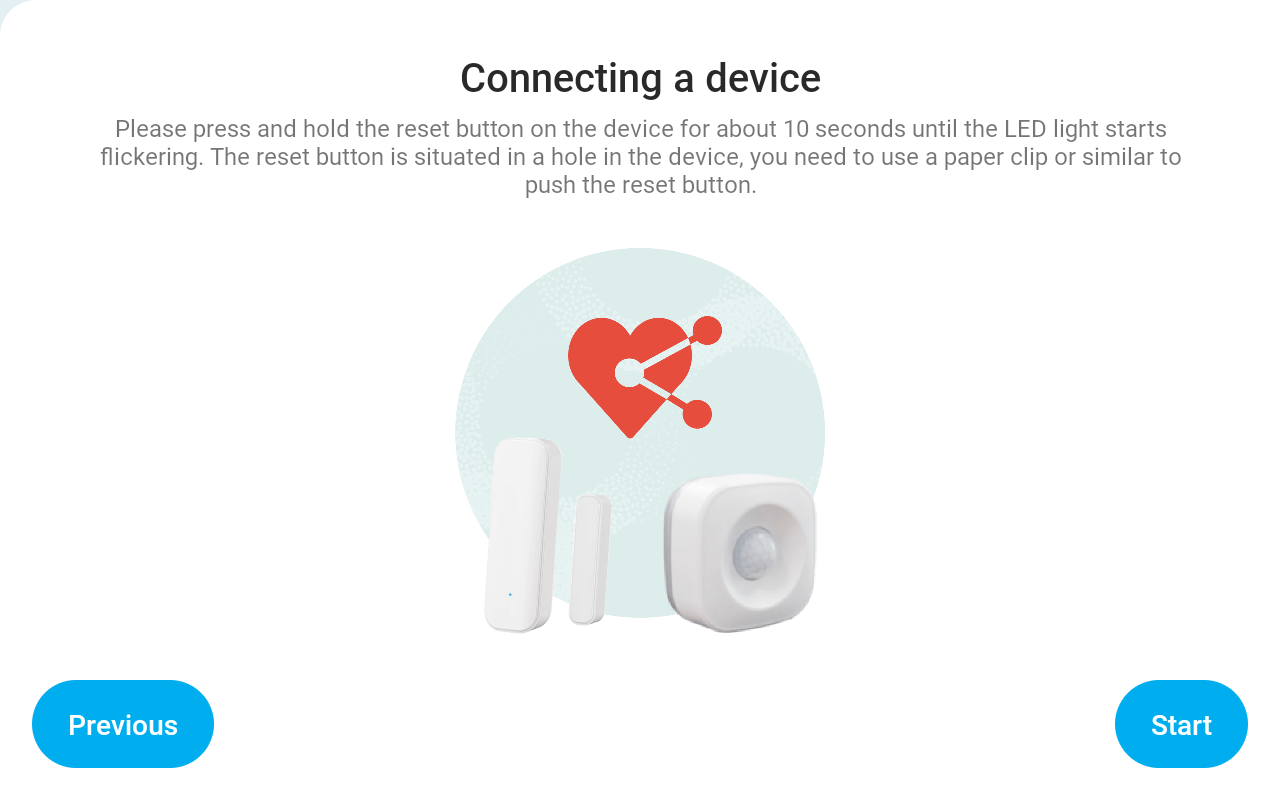
Section titled “Adding a sensor”- Press and hold the reset button of the sensor for about 10 seconds, until its light starts flickering. The button sits in a small hole, so use a paper clip.
- Choose Start. The Genus searches for the sensor and pairs it with the gateway.
- At Device connected, choose Choose room. Pick the room the sensor is in, or enter a name of your own.
- Choose Add another device for the next sensor, or Finish.
For care professionals: Genus Routines in the Community Portal
Section titled “For care professionals: Genus Routines in the Community Portal”Open a client in the Community Portal. The Genus Routines block lists the client’s routines, each with its description and Enabled or Disabled. Health administrators and team leads see this block.
Adding a routine
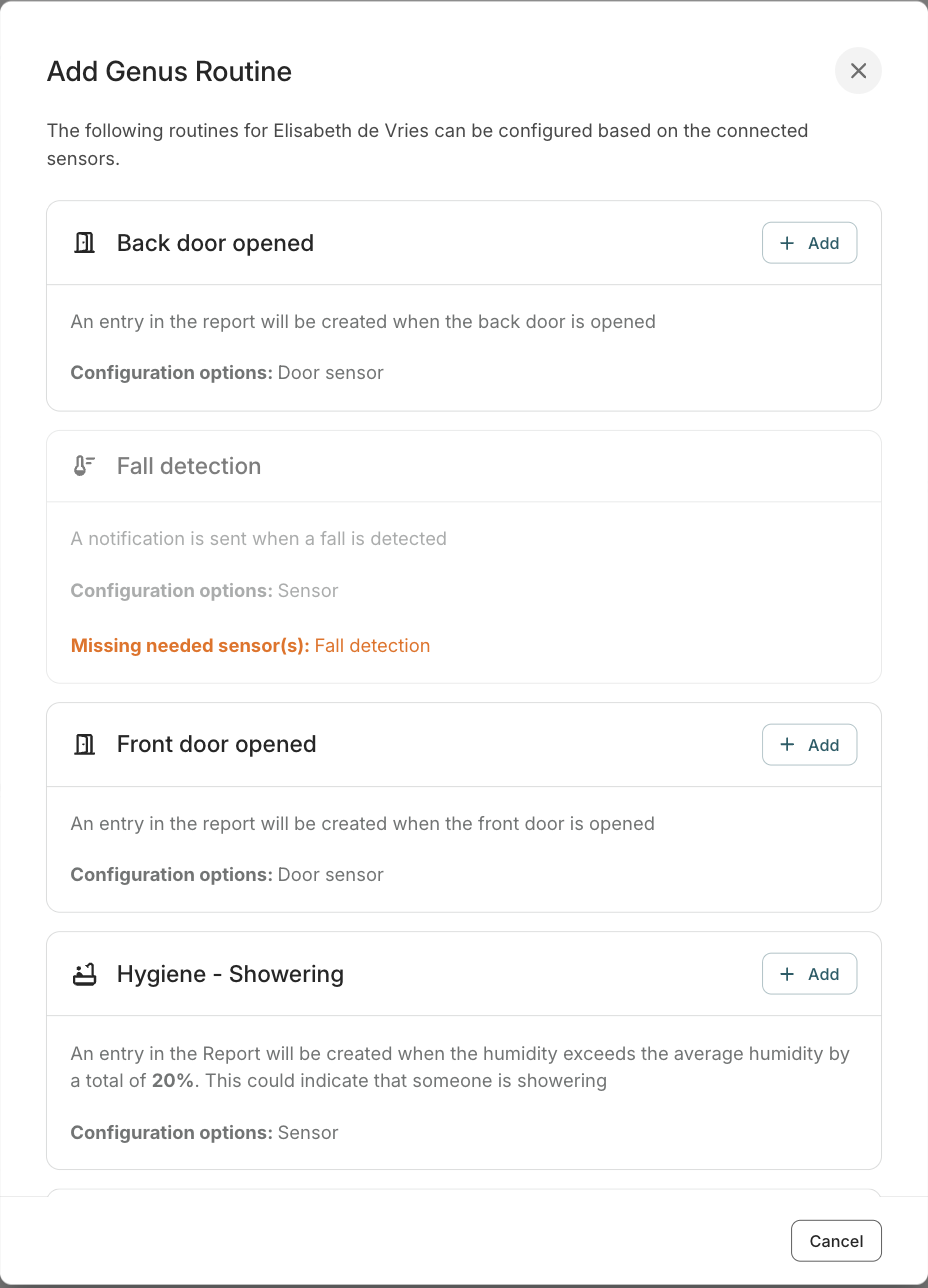
Section titled “Adding a routine”- In Genus Routines, choose Add. Add Genus Routine lists the routines that can be configured based on the client’s connected sensors.
- A routine that needs a sensor the client doesn’t have is greyed out. Missing needed sensor(s) names the type of sensor it needs.
- Choose Add next to the routine you want.
- Under Choose device, choose the client’s sensor. Then fill in the values the routine asks for, such as a temperature or a start and end time. The description at the top of the dialog follows what you fill in.
- To set the cooldown or the days, switch on Show advanced settings. Cooldown (in minutes) and Enabled on days appear. At least one day must stay selected.
- Choose Save.
The first templates were these:
| Routine | What it watches | What happens |
|---|---|---|
| Wander detection | A door opening between a start and an end time, by default 21:00 to 07:00 | An alarm |
| Temperature too high | The temperature rising above a value you set | An alert |
| Temperature too low | The temperature dropping below a value you set | An alert |
| Fall detection | A sensor that detects a fall | An alarm |
Changing or pausing a routine
Section titled “Changing or pausing a routine”Click a routine to open it. You can choose another sensor or change the values. Under Show advanced settings you change the cooldown and the days, and switch Routine enabled off to pause the routine without removing it.
When a routine goes off
Section titled “When a routine goes off”- An alarm is handled like any other alarm: it follows the client’s alarm chain until someone responds. It carries the routine’s title and text.
- An alert appears with the client’s alerts in the Community Portal, with the routine’s title and text, so it says what happened.
- Family members can receive routine alerts in the Genus app, depending on how the routine is set up. The app shows the routine’s own title, text and icon.
Seeing what the sensors measure
Section titled “Seeing what the sensors measure”- Graphs. In the client’s Trends, choose View connected devices data. Choose a sensor to see a card for everything it measures, with the latest value, and a graph of the readings.
- The routine report. Get report in the Genus Routines block creates a PDF for a period you choose: fill in Begin at and End at and choose Generate report. The report has a day overview of the rooms the client was in, hour by hour, and a list of the routines that went off.
What came next
Section titled “What came next”Routines have grown since June 2025. Over the summer they started to work with Zigbee alarm buttons, and a routine could show a message on the Genus and read it aloud; see the summer 2025 round-up. In 2026 sensors started to set up their own routines for the client report, and routines took on zone detection. Routines describes how they work today.
Availability
Section titled “Availability”- Pairing sensors needs Genus 4.0.0 or later, from June 2025. The Genus and the Community Portal receive the update automatically.
- Routine alerts in the Genus app need Genus app 2.3.2 for Android or Genus app 2.2.2 for iPhone, from Google Play or the App Store.