

The day on the Genus
A client who loses track of the day does not open a calendar to find out what comes next. A reminder on screen is easily missed by someone who is in the kitchen or cannot read small text. And a setting changed by accident can leave a Genus silent or offline.
In September 2025 the Genus learned to keep the day in view and to say it out loud. Its home screen can show today’s appointments instead of photos, and reminders are read aloud. A care organisation can lock settings behind a PIN, and the screen brightness can be set on the Genus or from the Community Portal.
What’s new
- Clients can keep today’s appointments on the home screen, in a full-screen Day Overview next to a clock.
- Clients hear a spoken reminder for each appointment: ten minutes before it starts, and again when it starts.
- Health administrators can lock parts of the Genus behind a four-digit PIN, for every Genus of their organisation at once.
- Clients and health administrators can set the screen brightness between 50% and 100%, on the Genus or in the Community Portal.
- Clients hear the alarm text and a personal reply when a connected system raises an alarm through the Genus Alarm API.
On the Genus: the day at a glance
Section titled “On the Genus: the day at a glance”The home screen of the Genus usually shows photos, with or without a clock. It can now show the day instead. Choose Day Overview under MENU → Settings → Display → Screen addition.
The Day Overview fills the screen. On the left are today’s appointments that have not ended yet, each with its time and title. They are grouped under Night, Morning, Afternoon and Evening. On the right, a clock shows the time, the day, the part of the day and the date.
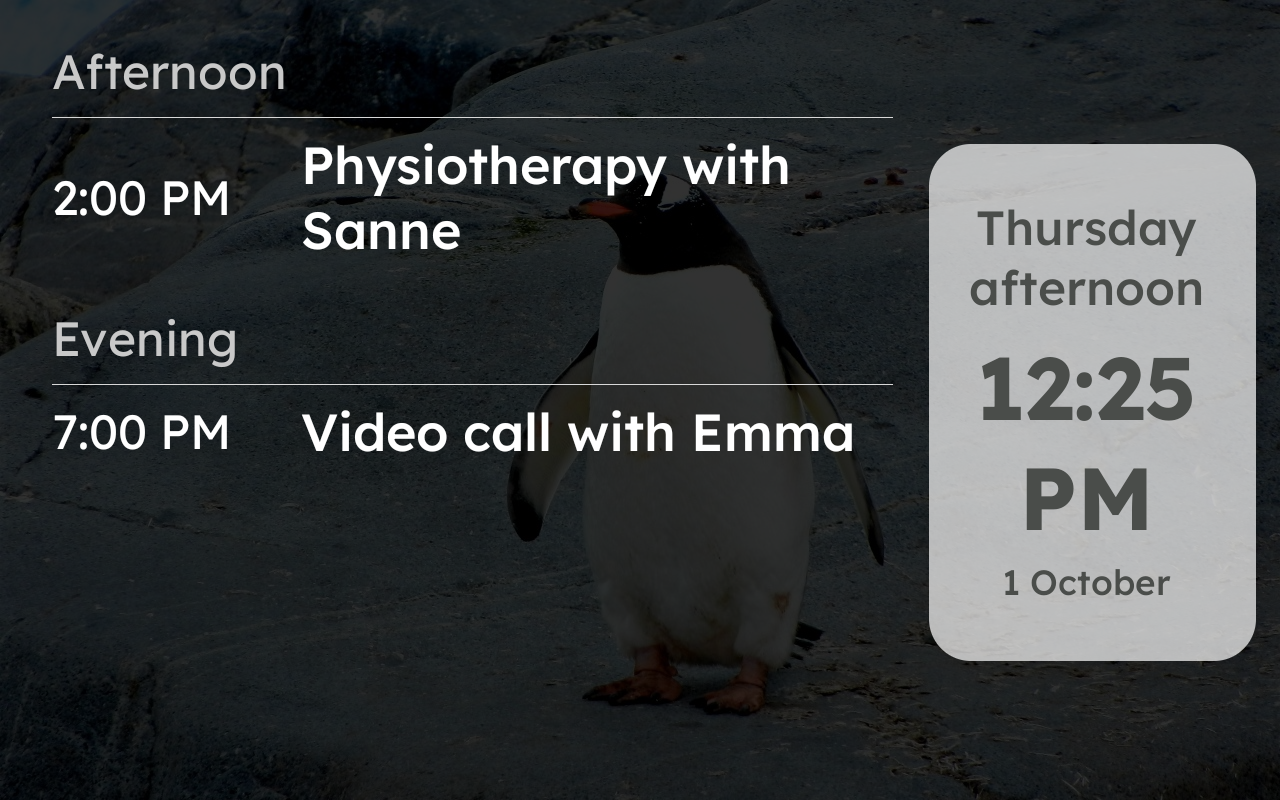
An appointment leaves the overview as soon as it has ended, so what remains is what is still to come. When nothing is left for today, the Genus shows a large clock and There are no events scheduled for today.
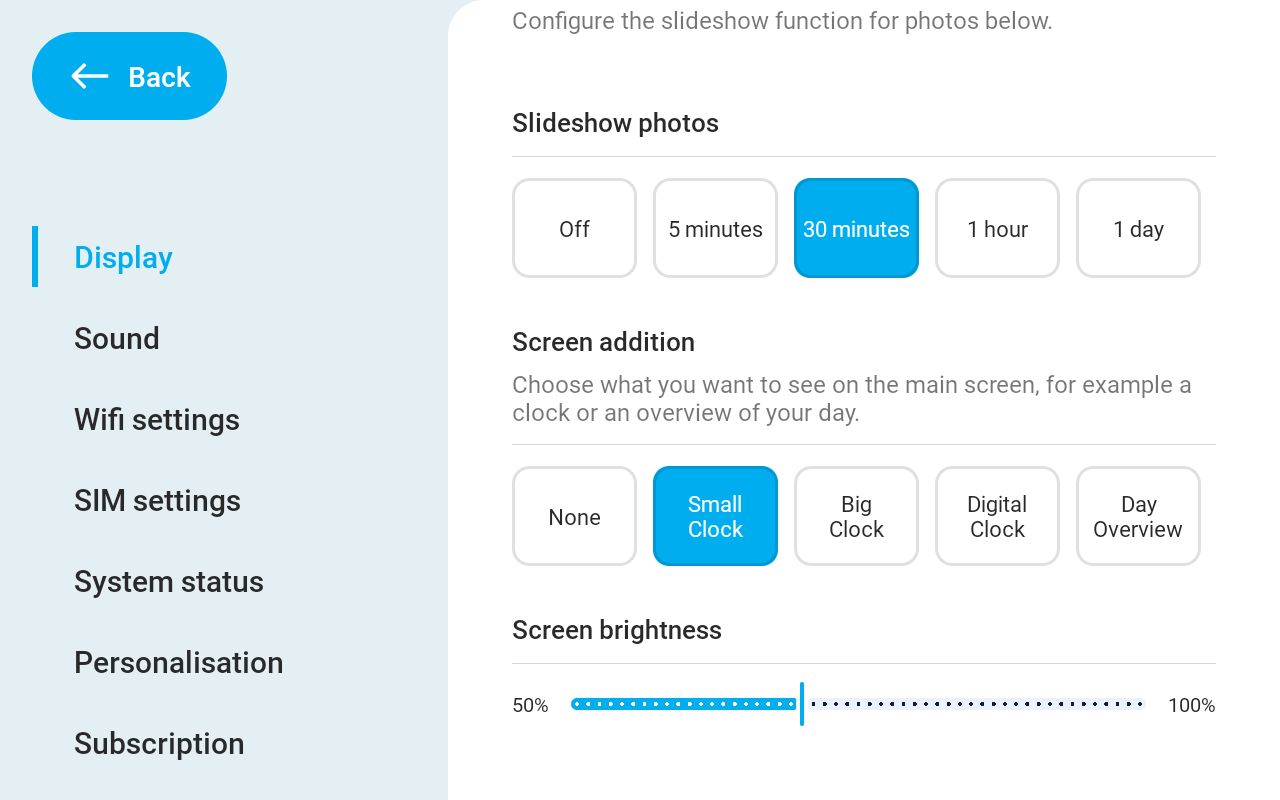
Setting it from the Community Portal
Section titled “Setting it from the Community Portal”A health administrator can choose it for a client without a visit:
- Open the client and go to Genus settings. Click Edit.
- Under Display settings, choose Day Structure for Screen addition. This is the portal’s name for the Day Overview.
- Click Save changes.
Since the calendar release of September 2026, all-day appointments have their own All day section at the top; see the Day Overview in My Day.
Reminders read aloud
Section titled “Reminders read aloud”The Genus already showed a reminder ten minutes before each appointment in My Day. Now it also says it, twice:
| When | What the Genus says |
|---|---|
| 10 minutes before the start | A greeting for the time of day, then you have an appointment in 10 minutes, then the title. For example: Good morning, you have an appointment in 10 minutes: Physiotherapy. |
| At the start | Good morning, you have an appointment right now: Physiotherapy |
A sound plays with each reminder, so the client knows to listen. The reminder stays on the screen with the time, the title and the description, until the client taps OK or the appointment ends. The speaker symbol plays the text again.
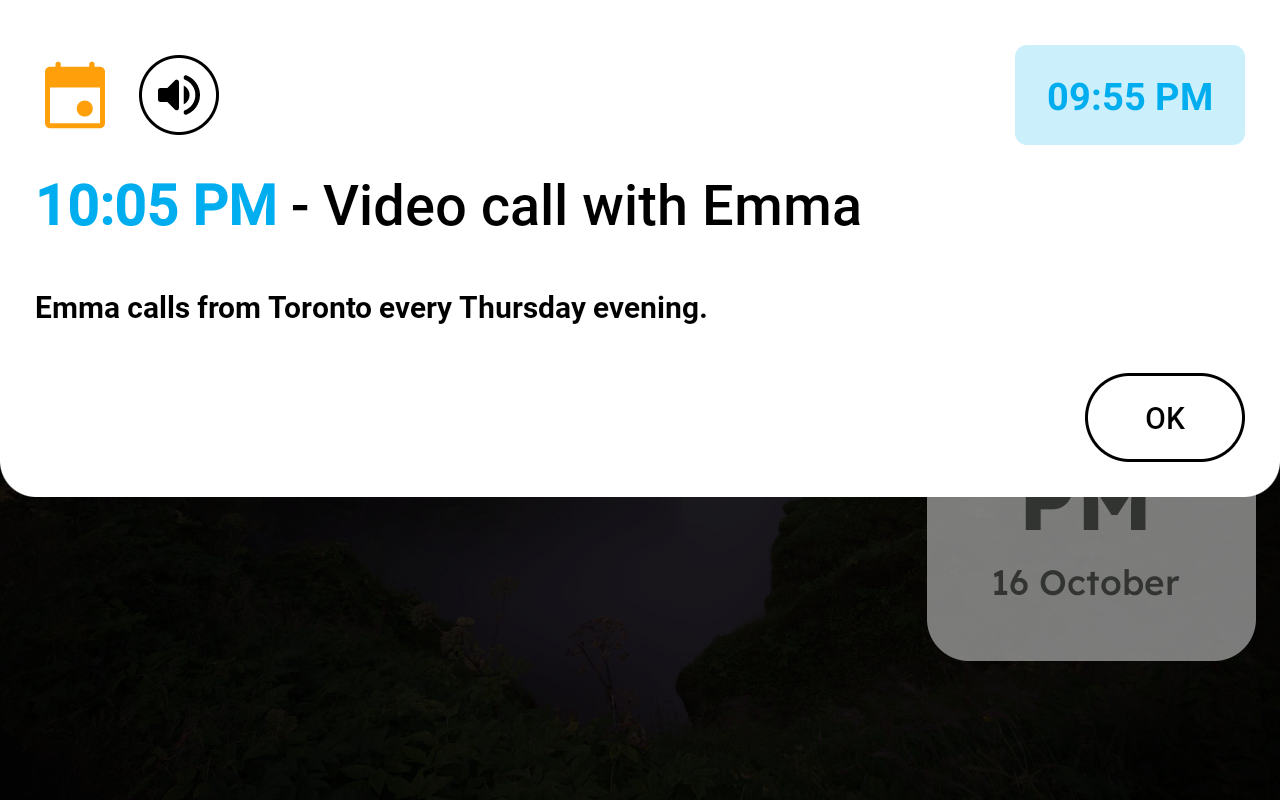
This works for every appointment in My Day, including those from a subscribed calendar or from Nedap ONS (see Nedap ONS on the Genus). How reminders work today is on My Day and appointments.
For health administrators: lock features behind a PIN
Section titled “For health administrators: lock features behind a PIN”A client, a visitor or a well-meaning family member can change a setting on the Genus by accident. They may turn the sound down, choose another Wi-Fi network or even reset the device. A health administrator can now put such features behind a PIN for every Genus of the organisation.
- Click Community settings in the side menu and scroll to Default Genus configuration.
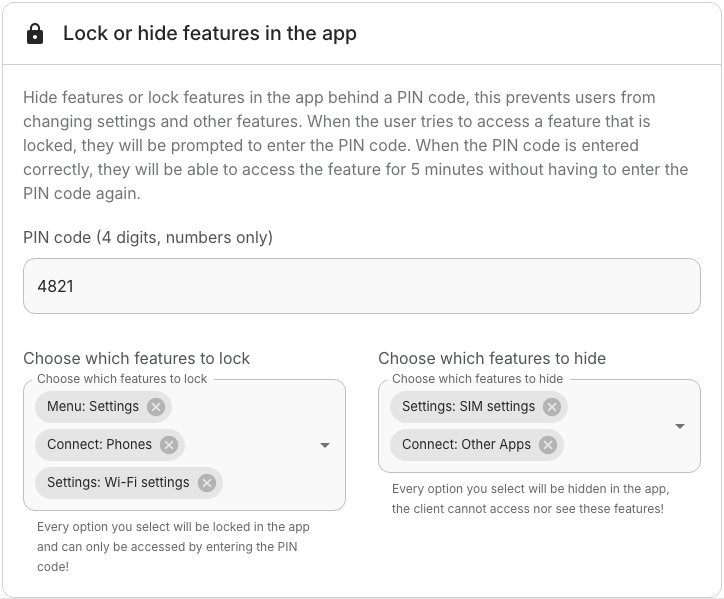
- Under Lock features in the app, fill in a PIN code (4 digits, numbers only).
- Under Choose which features to lock, pick the features.
- Click Save settings.
These features could be locked:
- The menu buttons: Menu: My Day, Menu: Call Me, Menu: Connect and Menu: Settings.
- Parts of the settings: Settings: Display, Settings: Sound, Settings: Wi-Fi settings, Settings: SIM settings, Settings: System Status, Settings: Personalisation, Settings: Subscription, Settings: Privacy and Settings: Reset Genus.
The screenshot shows the block as it is today, with the list of features to hide that came later.
What the client sees
Section titled “What the client sees”A locked button in the menu shows a lock instead of its icon and is dimmed; a locked item in the settings has a lock beside it. Tapping it opens Access secured by PIN, with a keypad and Cancel. The text explains that the care organisation has locked this part and that someone from the care team can help.
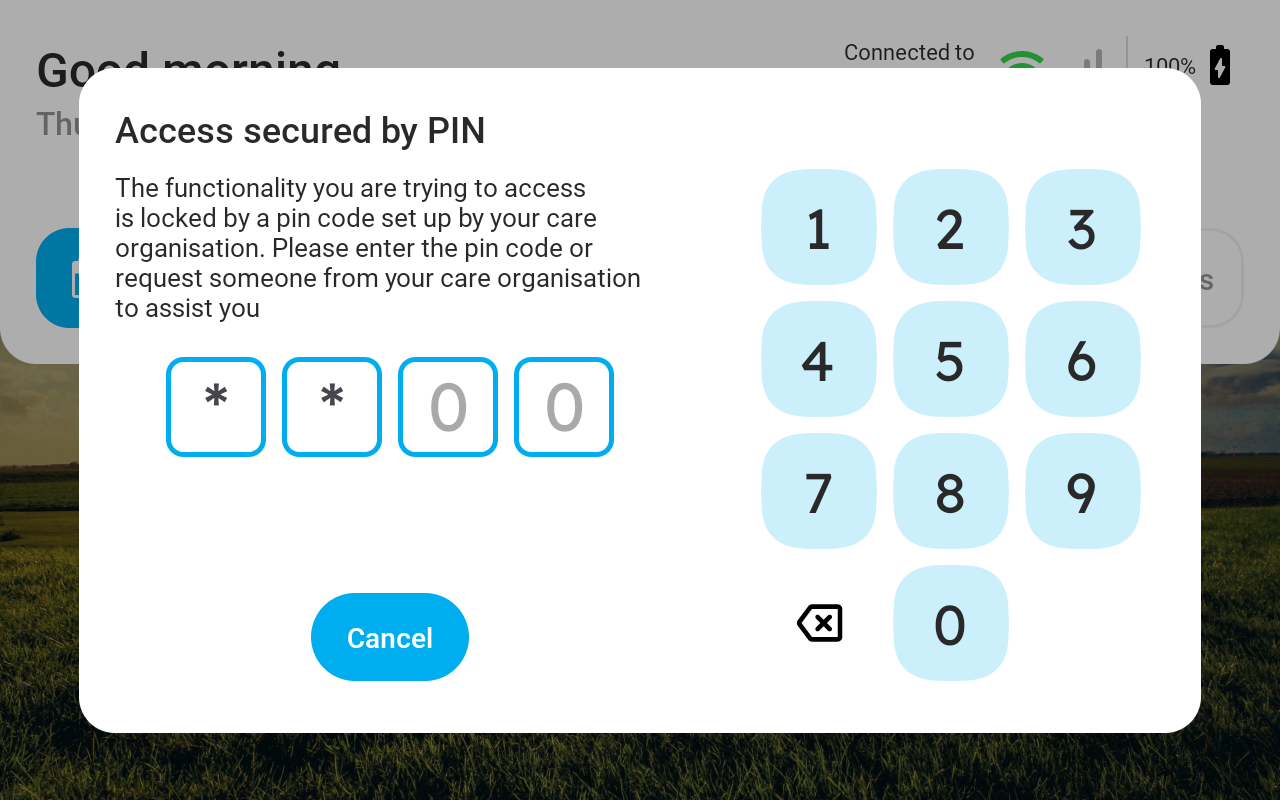
Since December 2025 features can also be hidden (autumn 2025). More can be locked as well, such as the Call Me button on the home screen and the parts of Connect. The block is now called Lock or hide features in the app. See configuring a Genus from the portal and settings, PIN lock and hidden features.
Screen brightness
Section titled “Screen brightness”A screen that suits a sunny living room can be too bright in a bedroom, and the other way round. Since Genus 4.2.0 the brightness can be set from 50% to 100%. It stays at 70% until someone changes it.
- On the Genus: MENU → Settings → Display → Screen brightness. Drag the slider; the new brightness applies as soon as you let go.
- In the Community Portal: on the client page, Genus settings → Edit → Display settings → Screen brightness level, then Save changes. The client page shows the value under Screen brightness.
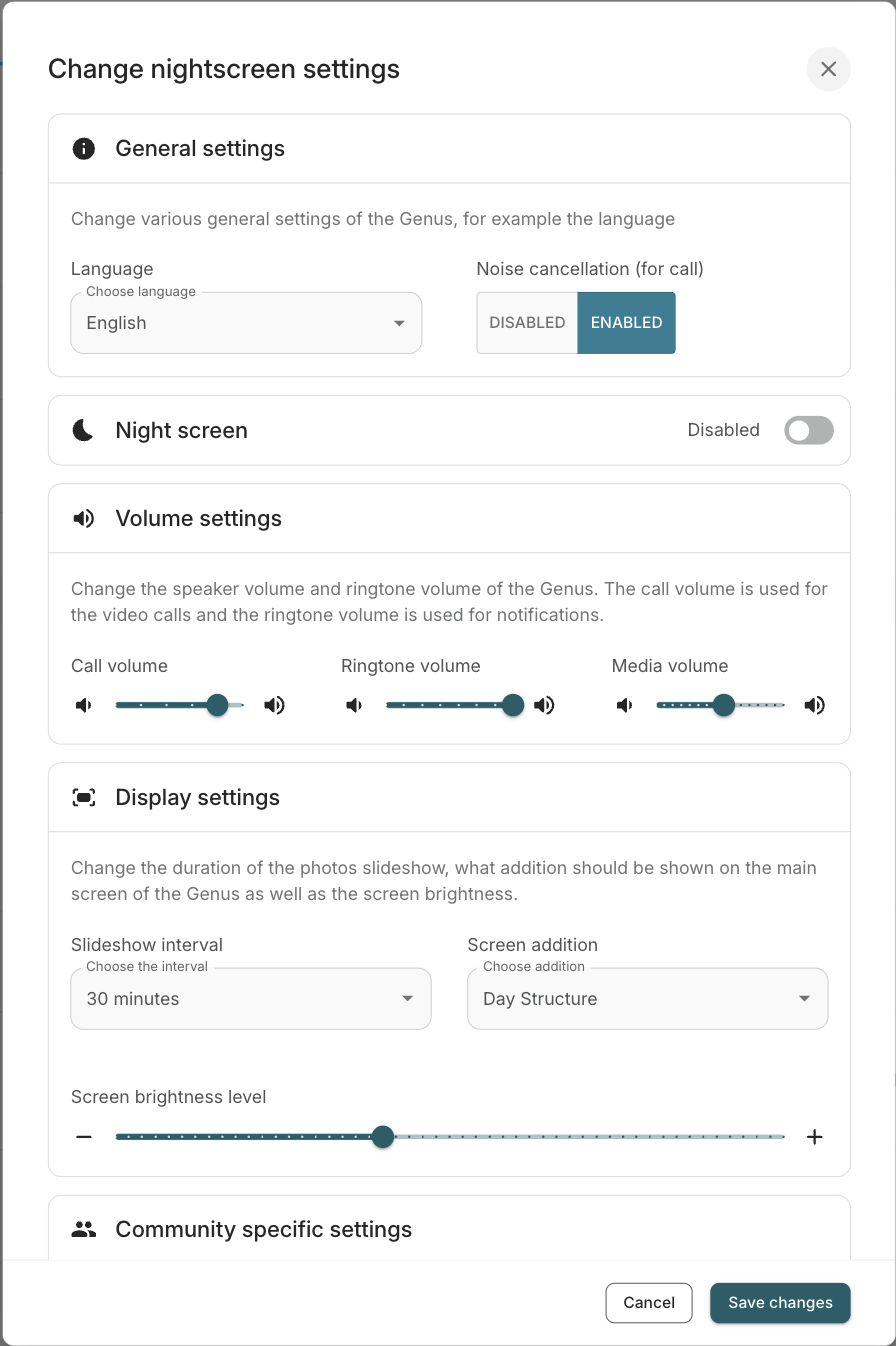
All of a client’s Genus settings are described on configuring a Genus from the portal.
When a connected system raises the alarm
Section titled “When a connected system raises the alarm”Some care organisations connect their own software to Genus through the Genus Alarm API. That system can raise an alarm on a client’s Genus and reply to it (see alarms for integration partners). Since this release the client also hears what it sends.
- The alarm text. The system can send its own text with the alarm. The red alarm screen shows that text instead of Assistance has been requested. Wait for feedback, and the Genus reads it aloud.
- A personal reply. When the system replies that someone is on the way or will come later, it can add a message. For example: Sara is on her way and will be with you in 15 minutes. The green or orange screen shows that message instead of the standard text, and the Genus reads it aloud.
- Changes follow. If the system changes its reply, for example because a colleague takes over, the screen and the spoken text change with it.
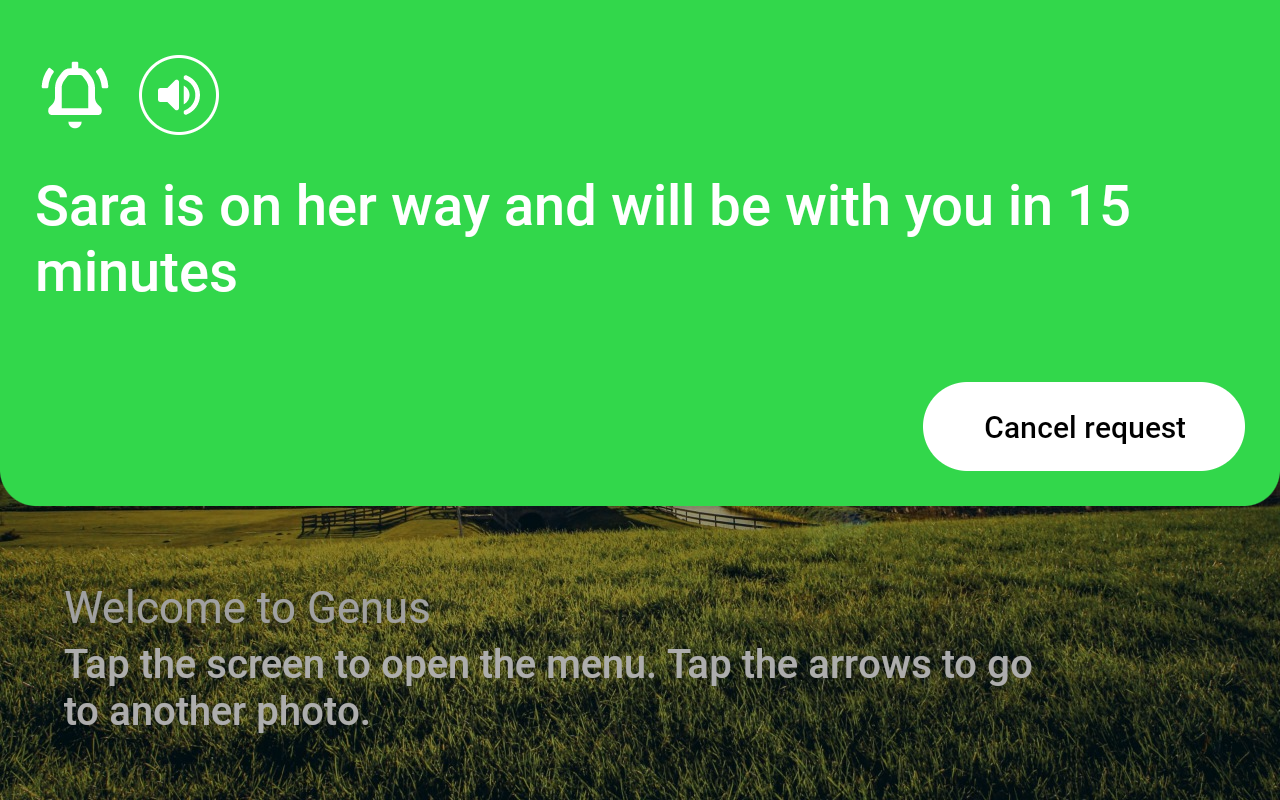
In this version the Genus repeated the text every few minutes while the alarm was on screen. Since March 2026 it also reads its own alarm texts aloud for every alarm, once. See nurse call in care homes and asking for help.
Fixes and improvements
Section titled “Fixes and improvements”- My Day. Descriptions are shown as readable text, and times with AM and PM fit on a Genus that uses the 12-hour clock.
Availability
Section titled “Availability”Everything in this release reached the Genus and the Community Portal automatically; no app update was needed.
- Screen brightness came with Genus 4.2.0 at the start of September 2025.
- The Day Overview, the spoken reminders, the PIN lock and the spoken alarm texts came with Genus 4.3.0 at the end of September 2025.
- Genus PAL has no screen, so none of this applies there.