

The GC-SB100 bed sensor and GC-SC100 chair sensor
How a client sleeps and how long they sit still say a lot about how they are doing. A restless night, getting up several times, or a day spent mostly in the chair can be the first sign that something is changing. Care professionals often hear about it only later, if at all.
This release adds two Genus sensors: the GC-SB100 bed sensor and the GC-SC100 chair sensor. They are paired with the client’s Genus. The Genus updates their firmware while it pairs them, and their data appears in the Community Portal and in the client report.
What’s new
- Installers pair both sensors on the Genus in a few steps. The Genus brings each sensor’s firmware up to date during pairing.
- Care professionals can see in the Community Portal when the client was in bed or in the chair.
- Care professionals get bedtimes, time in bed and bed exits in the client report, and the share of the day the client spends in a chair or in bed.
What the sensors detect
Section titled “What the sensors detect”| Sensor | What it reports |
|---|---|
| GC-SB100 bed sensor | Whether someone is in bed or out of bed |
| GC-SC100 chair sensor | Whether someone is sitting in the chair |
Each sensor works through the client’s Genus and must stay within reach of it. The care team sees every change as it happens.
From the moments in and out of bed, the client report works out when the client went to bed and got up, how long they were in bed, and how often they got up during the night. These are the bed exits. Together, the bed and chair sensors show how much of the day the client spends sitting or lying down. Bed and chair sensors describes both sensors in full.
For installers: pairing a sensor with the Genus
Section titled “For installers: pairing a sensor with the Genus”Bed and chair sensors are paired on the Genus itself, one at a time. Have the sensor with you at the Genus, and keep other sensors and buttons that are not yet paired away from it.
- On the Genus, open Connect → Devices (sensors) and tap Add a new device.
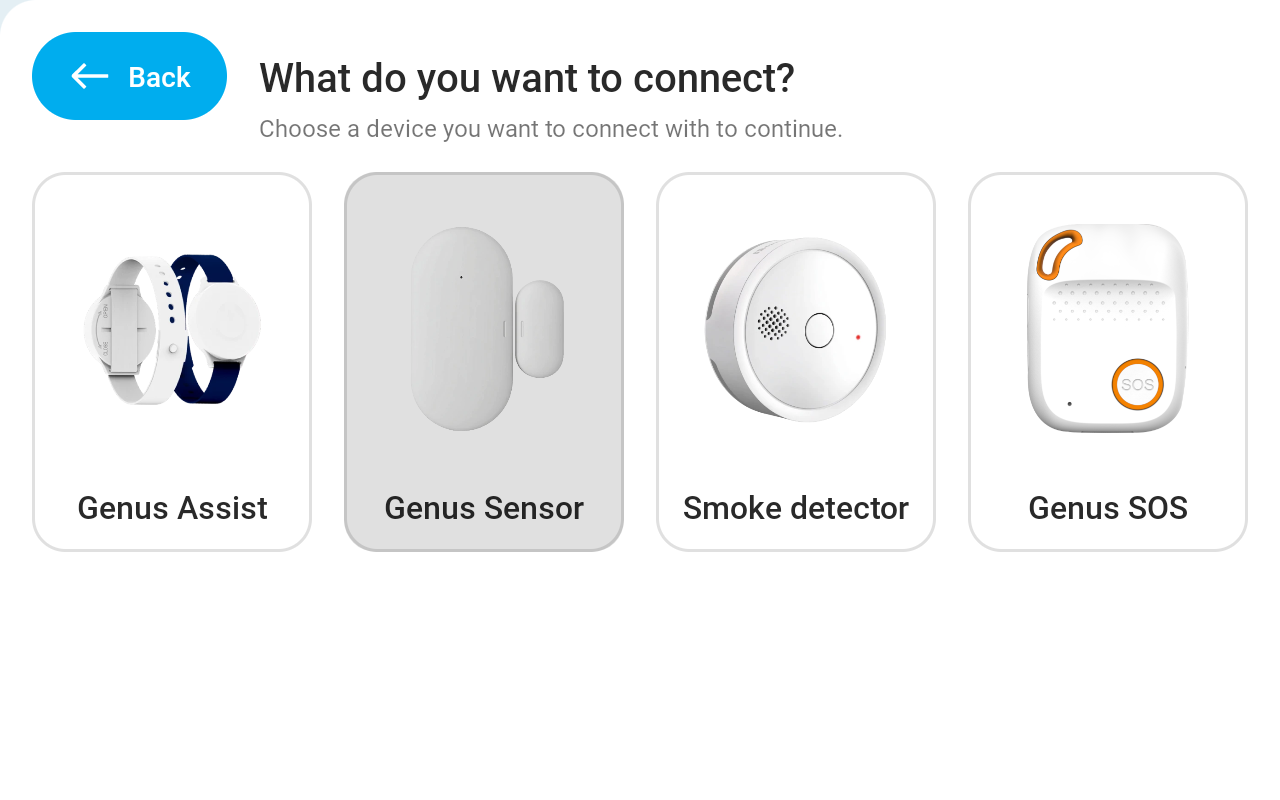
- At What do you want to connect?, choose Genus Sensor.
- At Put the device next to the Genus, hold the sensor right next to the Genus and tap Search.
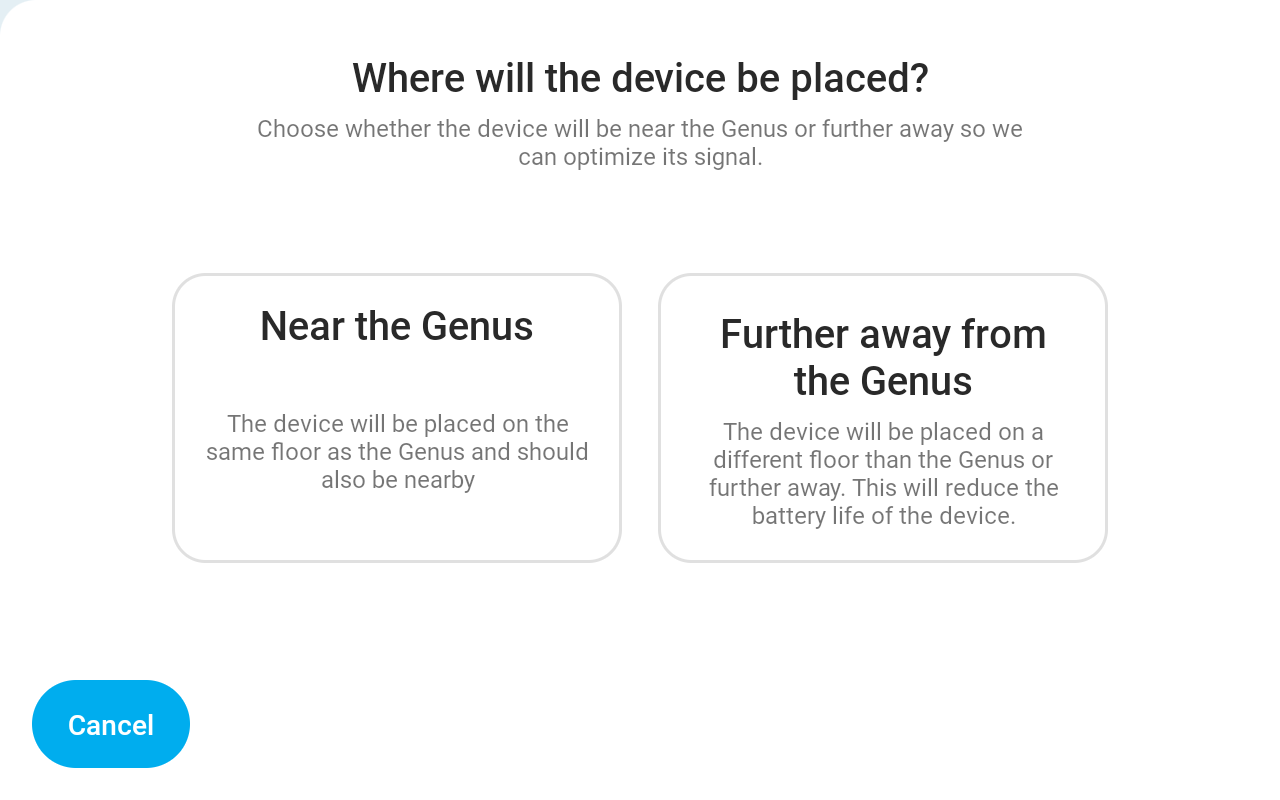
- When the Genus has found the sensor, it asks Where will the device be placed? Choose Near the Genus if the sensor will be on the same floor and close by. Choose Further away from the Genus for another floor or a longer distance. Further away shortens the sensor’s battery life.
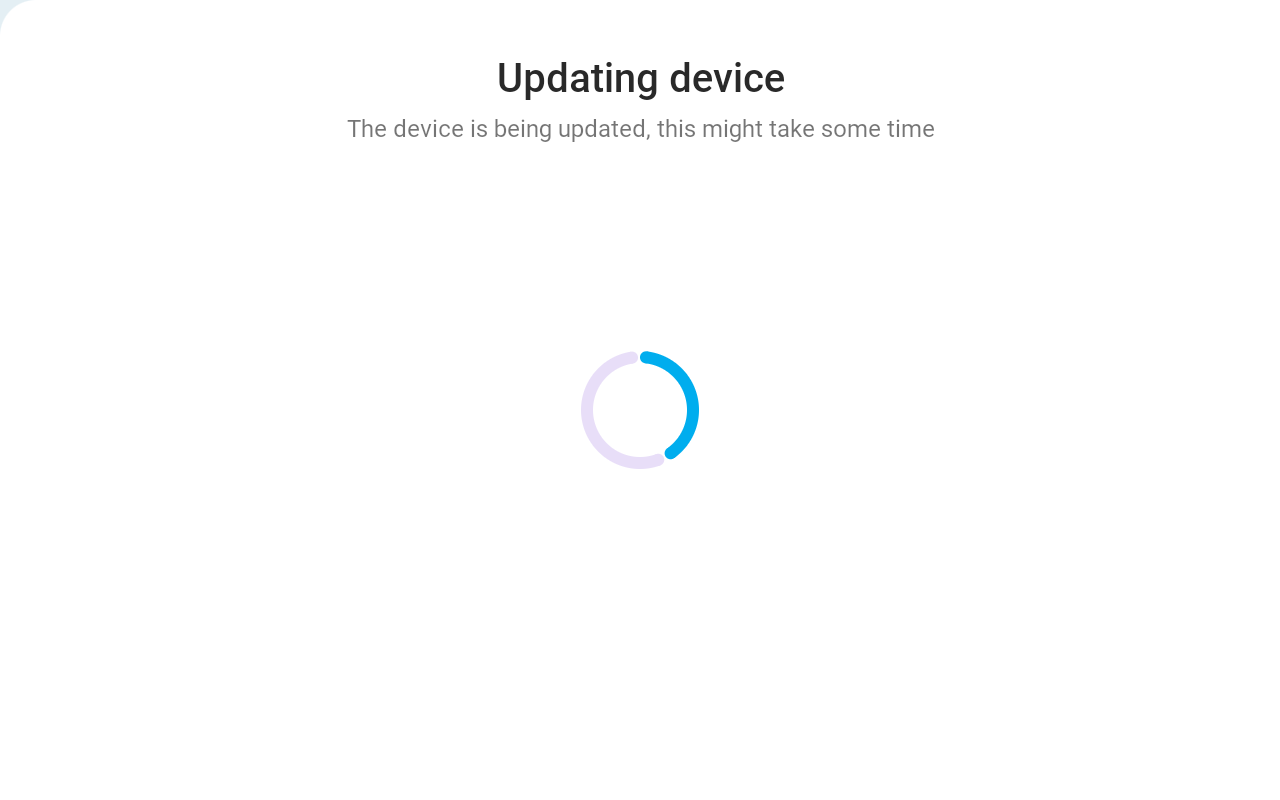
- The Genus may update the sensor’s firmware first. The screen then shows Updating device with a progress bar; wait until it has finished.
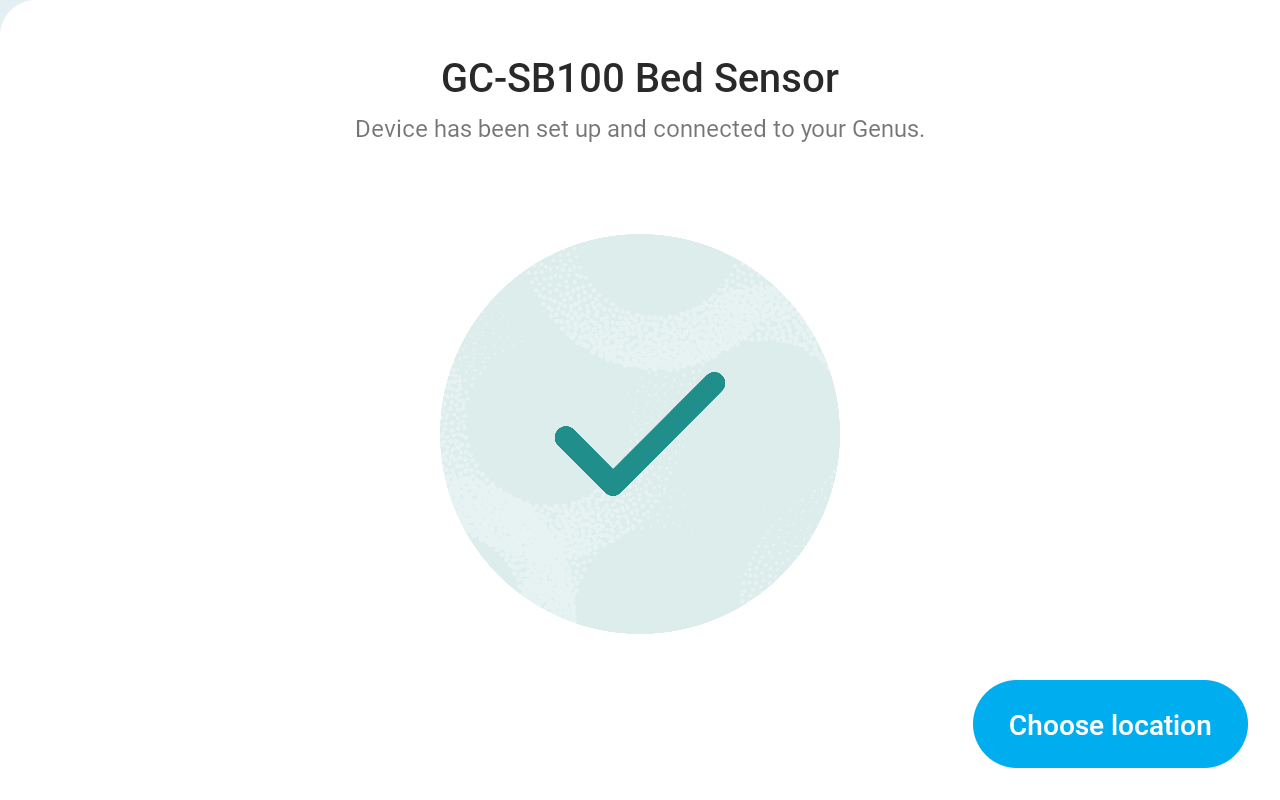
- When pairing is done, the screen shows the sensor’s name and Device has been set up and connected to your Genus. Tap Choose location and choose the room, for example Bedroom for the bed sensor.
- Tap Add another device to pair the chair sensor in the same way, or tap Finish.
Adding and testing a device covers pairing, testing and removing devices in general.
Checking the sensors on the Genus
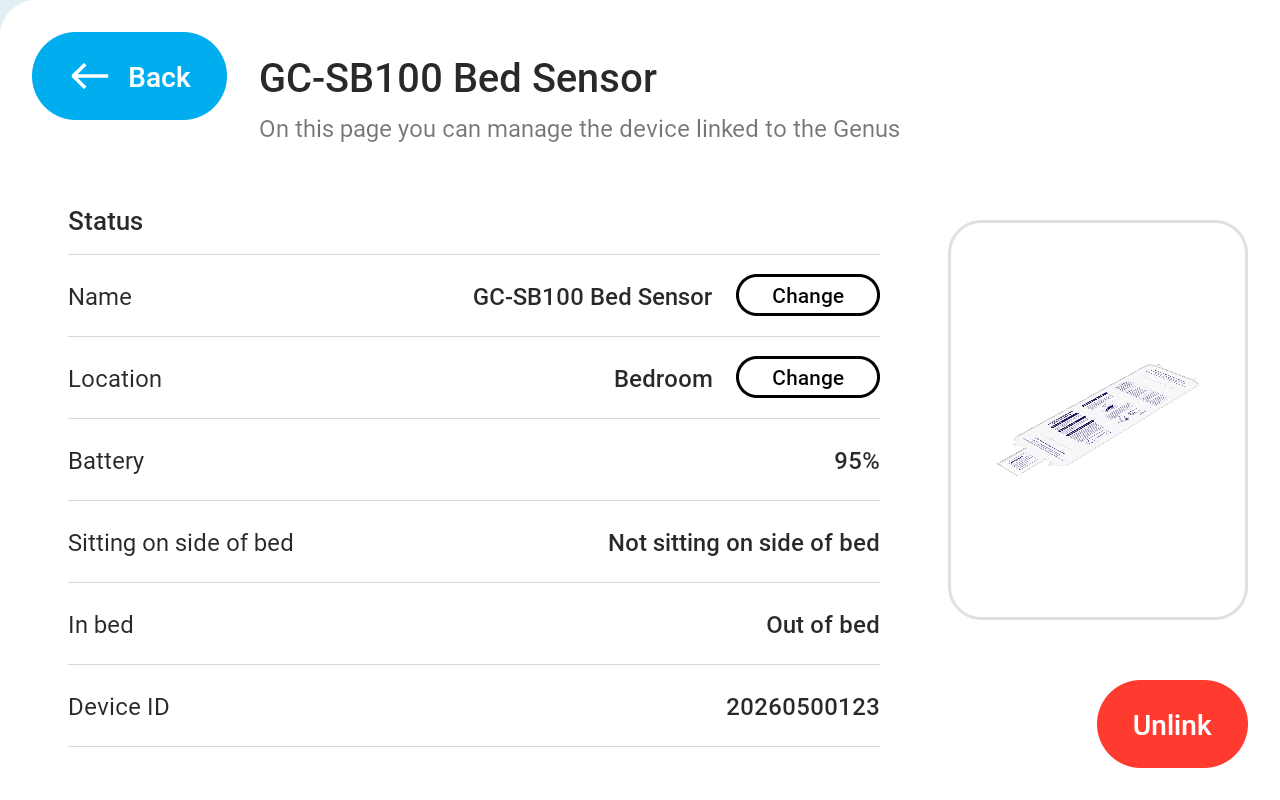
Section titled “Checking the sensors on the Genus”Connect → Devices (sensors) lists the paired sensors with the room they are in. Tap Manage next to a sensor to see its details: its name and location, which you can change there, its latest readings, and its serial number as the Device ID. Unlink removes the sensor from the Genus.
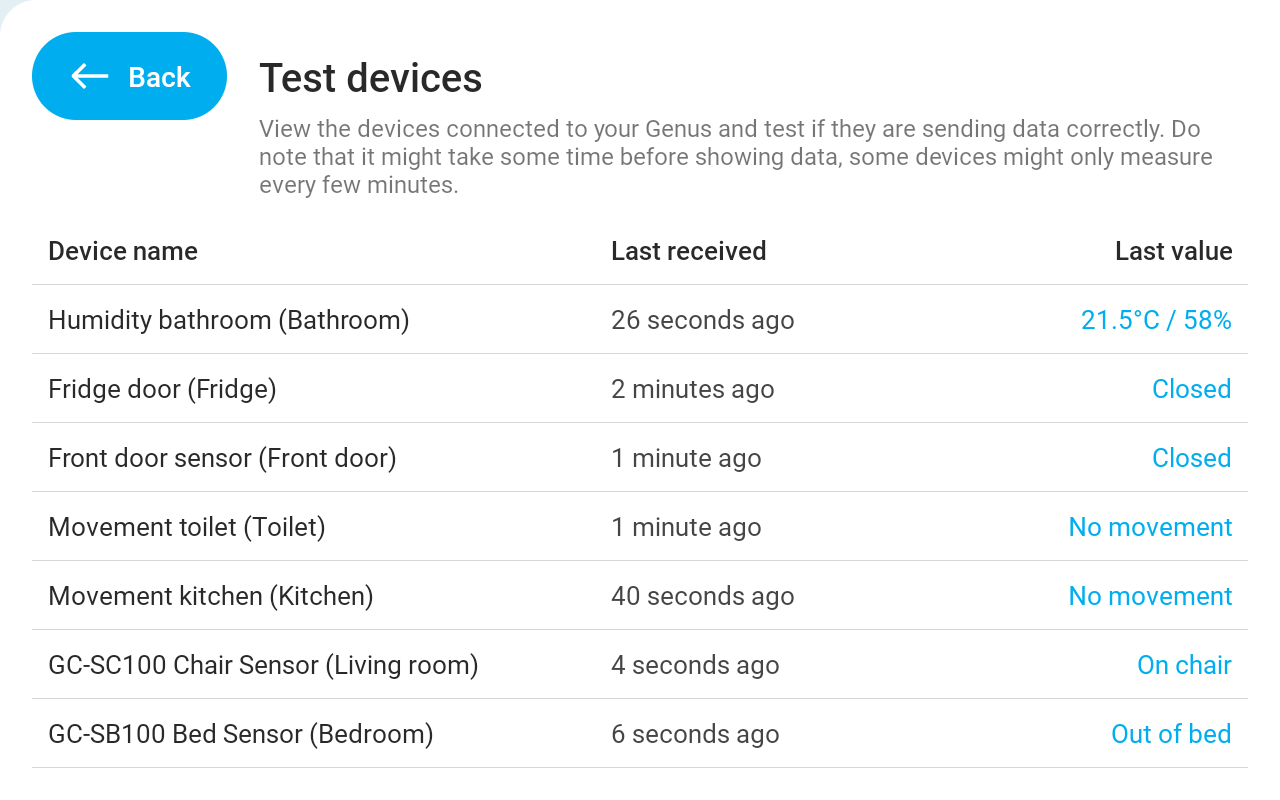
Test devices, on the same screen, lists every paired sensor and button. For each one it shows when the Genus last received data from it (Last received) and the last value (Last value). Use it after installing to check that each sensor reaches the Genus from the place where it will stay.
For care professionals: where the data shows up
Section titled “For care professionals: where the data shows up”Connected devices
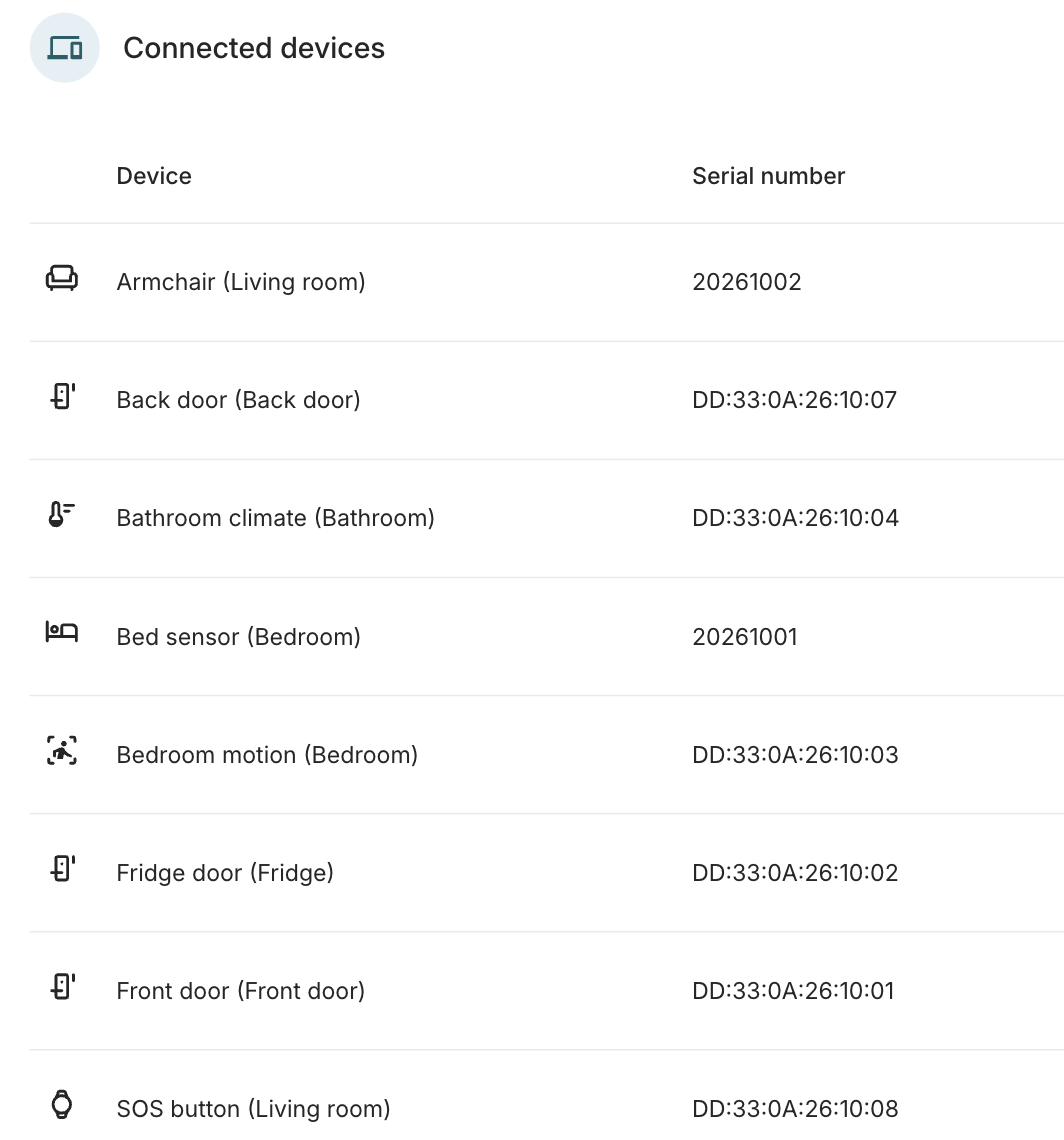
Section titled “Connected devices”Open the client in the Community Portal. The Connected devices card lists the bed and chair sensors, each with its own icon, its name and room, and its serial number. From the menu on a row you can rename a sensor with Edit, or remove it with Delete.
The sensor data over time
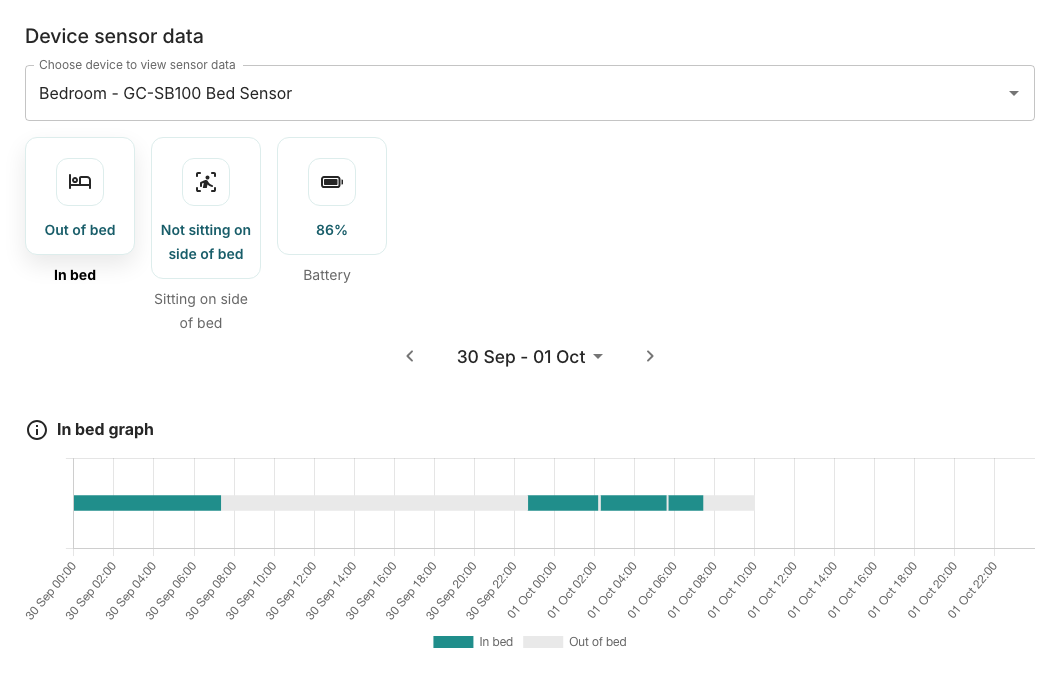
Section titled “The sensor data over time”On the client’s page, go to Trends and choose View connected devices data. Pick the bed or chair sensor in Choose device to view sensor data. A card shows the sensor’s latest state. Click it to see when someone was in bed or in the chair over the period you choose.
In the client report
Section titled “In the client report”The client report uses both sensors:
- Rest & recovery comes from the bed sensor: when the client went to bed and got up, the time in bed and the bed exits. Without bed sensor data, the block shows No sensor data found.
- Mobility & inactivity shows the Daytime spent in chair / bed: the share of the daytime that the client spent in the chair or in bed.
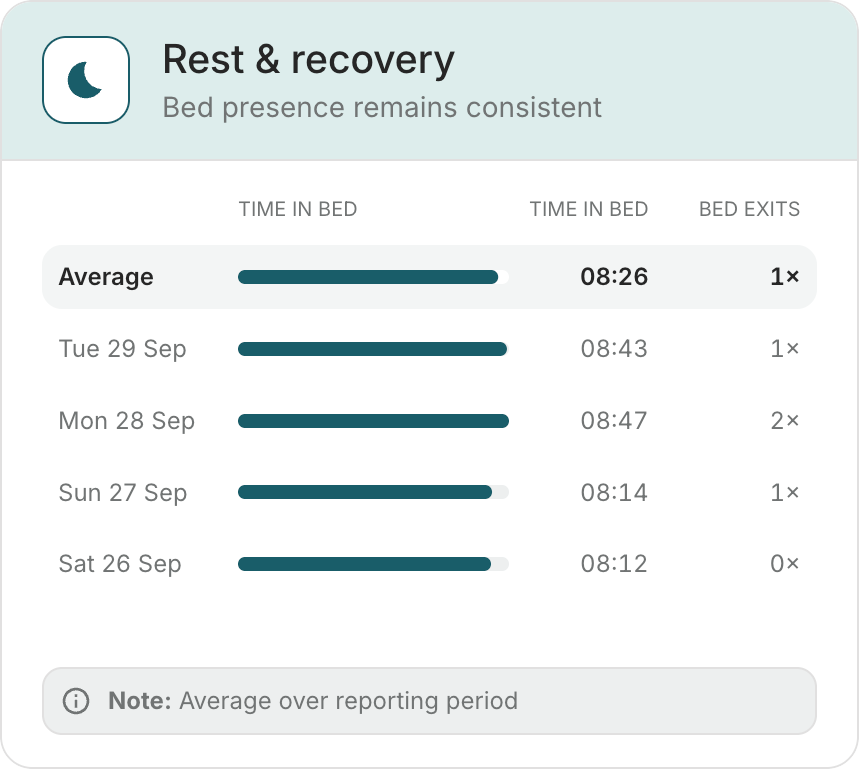
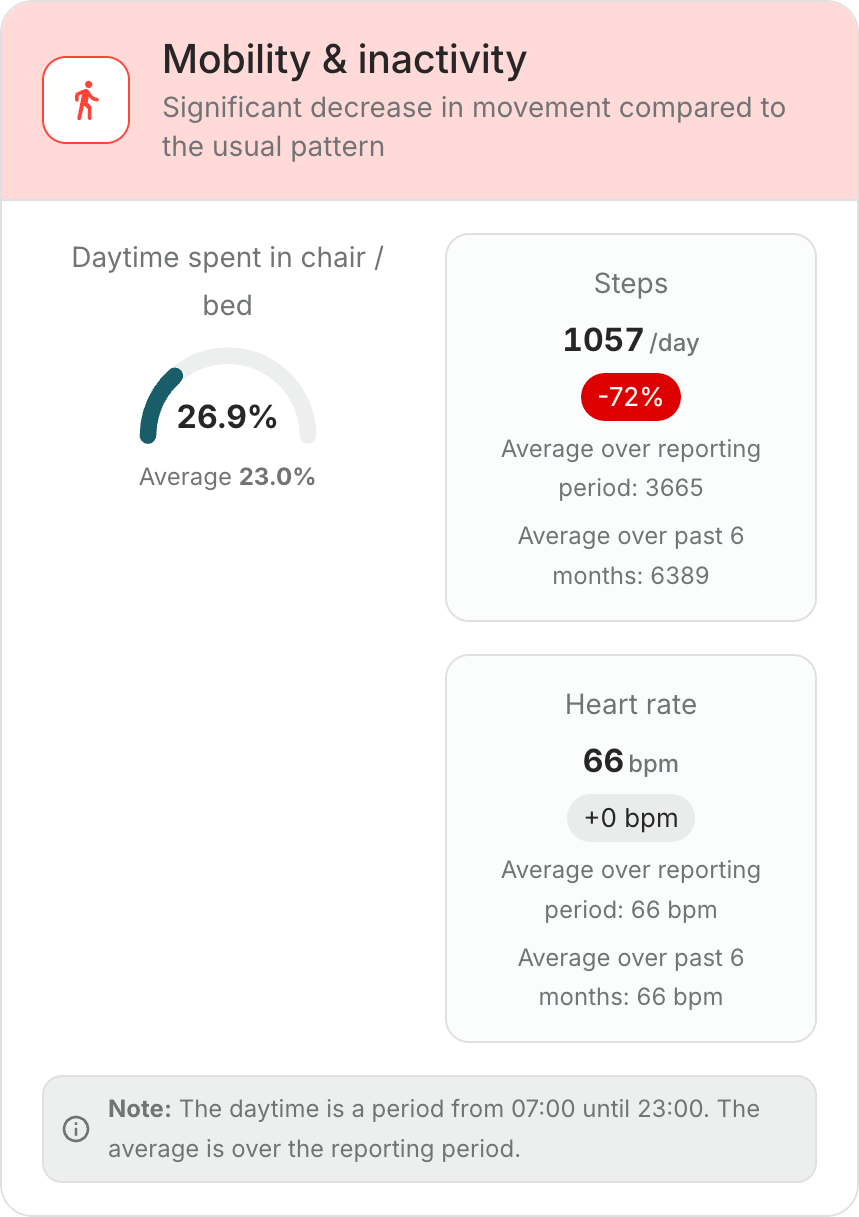
A night ends when the client gets up in the morning. Leaving the bed during the night and coming back is a bed exit. Bed and chair sensors explains how the report reads the bed sensor.
The report compares the last days with the client’s usual pattern and flags the changes worth a conversation. The client report release explains when it flags more or less sleep, more bed exits, or more time in a chair or in bed.
Routines
Section titled “Routines”The sensors need no routine: once paired, they show in the client report and in the client’s sensor data by themselves. With a bed sensor, a care professional can add the Out of bed notification routine in the Community Portal, which sends the care organisation an alert when the client gets out of bed at night. See routines.
Limits
Section titled “Limits”Fixes and improvements
Section titled “Fixes and improvements”- Device ID on the Genus. The details of a bed or chair sensor on the Genus show its serial number as the Device ID, the same number the Community Portal shows.
- Test devices no longer shows a signal strength column.
Availability
Section titled “Availability”The Genus and the Community Portal receive the update automatically.
- The Genus could pair bed and chair sensors from Genus 4.13.0 (July 2026). Genus 4.14.0 (September 2026) adds the firmware update during pairing.
- A sensor paired before Genus 4.14.0 keeps the firmware it had.
- The sensors work with the GC300 and GC320, through the client’s Genus. They are not part of Genus PAL.
- The client report is in beta.