

One calendar for the client, the family and the care team
A client’s week is built around appointments: the morning care round, a visit from the GP, physiotherapy, the grandchildren coming by after school. Until now those appointments were kept in different places.
With this release they come together in one calendar. The client sees it on the Genus, family members use it in the Genus app, and care professionals manage it in the Community Portal.
What’s new
- Family members can open the client’s calendar in the Genus app, see what is planned and add their own appointments.
- Care professionals see everything planned for a client in one calendar in the Community Portal, including appointments added by family. Colours show where each appointment comes from.
- Care organisations get a privacy setting that hides the details of their appointments from family members.
- Clients can browse the days in My Day on the Genus to see what is coming up tomorrow and later in the week.
For family members: the calendar in the Genus app
Section titled “For family members: the calendar in the Genus app”Open your loved one’s Genus in the app and tap Calendar. The calendar opens on today. Scroll through the row of dates and tap a day, or tap the calendar icon at the top right to jump to any date.
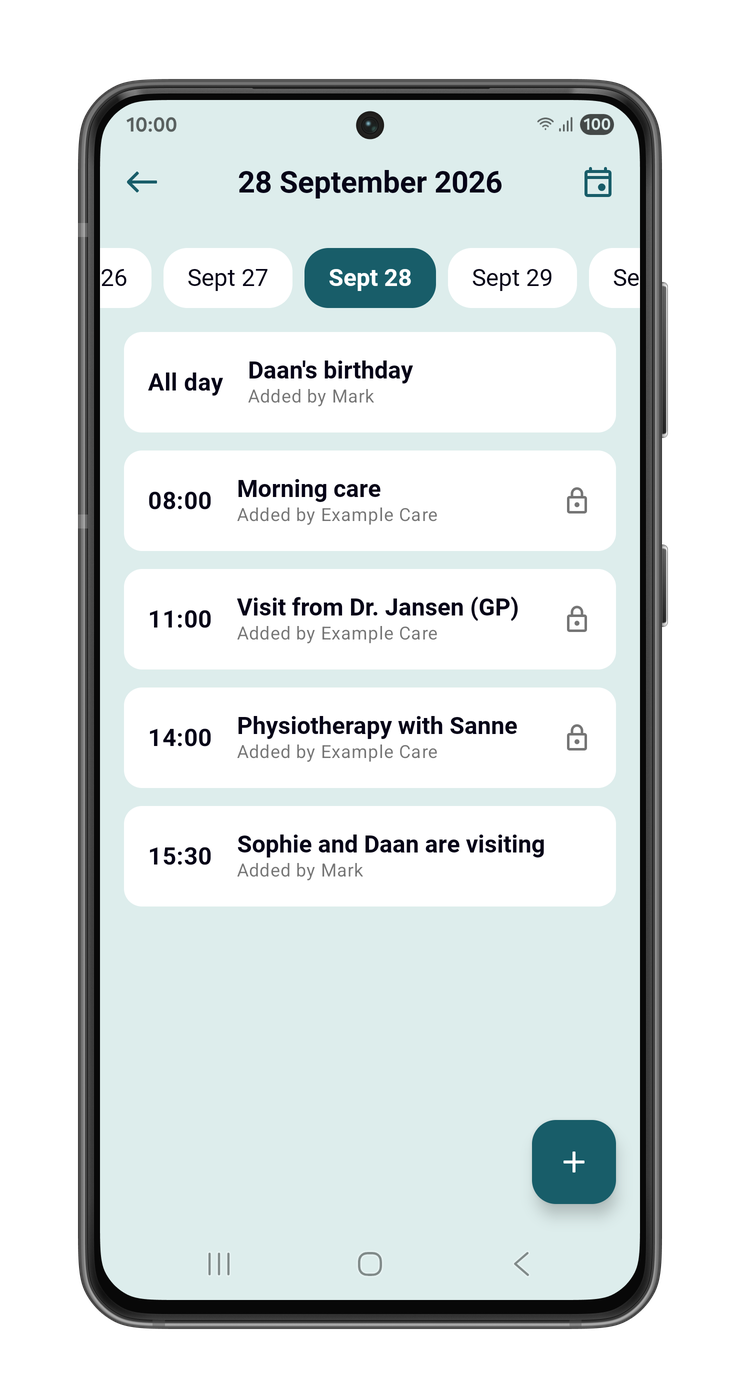
Each appointment shows its start time, or All day, and who added it. Appointments from the care organisation show its name, for example Added by Example Care, so you can see at a glance what the care team planned and what the family planned. This includes appointments the care organisation plans in its own care system.
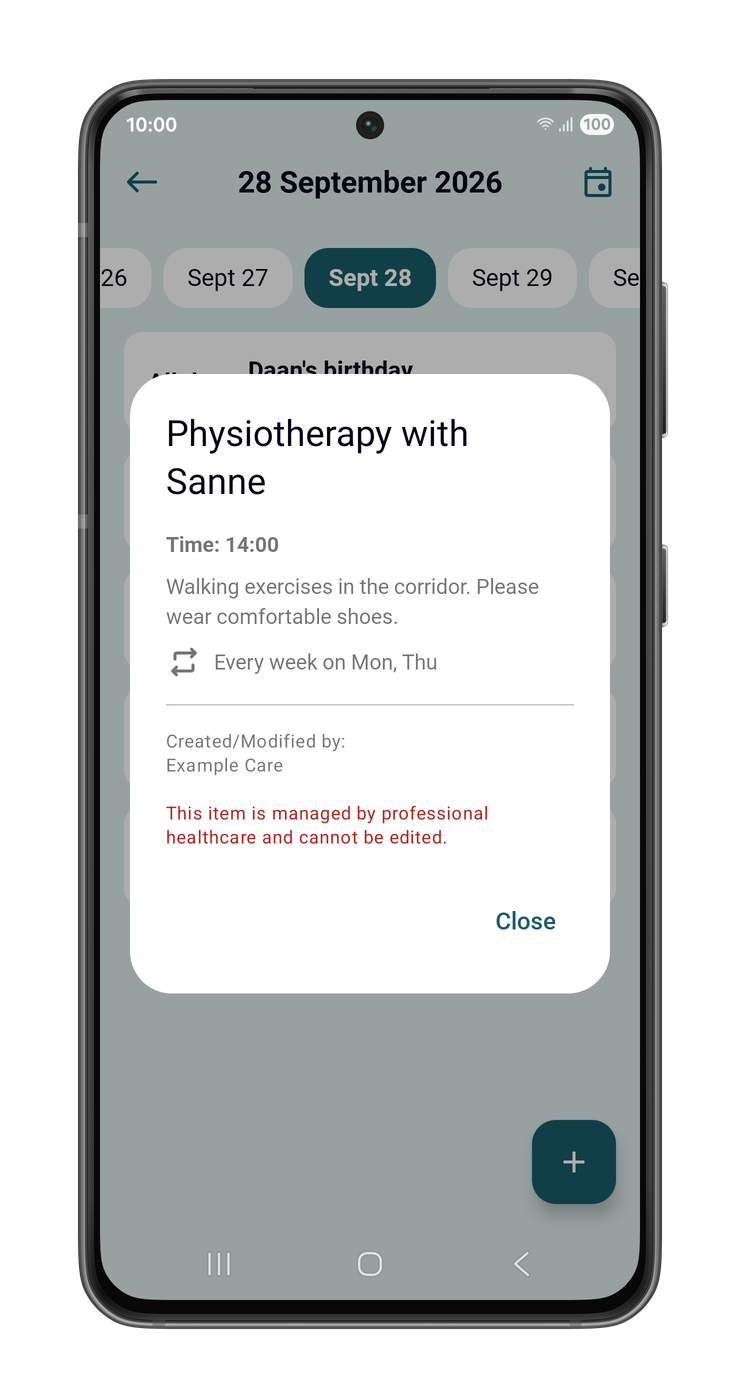
A lock marks an appointment you can’t change in the app, such as one planned by the care organisation or one from a subscribed calendar. Tap any appointment to see its details: the time, the description, how it repeats, and who added it or last changed it. If you can’t change it, the details say why.
Adding an appointment
Section titled “Adding an appointment”Tap + and give the appointment a title and, if you like, a description. Then choose the date and the start and end time, or switch on All day. An end time earlier than the start time means the appointment ends the next day.
An appointment can repeat daily, weekly on the days you choose, or yearly, which suits birthdays. You can also repeat it every few days, weeks or years. It can repeat until a date you pick, or indefinitely.
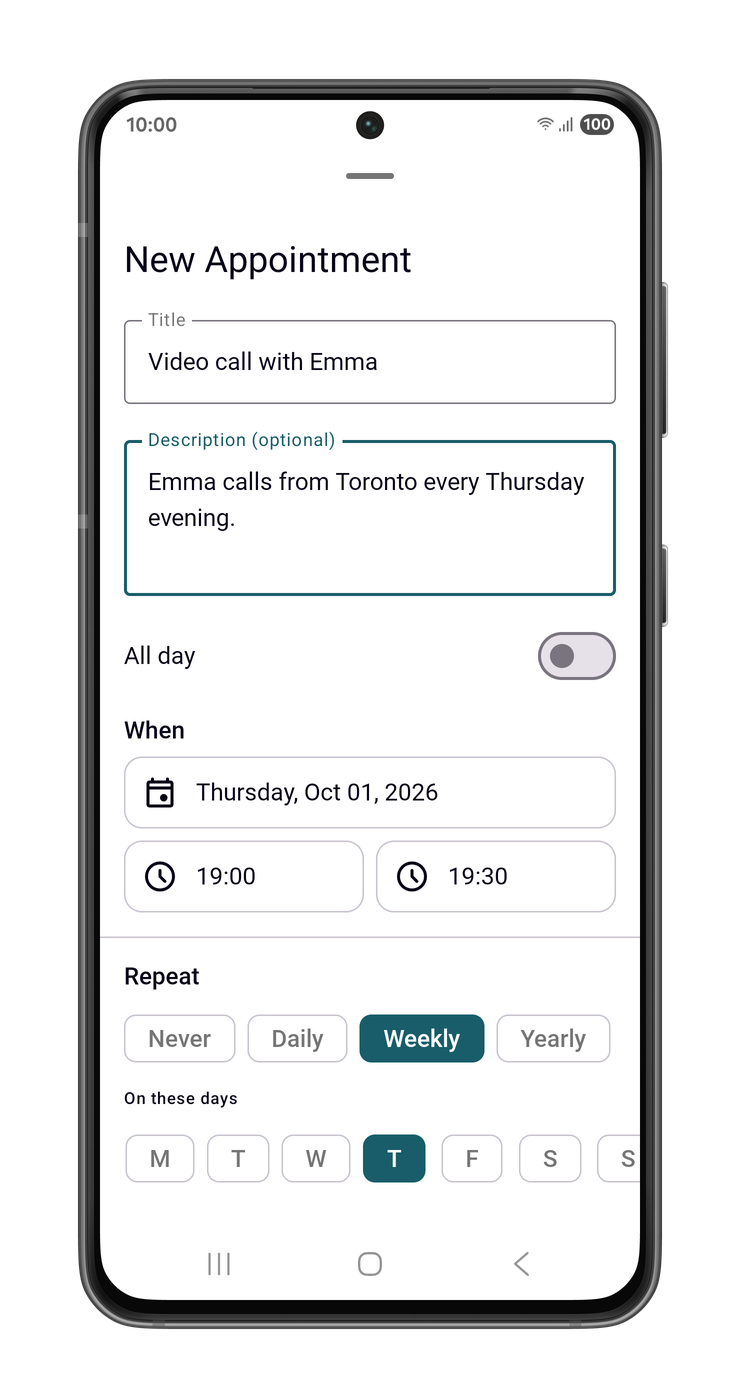
The appointment then appears on the Genus, in the app of the other family members, and in the Community Portal for the care team. The calendar in the Genus app has the full steps.
For care professionals: the calendar in the Community Portal
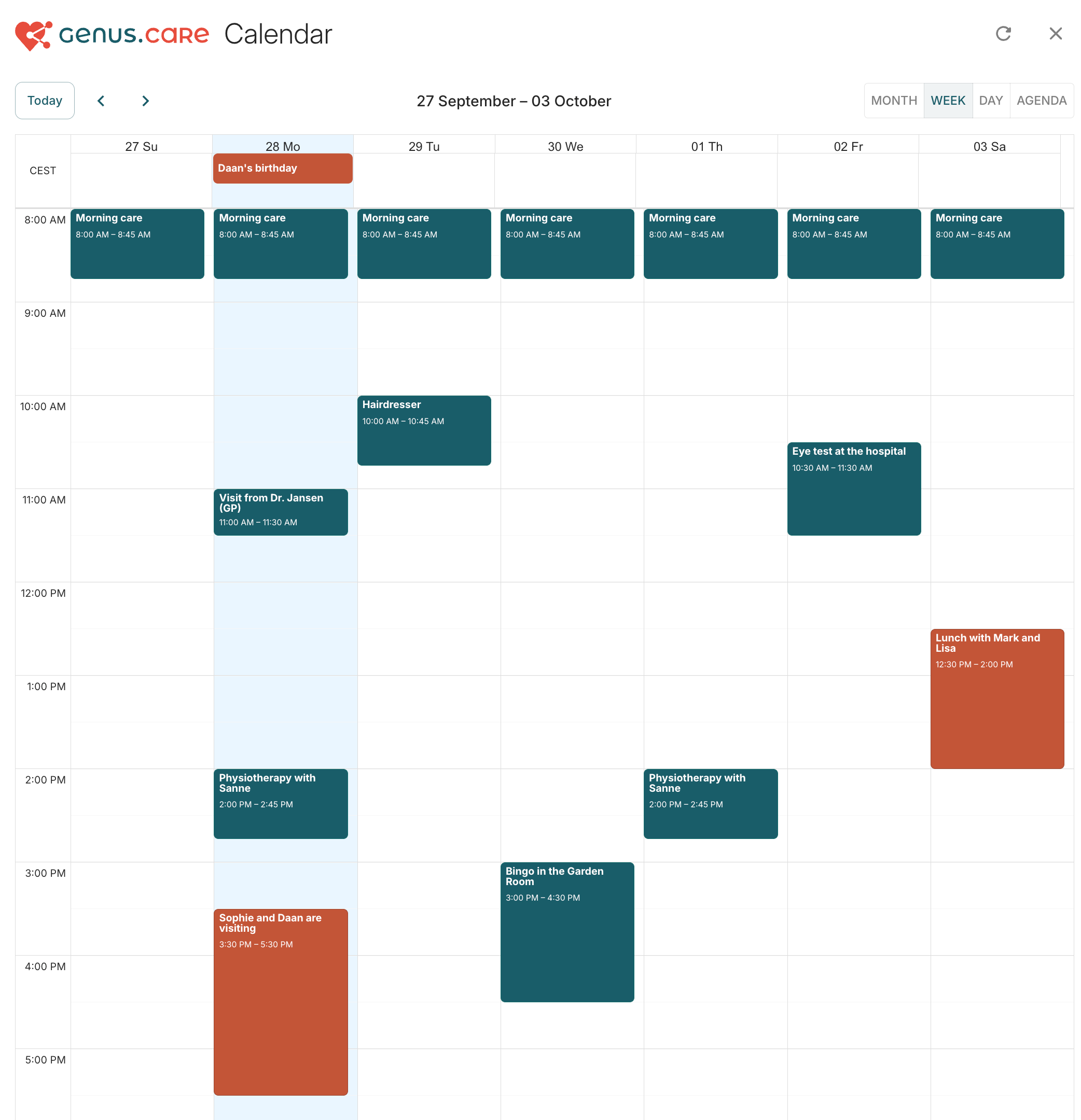
Section titled “For care professionals: the calendar in the Community Portal”Open a client and click the calendar icon in the header. The calendar opens in the week view; day, month and agenda views are one click away.
The client calendar has been rebuilt so that everything planned for a client appears in one view:
- your organisation’s appointments,
- appointments family members add in the Genus app,
- appointments from a connected care system such as Nedap ONS,
- calendars the Genus is subscribed to.
ONS appointments appear in every view, including the month view.
Colours show where an appointment comes from:
| Colour | Source |
|---|---|
| Dark teal | A care organisation |
| Terracotta | Family, added in the Genus app |
| Sky blue | A connected care system or a subscribed calendar |
Appointment details
Section titled “Appointment details”Clicking an appointment now opens its details first. They show:
- when the appointment takes place and how it repeats,
- the description,
- its source,
- who added it and, if someone else changed it later, who last changed it.
If you can’t change an appointment, the details say why. For example, it is planned in ONS and can only be changed there, it comes from a subscribed calendar, or another care organisation added it.
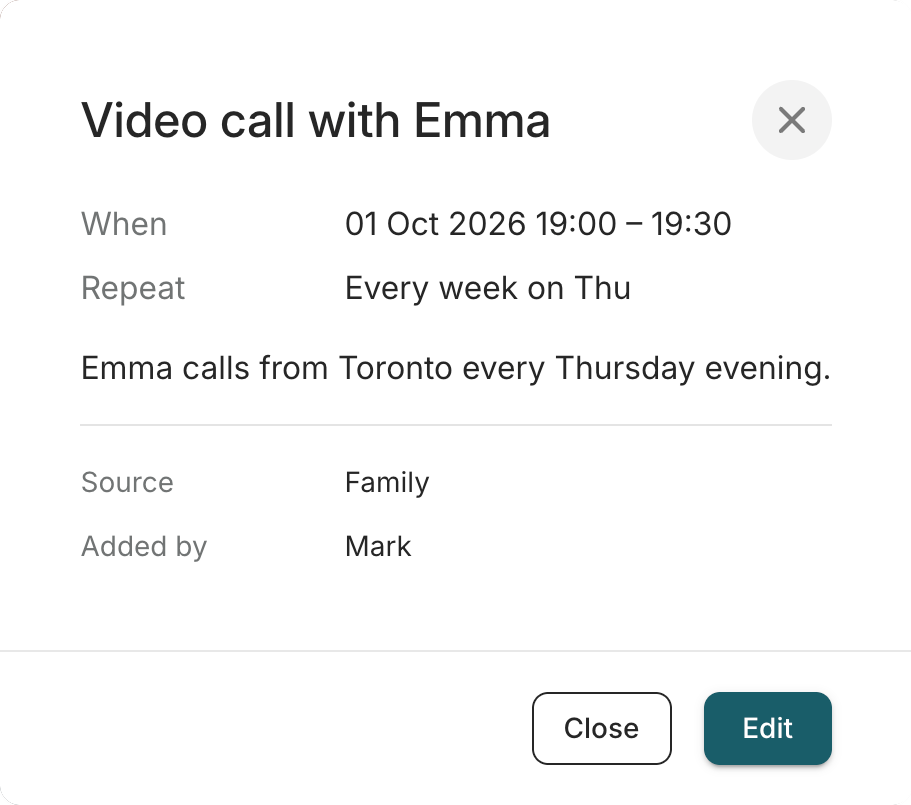
Family members see your organisation’s name as the author of your team’s appointments, never the name of an individual colleague.
Creating and editing
Section titled “Creating and editing”To add an appointment, click or drag across an empty slot. To change one, choose Edit in its details.
Appointments can repeat every day, week or year at an interval you set. For weekly appointments you choose the weekdays. A repeat can end on a date or continue indefinitely. You can also edit and remove appointments that family members added.
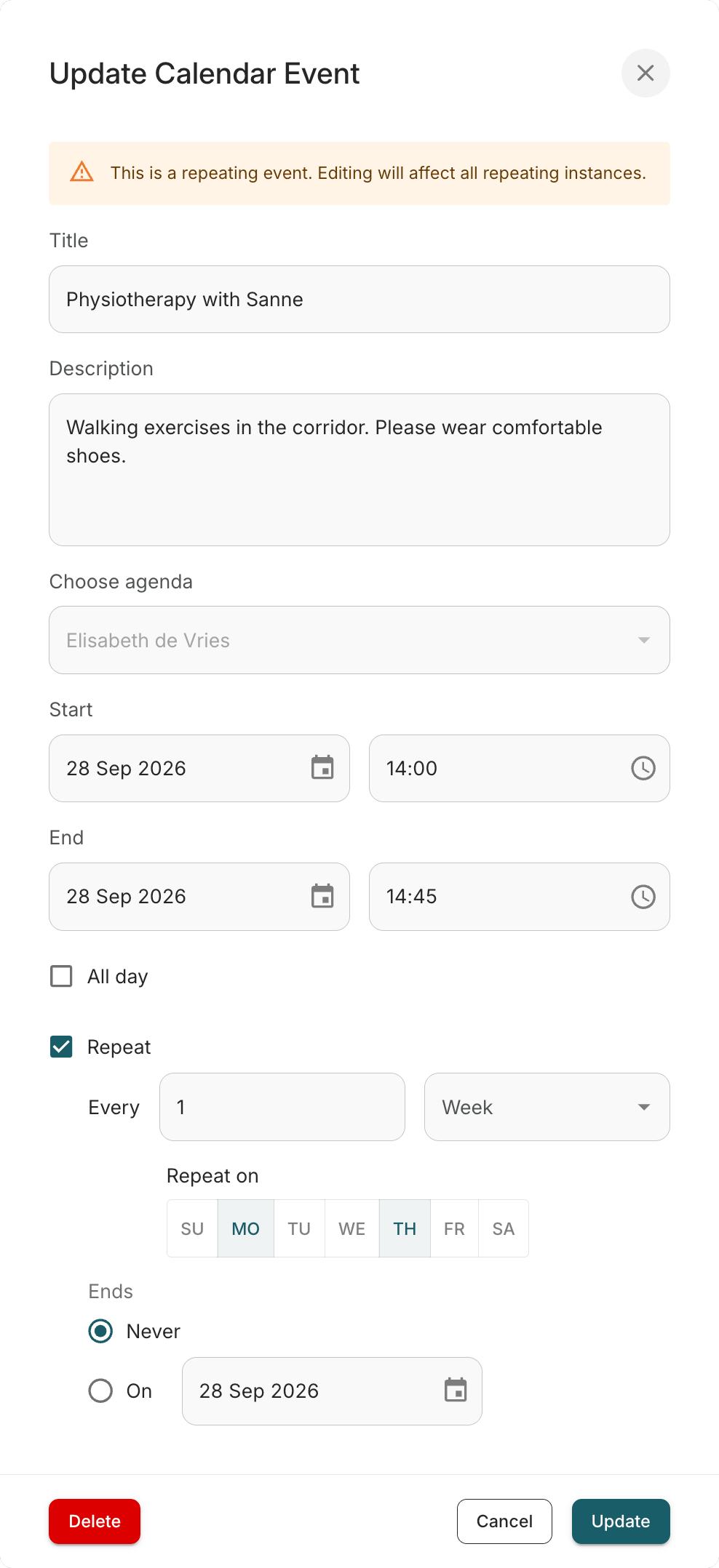
The client calendar page describes every step.
New setting: keep appointment details private
Section titled “New setting: keep appointment details private”Some appointments belong to the client and the care team, such as a hospital visit or a treatment. The client may want the help without a conversation about it. A new setting lets your organisation keep the details of its appointments private. Family members still see that something is planned and when.
You’ll find it under Community settings → Default Genus configuration → Hide calendar event details for family members (privacy). It is off by default, and a health administrator can switch it on.

When the setting is on, family members see your organisation’s appointments in the Genus app with their time, but without their title or description. Each one appears as Private event (care), and its details read Details are hidden for privacy reasons. Appointments that family members add themselves stay fully visible.
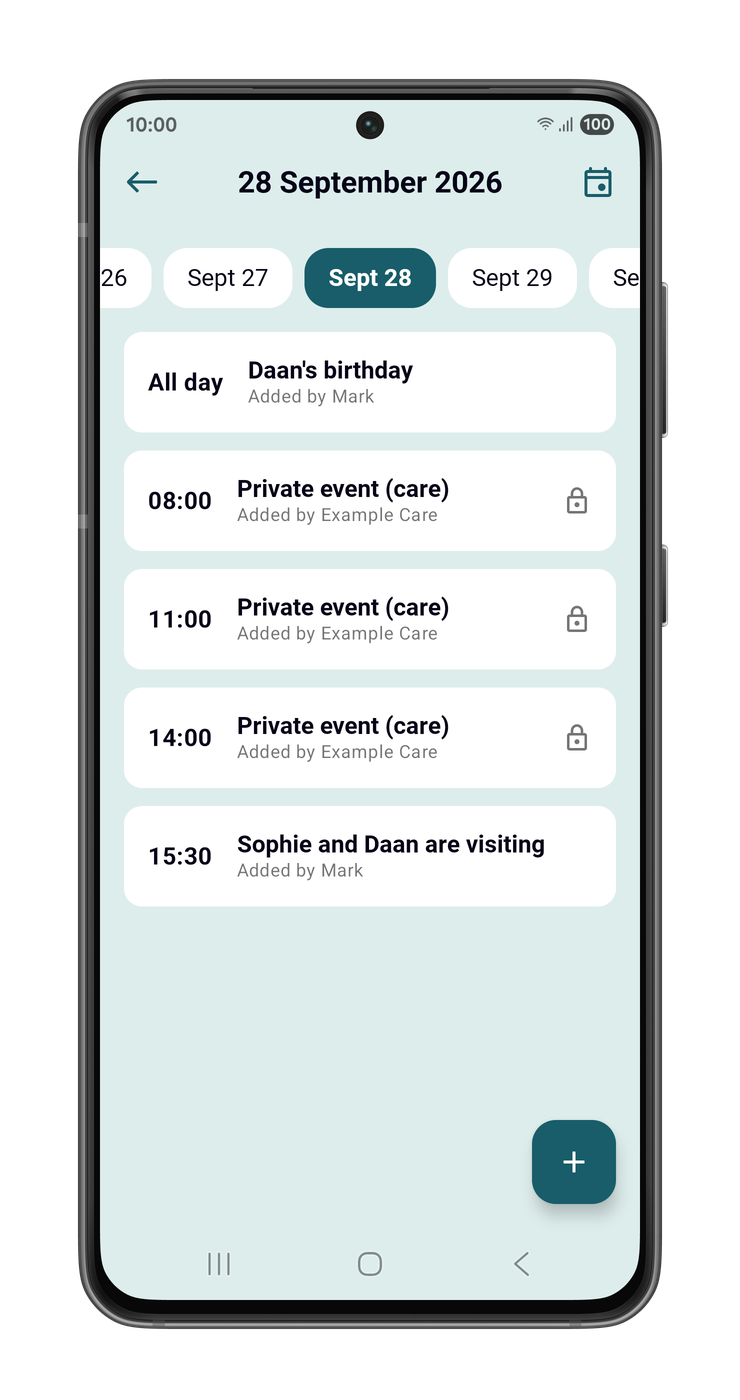
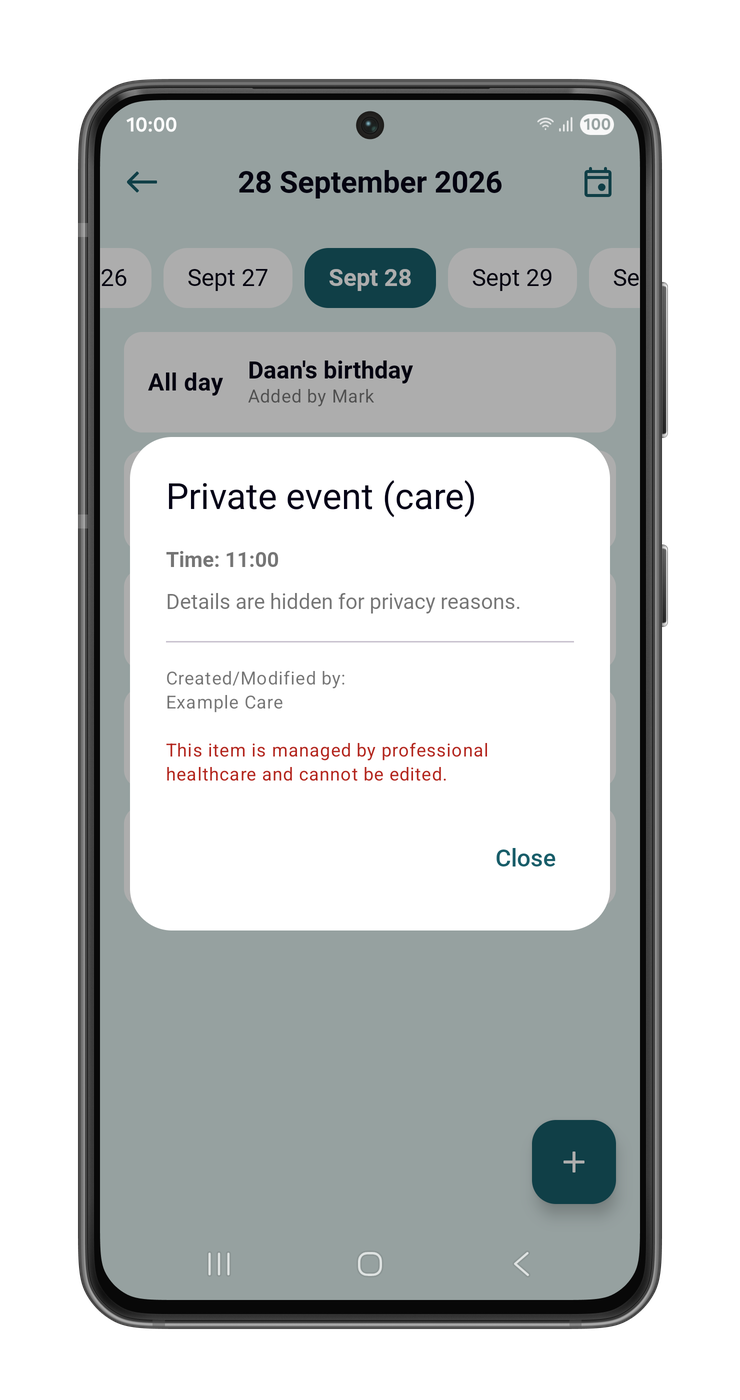
Family access and privacy explains what else family members can see.
On the Genus: browse the days ahead
Section titled “On the Genus: browse the days ahead”My Day on the Genus now shows more than today. Two green arrows beside the date move to the next or previous day. The header names the day, Today, Tomorrow or the weekday, with the date below it.
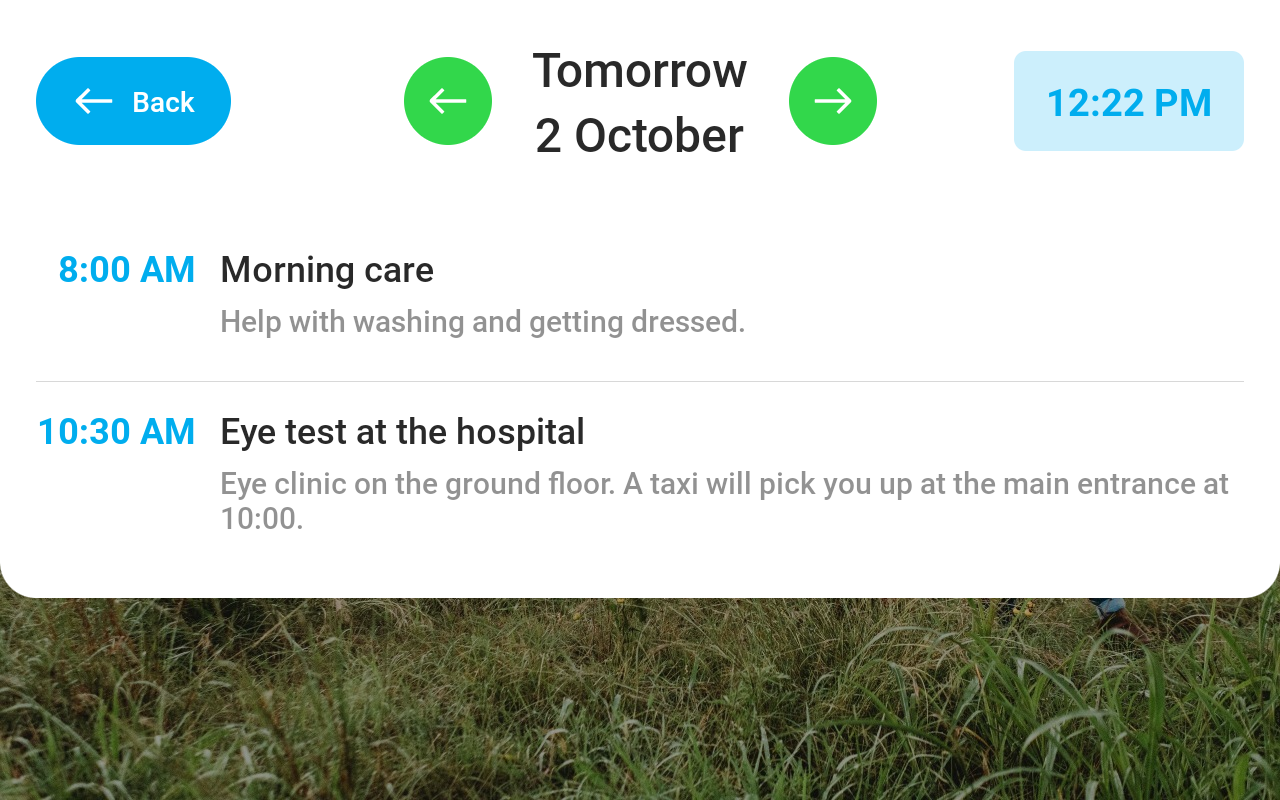
- Details. Tap an appointment in My Day to read its full description and see who added it.
- All-day appointments are listed first, marked all day. In the Day Overview on the home screen they have their own All day section.
- Empty days show Nothing planned. If a day can’t be loaded while browsing, the Genus says so rather than showing an empty day.
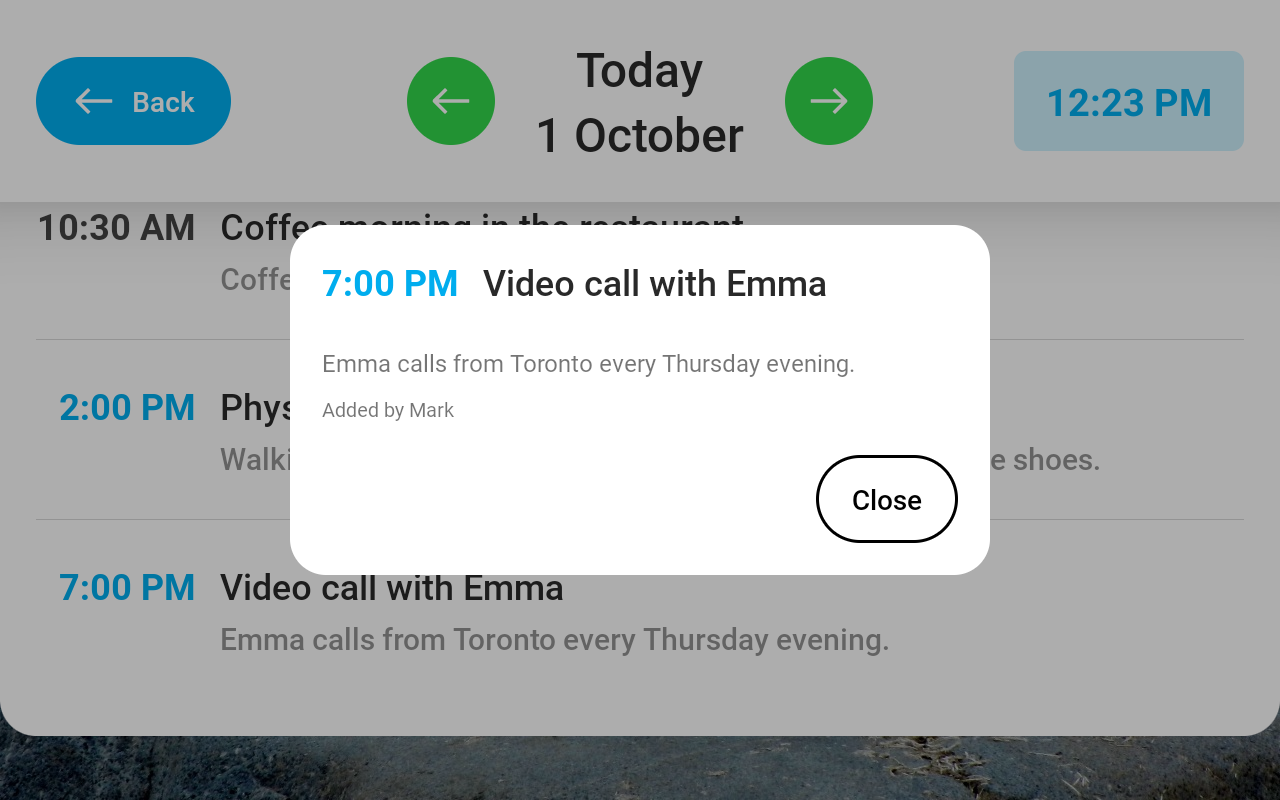
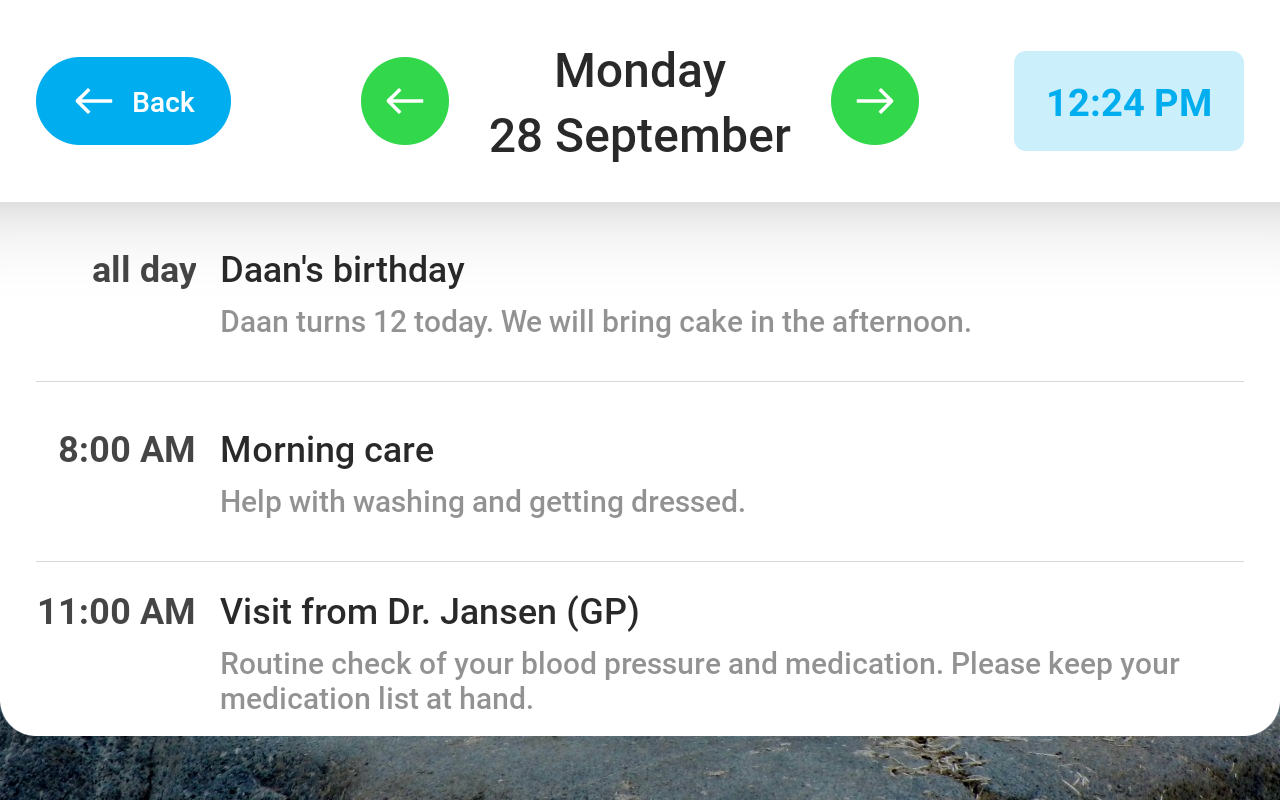
The client always sees the full details of every appointment, even when the privacy setting above is switched on. More about the agenda on the Genus is in My Day and appointments.
Fixes and improvements
Section titled “Fixes and improvements”- Weekly appointments start on the first selected weekday on or after the chosen start date. The portal points this out when the start date falls on another day.
- Saving. If a change can’t be saved, you see an error.
- Descriptions from connected care systems and subscribed calendars are shown as readable text, on the Genus, in the app and in the portal.
Availability
Section titled “Availability”The calendar is available for every client with a Genus. It is not part of Genus PAL.
- The Community Portal and the Genus (Genus 4.14.0) receive the update automatically.
- Family members get the calendar in the Genus app 2.5.0 for Android and iPhone, from Google Play and the App Store.