

The Professional App on iPhone
Care professionals spend much of their day on the move, and many of them carry an iPhone. Until now the Professional App was only available for Android. Colleagues with an iPhone could not use it to answer their clients’ requests.
The Professional App is now in the App Store. On an iPhone you receive assistance requests and Call Me requests, respond to them, and call a client’s Genus by video or voice. This first iPhone version covers the core of the app; a few Android features are not on iPhone, and this page lists them.
What’s new
- Care professionals with an iPhone can install the Professional App from the App Store and sign in with their Genus account.
- Requests and responses work as on Android: the same notifications list, the same response options, and Resolve request to close a request.
- Calls to a client’s Genus, by video or voice, from the client’s page or straight from a request.
- Permissions are optional. You can sign in without allowing notifications, the camera or the microphone, and allow them later.
- The same words on both phones. The iPhone and Android apps use the same texts and offer the same choices for a request.
For care professionals: getting started on iPhone
Section titled “For care professionals: getting started on iPhone”Install the Professional App from the App Store. It needs iOS 18.6 or later. On the home screen and in the iPhone’s Settings, the app is called Genus Pro.
The first time you open it, the app explains what it would like access to. It uses the camera and microphone for calls with your clients, and notifications for requests and alerts. Tap Continue, and the iPhone asks for each of them in turn.
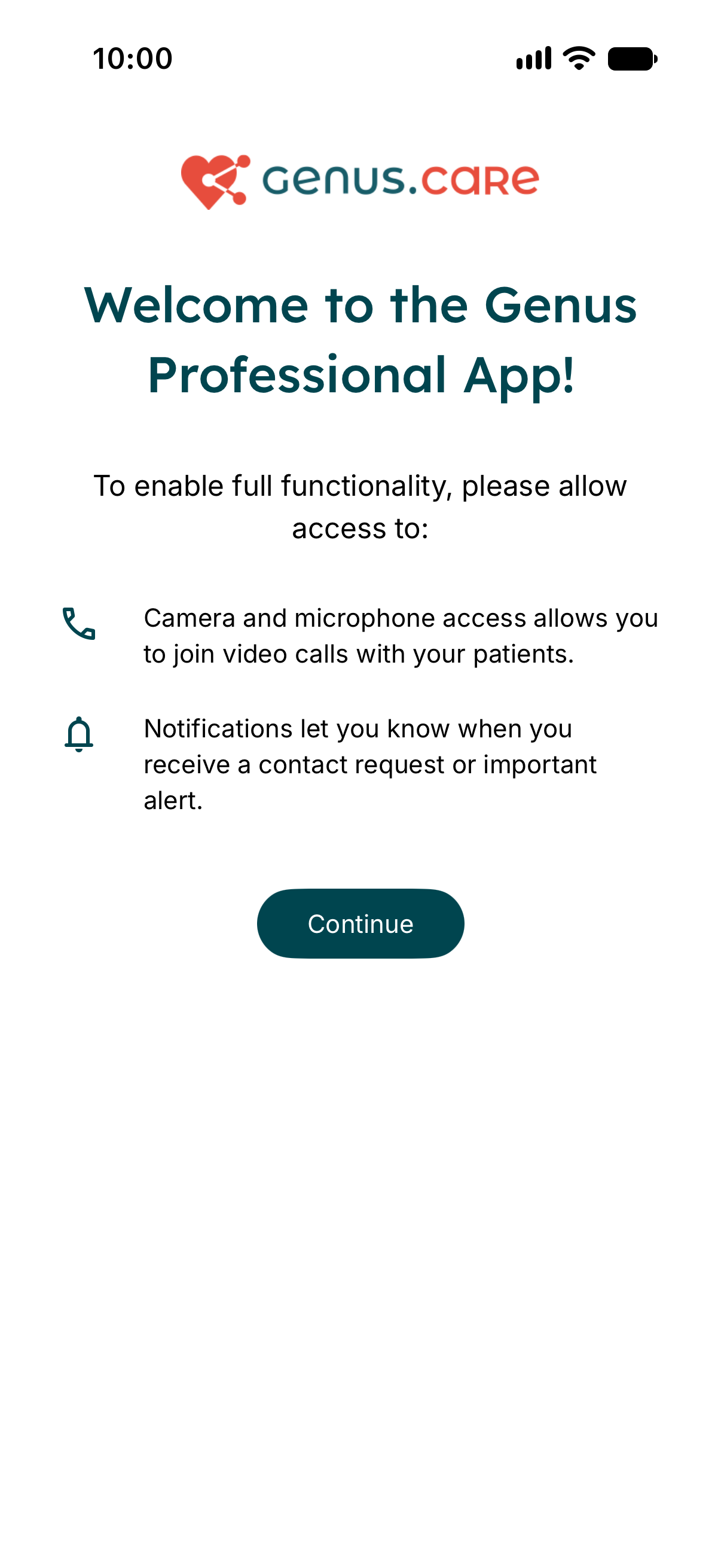
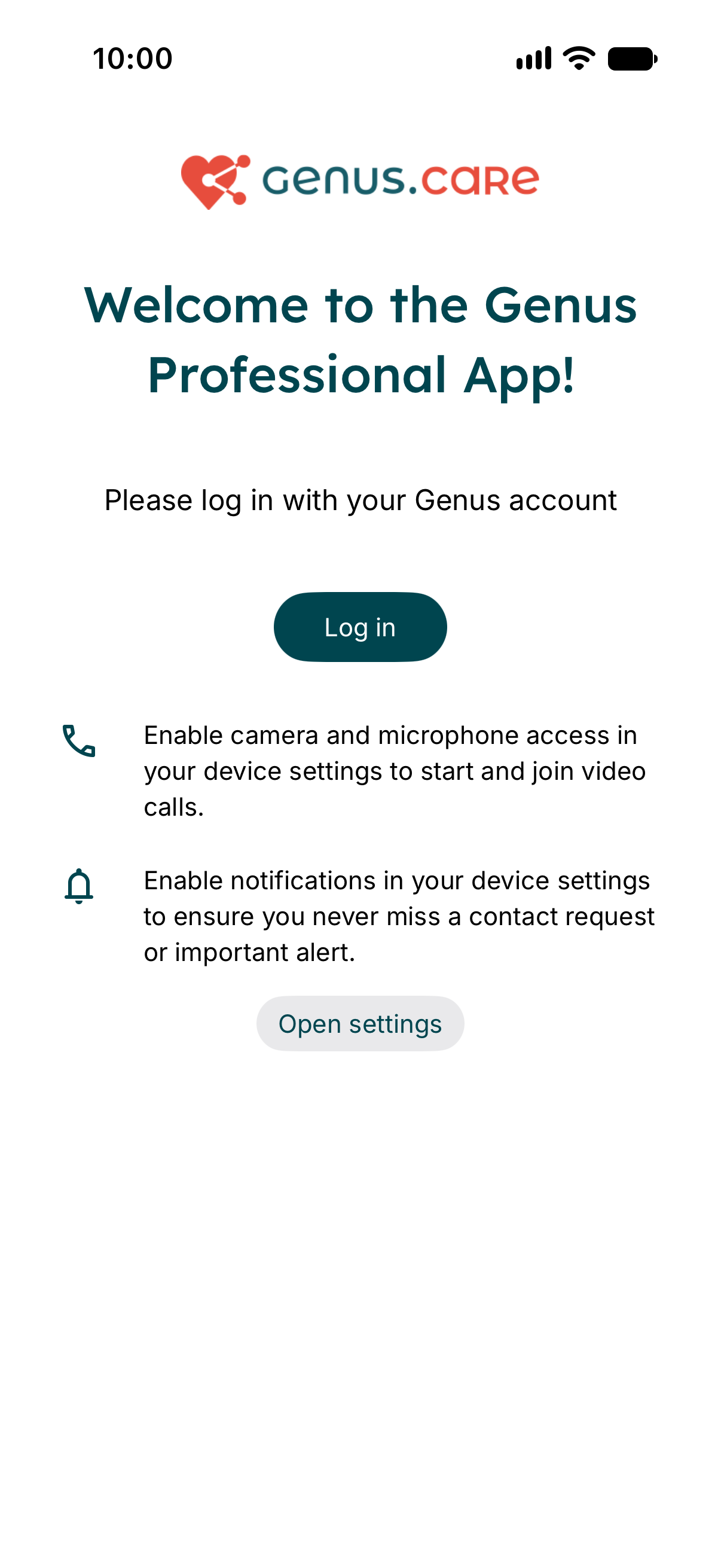
You can allow or decline each one; you can sign in either way. Tap Log in and sign in with your Genus account. If something is still switched off, the login screen says so below Log in. Open settings takes you to the app’s page in the iPhone’s Settings.
Choosing your community and teams
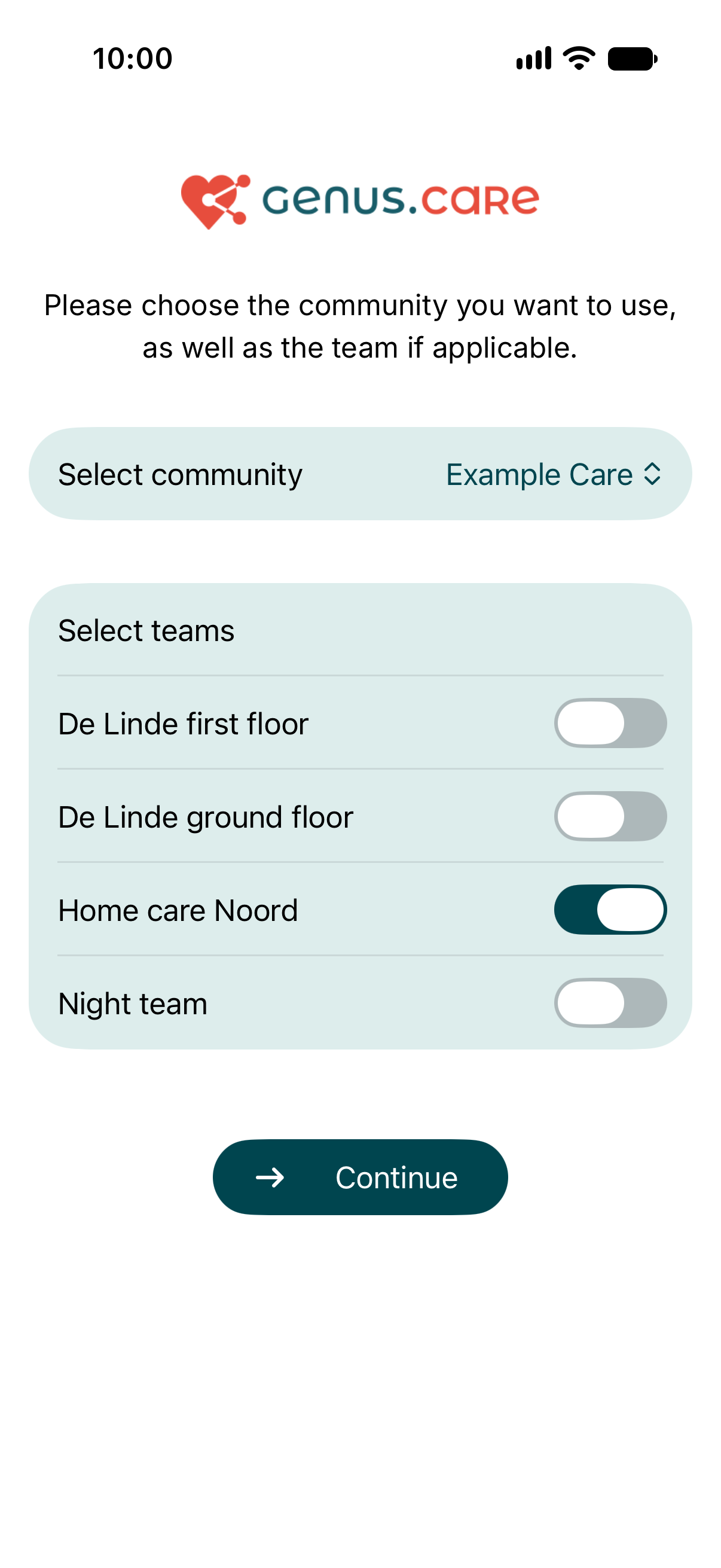
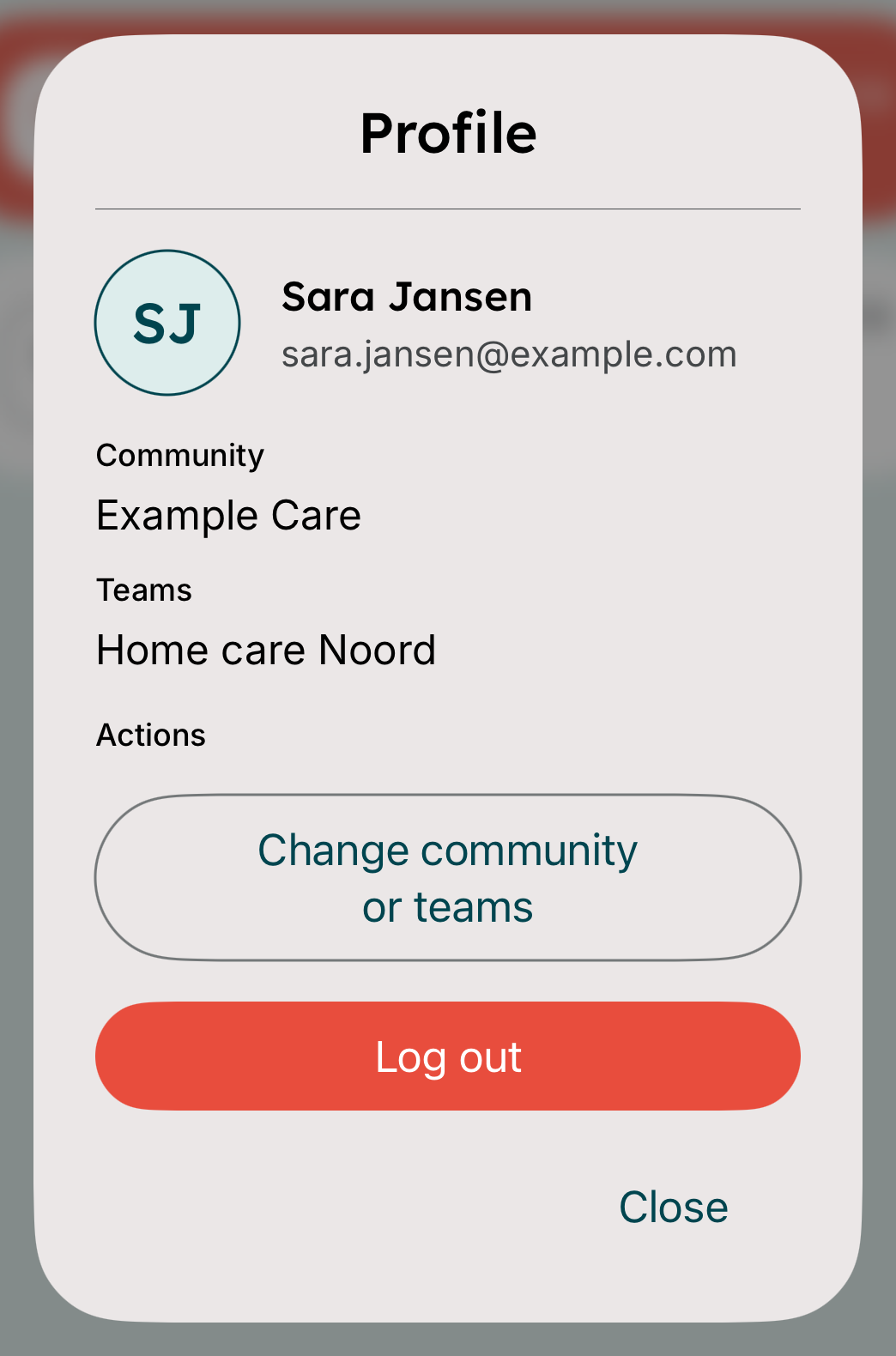
Section titled “Choosing your community and teams”After signing in, choose your care organisation under Select community and switch on your teams under Select teams. Then tap Continue. Which requests reach you depends on these teams; escalation and teams explains how.
Permissions on iPhone
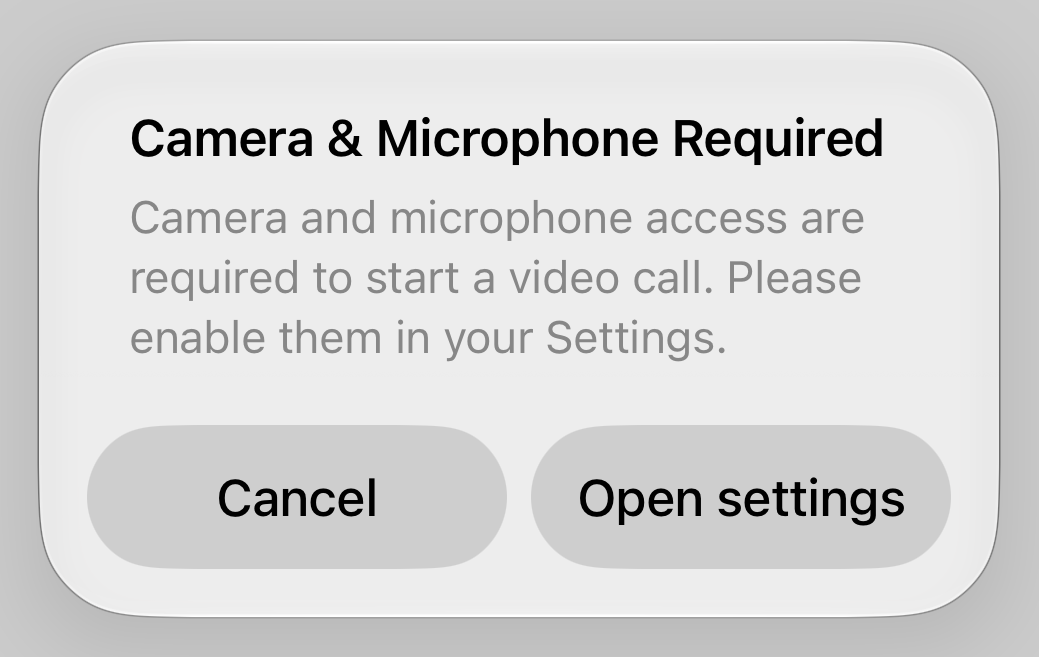
Section titled “Permissions on iPhone”When you start a call from a client’s page, an alert or a Call Me request, the app checks its access first. It asks for the microphone, and for a video call also the camera. If access was declined before, it shows Camera & Microphone Required or Microphone Access Required, with Open settings.
The full steps are in getting started with the Professional App.
Notifications
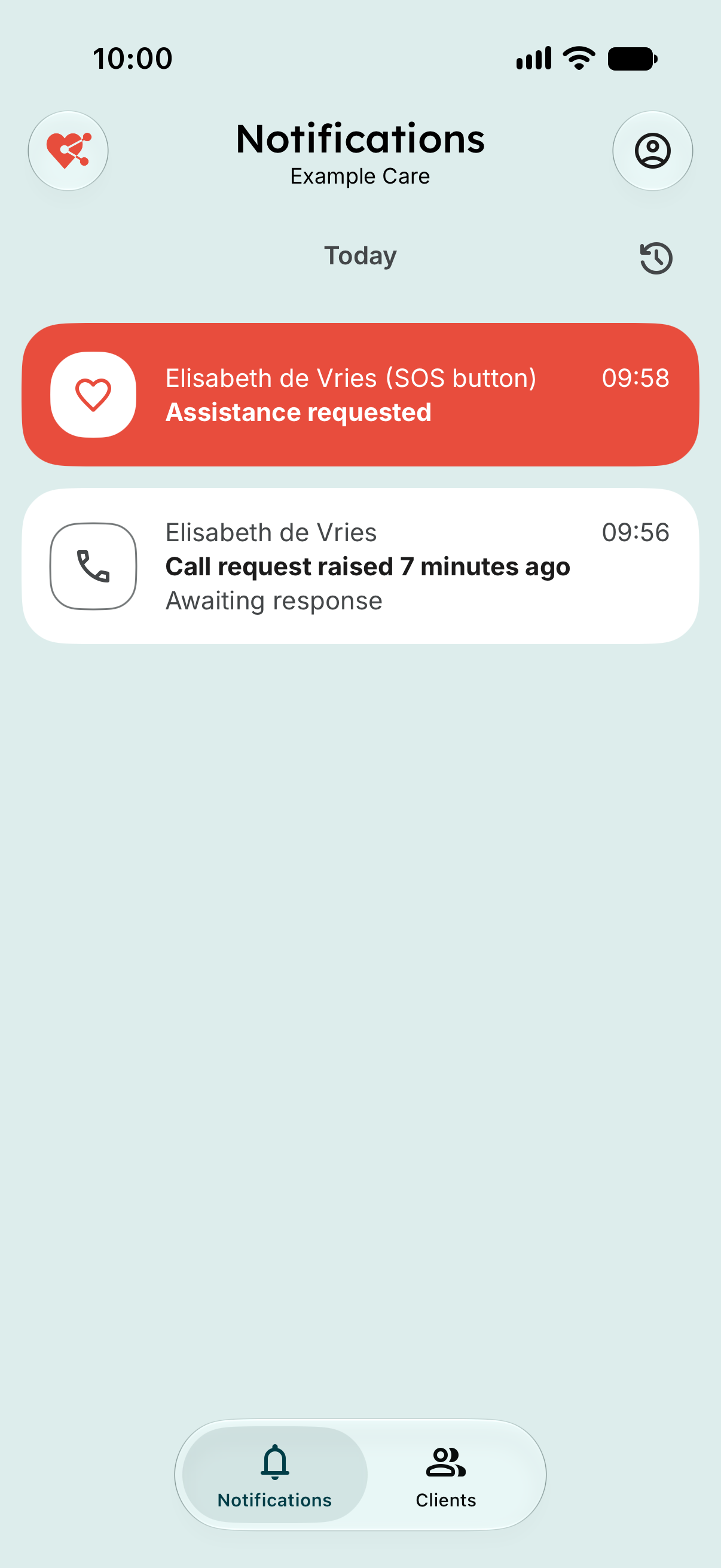
Section titled “Notifications”The app has two tabs, Notifications and Clients. The Notifications tab lists the requests that still need attention, grouped by day, with assistance requests first on each day. An assistance request stays red until someone answers that they are on their way or coming later.
The list refreshes when you pull it down or tap the Genus logo at the top left. The clock icon at the top right opens Past notifications, where the arrows move from day to day.
Responding to an assistance request
Section titled “Responding to an assistance request”Tap an assistance request to open it. It shows the client, how long ago the request was made and, for an alarm button, which button raised it. Under Respond you choose:
- I am on my way
- I am coming later
- I can’t come right now
- Call resident, which starts a video call to the client’s Genus. For a mobile alarm button with its own phone number, such as the Genus 4G GPS Button, it phones that number instead.
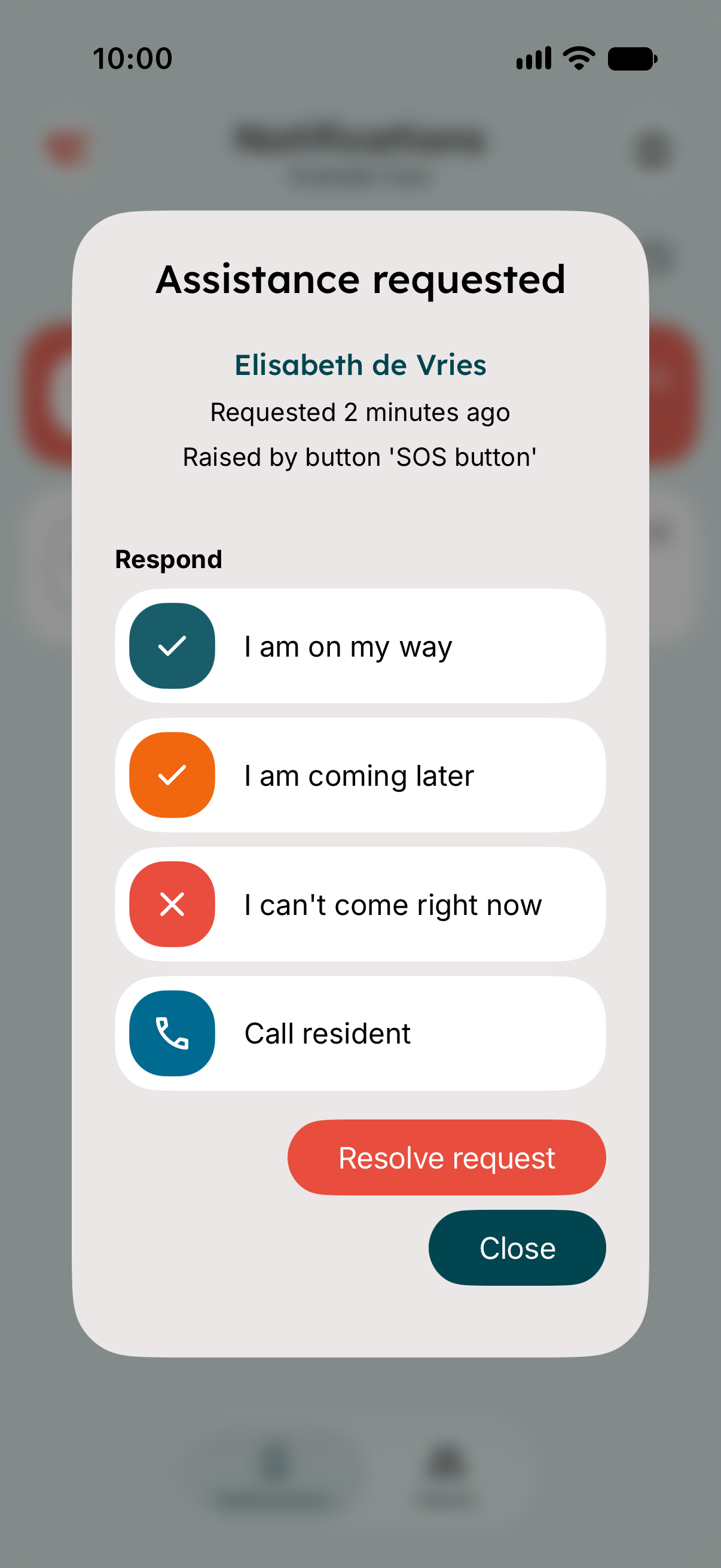
Once someone has responded, the request lists the reactions, each with the colleague’s name and how long ago they answered. Tap Respond to change your answer. Resolve request ends the request for everyone.
Alerts and Call Me requests open in the same way. For an alert you can Solve it or call the client with Call resident. For a Call Me request you answer I will call later or I cannot call, or call back straight away with Call resident. From an alert or a Call Me request, Call resident starts a voice call.
Notifications on your iPhone
Section titled “Notifications on your iPhone”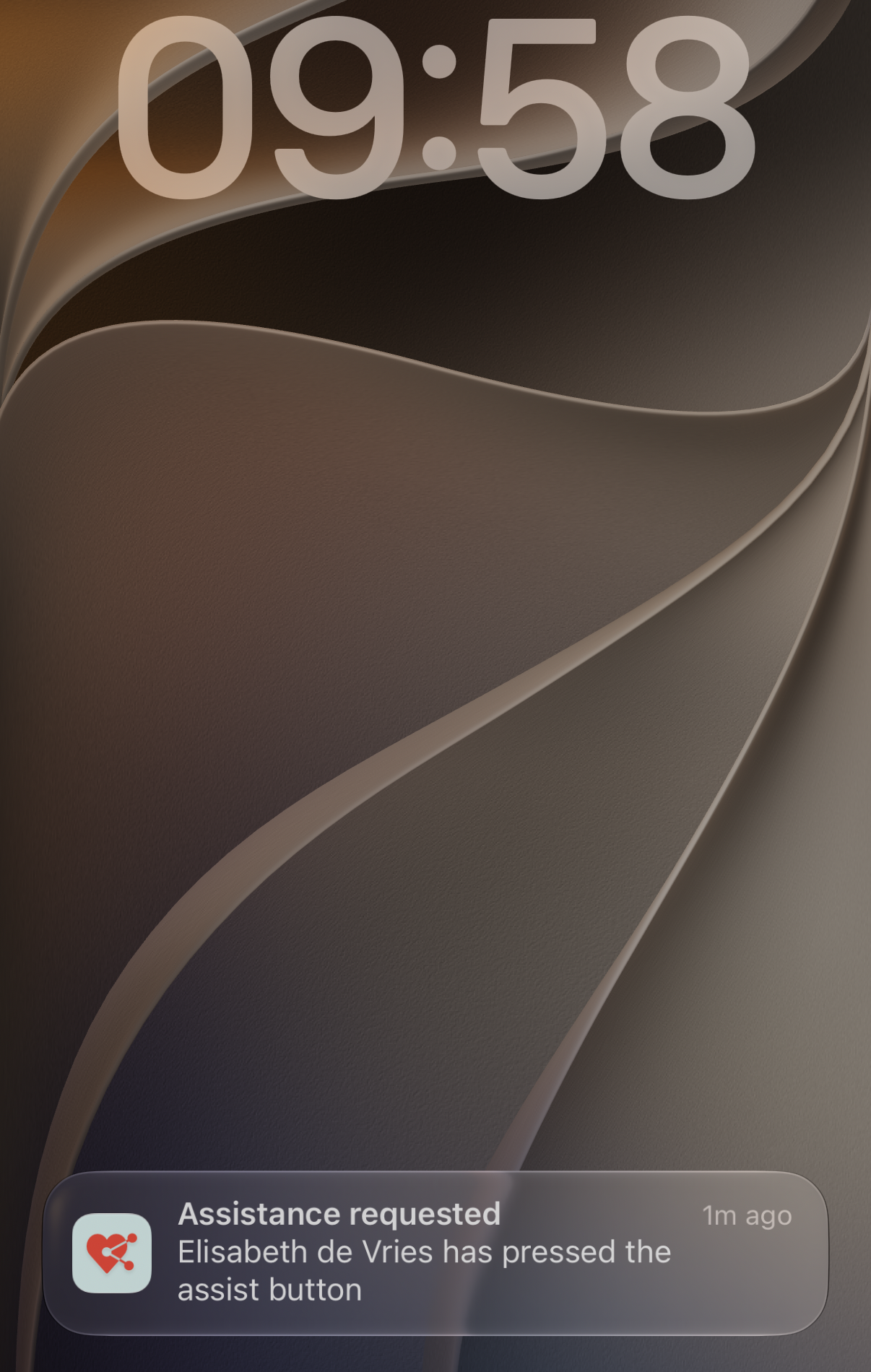
- Assistance requests and Call Me requests arrive as notifications, also on a locked iPhone, and name the client.
- One notification per request. A repeat notification about the same assistance request replaces the earlier one instead of adding a second.
- Gone when done. When an assistance request is resolved or a Call Me request is cancelled, its notification disappears from your iPhone.
Responding to notifications describes every request type and response.
Clients and calls
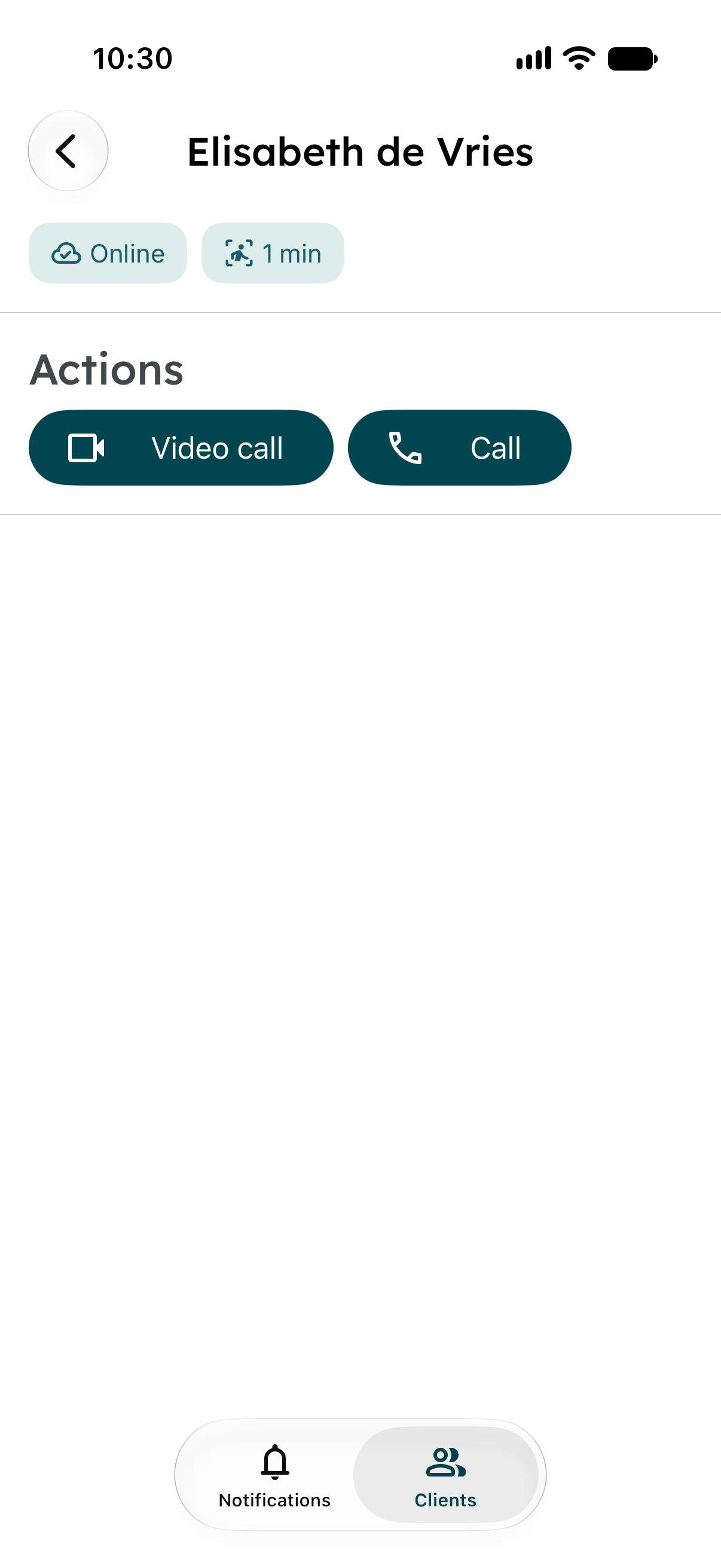
Section titled “Clients and calls”The Clients tab lists your organisation’s clients with their room number and a status chip. Search with Search by name or room… at the top. Tap a client to open their page.
The page shows whether the Genus is online, when movement was last detected, and whether a call is in progress. An open assistance request appears at the top in red, with the same response options and Resolve request. Under Actions you find Video call and Call.
Calling a client’s Genus
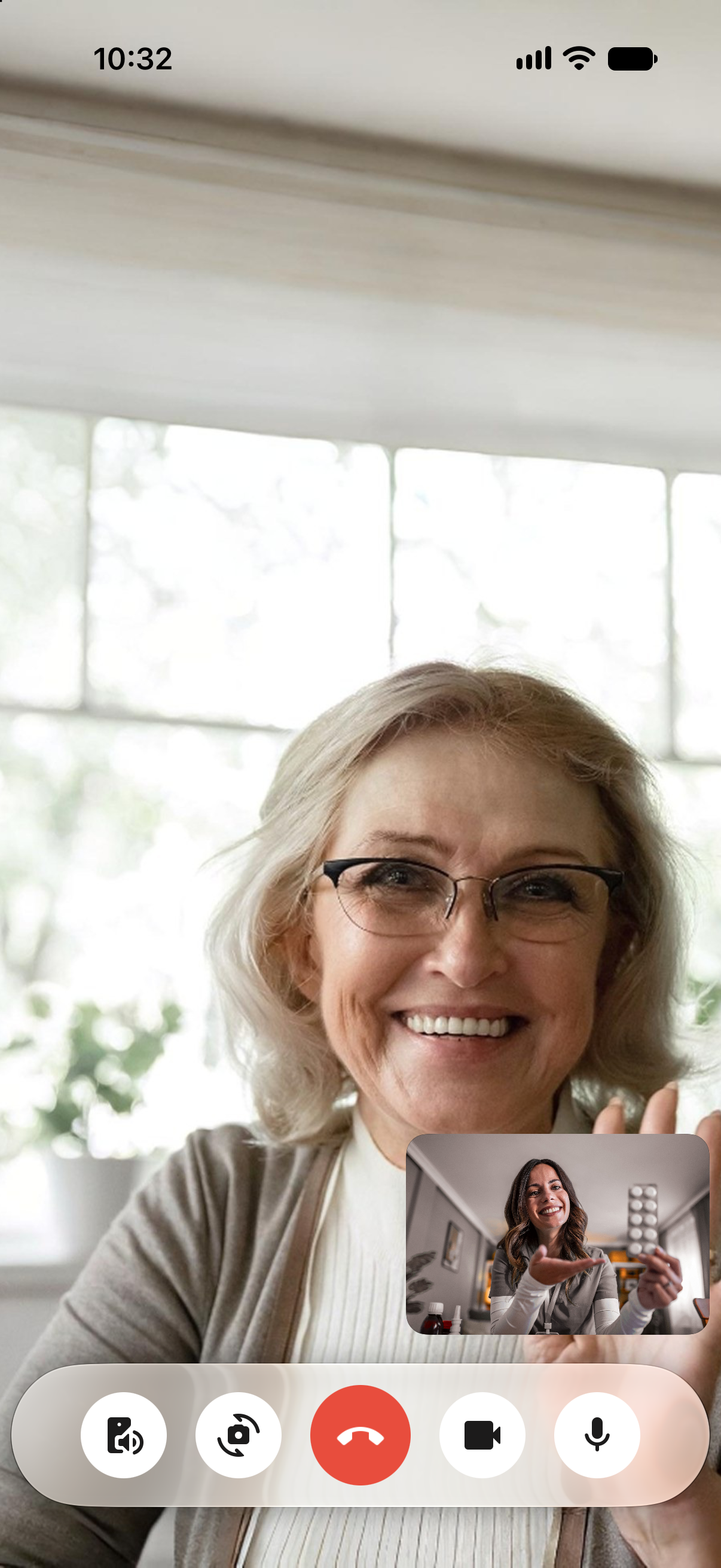
Section titled “Calling a client’s Genus”Tap Video call or Call. The button reads Starting video call or Starting call while the call is set up. The call screen then shows Ringing.. until the Genus answers.
- Sound. A video call starts on the loudspeaker, a voice call on the earpiece. The first button switches between them.
- Other buttons. Switch camera, end the call, and turn your camera and microphone off or on.
- Sideways. Turn the iPhone on its side and the buttons move to the edge of the screen.
- When the call can’t start. If the Genus is offline, not available or already in another call, the app says so.
More about the client list and the client’s page is in clients in the Professional App.
iPhone and Android compared
Section titled “iPhone and Android compared”For a care team with both kinds of phone, the two apps use the same words and offer the same choices for a request. Each app looks and behaves like an app on its own platform. The table shows where they differ.
| Android 1.6.0 | iPhone 1.0.0 | |
|---|---|---|
| Notifications for assistance requests and Call Me requests | Yes | Yes |
| Notifications for alerts | Yes | No: alerts only appear in the Notifications list |
| An assistance request on a locked phone | A notification with the alarm sound | A standard notification |
| Counter for new assistance requests on the Notifications tab | Yes | No |
| Permanent notification that shows the app is connected | Yes | No |
| Show location for an alarm with a known location | Yes | No |
| Signing in without allowing every permission | No | Yes |
| Video call and Call on a client’s page | Yes | Yes |
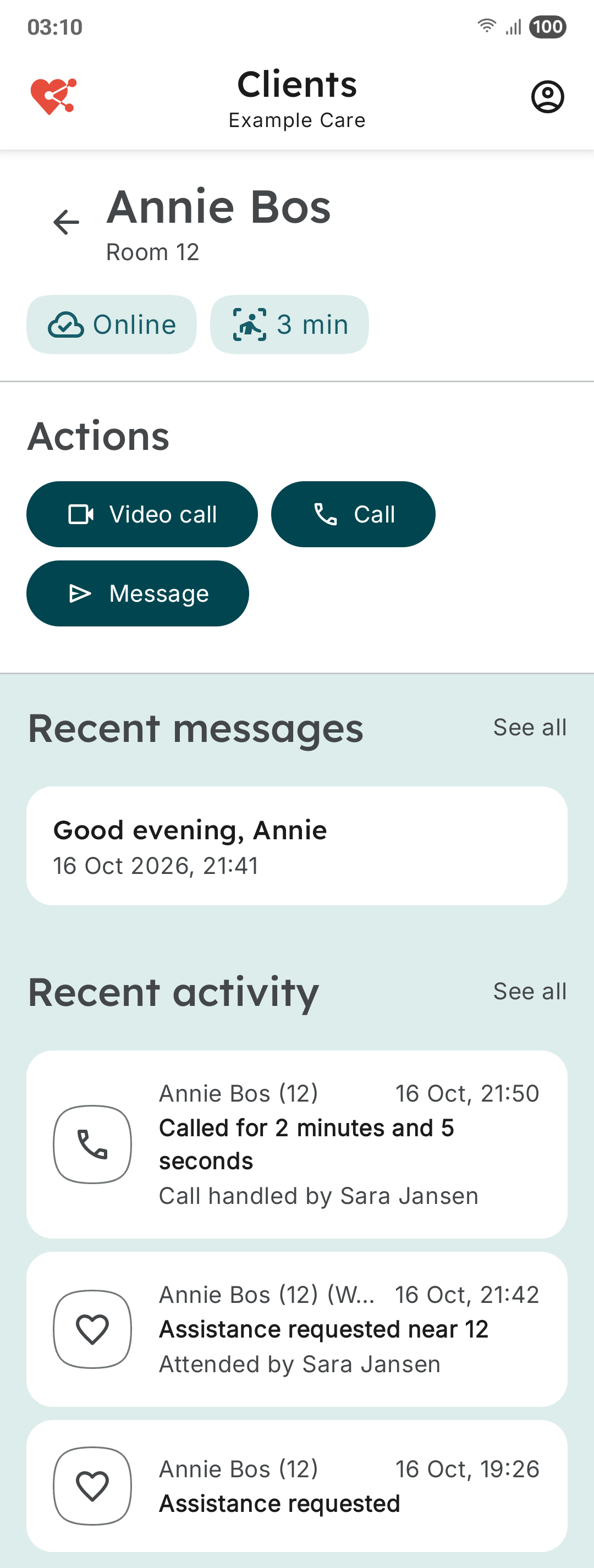
| Message, to send a message to the client’s Genus | Yes | No |
| Recent messages, Recent activity and Connected devices on a client’s page | Yes | No |
On Android, a resident’s page shows the parts the iPhone app does not have.
Availability
Section titled “Availability”- Professional App 1.0.0 for iPhone is in the App Store. It needs iOS 18.6 or later and also runs on iPad.
- The app is in English and Dutch, and follows the language of the iPhone.
- The Android app stays available on Google Play. The comparison above is with Professional App 1.6.0 for Android.