

Genus PAL: a personal alarm button without a screen
Not every client needs a screen in the living room. Someone who lives independently and is out and about most days may only want a reliable way to call for help, at home or on a walk, with family as the first to respond. Until now a Genus 4G GPS Button always belonged to a Genus in the home.
Genus PAL is the alarm button on its own. A distributor activates it in the Business Portal with the button’s IMEI. Family members link to it with a code, and a press of the button reaches them in the Genus app. A care organisation can be connected as the next step in the chain.
What’s new
- Distributors activate a Genus PAL in the Business Portal from the IMEI of the button, with subscription types of its own.
- Distributors generate a linking code that connects a family member to the Genus PAL straight away, without an approval step.
- Family members receive Genus PAL alarms in the Genus app. They see where the button is, respond, call the button and close the request.
- Care professionals see a Genus PAL client in the Community Portal with its alarms, alerts and button. Its alarms follow the organisation’s usual escalation.
- Family members of any Genus can now close an assistance request from the Genus app with Resolve request.
What Genus PAL is
Section titled “What Genus PAL is”Genus PAL uses a Genus 4G GPS Button (GC-SOS) or Genus 4G GPS Watch (GC-Watch), each with its own mobile connection. The button is the client’s only device, and everything else happens in the apps and portals of the people around them.
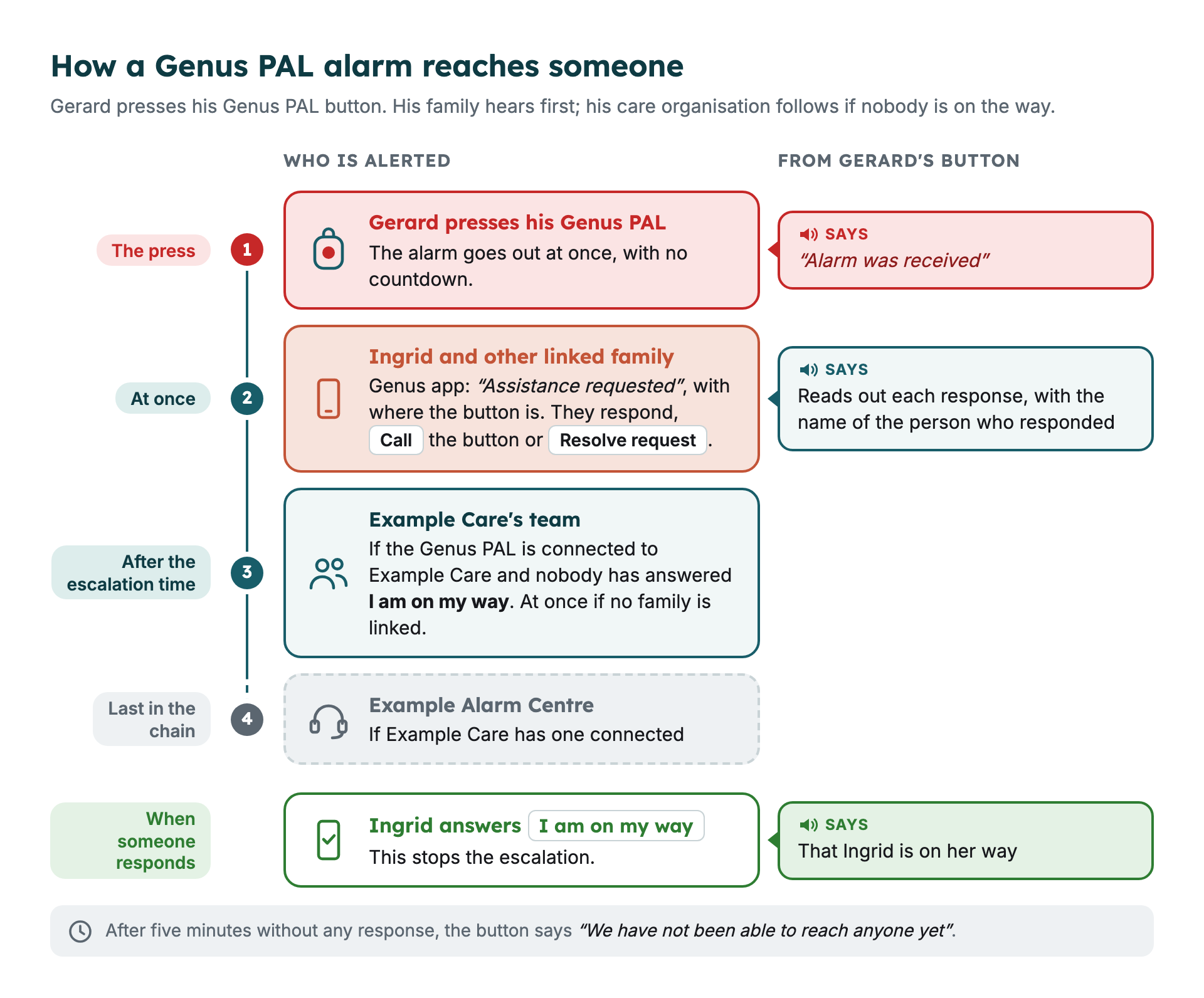
Take Gerard Peters, 77. He lives on his own, walks every day and has no use for a screen at home. He wears a Genus PAL button. When he presses it, his daughter Ingrid gets the alarm on her iPhone, sees where he is and tells him she is on her way. If his care organisation is connected, it is the next in line.
For distributors: activating a Genus PAL in the Business Portal
Section titled “For distributors: activating a Genus PAL in the Business Portal”A Genus PAL is a subscription in the Business Portal, linked to one button by its IMEI. You don’t deploy anything in the home and there is no activation code to enter on a device.
Before you start
Section titled “Before you start”- The button must have connected to Genus once. Switch it on and let it come online. Until then its IMEI is unknown and the Business Portal says No device could be found with this IMEI.
- The button must not be in use. A button that is paired with a Genus, or already active as a Genus PAL, gives Device with this IMEI is already in use. Remove it from the Genus first.
- You need the Admin role at the distributor or the reseller to add subscriptions.
Creating the subscription
Section titled “Creating the subscription”- Click New subscription in the subscriptions of the client’s community, so the Genus PAL is connected to the care organisation straight away. If there is no care organisation, start from Subscriptions in the menu.
- Under Category, choose the Lite category. The Business Portal still uses this name for Genus PAL.
- Choose the customer (Choose a customer), unless you started from its community, and the agreement (Choose an agreement).
- Choose the Subscription type. Only the Genus PAL types are listed: SOS on the go - Monthly, 1 Year, 2 Years, 3 Years and 5 Years.
- Enter the button’s IMEI. Switch on Demo subscription if it is one, and click Save.
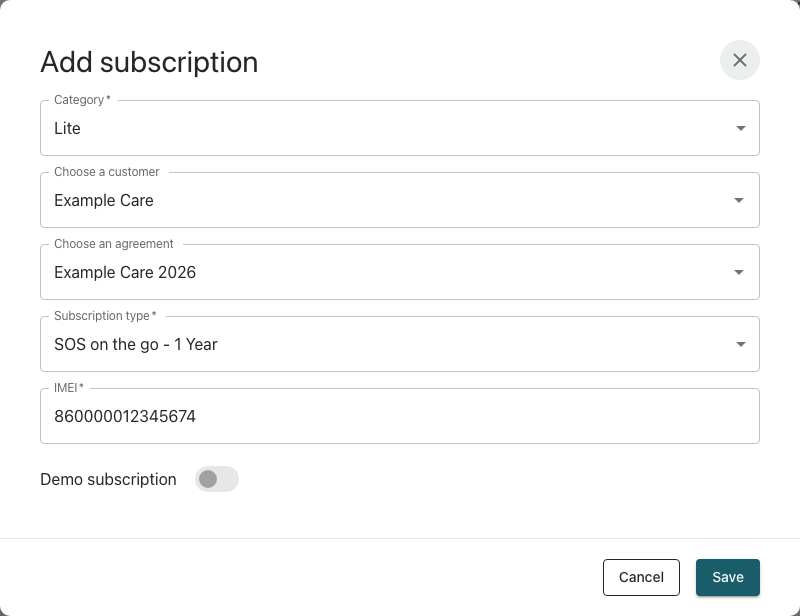
The subscription is active and linked to the button as soon as you save it. A Genus PAL subscription is always for one button, so there is no Amount field. The 4G data bundle option of a Genus is not offered either.
The subscription page
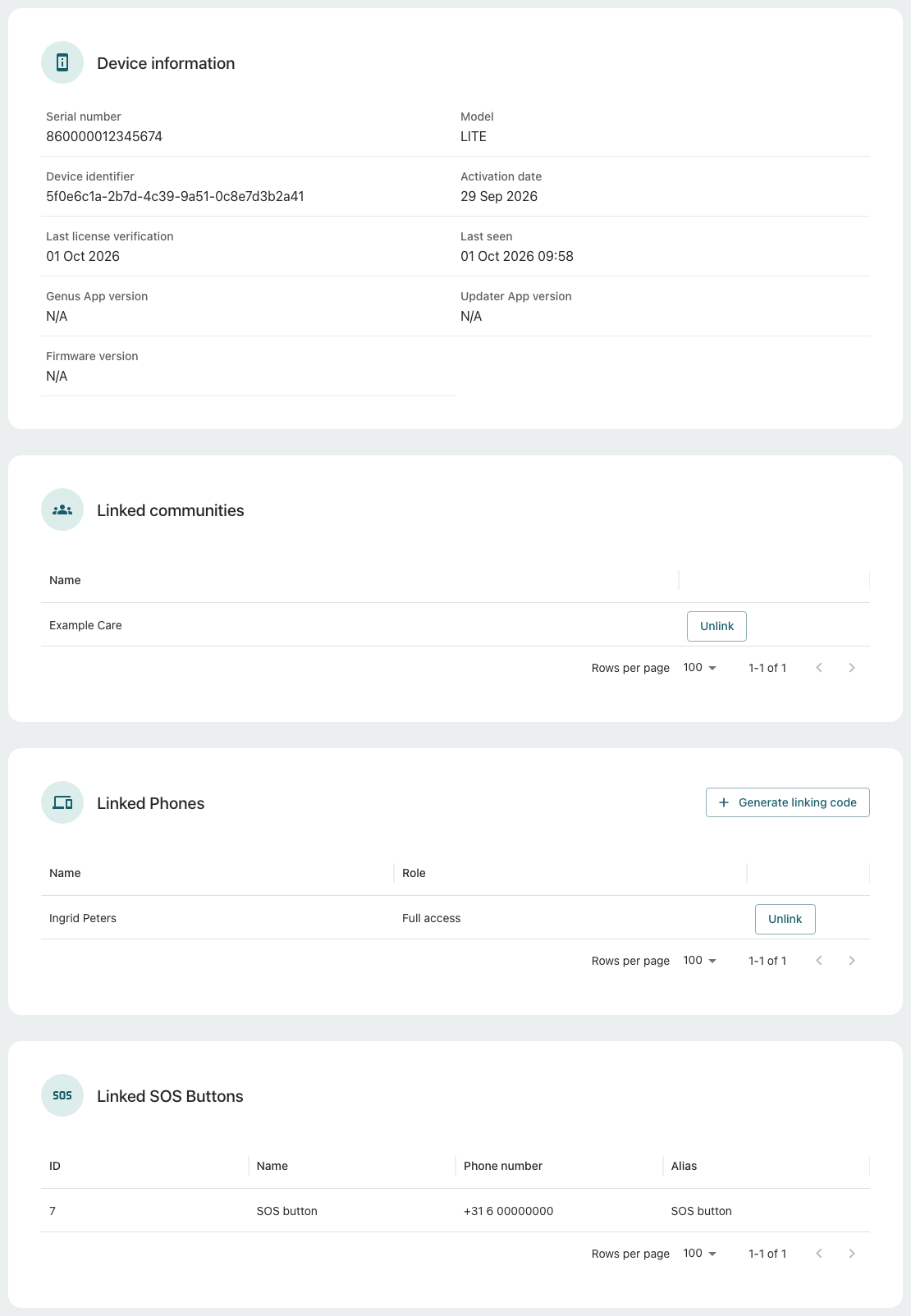
Section titled “The subscription page”The subscription page of a Genus PAL shows what applies to a button:
- Device information, with the IMEI of the button as serial number,
- Linked communities, the care organisation it is connected to,
- Linked Phones, the family members, with the button to generate a linking code,
- Linked SOS Buttons, the button itself,
- Addons and the monthly overviews.
The eSIM data bundle switch and the integrations, calls and network usage of a Genus are left out. A Genus PAL subscription can’t be released for use on another device.
Linking family members with a code
Section titled “Linking family members with a code”A Genus PAL has no screen to show a linking code or to approve a family member. Instead you create a code in the Business Portal and give it to the family.
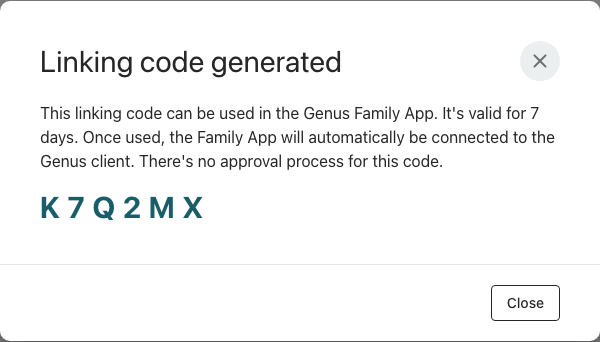
- On the subscription page, under Linked Phones, click Generate linking code.
- The Linking code generated dialog shows a six-character code. Give it to the family member, for example Ingrid.
For family members: Genus PAL in the Genus app
Section titled “For family members: Genus PAL in the Genus app”Linking with the code
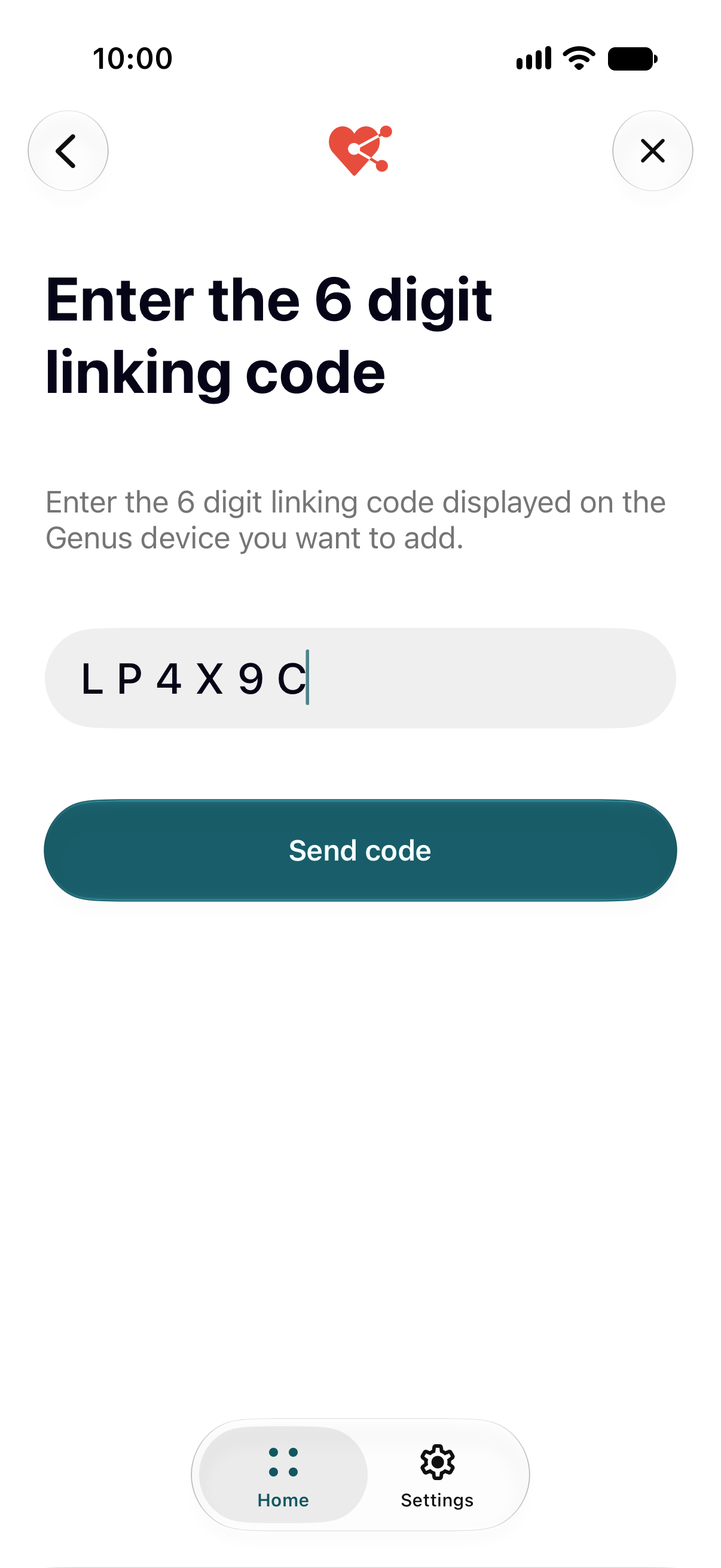
Section titled “Linking with the code”In the Genus app, tap Add new Genus and enter the code you received. There is no approval step: the Genus PAL appears in your list straight away.
At first the Genus PAL is listed under the IMEI number of the button. Give it a recognisable name in its settings, under Genus alias. Only you see that name.
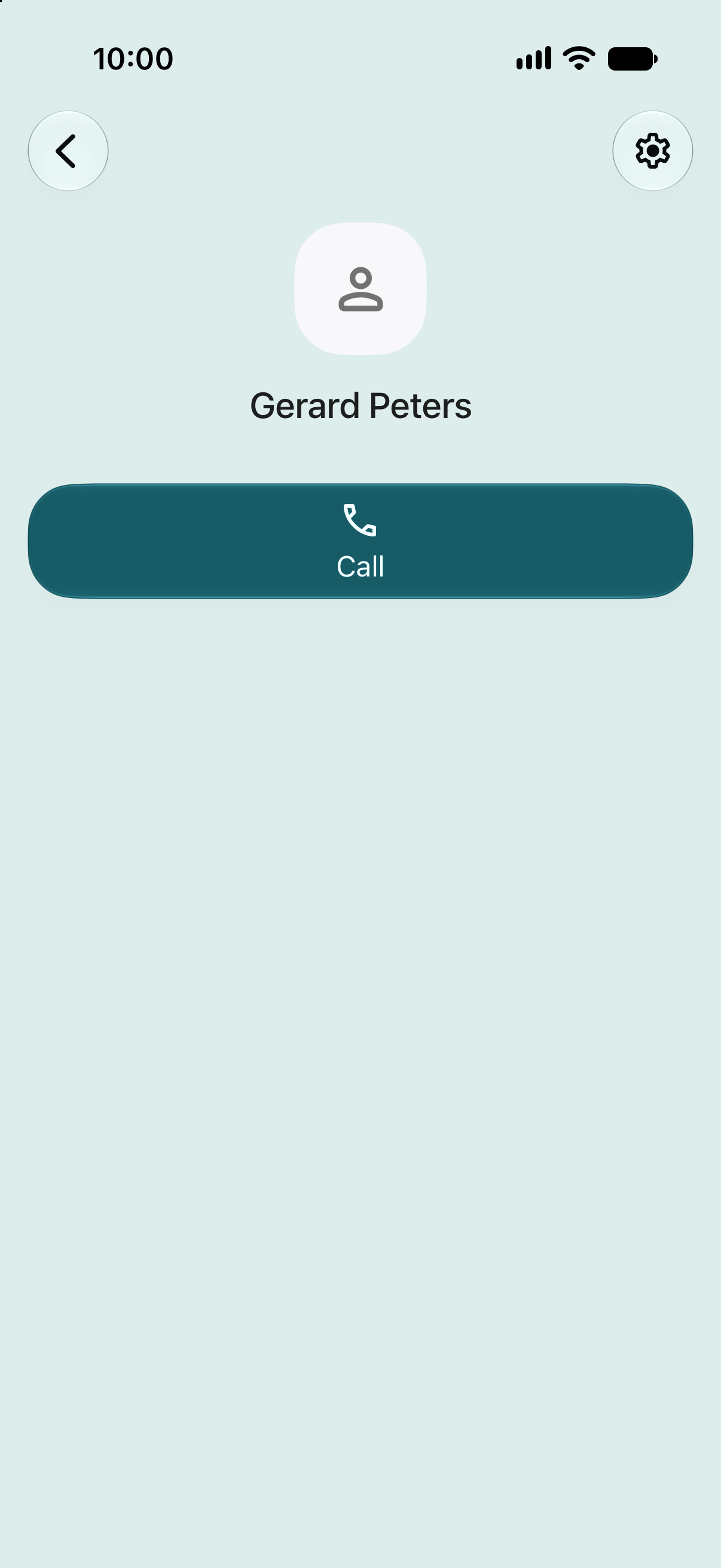
Opening the Genus PAL shows one button: Call, which phones the button itself. Photos, messages, video calls, sensors and alert settings belong to the Genus screen and are not shown. If Genus doesn’t know the phone number of the button, the Call button is hidden.
When the button is pressed
Section titled “When the button is pressed”Ingrid gets an Assistance requested notification, the same as for an alarm from a Genus. Her settings for critical and full-screen notifications apply. Opening it shows the Emergency notification screen:
- which button raised the alarm, as Raised by button ’…’,
- a map with the last known location of the button, which she can open in Apple Maps or Google Maps,
- the responses of other family members.
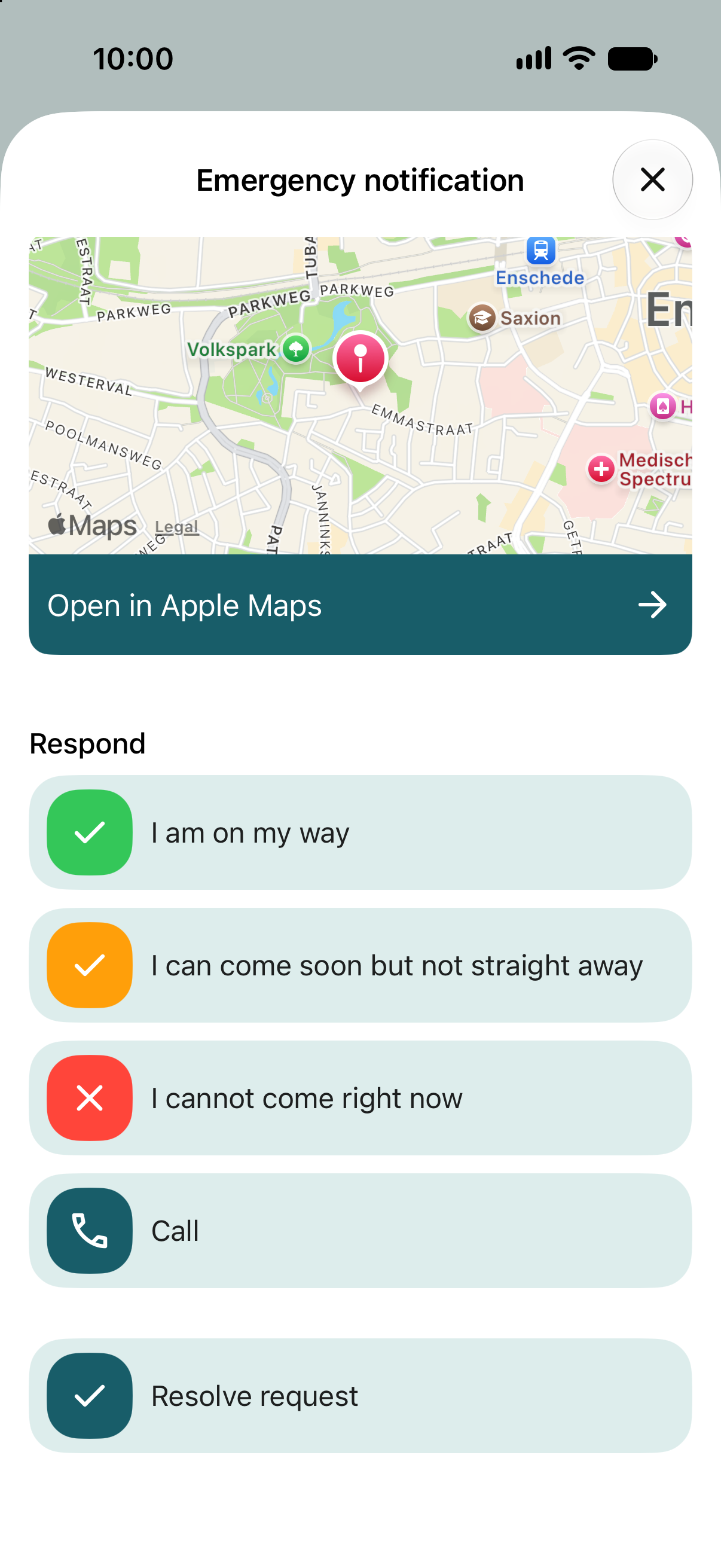
Ingrid can respond with I am on my way, I can come soon but not straight away or I cannot come right now. Call phones the button, so she can talk to Gerard. Resolve request closes the alarm.
The button keeps Gerard informed. It says the alarm has been received, and it reads out each response with the name of the person who responded. If nobody has responded after a few minutes, it tells him nobody has been reached yet.
See calls for help in the Genus app for every response option.
For care organisations: a Genus PAL client in the Community Portal
Section titled “For care organisations: a Genus PAL client in the Community Portal”A Genus PAL that the distributor connects to your organisation appears in Clients in the Community Portal. Its first name is the IMEI of the button until you enter the client’s name under Contact information.
The family hears about an alarm first. Unless a family member responds with I am on my way, the alarm goes to your care team when the escalation time has passed. If no family member is linked, it goes to your team straight away. The client’s Alarm settings work as for any client; escalation and teams explains the chain.
The client page of a Genus PAL shows:
- Alarms and notifications, with its alarms and alerts,
- Alarm settings,
- Connected devices, with the button. Click it to see its location on a map. Health administrators and team leads can change its name and phone number with Edit. The family’s Call button uses that phone number.
- Contact information.
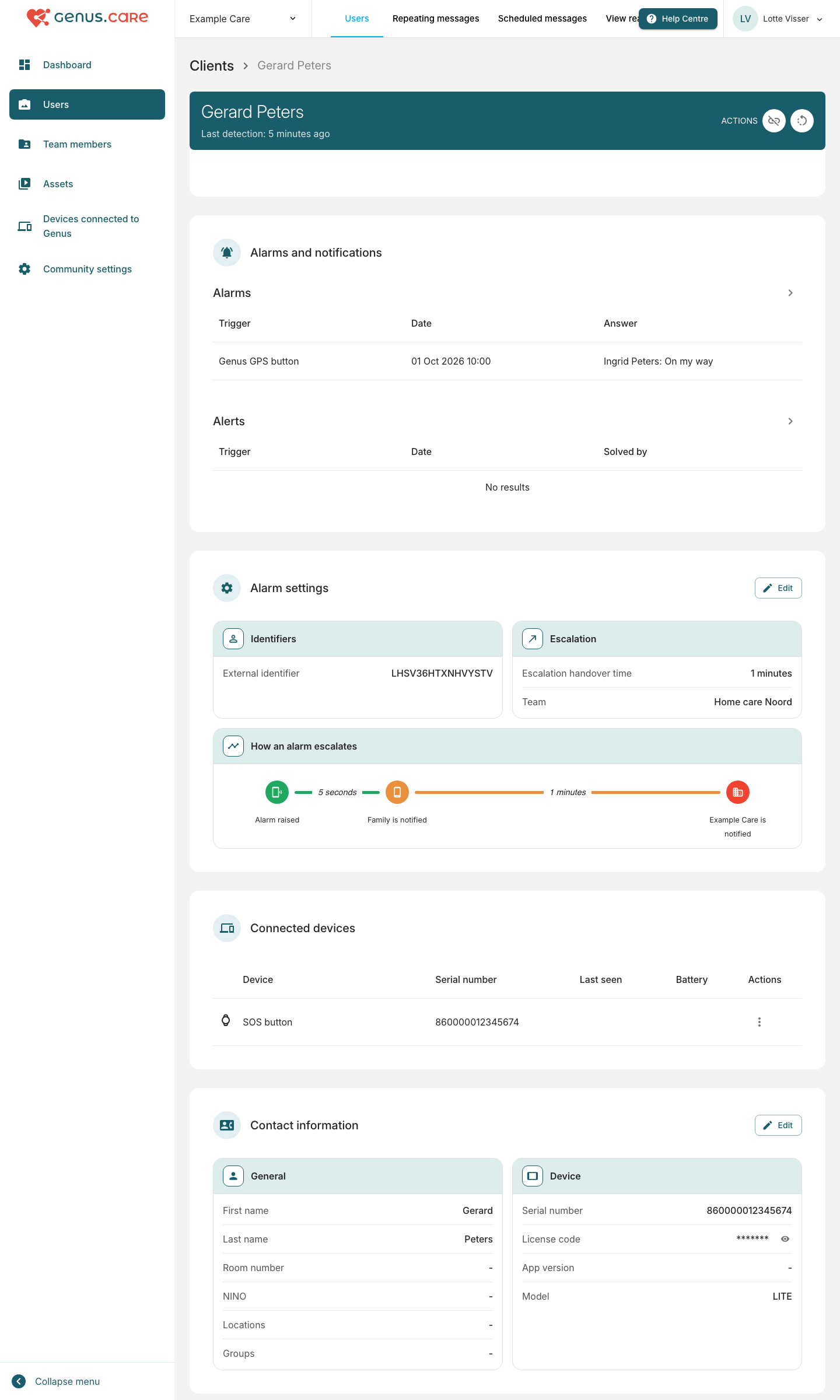
What only a Genus can do is left out: trends, messages, Genus Routines, Lifestyle monitoring and Genus settings. The client page has no Send message, Start video call or Calendar action, and in the client list a Genus PAL can’t be selected for a message or livestream.
What Genus PAL does not do
Section titled “What Genus PAL does not do”A Genus PAL is an alarm, not a Genus without the screen.
- No screen functions. No photos, messages, video calls, calendar, Call Me or routines.
- One device. The button is the only device. Sensors and other buttons can’t be added.
- Someone must be linked. A Genus PAL with no family member and no care organisation alerts nobody. Link at least one family member or connect it to a care organisation before you hand it over.
Fixes and improvements
Section titled “Fixes and improvements”- Add-ons in the Business Portal have new names that match the invoices: Care, Monitoring, Connect, Data fallback, Data full service, SOS on the go, SOS on the go SIM and Pontosense. The four-year subscription period is no longer offered.
- SOS on the go add-ons follow the Genus 4G GPS Buttons that are linked to a Genus. When a button has been removed, its add-on is removed when the next monthly overview is made.
- The Genus app on iPhone now uses the name Genus throughout.
Availability
Section titled “Availability”Genus PAL is available from July 2026.
- The Business Portal and the Community Portal received the update automatically.
- Family members need the Genus app 2.4.0 or later for Android and iPhone, from Google Play or the App Store.
- A Genus PAL needs a Genus 4G GPS Button or Genus 4G GPS Watch that has connected to Genus, and a Genus PAL subscription in the Business Portal.
Read more in Genus PAL and subscriptions and licences.