

Heart rate and steps from iLogs Safe Motion
Some care organisations give clients a watch from Safe Motion, managed in the iLogs platform. The watch measures heart rate, counts steps and has an SOS button. Until now its measurements stayed in iLogs, out of sight of a care team that works in Genus.
From July, Genus collects the heart rate, resting heart rate and step count from iLogs every hour. Care professionals see them in the client’s sensor graphs in the Community Portal, next to the data from the sensors in the home. Since March, a call for help from the watch has also reached the Genus, the family and the care team.
What’s new
- Care professionals see the heart rate, resting heart rate and steps from the watch in the client’s sensor graphs.
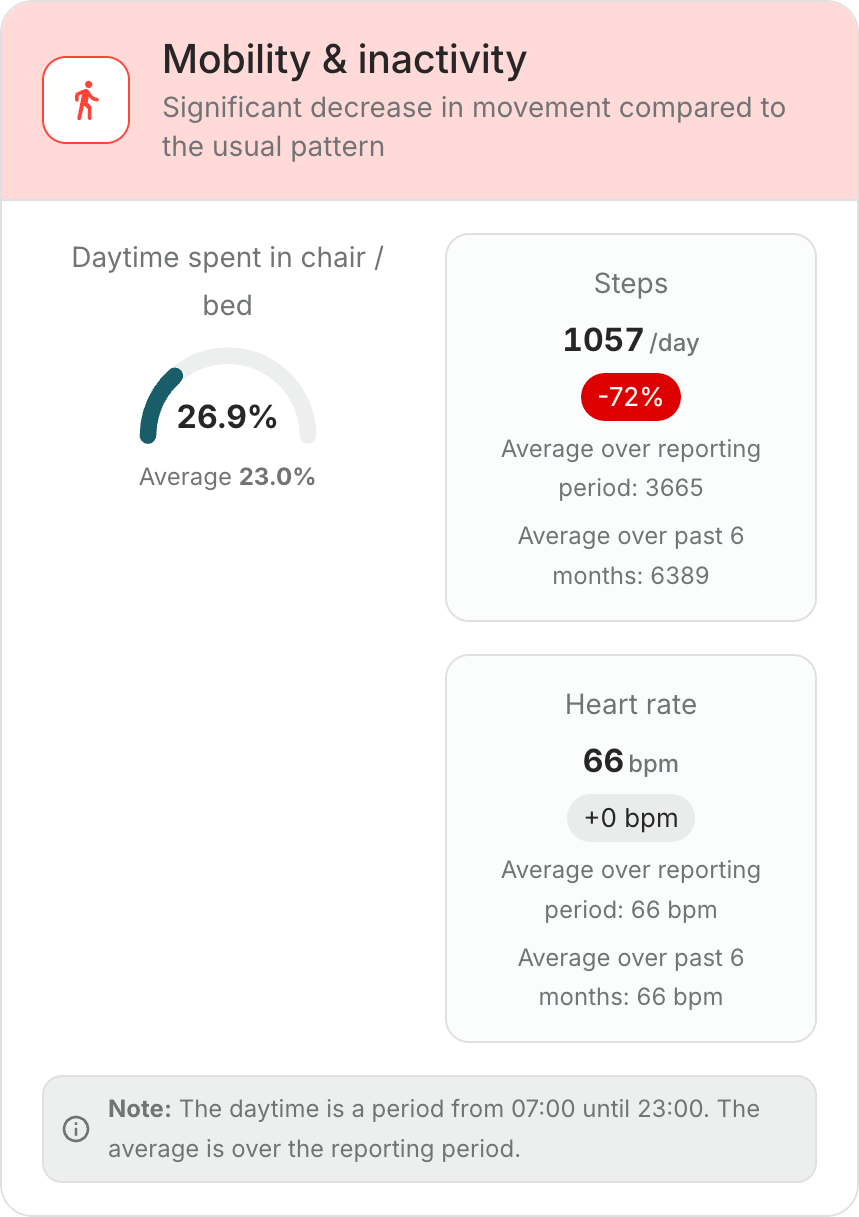
- The client report uses the steps and heart rate in its Mobility & inactivity block.
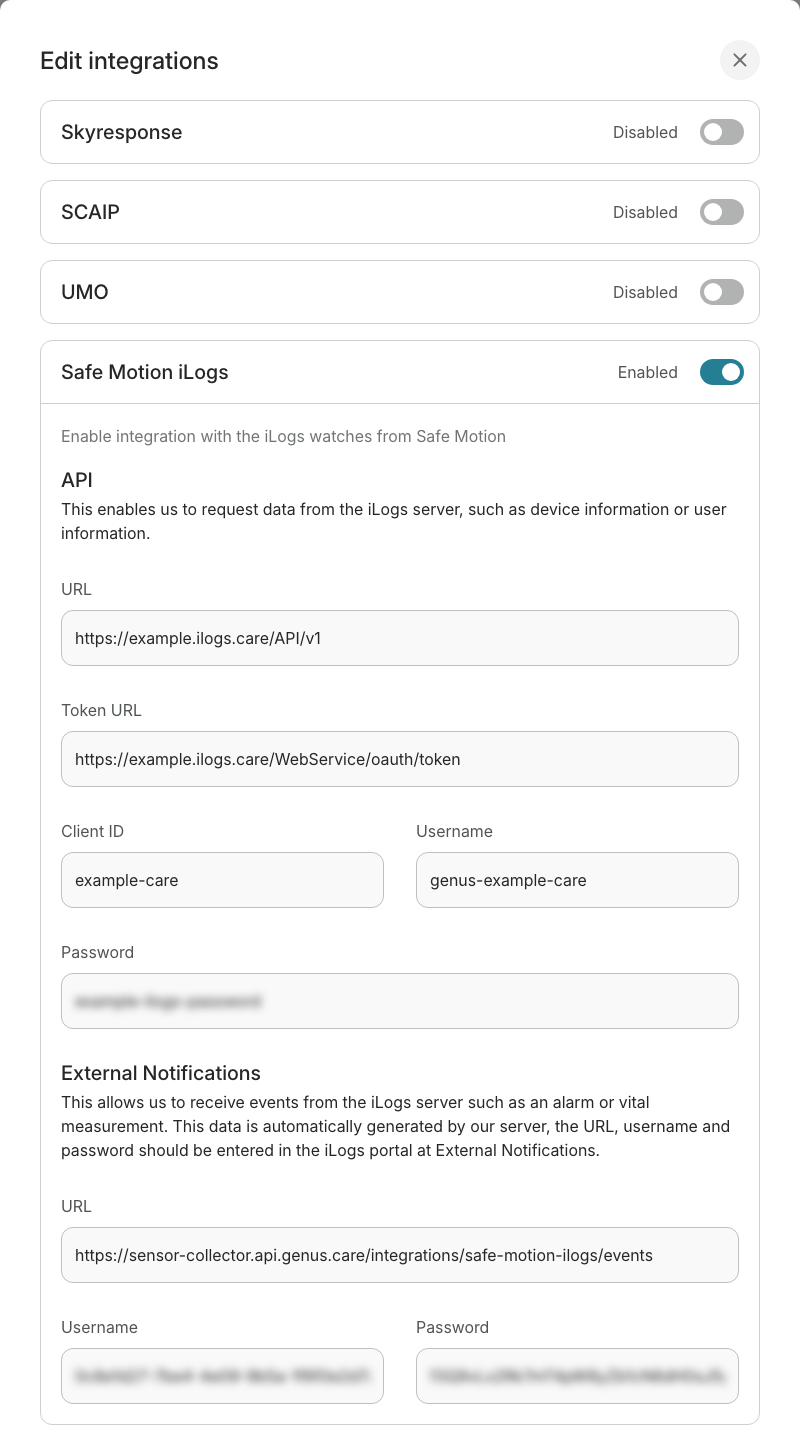
- Health administrators connect their organisation’s iLogs environment once, in the community settings.
- Since March, a press on the watch’s SOS button, or a fall the watch detects, raises an alarm in Genus.
What Genus collects
Section titled “What Genus collects”For each linked watch, Genus shows one value per hour of three measurements:
| Measurement | What you see for each hour |
|---|---|
| Heart rate | The most recent heart rate of that hour |
| Resting heart rate | The most recent resting heart rate of that hour |
| Steps | The step count of the day so far |
A point in the graph stands for the hour before it, not for the exact moment of the measurement. An hour in which the watch measured no heart rate stays empty.
Measurements are only shown for a watch that is linked to a client in the Community Portal and assigned to a person in iLogs.
For health administrators: connecting iLogs
Section titled “For health administrators: connecting iLogs”You need the API details of your organisation’s iLogs environment from Safe Motion: two web addresses, a client ID, a username and a password.
- Go to Community settings and scroll to Integrations.
- Switch Safe Motion iLogs to Enabled.
- Under API, fill in URL, Token URL, Client ID, Username and Password.
- Click Save settings at the top of the Integrations block.
- Genus now fills in the three fields under External Notifications: URL, Username and Password. Click a field to copy its value, and enter the three values in the iLogs portal under External Notifications.
For care professionals: linking a watch to a client
Section titled “For care professionals: linking a watch to a client”- Open the client and go to Connected devices.
- Click Add.
- Under Select what type of device you want to add, choose iLogs Watch.
- Enter the IMEI of the watch. Genus looks the watch up in iLogs and shows the person it belongs to there, for example This watch belongs to: Elisabeth de Vries. Check that this is the right client.
- Click Add.
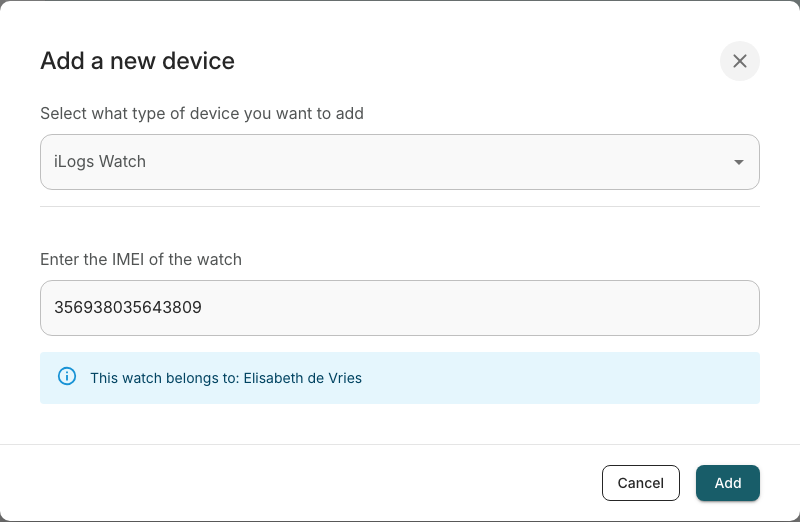
The watch now appears under Connected devices. To rename it or remove it, open the menu on its row and choose Edit or Delete.
If the watch cannot be added, the portal says why:
- Cannot register device, device not found at external party: iLogs does not know this IMEI, or the iLogs connection has not been set up.
- Cannot register device, already registered to another Genus: the watch is already linked to a client.
Where the data appears
Section titled “Where the data appears”Sensor graphs
Section titled “Sensor graphs”Open the client and click View connected devices data in the Trends block. Under Choose device to view sensor data, pick the watch. Cards show Heart rate, Resting heart rate and Steps, each with its latest value. Click a card to open its graph, and choose the period above it, up to seven days at a time.
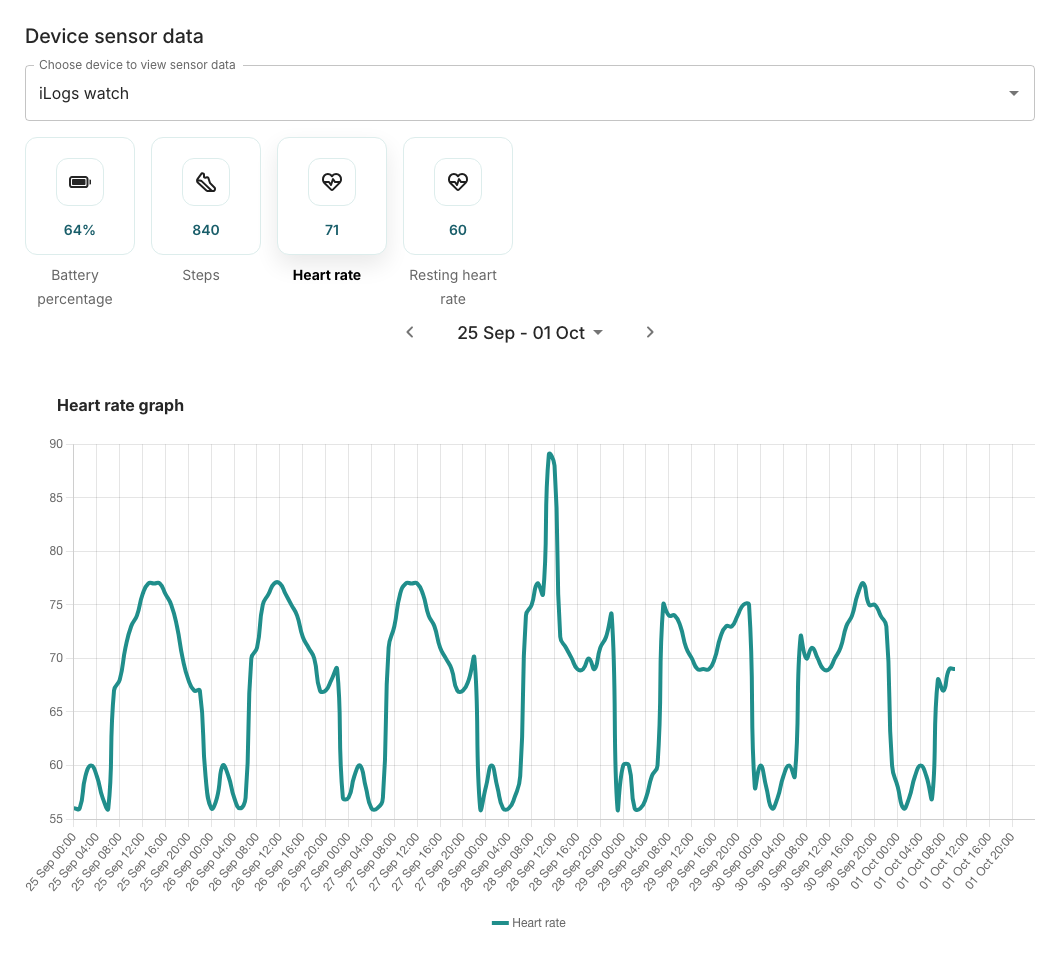
The full steps are on the iLogs page in the wiki and on sensor graphs and trends.
The client report
Section titled “The client report”The client report uses the watch in its Mobility & inactivity block. It shows steps per day and heart rate, sets the recent days against the client’s usual pattern, and flags a clear drop in steps or a change in heart rate. The client report release explains the block.
Calls for help from the watch
Section titled “Calls for help from the watch”Since March, a press on the SOS button or the emergency button of the watch, and a fall detected by the watch, raise an alarm for the client in Genus, in the same way as a press on a Genus alarm button:
- the Genus in the client’s home shows the alarm,
- family members connected in the Genus app are notified,
- the alarm is escalated to the care team.
In the Community Portal, the alarm reads Contact button “iLogs watch”, where “iLogs watch” is the watch’s name under Connected devices. If the watch sent its position, Show location opens its last known position on a map, which follows the watch while the alarm is open.

How an alarm reaches someone explains the escalation.
Limits
Section titled “Limits”- Hourly, not live. A measurement can take up to an hour to appear in the Community Portal.
- Three measurements. Other values iLogs may hold, such as blood pressure, blood oxygen or blood sugar, are not collected.
Availability
Section titled “Availability”The iLogs Safe Motion integration is available to every care organisation that uses iLogs Safe Motion watches with the Genus. A health administrator switches it on in the community settings.
- The Community Portal received the update automatically in July 2026.
- No update of the Genus, the Genus app or the Professional App is needed.